To add work experience to LinkedIn: go to your profile → click on Add a section → Experience → Add a position → Fill in the information → To register. The process takes less than 2 minutes, whether you use a browser or the mobile app. All the steps are detailed below, with screenshots included.
How do I add work experience to my LinkedIn profile?
Here are the steps to follow in your browser (Chrome, Firefox, Edge, etc.) to effectively add experience to your LinkedIn profile:
- Open LinkedIn and log in to your account.
- Click on your profile picture or on Me to access your profile.
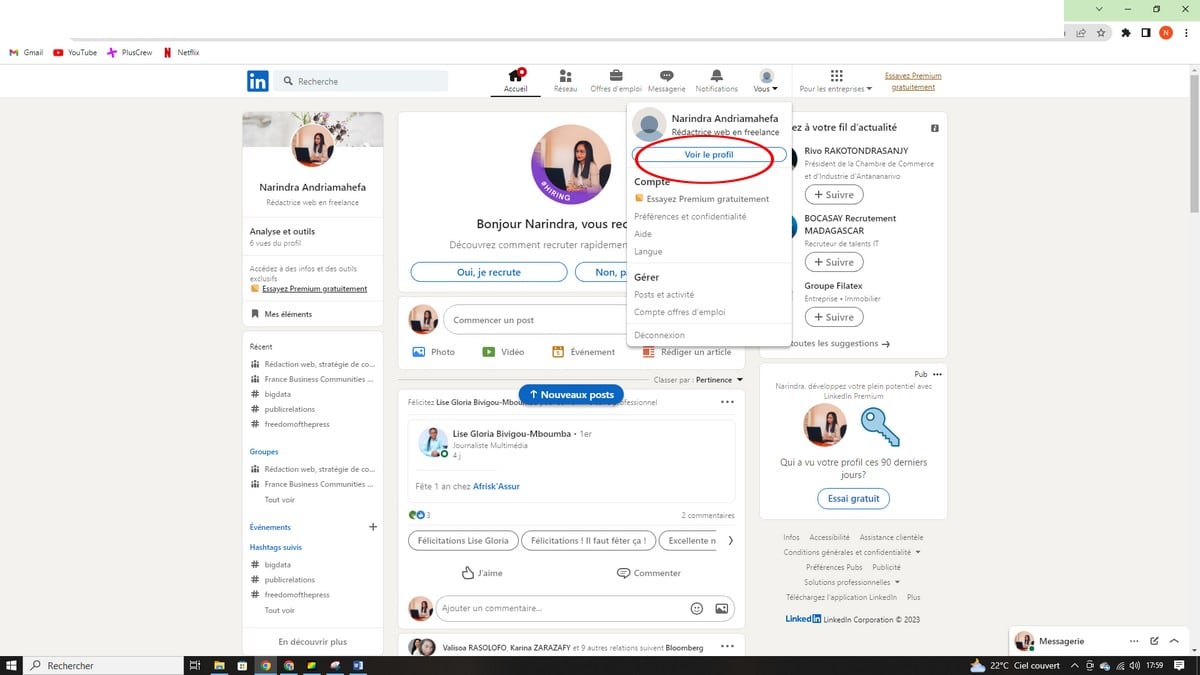 ©Narindra Andria for Alucare.fr
- Click on Add a section to the profile.
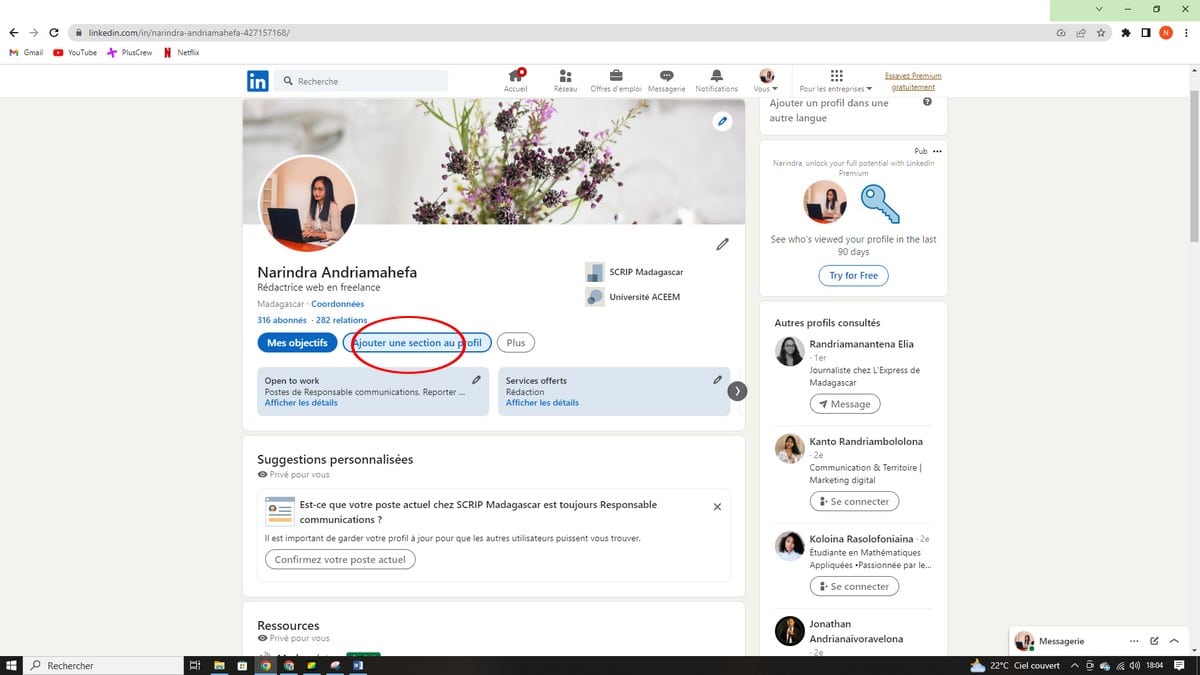 ©Narindra Andria for Alucare.fr
- From the drop-down menu that appears, select the category Experiencethen click on Add a position.
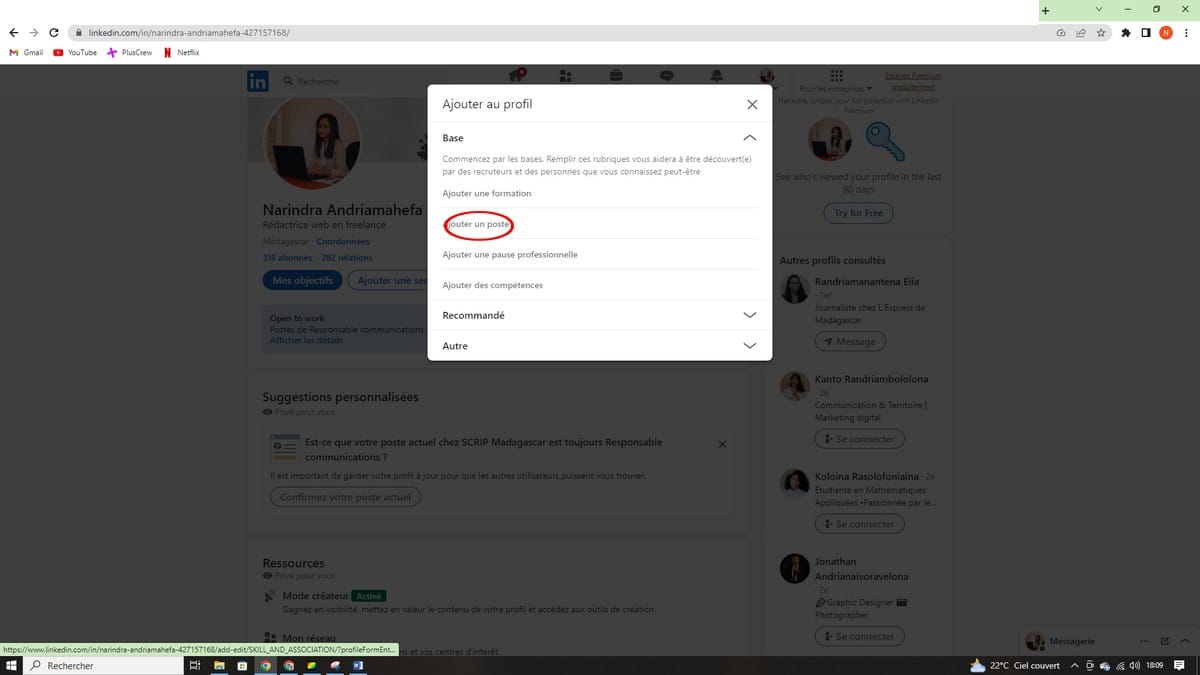 ©Narindra Andria for Alucare.fr
- Fill in the form fields with your information:
- 📌 Job Title (required) : your exact job title (e.g., Communications Specialist, Web Developer…)
- 🏢 Company (required) : the company name (LinkedIn will offer suggestions for linking your job to the company's official page)
- 💼 Job Type (optional) : Permanent contracts, fixed-term contracts, freelance work, internships, work-study programs, volunteer work…
- 📍 Venue (optional) : city, country, or «Remote» option»
- 📅 Start Date (required)
- ✅ Current Position : Check this box if you still hold this position. If the position is completed, uncheck it and fill it in end date
- 📝 Description (optional) : Describe your responsibilities, accomplishments, and key skills in detail (this is often the first thing recruiters read)
- (Caution) At the top of the form is the button «Notify the network», enabled by default. If it remains enabled, your contacts will receive a notification about your new experience. Turn it off If you want to update your profile discreetly (to correct a mistake, add a past job, or simply avoid spamming your contacts).
> 💡 For complete discretion: check out Settings & Privacy → Visibility → Share job changes with your network and turn off the option before saving.
- Click on To register.
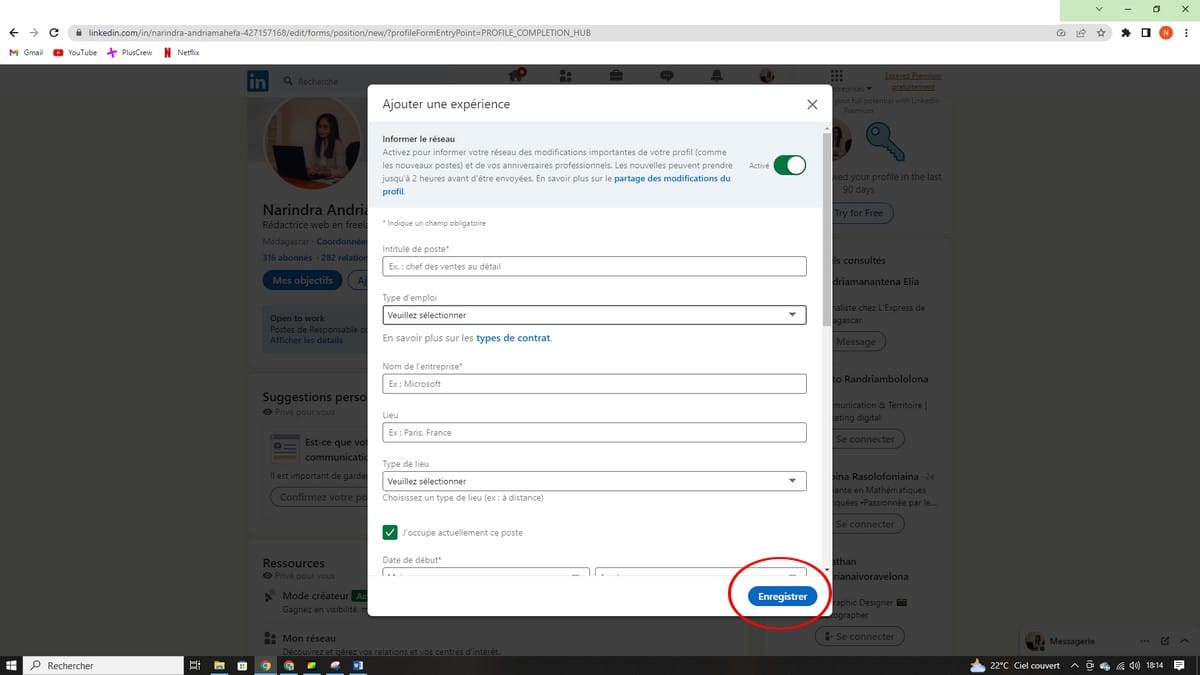 ©Narindra Andria for Alucare.fr
Your experience appears immediately in the section Experience from your LinkedIn profile.
How do I add an experience to LinkedIn using the mobile app?
Many users manage their LinkedIn profiles directly from the app. Here’s how to add work experience on iOS and Android using your mobile device:
- Open the LinkedIn app and tap your profile photo top left.
- Press on View profile.
- Scroll to the Experience and tap the icon + on the right.
- Press on Add a position.
- Fill in the same fields as you would on a web browser: title, company name, dates, description of your experience…
- Check the button Notify the network and turn it off if necessary.
- Press on To register at top right.
The result is the same: your experience appears on your profile as soon as it's saved.
Why is it important to provide detailed information about your work experience on LinkedIn?
Your LinkedIn profile plays a central role in your professional visibility. Every piece of experience you add helps effectively showcase your work and career path to recruiters, potential clients, and others in your field. A well-rounded professional profile, with detailed job listings and a carefully crafted description of your experience, helps you attract more opportunities.
To effectively highlight each role, be sure to use industry-specific keywords in the description. For example, a digital marketing profile will gain visibility by mentioning the tools used, the activities performed, and the measurable results achieved. A web developer would be wise to list the technologies they’ve mastered and the projects they’ve completed. This content strategy makes your profile easier for recruiters to read, especially since they conduct targeted searches on LinkedIn.
Also, be sure to enhance each entry with media: LinkedIn lets you add a file or a link directly from the experience form. A PDF presentation, a link to a project, or a published article will strengthen the credibility of your professional history and give recruiters concrete evidence of your work.
Frequently Asked Questions
Can you add an experience without notifying your network?
Yes. Before recording, turn off the button Notify the network at the top of the form. For complete privacy, also disable the option in Settings & Privacy → Visibility → Share job changes with your network before making your change.
How do I add an experience that I've already completed?
Fill out the form as usual, but Uncheck the box labeled «I currently hold this position» and enter the end date. The experience will appear in your list of positions with the corresponding months and years, allowing you to present your career history in its entirety.
Why isn't my experience listed on my profile?
If you haven't added any job experience to your "Experience" section yet, that section simply won't appear on your profile. This is how LinkedIn normally works. It will appear automatically as soon as you add your first job. If a job has been added but isn’t showing up, make sure you’re logged in to the correct account and refresh the page.
How can you tell the difference between a promotion and a new position on LinkedIn?
On LinkedIn, a promotion relates to the the same company with different responsibilities and a different role. When you add a new position at the same company, LinkedIn automatically groups them together to show your career progression and highlight your growth. If you add a position at a different company, it will appear as a separate job on your profile.
How can you use LinkedIn to showcase your professional background?
By adding detailed work experience, carefully crafting your job descriptions, and using keywords relevant to your field, you can increase your profile’s visibility in search results. LinkedIn has become an essential tool for showcasing your work, highlighting your skills, and helping recruiters find you. Use each section strategically: your work experience, education, and key metrics (results, revenue, success rates) all enhance the value of your professional profile.
Further information
Once you've updated your work experience, be sure to polish the visual presentation of your LinkedIn profile as well: discover the Recommended dimensions and formats for your professional LinkedIn banner.







 English