Following a wrong operation on your cell phone, you have delete an important message on WhatsApp ?
Find out how recover deleted messages on this platform through this article.
How do I find deleted messages on WhatsApp?
It is common to delete a message on WhatsApp accidentally. Often, you want to get it back, but you're stuck because you don't know how.
Rest assured, you can retrieve these messages from your cell phone, whether you're using android Where iOS.
We'll show you the two of the most popular methods to quickly restore or recover deleted content on WhatsApp depending on your phone.
However, if you haven't done any backup of your WhatsApp data, it will be difficult to recover the messages. This is the only way to recover your data without using a third-party tool.
Speaking of deletions, discover also where to find the WhatsApp recycle garbage can à travers un autre article sur notre site.
See deleted messages on WhatsApp on Android
On android :
- WhatsApp can backup to Google Drive, but also create backups on the device itself in a hidden folder called Databases.
- Within this framework, it is possible to import manually backups to restore previous versions of your conversations and recover deleted messages.
- Basic knowledge of file management is necessary here.
Here are the steps to follow if you wish to recover deleted messages on WhatsApp via backup on Google Drive :
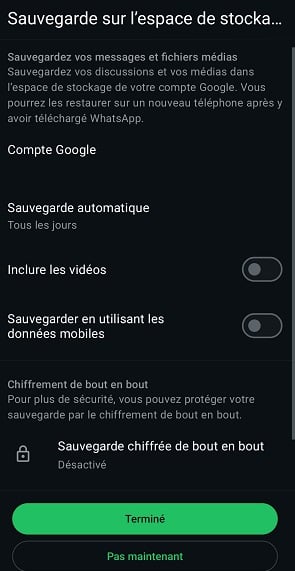
1. Open the settings and check that your Google account is linked to your WhatsApp profile.
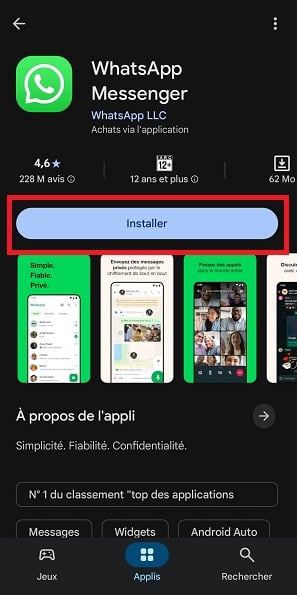
2. Uninstall WhatsApp from the device. Next, rand download the application from Play Store.
3. Open WhatsApp and enter your phone number. Normally, if you've made the backup, WhatsApp will automatically ask if you'd like to restore history WhatsApp chat.
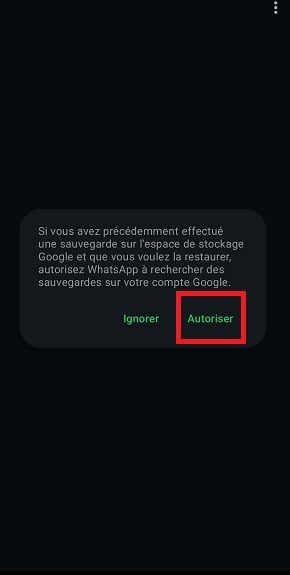
4. Click on the email address related to catering and wait for the process to complete.
Ratings :
- Ideally, always use the Google Drive backup unless it's not available. It contains more secure data.
- If you don't have this backup, manually rename the local file to “msgstore.db.crypt14”Then copy it to the folder used to restore the backup.
Recover deleted WhatsApp messages on iPhone
On iPhone :
- WhatsApp doesn't no local backup.
- However, it makes a backup on iCloud.
- This is this way only that you can recover deleted WhatsApp messages with an iPhone.
In these steps we'll show you how to find deleted messages on WhatsApp on iOS :
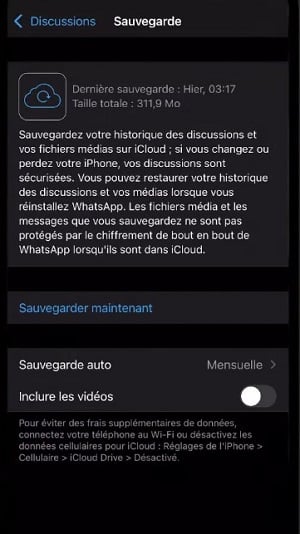
1. Make sure iCloud Drive is enabled, then open WhatsApp and go to: Settings > Chats > Chat backup. See if a iCloud backup is present.
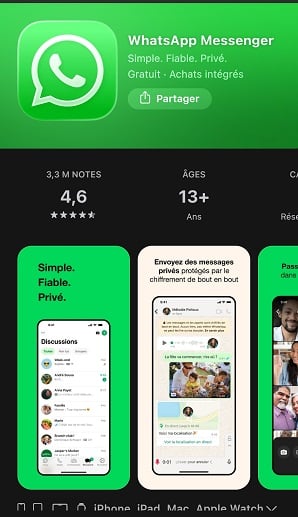
2. Uninstall WhatsApp. Next, install the application again via the App Store.
3. Enter your number, then when the app displays the last save, confirm there restoration.
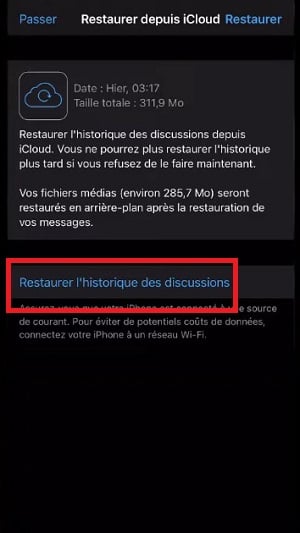
Note It's important to use the same Apple ID that was used to back up your WhatsApp data. Without it, you won't be able to recover your deleted messages.
How can I view deleted messages on WhatsApp with third-party tools?
If you haven't backed up to Google Drive or iCloud locally on your smartphone, you can always try the third-party tools such as :
- Dr Fone ;
- iMobie ;
- Tenorshare UltData.
These solutions are capable of recovering deleted messages on WhatsApp directly from your device's internal memory. It works a bit like data on a hard disk.
Note that the success rate depends on several factors:
- Your device ;
- His system operating ;
- the elapsed time since the message was deleted.
In this context, if you wait too long, the data and storage space are likely to be crushed by others, which will complicate the task.
In addition:
- Ethical issues concerning the use of these tools need to be addressed, as they are not the only tools available. not always RGPD-compliant.
- Most of them are also paying.
But here's an example of a tool we've tested. It is Tenorshare UltData, a program that lets you quickly recover a deleted message on WhatsApp.
The advantage of this software is that it is compatible with iOS and Android. With UltData, retrieval is done in one click. in a very simple way, No need to update your application.
In fact, it's one of the best ways to retrieve your different types of content, including your personal notes, text messages, contacts, attachments, and even deleted videos and photos.
To use it :
- First, you need to download and install this application on your mobile.
- Next, connect your phone with a USB cable for connection to a computer.
- The final step is to open the application on your mobile.
- Once you have selected the file types you wish to recover, click on Analyze. As if by magic, all messages and content deleted from WhatsApp will appear in the history to be restored, and that's all there is to it.
You can also use a monitoring application to read deleted messages on WhatsApp. All the details are in another article on this subject, also on our site.
FAQs
How to avoid data loss in the future?
If you want avoid losing your data on WhatsApp in the future, here are a few tips you can apply:
- Activate backup Backups: ideally, you should back up your data on a daily basis to keep everything up to date.
- Authorize mobile data for backups This means you won't lose any data on WhatsApp, knowing that the backup will work even with mobile data.
- Save local backups in a specific folder Backup: if you want to regularly copy backup files to a computer or the cloud, you can use this method.
- Be careful in group chats The most important thing is to think carefully before deleting an important message. Ideally, you should think carefully before deleting an important message.
- Lock WhatsApp with PIN or fingerprint : this prevents deletions in the event of false manipulation by yourself or others using your smartphone.
What's the difference between “Delete for me” and “Delete for all”?
When you delete a message on WhatsApp, the platform offers two options:
- Delete for me This option deletes the message from your chat history. Other participants can still see the message in this case.
- Delete for all Delete: this option deletes the message from the chat history of all participants. You can use this option for approximately 60 hours (i.e. 2 days and 12 hours) after sending the message. After this time, the message will only be deleted locally.
How long do messages remain in the chat history?
Deleted messages on WhatsApp do not disappear as soon as they are deleted. In fact, the platform stores chat histories locally on your device or in the cloud.
This is why you can restore your deleted WhatsApp messages via the backups on your smartphone.
To this end, as long as you do not delete manually a chat or you don't reinstall the application, the messages will always be kept.
However :
- Deletion functions include self-destruct timer (which you can activate for the conversation of your choice) that makes conversations disappear after a while.
- Messages exchanged with this function cannot be recovered due to their nature. ephemeral.
Attention : If you had activated the “Ephemeral messages” option, or if the message was a “Single-view photo/video”, recovery is virtually impossible via conventional backups. In fact, these files are programmed to self-destruct without leaving any trace in the standard database.
In conclusion, you can use a backup on your smartphone or third-party tool to find your deleted messages on WhatsApp.
If you have any questions about the topics covered in this article, we invite you to ask them in the comments area.









 English