To Build a castle in Minecraft, first go to Creative mode. The process is simple: a floor plan, the foundation, the walls, and then the details.
You can also use a mod To save time, both methods are covered in this guide.
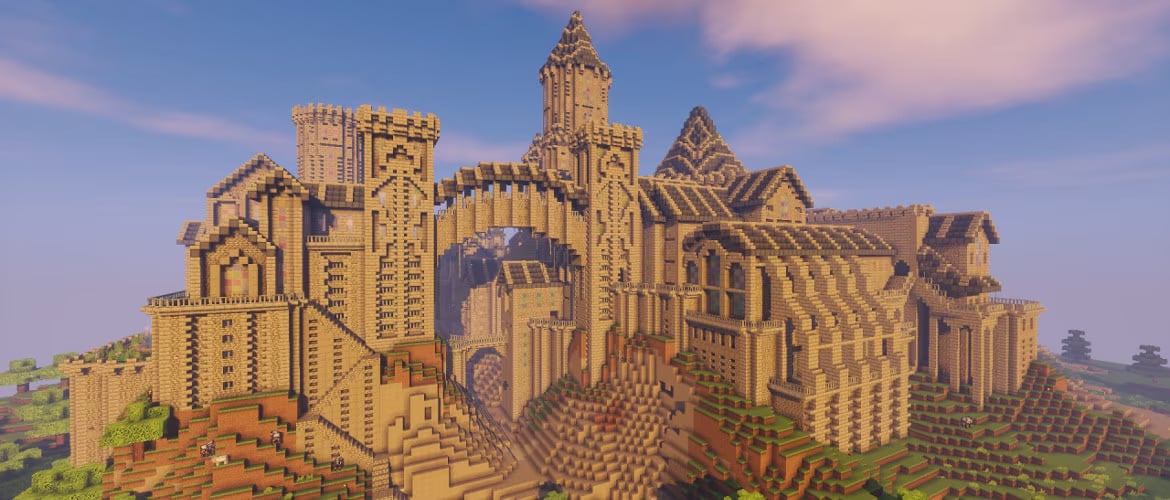
Method #1: Build a castle yourself
Before laying the first block, there is three points to secure : where to build, what style of castle you’re aiming for (medieval, fantasy, modern), and which game mode you’re playing. This helpful guide takes you from preparation to the finishing touches, in 3 steps.
Step 1: Preparation phase
Choosing the right game mode
Minecraft offers two popular game modes:
- the Survival mode : You collect resources and battle monsters.
- the Creative mode : You build without constraints, without hunger, and without dangerous creatures.
To build a castle without stress, it's best to switch to Creative mode. You will then be taken to a unlimited inventory with almost all the blocks and items in the game—enough to take your project from start to finish without ever running out of materials.
This is especially useful if you're building with children : With survival no longer a concern, children can focus on creativity.

How do I switch to Creative mode on Minecraft?
First and foremost, enables the controls when you start a new game. This lets you use cheat codes and switch modes whenever you want.
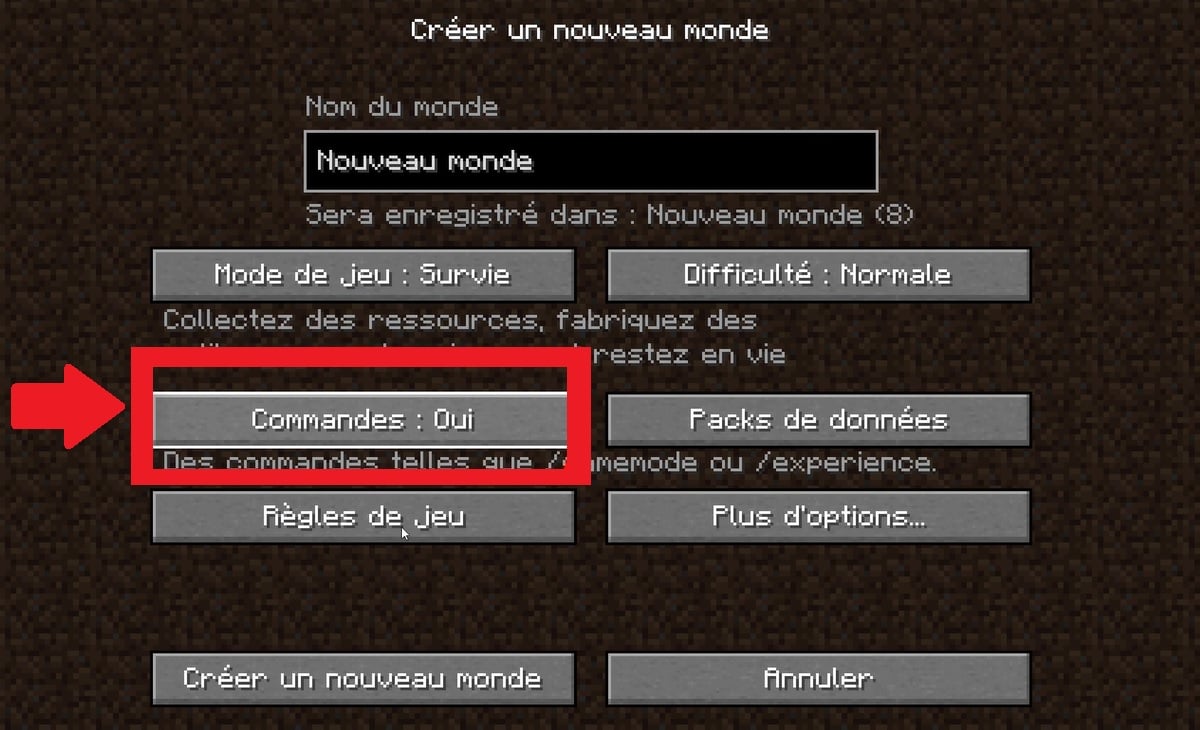
Once that's done, you have two methods to switch to Creative mode.
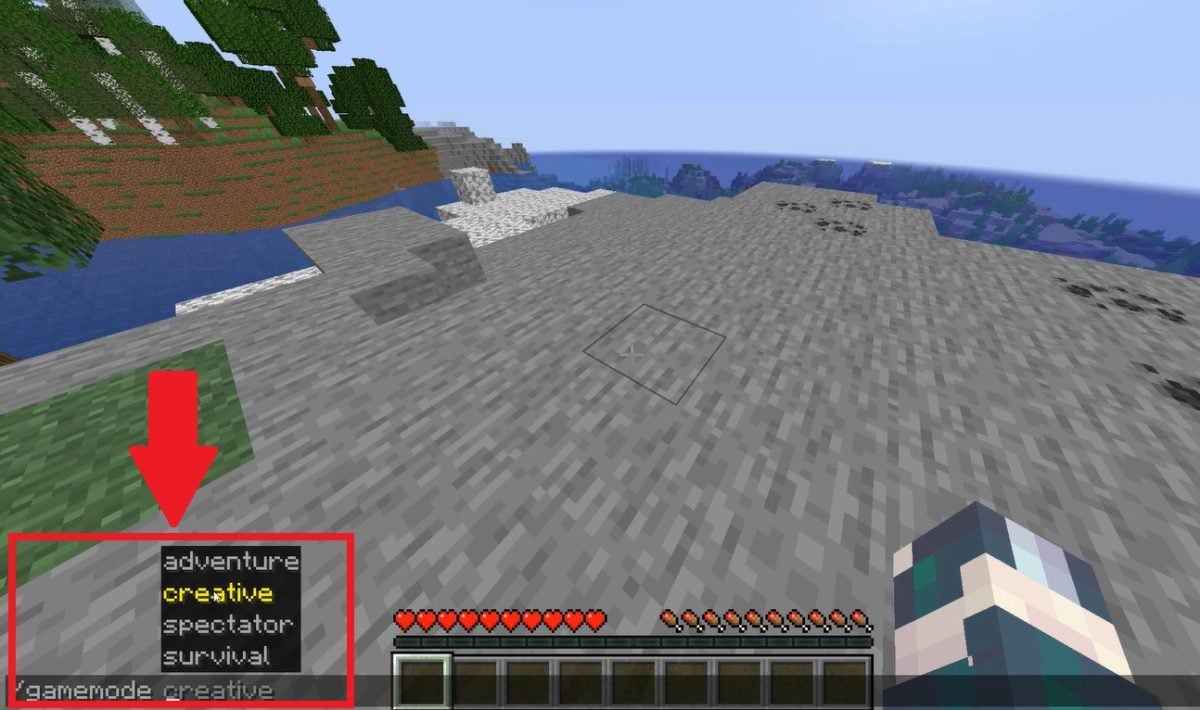
1. Through chat
- Press the T button.
- Tape /gamemode.
- The game modes are available to you.
- Choose CREATIVE.
- Confirm by pressing the Enter key.
2. Through the hidden F3 menu
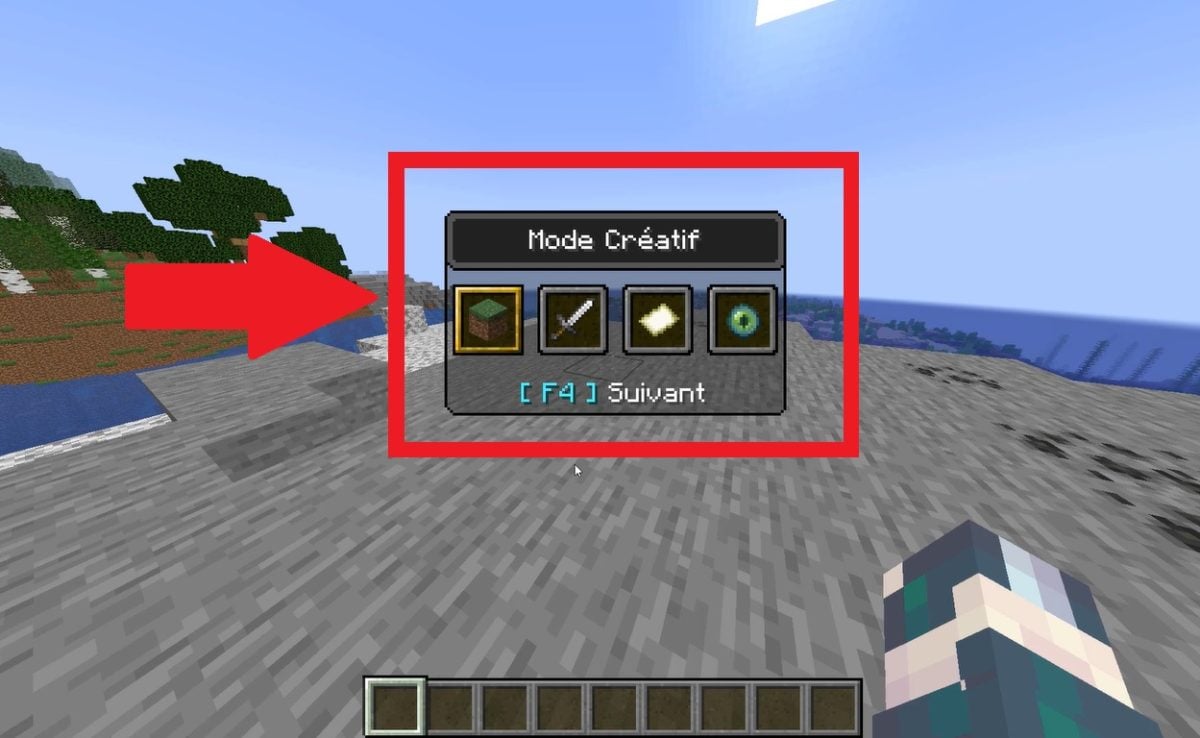
- Press the following at the same time: F3 and F4 keys.
- A hidden menu appears along with the various game modes.
- Use F4 or use your mouse to select Creative mode.
- F3 Break to validate the change.
Looking for inspiration
Motivated but stuck for ideas? The sources of inspiration There's no shortage of them. You can draw inspiration from fantasy fortresses, such as those in the Lord of the Rings or of Game Of Thrones, or follow the example of real castles whose blueprints are circulating online.
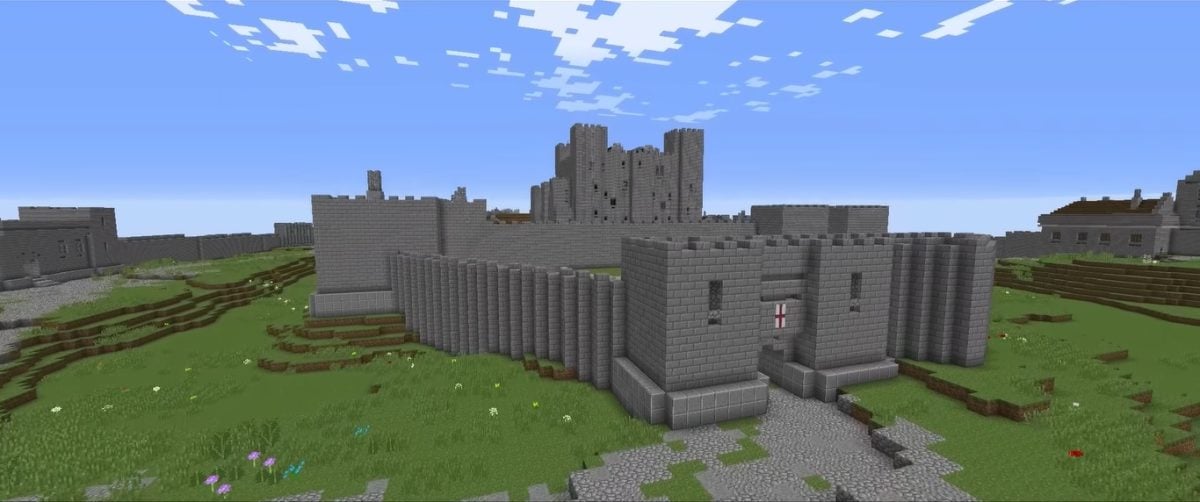
Many players also share their strategies online. Just type «Castle Plan Minecraft» on Google to find tutorials with images or videos, depending on your preference. This information will give you a solid foundation before you get started.
If you prefer reading, the book Learn How to Build Your Castle Minecraft by Stéphane Pilet (available on Amazon in paperback) is an excellent starting point. It's useful for both beginners and children who are just discovering the game.
Choosing the right location
The location of your castle has a huge impact on its character. Here are a few things to consider:
- A place easy to defend, with an unobstructed view to spot enemies from a distance.
- A place close to resources important (water, food, mines).
- A spot near a village, to become the lord of the villagers.
You can also aim for a unique location : a castle suspended between two mountains, or a fortress carved into a cave. Your imagination is your only limit, and that’s what makes every structure unique in Minecraft.
Create a construction plan
Building a Castle takes time, even in Minecraft. Drawing a detailed plan Getting this information before you start will help you work more efficiently and avoid unpleasant surprises. It’s a good idea to keep this initial information handy throughout the project.
1. On graph paper. Draw a square for each block and assign a color to each material you plan to use.
2. Directly in Minecraft. Installation of the temporary blocks to sketch out the outline of your fortress on the ground. You get an immediate idea of the structure and can adjust the dimensions as you go.
Stage 2: Construction phase
Foundations
Regarding the solid foundations make a sturdy castle. Here's how to do it:
- Dig trenches at least two blocks deep.
- Fill them with solid blocks to ensure stability.
- Strengthens the corners with additional blocks.
- Use the same blocks to build the foundation walls.
Here are the most suitable materials for this base:
PIERRE |
The classic choice for a sturdy structure. Ideal for a medieval castle. |
|---|---|
OBSIDIAN |
Perfect for a blast-resistant fortress. Ideal for a style dark and gothic. |
MOSS-COVERED CUT STONE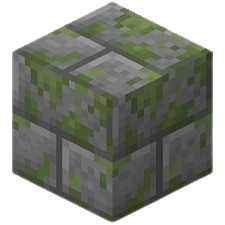 |
Perfect for impassable forts. The soft feel gives it a old castle very successful. |
Walls and towers
For walls and towers, choose sturdy materials such as Pierre or theobsidian. A few basic rules:
- Build the walls on a 10 to 15 blocks high for a striking look.
- Make some walls at least two blocks thick to withstand explosive attacks.
- Place des towers at the four corners and a taller tower in the center to serve as the keep.
For a truly authentic look medieval castle, don't forget the slots. The simplest technique: alternate a solid block of cut stone with an open space at the top of the rampart (these are the merlons).
Next, place a half-slab on the solid blocks for a clean finish, and add a few deadly (holes in a block) for the defensive effect.
Step 3: The details that make all the difference
Doors and windows
Doors and windows immediately set the tone for your castle, so think big.
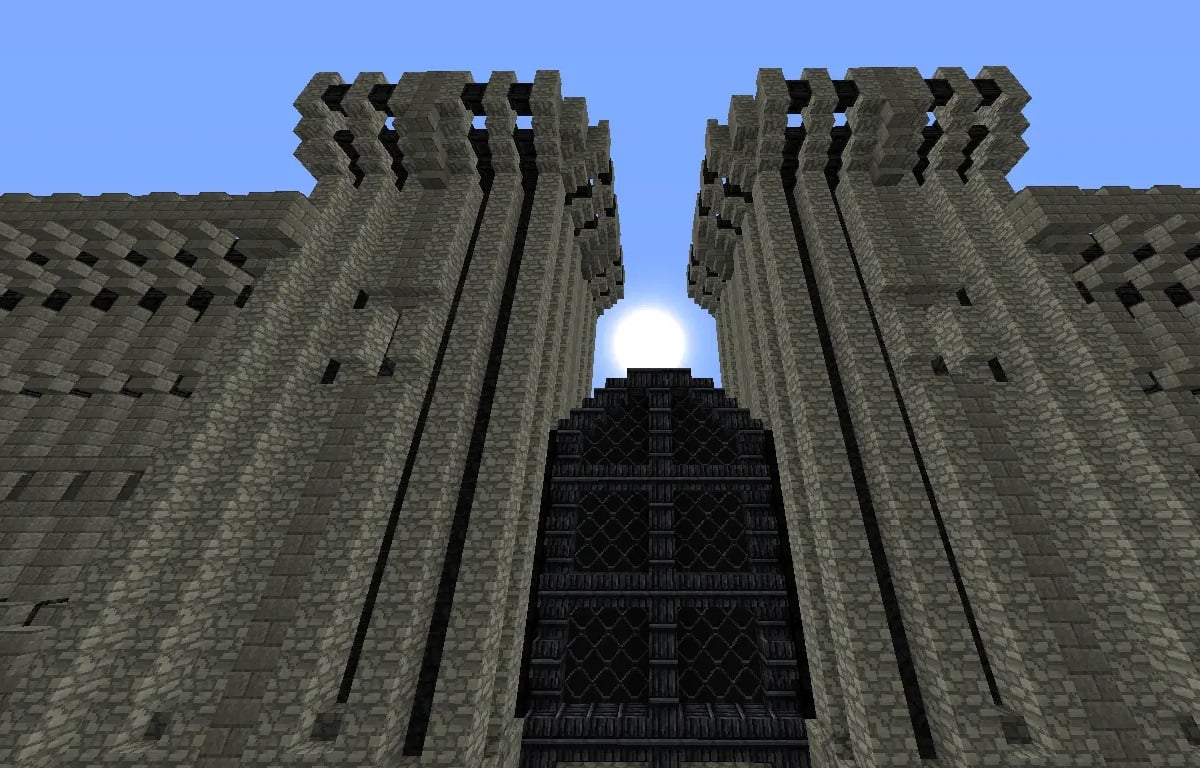
For a large portcullis-style gate, leave a wide opening and fill it with iron fences. If you want it to really open up, add some sticky pistons related to the redstone to raise and lower the harrow. Pressure plates can activate the mechanism.
As for the windows, try the lancet window for a gothic look. Use glass panels, which are thinner and more realistic than solid blocks, then close the top with two stone staircases arranged in a V-shape to draw the characteristic broken arc.
Interiors
Designing the interior of a castle is an adventure in its own right. Among the must-see rooms are:
- The throne room
- The banquet hall
- The fencing hall
- the dungeon
- The dungeons
- Bedrooms and Kitchens
You can also create a library with huge bookshelves filled with books and tables lit by candlesticks. The contents of each room are what make your castle truly unique.

The exteriors
What would a castle be without its traditional moat and drawbridge ? Here are a few outdoor design ideas to take things a step further:
- Regarding the moats filled with water (or lava, for a more menacing version)
- A functional drawbridge using pistons and redstone
- Regarding the gardens and vegetable gardens in the inner courtyard
- Regarding the watchtowers near the castle
- A fortified village around the fortress, with the villagers bringing the town to life
Method #2: Use a mod to create a castle on Minecraft
You don't feel like build a castle block by block ? Some mods generate a an entire medieval castle right into your world. Most of them can be found on CurseForge, the go-to platform, and the download is free.
Here are a few mods to try:
- Structory: Towers : Add medieval towers and small fortresses—perfect as starting points for your structures.
- Castle Dungeons : features castle-like dungeons filled with traps and hostile creatures.
- Mods that generate a abandoned castle to explore in survival mode.
- Mods that pose a flying castle in the sky, with or without villagers.
- Mods in the style of fairy tales for more imaginative creations that children can enjoy, too.
Each mod has its own version and gets updated overnight, so checks for compatibility with your edition before installation. To get started, follow our Guide to Installing a Mod on Minecraft.
That said, if you have the time and the motivation, nothing beats the satisfaction of’Build your own castle. You now have all the information you need to get started. What kind of castle do you want to build? Let us know in the comments.
Bonus: Secure Your Castle with a Secret Base
An imposing castle catches the eye—and sometimes attracts thieves. To protect your diamonds and your resources, nothing beats a completely invisible entry.
This video demonstrates a useful technique for creating a Secret Access Without Complex Redstone. All it takes is a furnace and a little natural rock so that the entrance blends seamlessly into the surroundings.
Explanatory video in French by Alucare, ideal complement to the page. View video (you can use YouTube's automatic translation)

And for even more complete guides and tutorials on Minecraft, it's this way.









 FR
FR  RU
RU  EN
EN  ES
ES  IT
IT  DE
DE  ZH
ZH  PT
PT  ID
ID  JA
JA  DA
DA