Neverness to Everness (NTE) takes place on computer via a native Windows client, without an emulator.
This Open-world urban RPG immerses you in the megalopolis of New Helios, where you play as a hunter facing supernatural anomalies and factions such as Hethereau and team battles.
On a PC, you get better precision, comfort, and visual quality than on a mobile device.
Install Neverness to Everness on your PC
How to Play Neverness to Everness on a PC?
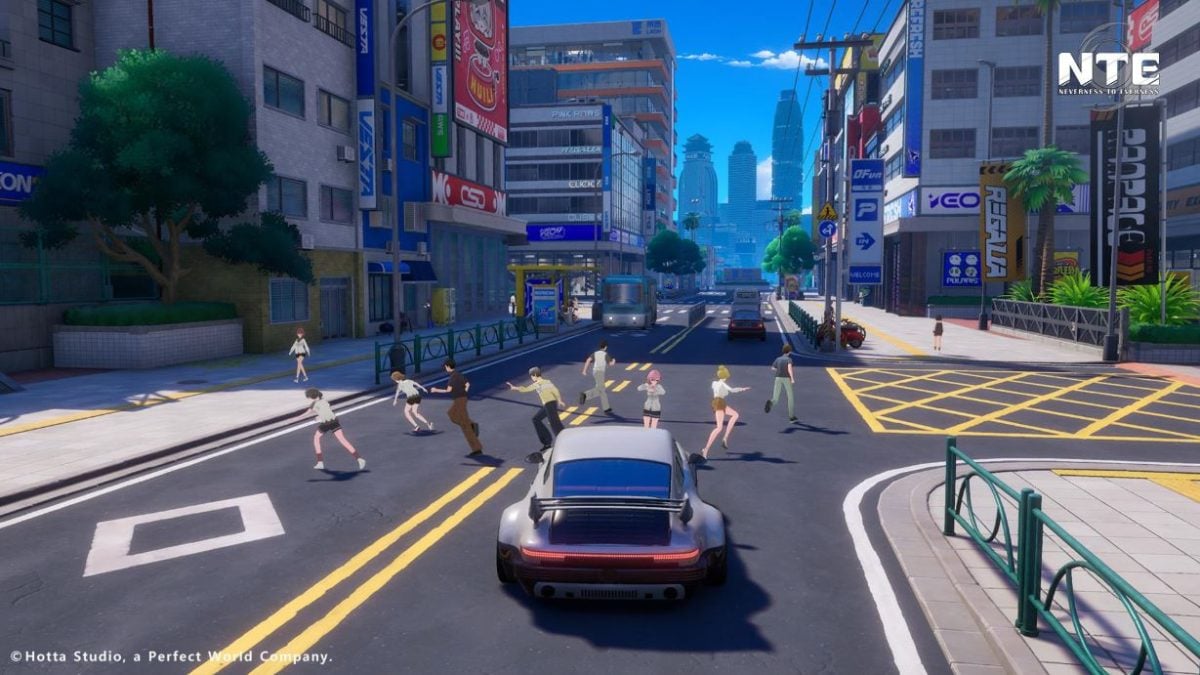
NTE has a Native PC client on Windows. Installation consists of three steps:
- Go to the official download site, click «Install on PC» (Play on PC) and wait for the download to finish.
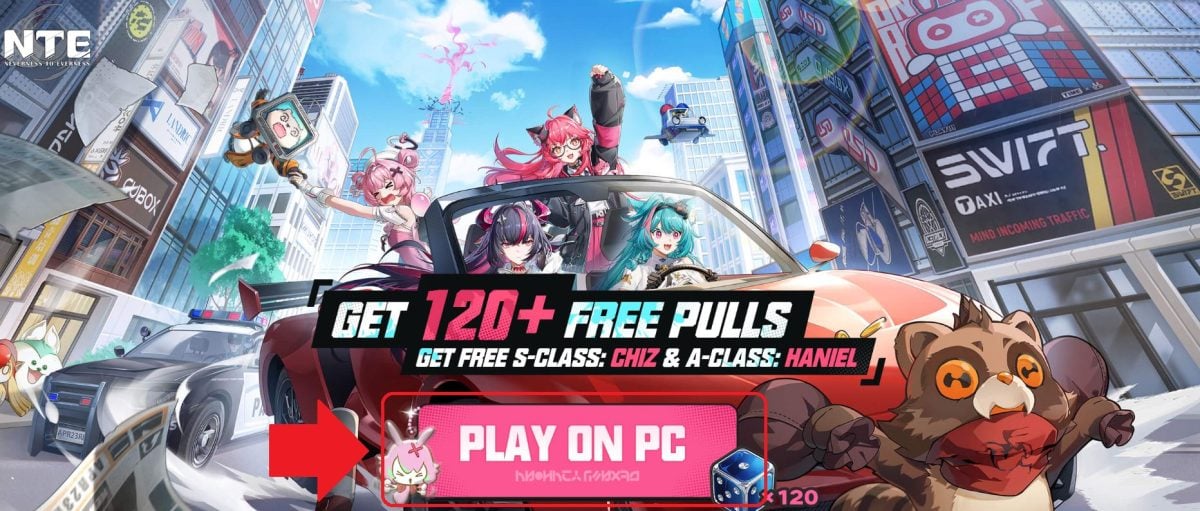
- Open the file .exe in your Downloads folder, then click on Install.
- Launch the game and start your adventure right from your computer.
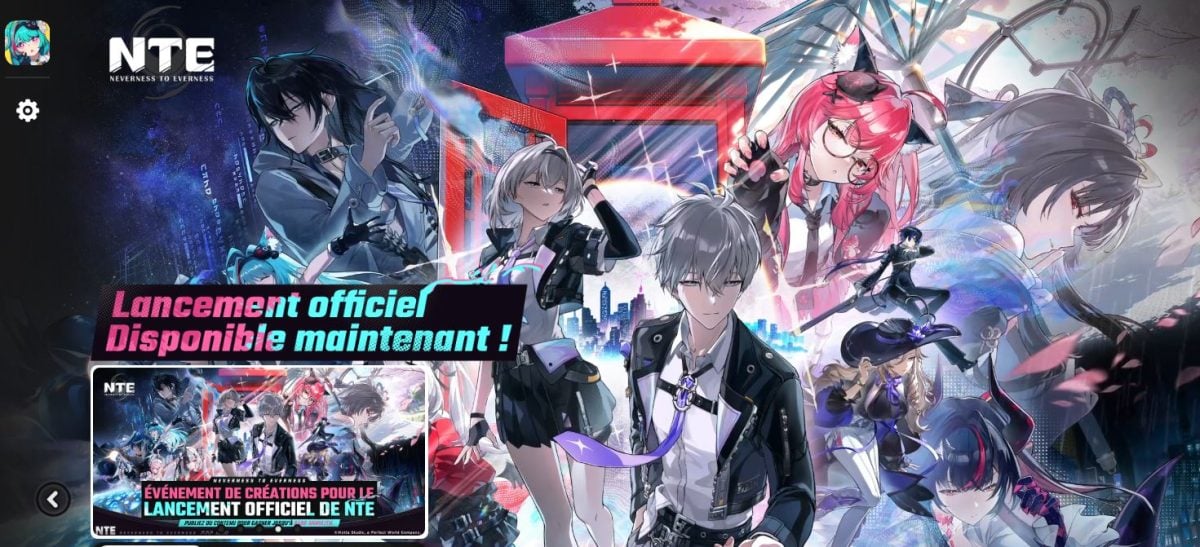
Once the installation is complete, the button changes to «Play» Where «Launch». When you start it up for the first time, log in with your official credentials.
If you don't have a account Perfect World / Hotta Studio, create it in just a few seconds.
Do you already play on your phone? Use the same account to retrieve all your progress thanks to synchronization cross-save.
Then take two minutes to adjust your graphics settings and your keyboard shortcuts in the options menu, depending on the power of your system.
Why does playing NTE on a PC change everything?
Play NTE On a PC, it’s not just about a bigger screen—it really transforms the experience. Here’s why.
Enhanced immersion in a vibrant city
Unlike many RPG mobile devices, NTE It's not just about fighting. The city is a real playground: you set out on a mission and suddenly come across a anomaly right out on the street, where you let yourself get swept up in the hustle and bustle of everyday life.
On PC, this immersive experience is taken to the next level thanks to the large screen and much smoother performance. You'll get the most out of streets lit by neon lights and the otherworldly atmosphere that gives *’Everness.
The «Life System» in Full Operation
In the heart of the open world, the Life System offers a real urban simulation. Specifically, you can:
- Buy and customize sports cars to stroll along the city's boulevards.
- Get your own housing and decorate the inside however you like.
- Explore scenes of urban life between missions or errands.
These activities require precision and ease of use. On a PC, you can navigate these menus much more easily than by using your finger on a mobile device.
Graphics enhanced by Unreal Engine 5
Designed with Unreal Engine 5, NTE displays highly detailed environments, advanced lighting effects and a dense atmosphere.
A good GPUs lets you push the resolution, to get a clearer view and savor every detail of the city.
Better controls and consistent performance
With the keyboard and mouse, the combat feels more responsive, combos are easier to pull off, and the controls are much more precise. This is crucial in a game where the’stock and the rapid mobility are key.
In terms of hardware, a computer handles the long sessions. No more overheating or batteries melting—you get a stable flow from the beginning to the end of your game.
System requirements for an optimal experience
Neverness to Everness runs on Unreal Engine 5, so it's best to have a fairly powerful PC to get the most out of the densely populated urban areas New Helios. Here is the Recommended Configuration for a seamless experience on Windows :
- Processor (CPU) : Intel Core i7-12700 Where AMD Ryzen 7 5800X.
- Random Access Memory (RAM) : 32 GB.
- Graphics card (GPU) : NVIDIA GeForce RTX 3060, AMD Radeon RX 6700 Where Intel Arc B580.
- Storage space : 45 GB on SSD.
- Operating system : Windows 10 Where Windows 11.
Setting tips for better PC performance
To keep gameplay smooth, even in the most densely populated urban areas, apply these settings:
- High-Performance Mode : Enable it in the power settings for Windows to unleash the full power of the processor and GPU.
- Exclusive Full Screen : Enable this mode in the game settings, then adjust the vertical synchronization (V-Sync) depending on your screen's refresh rate.
- Up-to-date drivers : Keep your pilots NVIDIA, AMD Where Intel up to date. The latest versions often include optimizations designed for Unreal Engine 5.
A few tips to improve your experience
Once Neverness to Everness Once you're set up, there are a few tips that will help you get the most out of it.
- Be prepared for the unexpected. Random events and anomalies can throw a wrench in your plans right in the middle of the street, making exploration much more dynamic.
- Explore the city thoroughly. Progress isn't just about missions. Exploring the streets, participating in city activities, and interacting with the world unlocks scenes and rewards that you'll miss if you rush straight to the goal.
- Take advantage of the PC's precision. Combat and driving sequences require quick reflexes. The combo keyboard and mouse gives you a clear advantage over touch controls, especially when aiming and dodging.
- Set up your keys right from the start. Take two minutes in the settings to adjust your keyboard shortcuts and mouse sensitivity. The right settings make all the difference in esper and tense confrontations.
Be sure to follow the studio's official social media accounts (Discord, YouTube, Reddit) to stay up to date on new missions and updates to Neverness to Everness.
FAQs
Is Neverness to Everness free on PC?
Yes. Neverness to Everness is free-to-play on Windows. Download the official client, create an account, and play for free.
Only the prints gacha are optional and require a fee.
Can I use my mobile account on a PC?
Yes. Log in with the same account and your progress syncs between your mobile device and your computer. You'll find your characters, your progress, and your items without having to start from scratch.
Is my PC powerful enough to run Neverness to Everness?
NTE runs with a reasonable configuration for an open-world RPG. Count At least 4 GB of RAM and an dedicated graphics card for a seamless experience.
To aim for higher resolution, a a recent Intel or AMD processor and a more powerful GPU makes all the difference.
Does the game require a permanent Internet connection on the PC?
Yes. NTE is a persistent online open world, even though much of the exploration and the story take place in single-player mode.
The functions gacha and multiplayer interactions require a stable internet connection.
How big is the game, and is an SSD required?
The size changes with each update, but plan for several dozen gigabytes free space.
A SSD is strongly recommended over a hard disk drive (HDD) Classic: It significantly reduces loading times and prevents textures from loading late when you're driving in the city.
Can we play cross-platform with friends on other platforms?
Yes, the cross-play is supported. You can team up with your friends in co-op mode, whether they're playing on computer or on a mobile device, as long as you use the same account.
Install Neverness to Everness on your PC
Neverness to Everness is not a traditional RPG. It's a vibrant urban experience where exploration, combat, and everyday life intertwine.
To get the most out of it, Playing on a PC is still the best option : better graphics, more precise controls, and consistent performance over time.
If you're looking for other popular mobile games to play on your PC, check out our guides:









 FR
FR  RU
RU  EN
EN  ES
ES  IT
IT  DE
DE  ZH
ZH  PT
PT  ID
ID  JA
JA  DA
DA