Let's see how to access the “Google Cloud” but it depends on what you're looking for:
- find your personal photos and documents,
- or program professional tools.
If you want to store your day-to-day files, all you have to do is log on to your space. Google Drive Where Google One.
If, on the other hand, you are a developer or a company looking to host servers, you should go for the Google Cloud Platform professional console.
👉 Rest assured: in both cases, the connection is instantaneous and highly secure.
Here's how to access these two platforms according to your profile.
1. Access to Google cloud storage (Drive, Photos, Gmail) in 2026
This is the option most users look for to back up files, photos or free up space on their phone.
Step 1: Use your existing Google Account
You may be wondering whether to go through the creating a Google account: how to create a gmail account ?
Good news If you already have a Gmail address, you already own the Google Cloud.
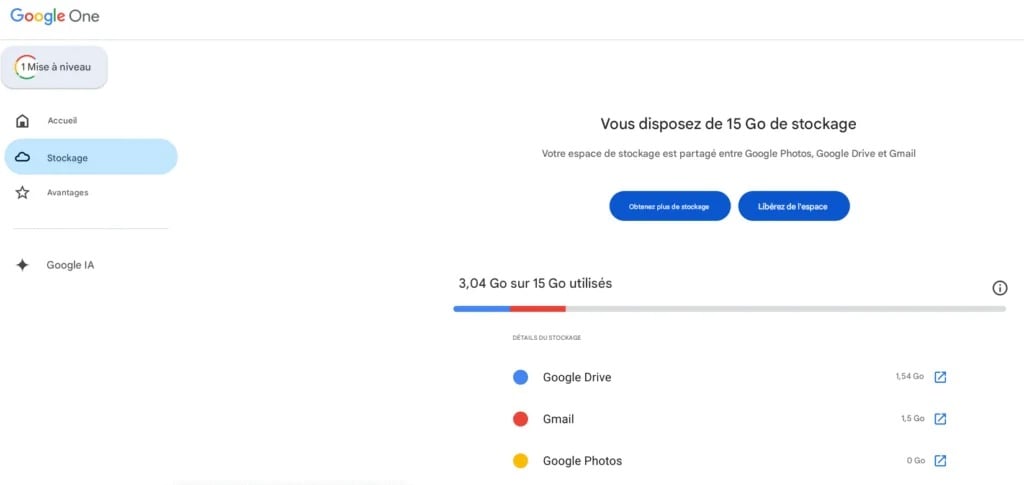
Google automatically assigns 15 GB free storage space shared between your e-mails, documents and personal photos. So there's no need to create an additional account.
Step 2: Connect to your storage space
Retrieve your data with one click :
- On computer Go directly to Google Drive from this link: https://drive.google.com/drive
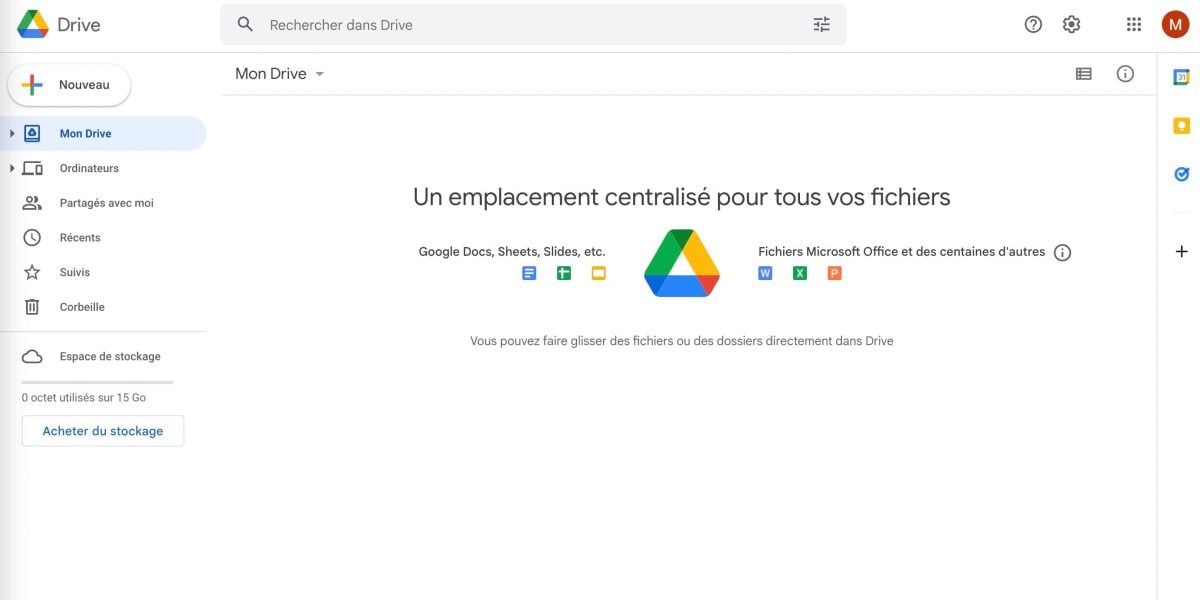
- On smartphone Simply open the Google Drive or Google Photos applications already installed by default on your device. Search for google drive in the Android search bar.
If you're feeling a bit cramped with your free 15 GB, you can switch to the’fee-based offer of the company. To find out more about subscriptions, read our guide on how Google One works.
You'll be able to track the status of your account in real time.
Once connected to Google Drive, you can do much more than store your data. Create folders to organize your documents, import new files by simply dragging and dropping, and share a document or an entire folder with other users in a matter of seconds.
If you delete an item by mistake, don't panic:
Drive it can be stored in the basket for 30 days, while you recover your files. You can also download files to your device for offline viewing.
2. Access Google Cloud Platform (For developers and enterprises)
If your objective is purely technical, such as hosting a website, running virtual machines or analyzing large databases, you should turn to the’Google's professional infrastructure, called GCP.
Step 1: Log in to Google Cloud Console
To get started, visit the platform dedicated to professionals: Google Cloud Console.
You can log in with your regular Google credentials or your corporate account (Google Workspace).
Step 2: Choose the right service for your project
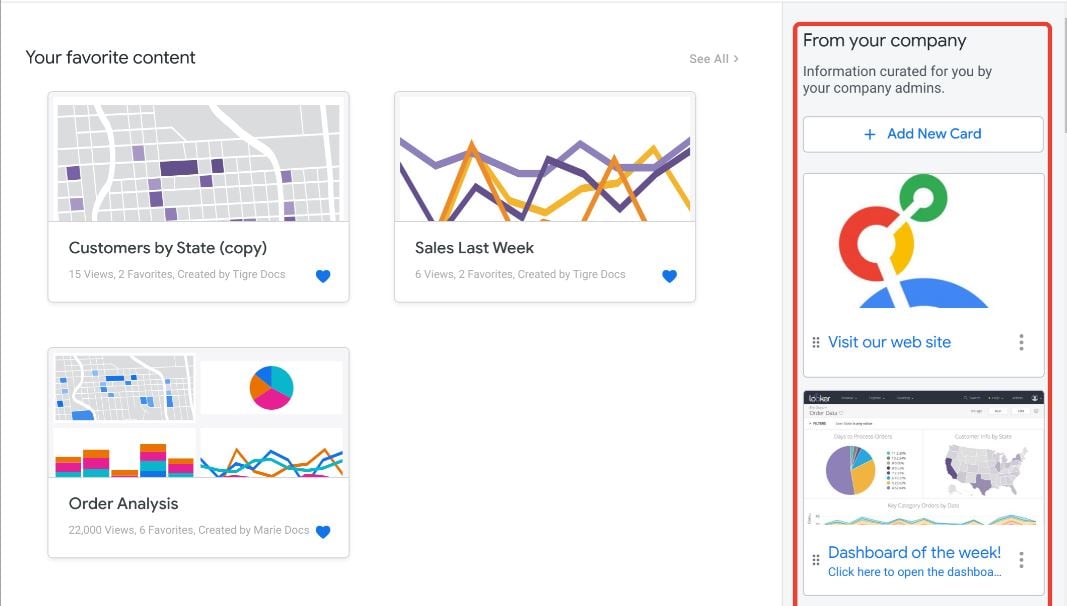
Once you've logged on to the console, you're presented with a catalog of hundreds of services. Among the most essential are :
- Google Compute Engine to create and configure virtual machine instances.
- Google Cloud Storage for storing very large volumes of raw or professional data.
- Google Cloud SQL : to configure, manage and operate relational databases.
Focus on Google Cloud Storage, one of the most widely used storage services in the Google cloud.
Unlike Drive, it doesn't store your data in traditional folders, but as objects grouped together in “buckets”.
It's the ideal tool for keeping gros content volumes (backups, videos, archives) with high availability.
Among its most useful features for managing your data over time are the object version management.
Once versioning is enabled, the cloud automatically retains older versions of objects with each modification, enabling the recovery of files overwritten by mistake. Developers can control these resources and manage this cloud storage directly from the command line, via the Google API or using client libraries available for most programming languages.
Step 3: Set up your project and billing
To activate and test these pro infrastructures, Google will ask you to create an initial «Project» and enter a payment method (credit card).
To encourage you to test its tools, Google is offering a free credit of 300 $ on registration.
Please note These 300 $ of credits are valid for for up to 90 days. If you don't use them within 3 months, they will expire permanently, which can be frustrating if you discover the platform too late.
Beyond these welcome benefits, professional services operate on a strict pay-per-use basis (you only pay for the minutes or gigabytes you use).
FAQs
What's the difference between Google Drive, Google One and Google Cloud Platform?
It's the most common confusion!
- Google Drive is where you store and organize your personal files (documents, PDFs, etc.).
- Google One is the paid subscription that allows you to increase your shared storage space (Drive, Gmail, Photos) beyond the free 15 GB. To find out more, read our guide: [What is Google One and how does it work?].
- Google Cloud Platform (GCP) is a purely professional tool for developers to host websites, applications or databases.
Is the Google Cloud totally free?
Yes and no, It depends on your use:
- For the general public You get 15 GB free as soon as you create your e-mail address. If you're running out of space, you have two options: clean out your files, or upgrade to a Google One pay plan to increase your storage.
- For professionals (GCP) Access to the console is free, and Google gives you 300 $ of credits on registration. These credits expire after 90 days. After that, you only pay for what you actually use.
What happens if I exceed the 15 GB of free storage?
If your meter exceeds the 15 GB limit, the consequences are immediate and disruptive:
- Blocking Gmail You can no longer send or receive e-mails. Your correspondents will receive an error message indicating that your mailbox is full.
- Blocking Drive and Photos You can no longer add new files or save your recent photos.
- Risk of deletion This is Google's strict rule. If your account remains saturated (over quota) for more than 2 years (24 months), Google reserves the right to permanently delete the content after sending you several warnings. (It deletes all content, not just the excess).
How can I find my photos saved on the Google Cloud?
Your photos are not on the professional console, but in the’public area.
To view them, simply log on to Google Photos website from a computer, or open the Google Photos mobile application on your Android smartphone or iPhone.
Your pictures are automatically synchronized there if the option is enabled.
From Google Photos, you can also download your data to your device where the share via a link. Your photos and videos remain accessible, whether you're in the Google cloud or offline.
Do I have to enter my credit card to test Google Cloud Platform (GCP)?
Yes.
Although Google offers a trial credit of 300 $ valid for 90 days, activation of the Professional Console requires you to enter a valid means of payment.
This allows Google to verify your identity and prevent abuse. Rest assured, no direct debit will be made without your consent unless you manually switch to a paying account.
In short, there is not one but two Google Clouds, and it all depends on your needs.
- Back up your photos, documents and everyday data, Google Drive and Google One is more than enough, with 15 GB offered right from the start.
- If you're a developer or a company, go to Google Cloud Platform to host your projects and manage more technical services such as cloud storage and databases.
In both cases, access using your usual Google login and password, without complicated handling.
The easiest way is to start with consumer use, then explore the resources and features of the professional console only if your project requires it. This way, you keep control of your data, without paying more than you need to.








 English