If you're a Skyrim PC enthusiast, modifying the field of view (FOV) can greatly enhance your immersion. In this guide, we'll show you how to adjust the FOV in Skyrim for a more immersive experience. a more rewarding gaming experiencewith a few additional tips.
2 ways to change the FOV in Skyrim
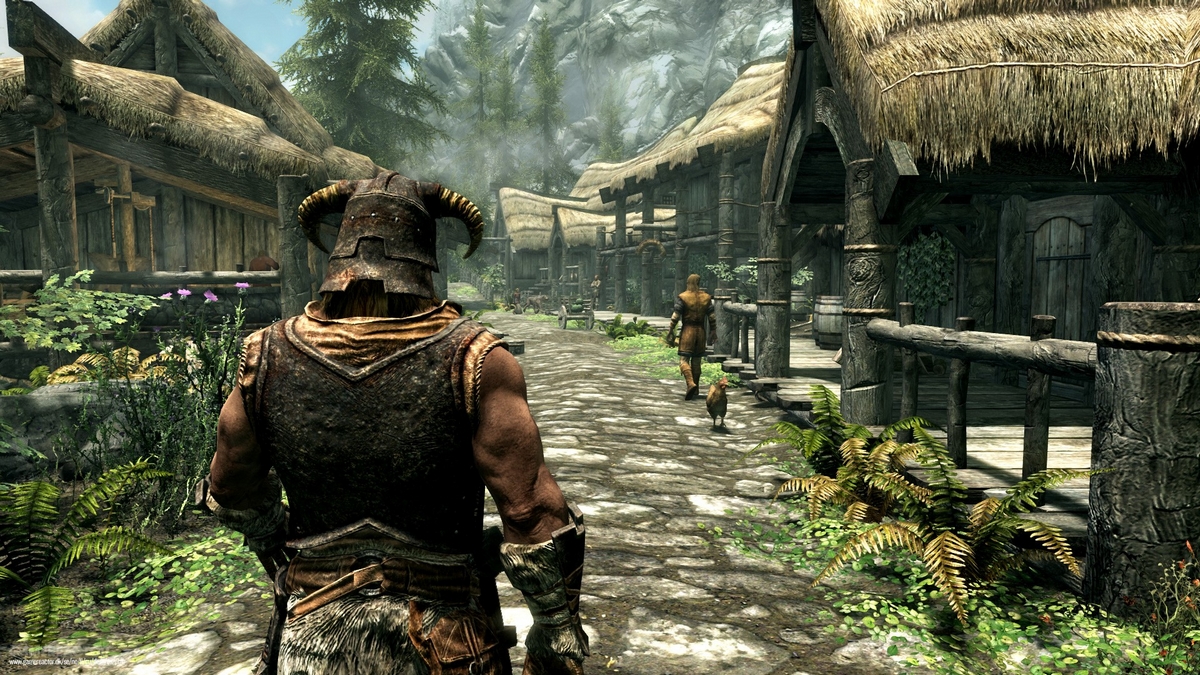
If you're playing Skyrim on PC, you can customize your FOV by editing the Skyrim.ini file or using a console command. Zoom in.
Modifying the FOV with Skyrim.ini: Step-by-Step Guide
If you'd like to customize the default field of view (FOV) in Skyrim, follow these simple steps using the Skyrim.ini file.
Step 1 - Locate the Skyrim.ini file:
Go to the Documents folder and find the Skyrim.ini file.
Step 2 - Add a new line :
- Under the [Display] settings header, add the line "fDefaultWorldFOV=xx";
- Replace "xx" with the desired number of degrees (e.g. fDefaultWorldFOV=90.0 for a FOV of 90 degrees). Decimals and zeros to the right are not mandatory.
Step 3 - Load the game and adjust the view :
The next time you launch the game, switch to first-person view, then press Tab to open the menu. When you close the menu, your FOV should update automatically.
This setting should persist when opening/closing the map, moving quickly, and sprinting, unless you change the FOV via the console. Note that the console may reset the FOV to its default value in certain situations.
Guide to adjusting the FOV in Skyrim with the Console
If you prefer to experiment with different fields of view before settling on your choice in Skyrim, you can change the FOV setting directly in-game using the console.
Step 1 - Access the console :
Press the "~" key to open the console.
Step 2 - Set the FOV :
- Type the command "FOV x";
- Replace "x" with the desired viewing angle (for example, FOV 90 for a 90-degree FOV).
Step 3 - Save and exit :
Once you've adjusted the FOV, press "~" again to close the console. Your FOV will automatically update, and the changes will be saved in your game.
Please note
It is important to note that using the console to set the field of view can sometimes produce unreliable results. Actions such as opening the map, moving quickly, and sprinting can reset the FOV to its default setting. Although readjusting the FOV is not complicated, it can be tedious to do so after each use of these features.
Therefore, the preferred method is often to use the Skyrim.ini technique. Experiment with different settings via the console, then edit your Skyrim.ini file with your preferred value for increased stability. If adjustments are necessary, it is best to edit the ini file.
Restore default FOV
Automatic restoration of the default field of view (FOV) value is not guaranteed, but you can do this manually by setting it to 65, as with any other number.
If you used the Skyrim.ini method to set the FOV, simply try deleting the fDefaultWorldFOV line from the initialization file. After reloading your game and accessing the menu, the FOV should reset automatically.
Conversely, you can also restore the default value by manually setting it to 65 in the initialization file.
Other FOV adjustments
Although other articles may present various FOV settings and instructions, the methods described above have proven to be effective. However, if for any reason these approaches do not work, you can try the following steps:
Step 1 - Edit Skyrim.ini :
Add the following lines under [Display] in the Skyrim.ini file (Documents\My Games\Skyrim\), where "x" is the desired angle: "fDefault1stPersonFOV=x" and "fDefaultWorldFOV=x."
Step 2 - Adjusting SkyrimPrefs.ini :
Also add the following line under [General] in the SkyrimPrefs.ini file (Documents\My Games\Skyrim\), where "x" is the desired angle: "fdefaultfov=x".
Step 3 – Enhance the effect:
Load your save, switch to first person, and press Tab in the menu to force the changes to apply.
Finding the ideal FOV setting in Skyrim
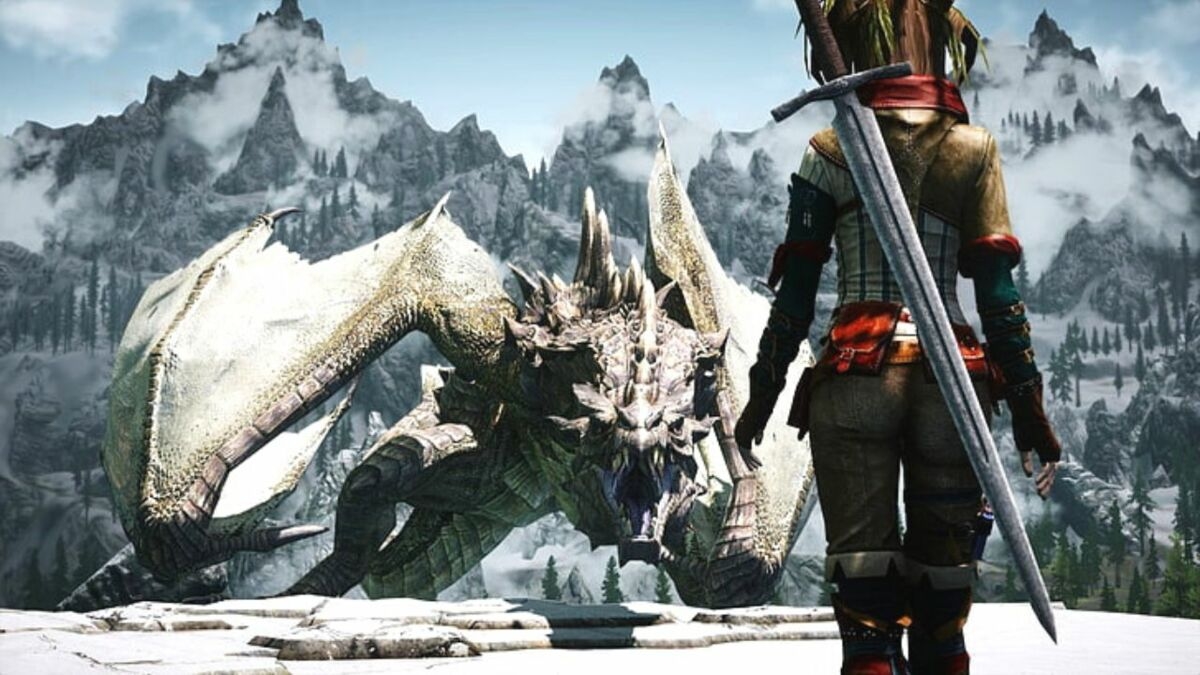
A good field of view (FOV) setting depends on several factors, including :
- Monitor size ;
- Distance between instructor and player ;
- Personal preferences
General recommendations
As a general rule, an FOV between 80 and 100 is suitable for most, with 90 being the most common setting. Experiment with different settings to find the one that suits you best.
Distortion management
Increasing the FOV may cause distortion at the sides of the screen. This is normal, and slight distortion does not usually affect the gaming experience. Take some time to get used to it before deciding how much distortion is acceptable.
Compromise between vision and distortion
Adjusting the field of view is a compromise between improving vision and introducing distortion. If the distortion is bothersome, adjust the FOV until you find the ideal compromise for comfortable immersion.
Perception of size and distance
Note that adjusting the FOV can influence the perception of the size and distance of objects. Experiment to understand how these adjustments affect your gaming experience.
Additional resources
For an in-depth analysis of FOV in video games, check out the two-part video linked below. These tutorials offer clear and accessible explanations of how FOV works, and are well worth exploring for a better understanding.
Changing the FOV is important!
The field of view (FOV) in video games plays a crucial role in determining the visual arc during gameplay. Designers choose this value based on various factors, such as the average size of TV screens and the distance at which players sit. Typically, console FPS games have an FOV of around 60 degrees.
PC gamers, who are often closer to their screens, experience a claustrophobic effect with Skyrim's default 65-degree field of view. Symptoms include feelings of tunnel vision and headaches, among others, which detract from the gaming experience.
You now have various options for FOV modification in Skyrim. If you're a fan of this game, the information on crossbows might be of interest to you. We talk about it in our article: Everything you need to know about crossbows in Skyrim.









 English