the Default FOV of Skyrim is of 65° in first-person view, which quickly makes it feel like you're wearing blinders on PC.
To change it, you have two options: edit the .ini file for a permanent setting, or use the console up for grabs in a quick test.
2 ways to change the FOV in Skyrim
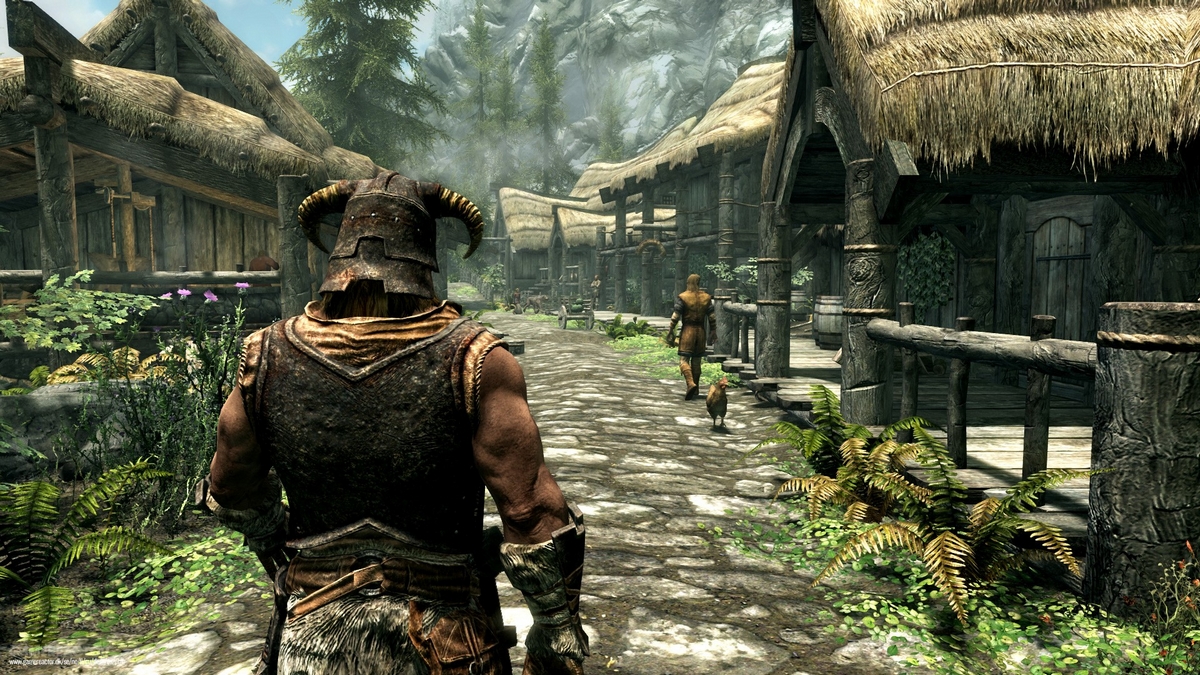
Both of the methods below work on Skyrim and the Special Edition.
Change the FOV using the .ini file (permanent method)
This is the most stable method. The setting remains active even after you restart your game.
Step 1: Locate the file SkyrimPrefs.ini
Open the folder Documents/My Games/Skyrim (Where Documents/Mes jeux/Skyrim according to your language). There you'll find the file SkyrimPrefs.ini. Make a backup copy before making any changes, just in case.
Step 2: Add the two FOV lines
Open the file in Notepad. Under the section [General], add these two lines:
- fDefaultWorldFOV=90 for an overview
- fDefault1stPersonFOV=90 for the first-person view
Replace 90 from any angle you choose. A value around 90° works with most PC monitors.
Step 3: Load the game and adjust the view
The next time you launch the game, switch to first-person view. Press the Tab key to open the menu, then close it. Your FOV updates automatically and remains stable, even when moving quickly or opening the map.
Changing the FOV Using the Console (Quick Method)
This method is ideal for trying out different angles before settling on your final value. However, the adjustment remains temporary : Certain actions, such as opening the map, taking a quick trip, or sprinting, can reset it.
Step 1: Open the console
Press the key « ~ » (above the Tab key) to open the console.
Step 2: After placing the order
Tape fov 90, by replacing 90 from the desired angle. The view changes instantly.
Step 3: Close the console
Press again « ~ » to close the console. The new FOV takes effect immediately.
In practice, it's best to combine the two: test your angles with the console, then enter your preferred value in SkyrimPrefs.ini for a stable, permanent setting.
Restore default FOV
The default value It doesn't always come back on its own. Here are two ways to restore it:
- Manually replace the value with 65 In the ini file, reload your game, open the menu: the FOV will return to its original setting.
- Delete the line fDefaultWorldFOV from the ini file. The game will then revert to its default value the next time it is loaded.
Complete method: Edit both .ini files
If the previous methods don't work, this approach combines the two .ini files for a truly permanent.
Step 1: Edit the Skyrim.ini file
Open the file Skyrim.ini located in Documents\My Games\Skyrim. Under the section [Display], add these two lines (replace «x» with your desired angle):
- fDefault1stPersonFOV=x
- fDefaultWorldFOV=x
Step 2: Edit the SkyrimPrefs.ini file
Next, open the file SkyrimPrefs.ini, also in Documents\My Games\Skyrim. Under the section [General], adds:
- fDefaultFOV=x
Specifying the FOV in both files prevents one value from overwriting another, which ensures that the setting remains consistent across sessions.
Step 3: Force the app to close
Load your save, switch to first-person view. You can also type fov x in the console to test different values on the fly before finalizing your settings.
Finding the ideal FOV setting in Skyrim
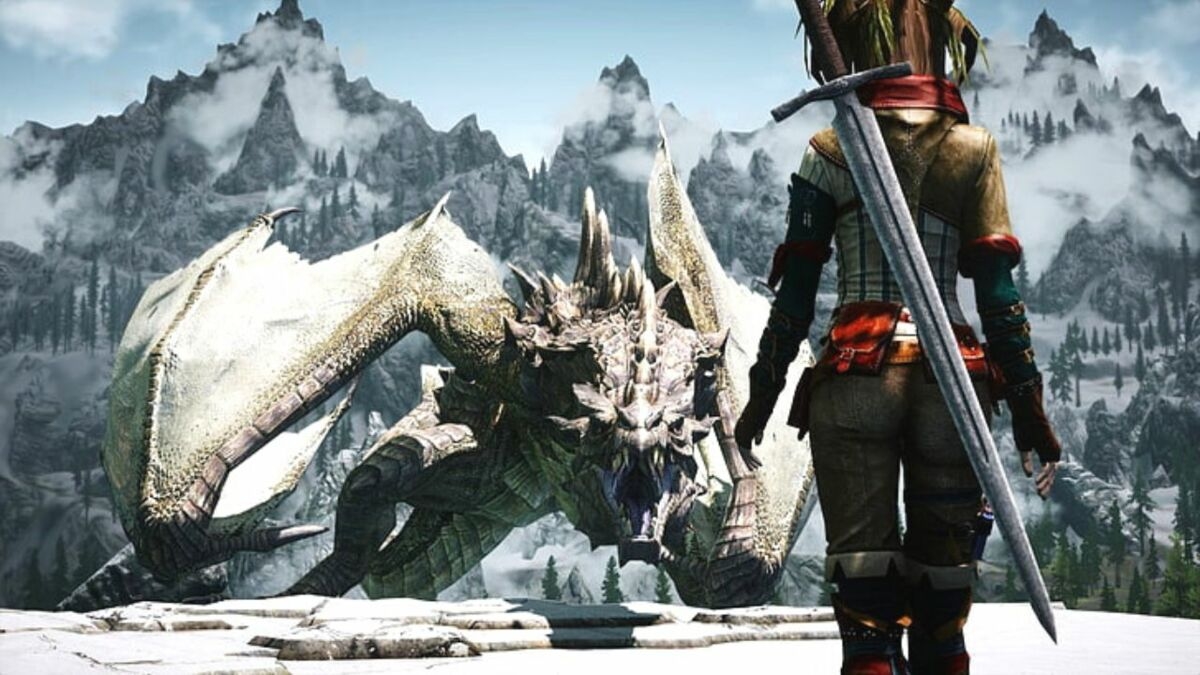
The right angle depends on your setup. Three factors come into play:
- The your screen size
- The distance between you and the instructor
- Your personal preferences comfort
What FOV value should you choose?
A Field of view between 80 and 100° is suitable for most PC gamers. The value 90° is the most common and is a good place to start.
Managing Distortion at the Edges of the Screen
Increasing the FOV distorts the image slightly at the edges. This is normal : A slight distortion won't interfere with the game. Take a few minutes to get used to it before deciding if the look works for you.
Be mindful of how you perceive distances
A Wide field of view It also alters the perception of the size and distance of objects. Nearby objects may appear smaller or farther away. Test your value by fight as in exploration before setting it permanently.
Changing the FOV is important!
the field of view (FOV) determines the angle of view you see on the screen while playing. Developers choose it based on the average size of televisions and the distance at which the player is seated. On consoles, an FPS game often has a 60° field of view.
On computer, you're usually much closer to your screen. As a result, the default FOV of 65° quickly makes you feel like you have blinders on, or even gives you a headache. Switching to a wider angle improves your visual comfort.
Do you play a lot of Skyrim ? Our article on Crossbows in Skyrim might also interest you. And if you want to reconfigure your buttons If you're looking for other PC games, we've got just what you need.









 English