Change your PSN username it's possible! The first change is free of charge, but subsequent changes are invoiced. around € 9.99 by Sony.
The procedure takes less than 2 minutes on PS4, PS5 or via the PlayStation.
Discover the complete process for change your ID online PlayStation, step by step, on console PS5, PS4 or from a computer.
You'll also learn what to check before you validate ID change online, especially if you play games released before 2018
How much does it cost to change your PSN username?
You can change your PSN ID, and you can do it as many times as you like.
Only the first modification is free of charge, but the following are not free: Sony charges around €9.99 per change.
⚠️ What you need to know A PS Plus discount of €4.99 existed at launch (April 2019), but is no longer systematically applied, and Sony no longer mentions a specific price on its official FAQ.
👉 Check the exact amount displayed before confirming.
Change your nickname on PS5
On PS5, you can change your Online ID directly from the console's Settings menu. Here's how to do it:
- Go to Settings top right of the home menu
- Then click on Users and accounts
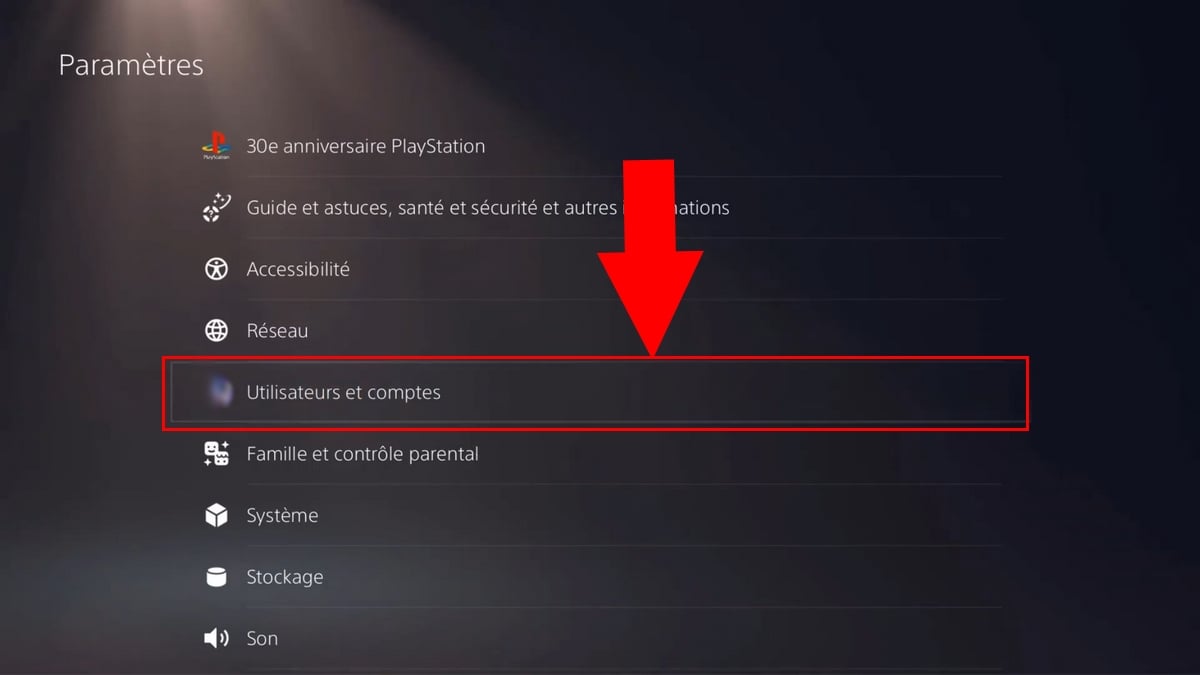
- Then select Account then Profile and finally ID on line
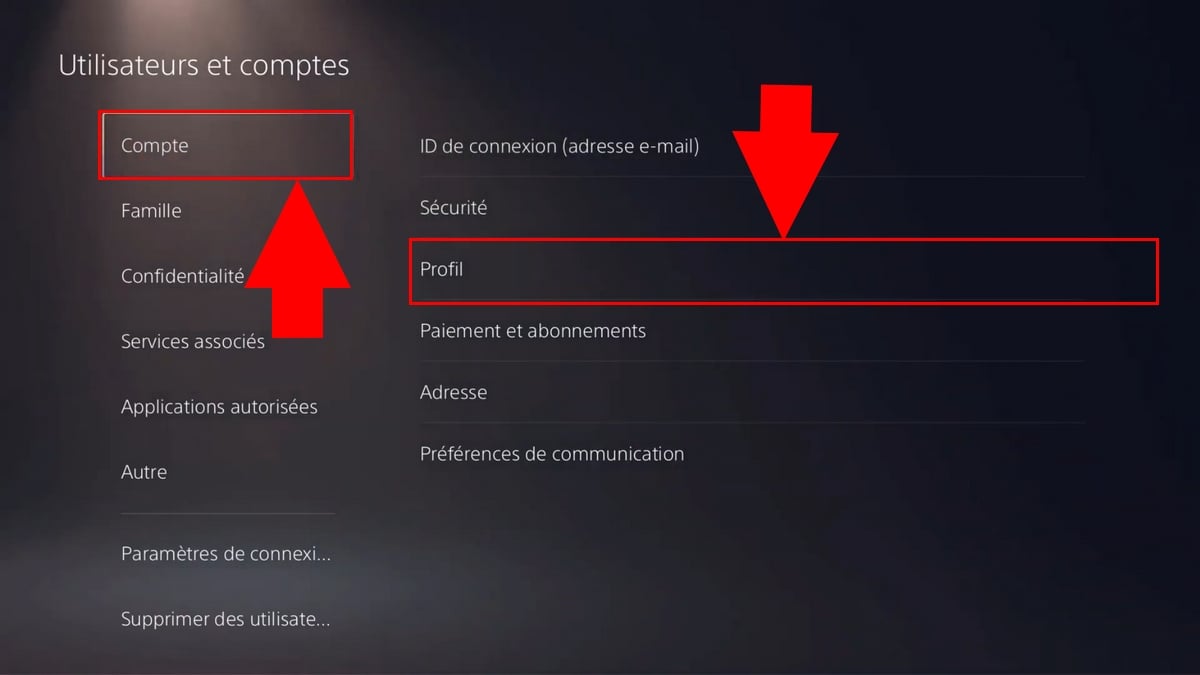
- Then enter a new ID on line
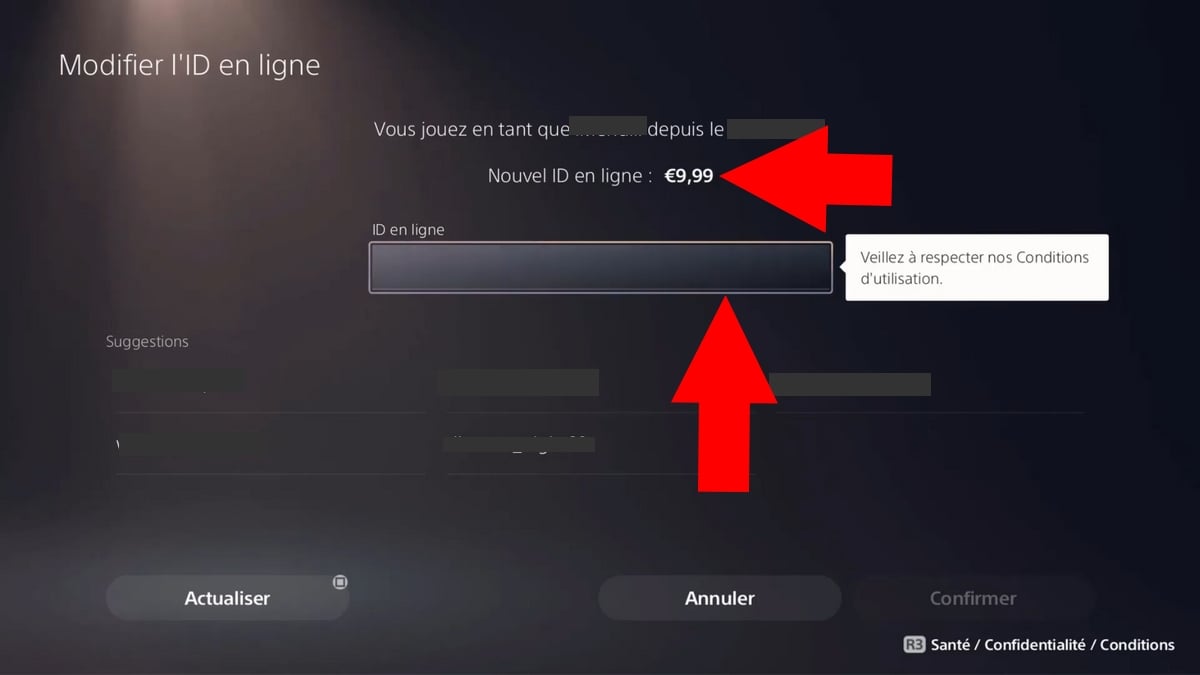
- If your new online ID is available, you can register it by clicking on the To confirm
- To complete your purchase, select Order and pay
- Bravo! Once you've made the change, you'll be disconnected from all devices.
Changing your nickname on PS4
On a PS4 console, the procedure is very similar. Here's how to modify your Online ID from the Settings.
- Meeting on Settings ⇒ Account management
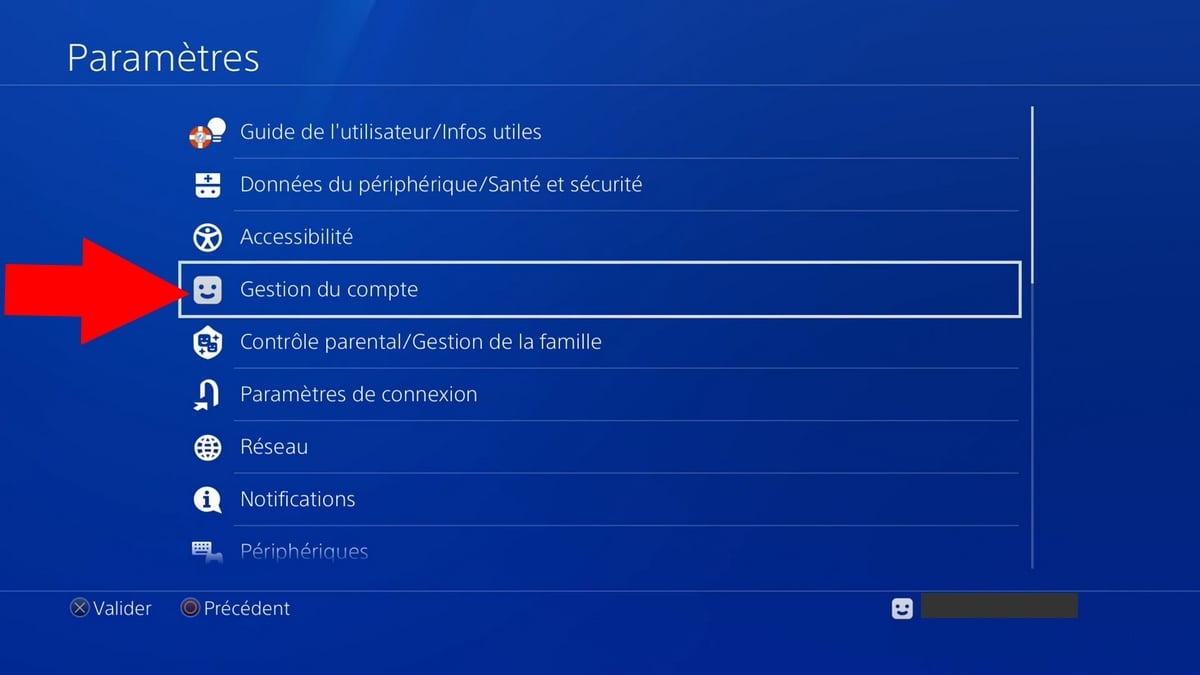
- Then press Information from account
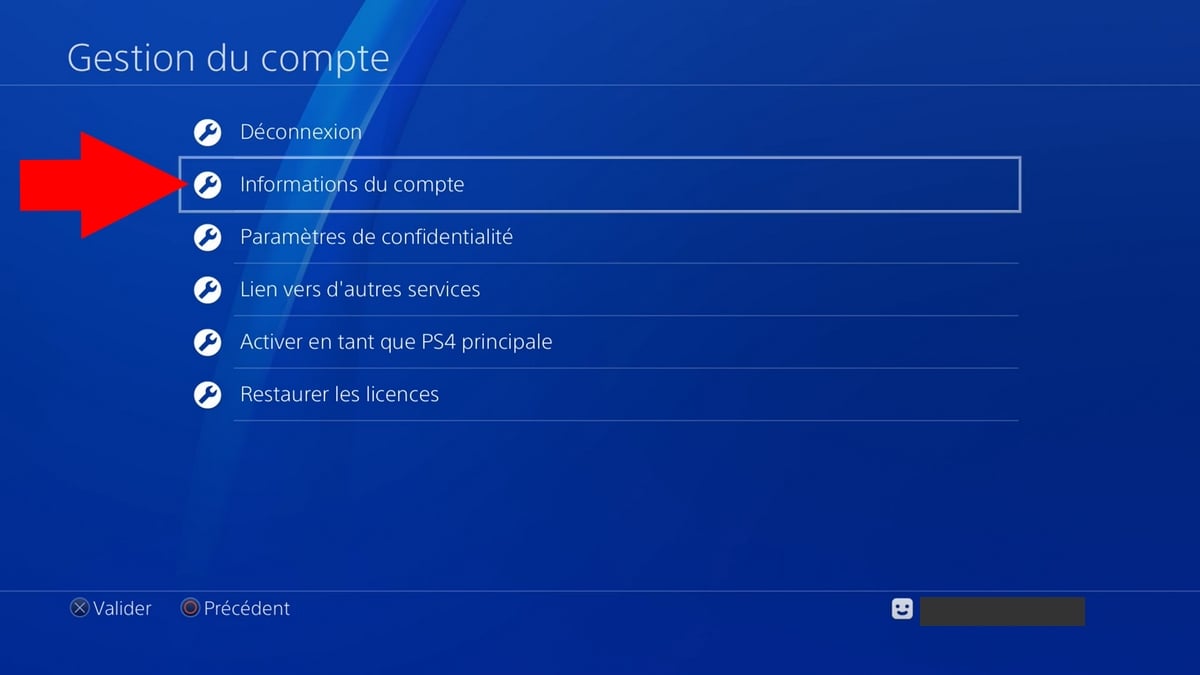
- Click on Profile then on Online ID
- Please read the information then, if everything seems fine, click on “I accept”.”
- Then enter the new ID then on To confirm
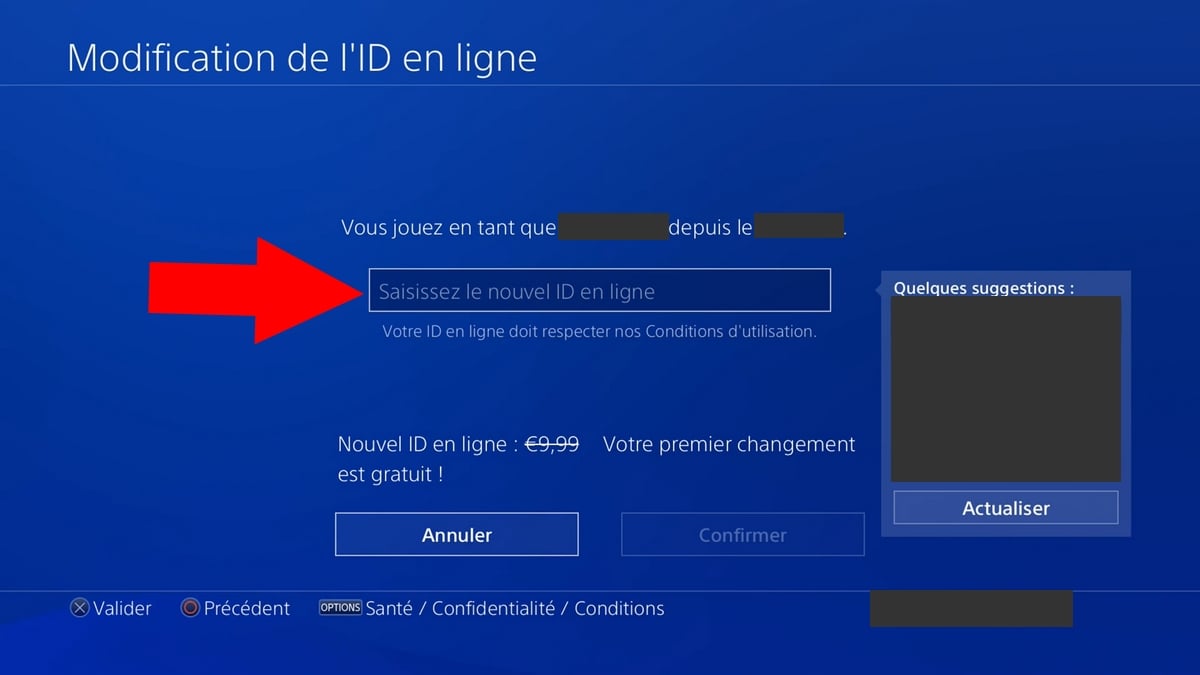
- If this is your first modification, you will not be charged. Otherwise, the price (around €9.99) will be displayed before payment.
- Validate the purchase so that the modification be taken into account.
Your new username is active immediately. You will be disconnected from all your devices. Simply log back in with your usual e-mail address (the nickname is not a login).
Change your nickname in the PlayStation mobile app
If you don't have your console handy, the PlayStation (iOS and Android) for quick access to the editing page:
- Go to Play menu by pressing the joystick icon.
- Access your profile by selecting your profile photo.
- Select Edit profile and enter your password.
- Select Edit next to your current online ID.
- Enter a new online ID, then select Check availability. If your new online ID is available, select To confirm.
- Choose whether or not to display your old ID against the new one for 30 days.
- Finalize your purchase of your new online ID. Once the change is complete, you are logged out of all devices.
As on the console, the first change is free and the following are billed at the rate shown on the screen.
Change your PSN ID/Pseudo from the website
If you prefer to use a browser rather than your console, here are the instructions for change your ID online PlayStation from a PC :
- Log in to the PlayStation account management,
- Then in Account managementchoose PSN Profile
- Then click on Edit near your Online ID to change
- Enter the new online ID, follow the on-screen instructions to finalize your order.
- Once the procedure is completed, you will be disconnected from all devices.
Risks and bugs to be aware of
The rule is simple: if you only play games that have been released after april 2018, the risk is virtually nil.
Sony and the game's studios have updated almost all recent titles to correctly handle ID changes.
⚠️ For pre-April 2018 games (LittleBigPlanet 3, MLB The Show 14-16, Disc Jam, Worms Battlegrounds, some PS3 and PS Vita titles...), bugs may be permanent, even if you restore your old nickname.
Before changing, consult the official list of games tested by Sony if you're still playing old content.
Here are some other cases where you may still encounter bugs:
- ❌ A loss of progress
- ❌ A loss of content paying
- ❌ Des bugs during your online and offline sessions
- ❌ The old ID can remain visible in some places
- ❌ One part of the game or application may not function properly.
FAQs
What to do if you encounter a bug after the change?
A few simple steps are all you need to solve most of the problems associated with changing your nickname:
- Restart your console,
- Check that your games are at day,
- Then reconnect to PSN.
If your new online ID is not displayed correctly for some players, wait a few hours synchronization on Sony servers is often automatic.
Also check that your console is well matched to the right profile before restarting a game session.
⚠️ If a pre-April 2018 game suffers a loss of data or DLC, reinstallation is usually not enough. You can revert to your old username free of charge at PlayStation support, but Sony points out that this does not always recover lost content or progress.
Who can see my new online ID on PlayStation?
By default, your new online ID is visible to your friendss and by the other players you interact with.
If you wish to be more discreet, please visit the settings of privacy your PSN profile to choose who can view your ID online, your gaming activity and a list of your recent sessions.
Will I lose my trophies, saves or DLC by changing my PSN username?
Nope, in the vast majority of cases.
Your trophies are linked to your profile PSN, not to your username, so they remain acquired. The risk only concerns certain games released before April 2018, where the pseudo may continue to be displayed or certain backups not properly synchronized.
Can I get my old PSN username back if I regret?
Yes. You can get your old username back for free. To do so, please contact PlayStation Support.
Will my change cause problems on GTA V, FIFA, Call of Duty, Rocket League...?
Nope, in the vast majority of cases. These games are regularly updated by their studios, and recent user feedback reports no major problems.
Can I change my ID on older consoles like the PS1 and PS2?
Nope. It's not possible to change the ID on these consoles. But if you're feeling nostalgic and want to buy one of these retro models, find out more... how much does the Playstation 1 and 2 cost in 2026!
Will my friends be able to find me after the change?
Yes. When changing, you can activate the “Display old ID for 30 days“. Your friends will then see both pseudonyms side by side in their list for a month, while they get used to your new name.
Can my old username be taken by someone else?
Nope. Your old nickname remains permanently linked to your account. No one else can use it, so you can get it back if you wish.
Can I change the nickname of a PSN child account?
Nope. PlayStation blocks this feature for children's accounts. You must wait until the account reaches the age required to be upgraded to an adult account before you can change the’ID online.
No idea for your new nickname? Our free nickname generator offers dozens of original ideas at the click of a button.








 English