Want to add more features to the Minecraft game? Then opt for mods!
The mods (modifications) on Minecraft are game changes and are mainly used to add special creatures, new commands, etc. to optimize your experience on Minecraft!
In this guide, we'll show you the easiest ways to install a mod on Minecraftof which :
- Install a Minecraft mod locally,
- Install a Minecraft mod on a server.
Installing a Minecraft mod with CurseForge
Step 1: Obtain the CurseForge application
The easiest way to get a mod Minecraft is to install this application beforehand. Make sure you have the game on your device (of course :)).
This application allows you to manage and of load mods for various games, such as Minecraft.
To do this :
- Go to CurseForge official website,
- Once you have landed on the page, click on Get CurseForge App located at the top right of the screen,
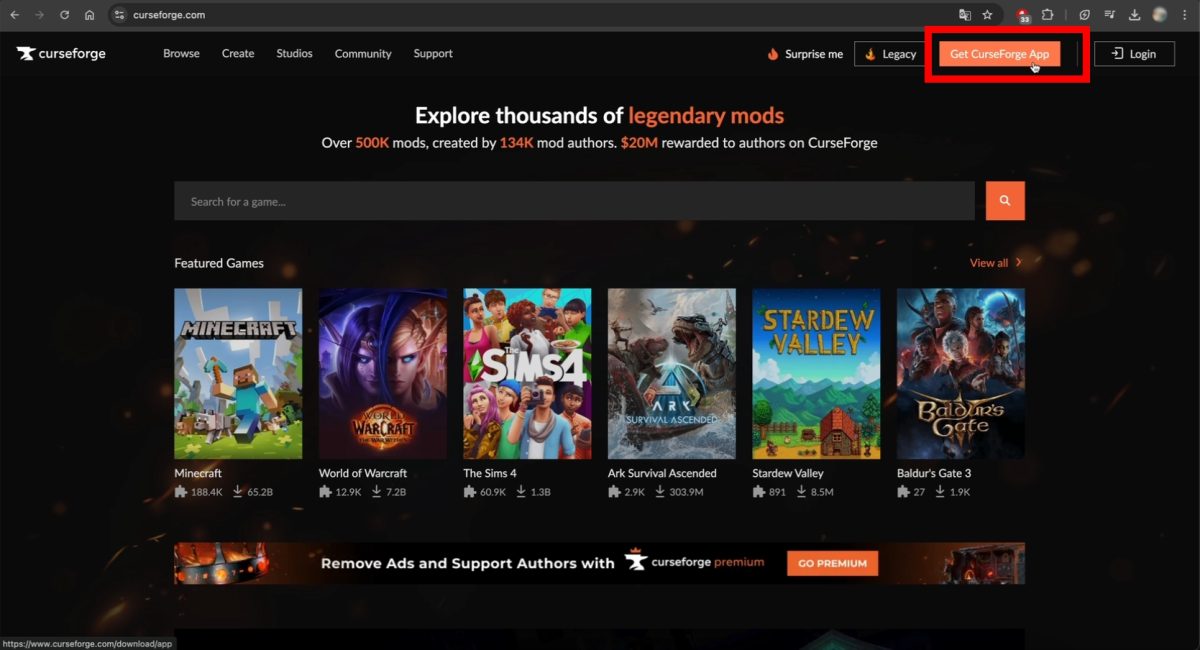
- Then press Download Standalone to get it on your device,

- Once the application is installed on your PC, click on it to open it.
- Now locate the tab shaped like a small house at the top left of the screen and click on it as well.
- Now, in Choose a Gamepress the set Minecraft,

Step 2: Install your mod on CurseForge
Now that you have selected Minecraft, the screen will display 3 different tabs:
- My Modpacks (mods found directly on the site)
- Browse
- Servers
Important note : It is crucial to check the accounting between mod and Modoader. In fact, there are several ModLoaders and several versions of each ModLoader. Here are the main ModLoaders on this site:
- Forge
- Fabric
- Quilt
- NeoForge
- Vanilla
However, don't worry, by following the various instructions below, you should not encounter any compatibility issues.
Now for install a mod on CurseForgeHere's how to do it (remaining the same on Windows and macOS):
- Visit their website to select the mod you want: Click here
- Search for the desired mod in the search bar.
In our example, we'll choose Item Despawn TimerIt allows you to display the timer above objects that appear in the game. Now, with this mod, you can prevent objects from disappearing because you will have a clear idea of how much time you have left to retrieve them.

- Install it on the same site by clicking the "Install“,

Install Item Despawn Timer. ©️Princia for Alucare.fr - A new window will open. Simply click on Open CurseForge.

Press the Open CurseForge button on the site to install a mod. ©️Princia for Alucare.fr
If you want create a mod on Minecraft and not opt for the existing ones, be sure to take a look at our article!
Step 3: Installing a ModLoader on CurseForge
- After clicking on the button “Open CurseForge, a new window will open, allowing you to either select an existing ModLoader or create one. Note that the technique is valid on Windows and macOS as well:
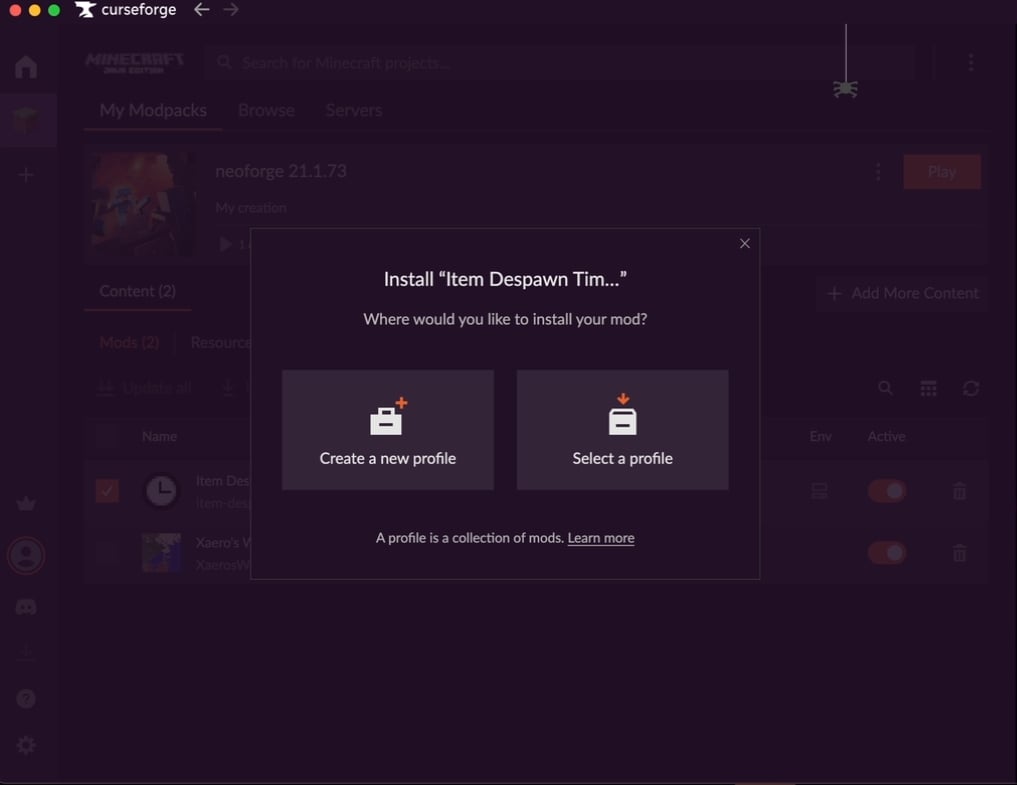
How do I know which button to click?
- If no modpack is compatible, you will need to create one. To do this, click on Create a new profile and the application will directly suggest the ModLoader compatible with the correct version. I recommend naming it after the ModLoader and its version.

- Otherwise, you can click on “Select a profile" and the application will suggest the ModLoader compatible with the version of the mod to be installed:

- The installation of ModLoader will then begin in the application:
- Once this is complete, you can click directly on it then press the Play at the top right of the screen.

- Minecraft will then relaunch itself with the MoLoader downloaded and the mod installed.
- Once in the game, click on the To play in green,
- L'installation The latter will start, and you will see something similar to this displayed on the screen:
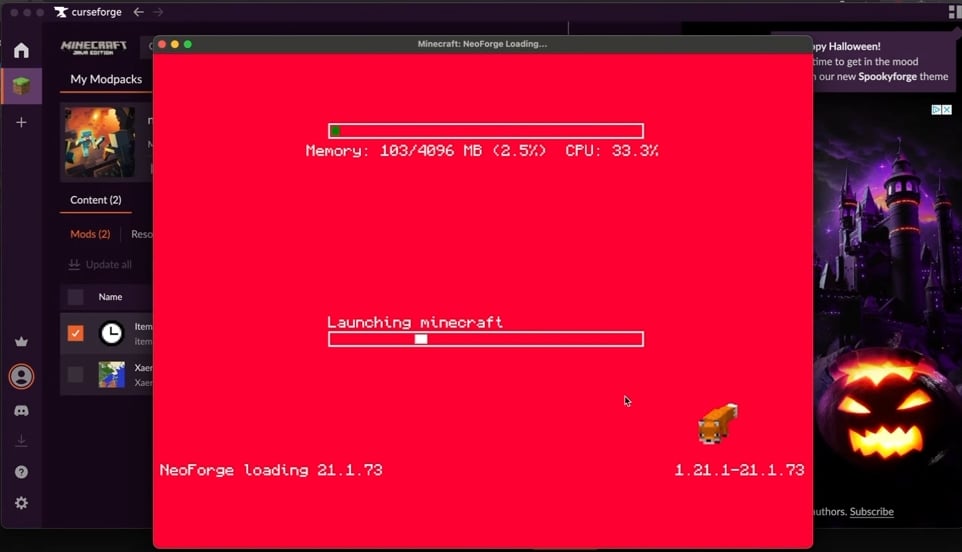
- In the launcher, check in the drop-down menu that you have the right version to launch your mod in the launcher.

Congratulations! You've managed to get a mod on Minecraft efficiently! For our example (Item Despawn Timer)Here's an overview of some of its features:

How do you install a mod on your Minecraft server?
You're wondering how install a mod on your Minecraft server ? This part is just for you!
In any case, if you don't yet have a Minecraft server, several accommodation offers can be found on the Internet, but among the best is the Hosterfy server !
Step 1: Choosing a server
If you want integrate mods on your server and ensure that your mods will work properly, it is crucial to make sure that your server is compatible with Forge or Fabricthe two most popular ModLoaders for Minecraft.
When choosing Hosterfy, if you want to check that your mods are compatible with Forge or Fabric, here's what you need to do:
- Go to your Hosterfy control panel,
- Then go to Configuration ⮕ Change version ⮕ Forge and choose the right version.

Step 2: Download mods
To do this, you can always follow the instructions mentioned above, which consist of download a mod on Minecraft with CurseForge.
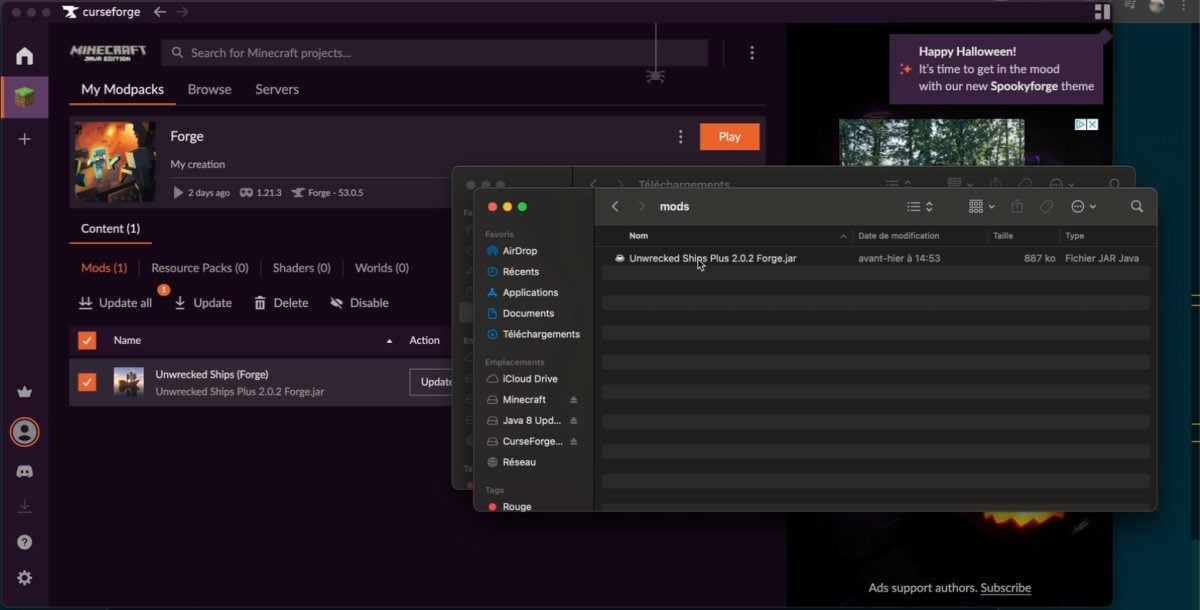
Then, once the mod has been downloaded, if you wish to access your CurseForge Mods folder on your device, proceed as follows:
- Check your My Modpacksthen on the ModLoader (which here is Forge),
- Click on the three small buttons next to the Play button and press Open Folder (open folder),

- You will be redirected to this folder where you need to click on "Mods,"
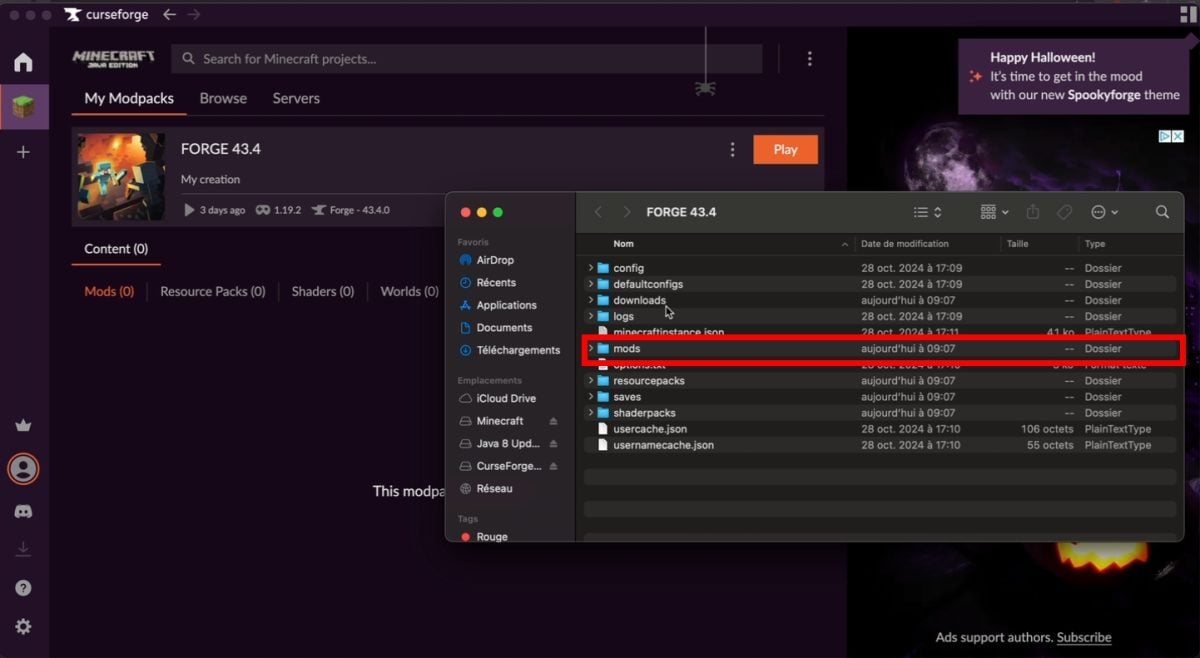
- You will find the .jar file obtained on your device.
Step 3: Transfer mods to your Minecraft server
To can transfer downloaded mods on your server, proceed as follows:
- Connect to your server with FTP or SFTP,
- Look for the folder “mods" on the server, then open it.
- Drag and drop your mods in this "mods" file,
- Finally, restart your server via the Hosterfy management interface to play Minecraft with the mods installed, and you're good to go!
Note This technique works on both Windows and macOS!
Common problems when installing a mod on Minecraft
In this section, we have compiled a list of the most common problems related to the installation of a mod on Minecraft and the appropriate solutions:
| 🚨Common problems | 💡 Solution |
|---|---|
| A start-up crash One of the mods files has a problem. | Check that the dependency mods are installed and all mods and Forge run the same version of the game. |
| Mod rejection error during integration with a server If the server runs mods that are not installed on the Minecraft launcher, or vice versa. | Check that all mods on the server are also installed on the game. |
| An error message such as: "This server has mods that require FML/Forge to be installed on the client.When you attempt to connect to a server from a vanilla version. | Ensure you only launch from a installation Forge. |
| Incompatible mods : When two or more mods try to modify the same aspect of the game; | To delete one of the conflicting mods or find a compatible version. |
| Incorrect installation of the mod If the latter is not installed correctly or the appropriate instructions are not followed. | Respect instructions for installing a mod. |
With our guide, say hello to the new items, resource packs, blocks and to customized interfaces with downloaded Minecraft mods!
If you have any questions or difficulties, the comment area is available!
For other interesting articles, here are some articles on Minecraft:


![What are the best puzzle games on PC? [Top 15]](https://www.alucare.fr/wp-content/uploads/2025/12/www.alucare.fr-quels-sont-les-meilleurs-jeux-denigme-sur-pc-top-15-Quels-sont-les-meilleurs-jeux-denigme-sur-PC-Top-15-150x150.jpg)





 English