The Alt key allows access to various possibilities on a computer. This can be the display of symbols such as a Upper-case ç or access to certain PC functions.
But where is this key on the keyboard ? In this article, we'll answer that question and give you some information and tips on how to use it.
Where does the Alt key fit on the keyboard?
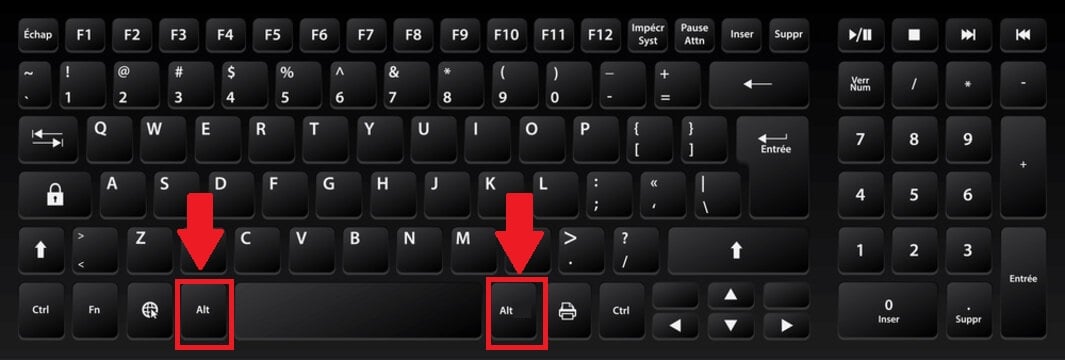
The Alt key is located to the left of the space baron a QWERTY keyboard, i.e. on the bottom row of the keyboard.

The Alt Gr key, to the right of the space bar, is a second Alt key. The two keys have virtually identical functions. On some keyboards, the right-hand key is called "Alt Gr", on others, it remains "Alt". It all depends on the manufacturer.
What features does the Alt key offer?
Alt" is the abbreviation of the English word "Alt". alternate "This briefly explains its function. This briefly explains its function. Indeed,
- This key has no specific function of its own, but allows you toaccess an alternative command.
- To take full advantage of its functions, you need to combine it with other keys.
It should be noted that :
- The Alt key is only available on the Windows operating system and on Linux.
- Computers running macOs cannot benefit from the shortcuts obtained with this key. In this case, you will have to use the "Option“.
Discover also the other Alt key variant, Alt Gr and its meaning in our article on the subject. Each of the two keys (Alt and Alt Gr) has a different function.
The Alt key for commands in the Windows operating system
The Alt key can be used to access shortcuts when correctly associated with keyboard keys. This allows you to open various functions and applications on your computer. Here are the most common Alt key combinations with other keys:
| ⌨️ Combination | 🖥️ Result |
|---|---|
| Alt + Shift | Change language from your keyboard |
| Alt + space | Go to menu system of the active window |
| Alt + print | Copy the screenshot (Screenshot) of the active window to the clipboard |
| Ctrl + Alt | Alternative to the Alt Gr key if it does not work or is missing on the English keyboard. |
| Ctrl + Alt + Delete | Change user, to switch off or restart the PC |
| Windows + Alt + Enter | Open Media Center (multimedia center), this function is only available for operating systems up to Windows 8 |
| Windows + Alt + 1 / 2 / etc. | Go to the program list in the taskbar |
By combining the Alt key with other keys, you can also toggle between a open program to another with ease.
| ⌨️ Combination | 🖥️ Result |
|---|---|
| Alt + Esc | Switch between window open to another (without miniature view) |
| Alt + Tab | Switch between several open left to right (in miniature view) |
| Alt + Tab + Shift | Switch between several open right to left (in miniature view) |
The Alt key in executing commands in application programs
Combining the Alt key with other keys in applications already installed on your operating system, such as Microsoft Word is also ultra-practical.
| ⌨️ Combination | 🖥️ Result |
|---|---|
| Alt + M | Show search field |
| Alt + Ctrl + i | Go to the "print" window |
| Alt + Ctrl + S | Divided or undivided Microsoft Word document window |
Combined with other keys, the Alt key can also be used to access the various tabs in your text document. On a French Azerty keyboard, Here is a list of key combinations and the tabs you can open with this key in Microsoft Word :
| ⌨️ Combination | 🖥️ Result |
|---|---|
| Alt + L | Welcome |
| Alt + F | File |
| Alt + R | Revision |
| Alt + S | Insertion |
| Alt + J | Drawing |
| Alt + P | Page layout |
| Alt + N | Display |
| Alt + Q | Finding the right tools |
The Alt key and special characters
The Alt key is also used to display special characters on your computer. Here are the key combinations to use.
| 🎲 Combination | 🔣 Symbol | 📝 Description |
|---|---|---|
| Alt 034 | “ | Guillemet double (English) |
| Alt 0171 | " | French Guillemet opening |
| Alt 0187 | » | Closing French guillemet |
| Alt 0147 | “ | Guillemet double opening (English) |
| Alt 0148 | " | Closing double guillemet (English) |
| Alt 039 | ‘ | Guillemet single straight |
| Alt 0145 | ' | Guillemet single opening (English) |
| Alt 0146 | ' | Closing single guillemet (English) |
| Alt 033 | ! | Exclamation mark |
| Alt 173 | ¡ | Inverted exclamation mark |
| Alt 063 | ? | Question mark |
| Alt 0191 | ¿ | Inverted question mark |
| Alt 040 | ( | Opening parenthesis |
| Alt 041 | ) | Closing parenthesis |
| Alt 091 | [ | Opening hook |
| Alt 093 | ] | Closing hook |
| Alt 0123 | { | Opening brace |
| Alt 0124 | } | Closing brace |
| Alt 0168 | ¨ | Tema |
| Alt 0180 | ' | High accent |
| Alt 096 | ` | Grave accent |
| Alt 094 | ^ | Circumflex accent |
| Alt 0126 | ~ | Tilde |
| Alt 0184 | ¸ | Cedilla |
| Alt 035 | # | Sharp |
| Alt 042 | * | Star |
| Alt 044 | , | Comma |
| Alt 046 | . | Point |
| Alt 058 | : | Colon |
| Alt 059 | ; | Semicolon |
| Alt 0183 | · | Midpoint |
| Alt 7 | • | Large mid-point |
| Alt 0175 | ¯ | Macron |
| Alt 045 | – | Quarter-cad dash |
| Alt 095 | _ | Under score |
| Alt 0124 | | | Vertical separator (pipe) |
| Alt 0166 | ¦ | Split vertical bar |
| Alt 0167 | § | Section |
| Alt 0182 | ¶ | Paragraph |
| Alt 0169 | © | Copyright |
| Alt 0174 | ® | Trademark |
| Alt 0153 | ™ | Brand name |
| Alt 038 | & | And commercial |
| Alt 064 | @ | Arobase |
| Alt 047 | / | Slash |
| Alt 092 | \ | Antislash |
| Alt 6 | ♠ | Black pick |
| Alt 5 | ♣ | Black clover |
| Alt 3 | ♥ | Black heart |
| Alt 27 | ← | Left arrow |
| Alt 24 | ↑ | Up arrow |
| Alt 26 | → | Right arrow |
| Alt 25 | ↓ | Arrow down |
| Alt 29 | ↔ | Bilateral left-right arrow |
| Alt 0225 | á | á acute accent |
| Alt 0193 | Á | Á Upper-case with acute accent |
| Alt 0226 | â | â circumflex accent |
| Alt 0194 | Â | Â circumflex accent |
| Alt 0224 | at | with grave accent |
| Alt 0192 | À | Upper case grave accent |
| Alt 0227 | ã | ã with Caron |
| Alt 0195 | Ã | Ã with Caron |
| Alt 0228 | ä | ä umlaut |
| Alt 0196 | Ä | Ä umlaut |
| Alt 0230 | æ | æ tied |
| Alt 0198 | Æ | Æ ligated |
| Alt 0231 | ç | ç capital cedilla |
| Alt 0199 | VS | Ç capital cedilla |
| Alt 0233 | e | é grave accent |
| Alt 0201 | E | E acute accent |
| Alt 0234 | e | ê circumflex |
| Alt 0164 | ¤ | Currency symbol |
| Alt 0128 | € | Euro (European currency) |
| Alt 036 | $ | Dollar (American currency) |
| Alt 0162 | ¢ | Cent (American currency) |
| Alt 0163 | £ | Pound sterling (British currency) |
| Alt 0165 | ¥ | Yen (Japanese currency) |
| Alt 0131 | ƒ | Florin (Tuscan currency) |
| Alt 0206 | Î | Î circumflex accent |
| Alt 0204 | Ì | Ì upper case with dot |
| Alt 0239 | ï | ï umlaut |
| Alt 0207 | Ï | Ï umlaut |
| Alt 0241 | ñ | ñ with Caron |
| Alt 0209 | Ñ | Ñ with Caron |
| Alt 0244 | ô | ô circumflex accent |
| Alt 0212 | Ô | O circumflex accent |
| Alt 0242 | ò | ò grave accent |
| Alt 0210 | Ò | Ò grave accent |
| Alt 0248 | ø | ø crossed out |
| Alt 0216 | Ø | Ø barred |
| Alt 0246 | ö | ö umlaut |
| Alt 0214 | Ö | Ö umlaut |
| Alt 0156 | œ | oe ligaturés |
| Alt 0140 | Π| Πligatured |
| Alt 0223 | ß | Double s German: ß |
| Alt 0254 | þ | Þ thorn (Icelandic) |
| Alt 0176 | ° | Degree |
| Alt 0181 | µ | Mu |
| Alt 060 | < | Lower |
| Alt 062 | > | Superior |
| Alt 061 | = | Equal |
| Alt 0177 | ± | More or less |
| Alt 043 | + | More |
| Alt 0215 | × | Multiplication |
| Alt 0247 | ÷ | Division |
| Alt 037 | % | Per cent |
| Alt 0188 | ¼ | One quarter |
| Alt 0189 | ½ | Half a |
| Alt 0190 | ¾ | Three quarters |
| Alt 0185 | ¹ | Exhibitor 1 |
| Alt 0178 | ² | Exhibitor 2 |
| Alt 0179 | ³ | Exhibitor 3 |
| Alt 0186 | º | Male ordinal indicator |
| Alt 0170 | ª | Feminine ordinal indicator |
| Alt 0172 | ¬ | Negation hook |
In conclusionThe Alt key on the keyboard is used to activate secondary functions of certain keys on the keyboard.
This button is used to access specific Windows functions on a computer. On macOS, use the "option ".
Do you use the Alt key on a daily basis? Tell us in the comments what functions you use this key for. button on keyboard !








 English