You have downloaded a APK file on your computer... and you can't open it? That's normal. APK files are designed to android, not for Windows.
Fortunately, there are simple solutions to use them on PCs, provided you have the right tools.
In this article, we take you step by step through how to open an APK file on a PC.
What software can I use to open an APK file on a PC?
An APK file cannot be launched directly on Windows like an .exe file. To open it, you need a program capable of simulate Android on your computer.
In this article, we invite you to’use BlueStacks to open an APK file on your computer. It's an Android emulator specially designed to run mobile applications on PCs.
How do you open an APK file on your PC with Bluestacks?
Rest assured, the process is really quite simple. With BlueStacks, In just a few clicks, you can open and use your APK files on PCs and Android devices alike! Here's how:
- 1️⃣ Go to BlueStacks.com
- 2️⃣ Download and install BlueStacks on your PC
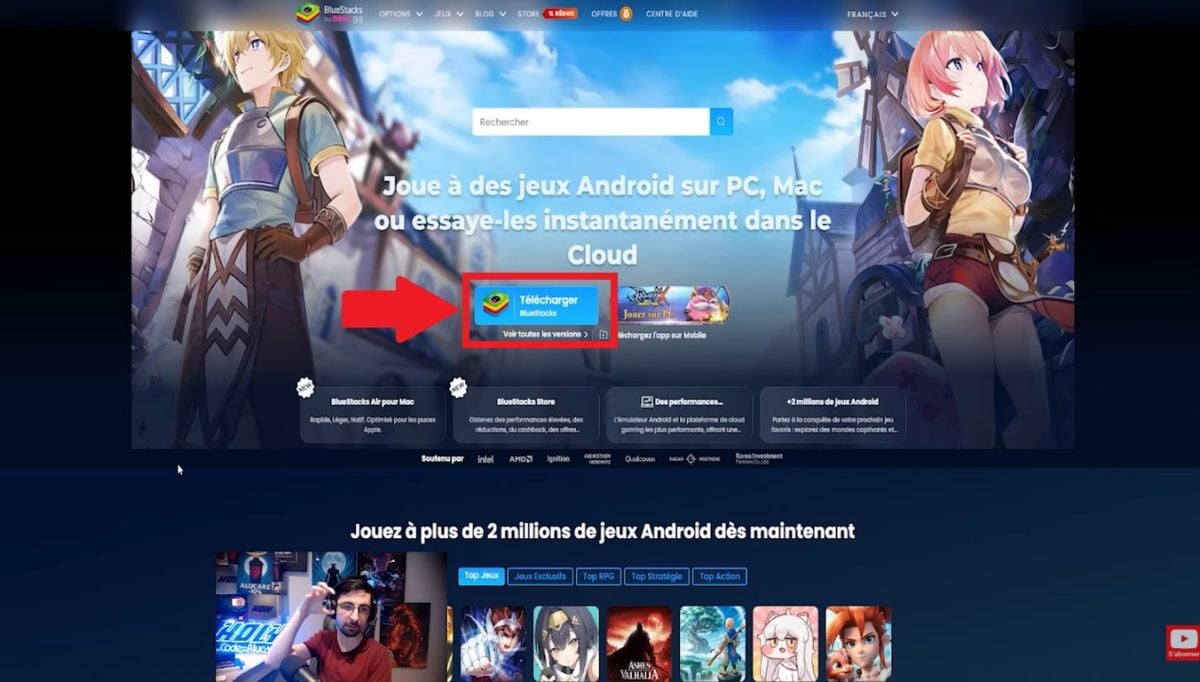
- 3️⃣ Then launch the Android emulator
- 4️⃣ Then import your APK file (drag & drop or via the built-in APK installer)
For more details, see our tutorial on the’installation of APK files on PC.
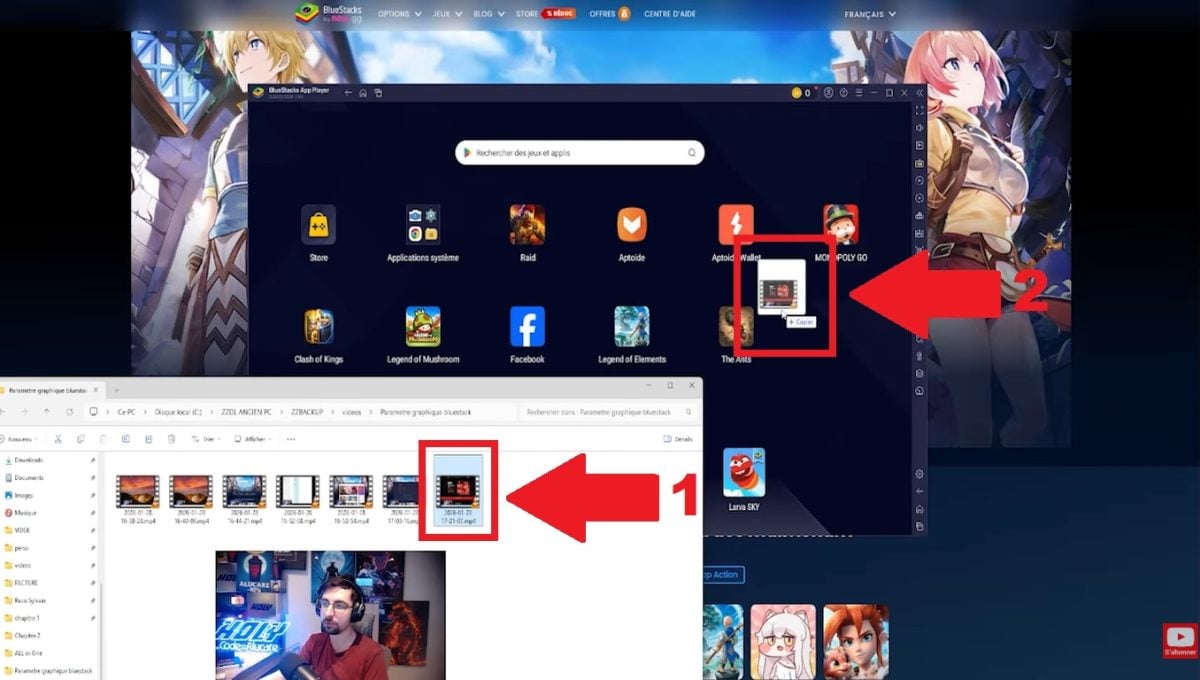
- 5️⃣ BlueStacks automatically installs the application
- 6️⃣ Click on the application, which will launch directly from the BlueStacks interface.
Don't worry, BlueStacks takes care of create a virtual Android environment. You can then use the application just as you would on your smartphone or tablet!
Explanatory video in French by Alucare, ideal complement to the page. View video (you can use YouTube's automatic translation)

What other tools can I use to open APK files on my PC?
In addition to BlueStacks, there are plenty of other efficient Android emulators which you can use to launch an APK file on your computer. Among the most interesting Android emulators are :
- NoxPlayer for all Android applications, not just games
- Memu Play, specially designed for Windows only
- LDPlayer, ideal for gaming, with integrated game store
- GameLoop, both Android emulator and gaming platform
Why choose BlueStacks to open APK files on your PC?
You may wonder why BlueStacks better than other Android emulators?
Having tested it, we've put together a short list of all the good reasons to use BlueStacks :
- 👉 It's an Android emulator 100 % secure You can open your APK files there without risk
- 👉 The interface is simple and intuitive just a few clicks to install and open your APK files
- 👉 There are regular updates you'll be able to take advantage of the latest practical features!
BlueStacks is ideal for playing mobile games on PC. On the program:
- ✅ More 2 million compatible games
- ✅ Excellent keyboard/mouse/handheld support
- ✅ Regarding the predefined configurations for shooting or strategy games (MOBA)
- ✅ Multi-instance functionality to launch several games at the same time
And to top it all off, you can access the Google Play Store from the BlueStacks interface!
FAQs
What is an APK file and what's it for?
An APK is the installation format for Android applications This file contains all the elements needed to install and run the app on an Android device (smartphone, tablet, etc.).
Why use special software to open an APK file on your PC?
Android applications are not designed for Windows. But thanks to special software like BlueStacks, you can recreate an Android environment on your PC and therefore launch your APK file no problem.
Without special software, you won't be able to open an Android app on your computer.
Is it really safe to open an APK file on a PC?
Safety depends primarily on the APK file source and the Android emulator used.
So it's much better to :
- 👉 Download APKs from trusted sites
- 👉 Use recognized tools like BlueStacks to open them on your PC
In both cases, you protect your PC viruses, spyware and flights of personal data !
You guessed it, open an APK file on a PC is easy, provided you use the right Android software. We recommend BlueStacks a truly effective, risk-free solution.
Have you ever tried to open an APK file directly on your PC? What solution have you tried? Share your experience in the comments section!








 English