A CSV file (Comma-Separated Values) is a plain text file that stores tabular data in a table format.
It is the universal file format for exchanging data between software programs such as Microsoft Excel, Google Sheets, or a database. Its simplicity and his compatibility make it a standard used everywhere: e-commerce, CRM, analysis, social media export.
This video explains in practical terms what a CSV file is:
Explanatory video in French by Alucare, ideal complement to the page. View video (you can use YouTube's automatic translation)

What is a CSV file?
A CSV file is a text file which organizes data into rows and columns. Its file extension is .csv. Any spreadsheet, database, or software program can read it without any complicated conversion.
The full name, Comma-Separated Values (i.e., values separated by commas), sums it all up: the values The values on each line are separated by a delimiter, usually a comma. This is a universal text format, with no formatting or formulas.
You often come across this CSV format when you download your data from Facebook or another social media platform. But CSV files go far beyond that: e-commerce, CRM, analytical tools, and databases use them every day to store and exchange data between systems.
The Structure of a CSV File
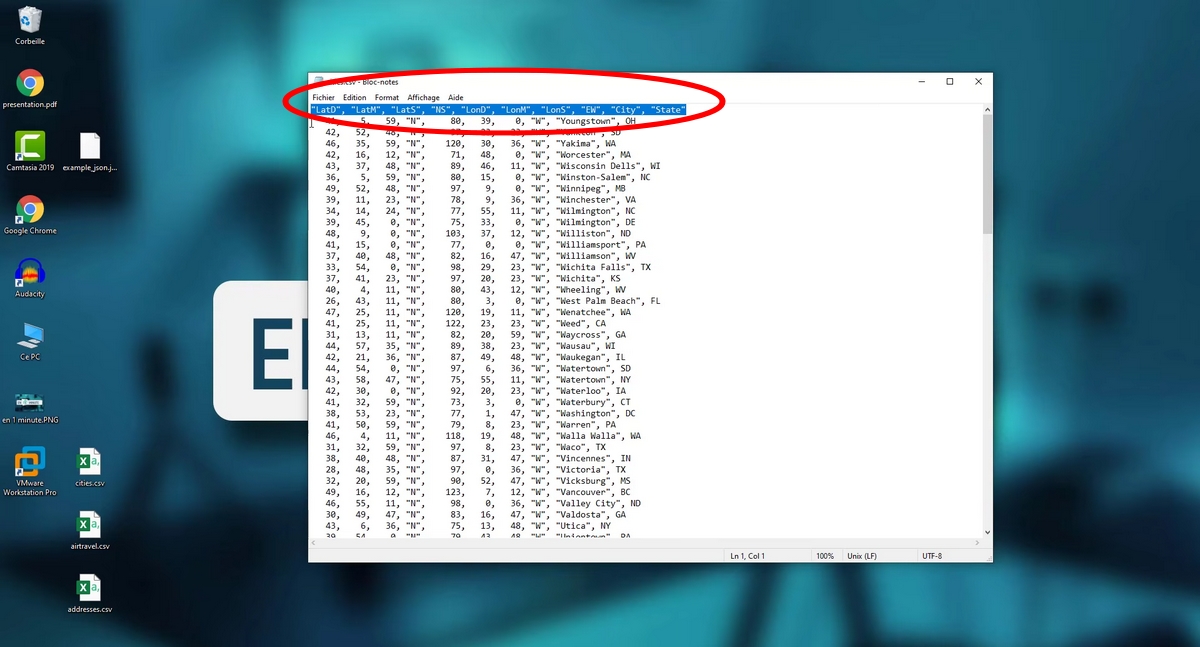
A CSV file It reads like a flat table, with no formatting or formulas. Its structure is very simple:
- The first line contains the header, that is, the name of each column.
- The lines The following lines each contain one piece of data, with the values separated by a delimiter.
Here is a concrete example of plain text content :
last name, first name, email
Dupont,Marie,marie@example.com
Martin,Paul,paul@example.com
The comma is the default separator. In Europe, the semicolon often serves this purpose, since the comma is already used for decimals. The tab character is also an option. Some software even uses semicolons or other characters depending on the context.
Remember to always check the separator and theencoding to avoid display errors. UTF-8 encoding is recommended: it prevents problems with special characters, such as accents, when the file is opened.
Quotation marks in a CSV file
When a value If it contains a comma, it is enclosed by double quotation marks. This is an important rule to prevent the treatment from file doesn't cut the data. By example :
"Dupont, Marie," 30, Paris
Without the quotation marks, the software would read four columns instead of three. This rule is handled automatically by Microsoft Excel and Google Sheets at the’export.
What are CSV files used for?
the CSV file is primarily used to store and exchange data spreadsheets between different software programs. You can move a list of customers for a CRM and theimport in Excel in just a few seconds. Its simplicity actually one format easy for almost all systems to read.
The CSV files are compatible with virtually all spreadsheet programs and databases :
- Microsoft Excel
- Google Sheets
- LibreOffice Calc
- MySQL, Oracle and most of the basics of data
There are many practical use cases:
- E-commerce : import a product catalog in an online store.
- Marketing : export a list of email addresses to an email sending tool.
- Data Analysis : Load a dataset into analysis software.
- Customer Management : Export information from a CRM to another tool.
- Accounting : import entries in accounting software.
Advantages of the CSV Format
the CSV format has several strengths that explain why so many systems who use it:
- Compatibility Universal: All software can read a CSV file.
- Lightness : A plain text file takes up very little disk space.
- Human reading: You can open a CSV file in a text editor and understand the contents right away.
- Easy ofexchange : perfect for sharing tabular data across different platforms and systems.
- Simplicity of treatment : The data can be easily managed using scripts or programs.
Disadvantages of the CSV format
The structure of the CSV rest basic. This format has its limitations:
- No setting in visual form or formules.
- No graphics nor cells colorful.
- No management types of data : it's all text.
- Ambiguity regarding the separator: comma, semicolon or the Tab key, depending on the country and software.
- Risk of’errors if the’encoding is not followed (problems with characters (special).
For data simple to exchange, the CSV is perfect. For features advances, a Excel file (.xlsx) is more suitable.
Difference Between a CSV File and an Excel File
the CSV file and the Excel file (.xlsx) both store tabular data, but they don't act the same way.
| Criteria | CSV file | Excel file (.xlsx) |
|---|---|---|
| Format | Plain text | Binary / Compressed XML |
| Formatting | None | Colors, fonts, borders |
| Formulas | Nope | Yes |
| Graphs | Nope | Yes |
| Compatibility | Universal | Mainly Microsoft |
| File size | Very light | Heavier |
| Direct Human Reading | Easy | It's hard without software |
In summary: use the CSV format to exchange data between systems, and the .xlsx format to work with advanced features such as formulas and charts.
How do I open a CSV file?
A CSV file can be opened in several ways, depending on what you want to do with your data.
Open a CSV file in Excel
Spear Microsoft Excel, then click on File > Open. Select your .csv file. A wizard appears: select the separator Select the delimiter (comma or semicolon) and the encoding (preferably UTF-8), then click "OK." Your data will appear as a table in Excel. This is the most common way to easily open a CSV file in Excel.
Open a CSV file in Google Sheets
In Google Sheets, click on File > Import. Select your CSV file from your computer or your Google Drive. Select the separator from the import formats, then click Import Data. The CSV file is displayed directly as a spreadsheet.
Open a CSV file in a text editor
You can also open a CSV file in a text editor classic like the Notepad On Windows, right-click the file, then select Open with, then choose your editor. You'll see the raw data with separators, line by line. This is useful for quickly checking the content or correcting a formatting error.
How do I create a CSV file?
There are several ways to create a CSV file depending on your level and needs.
Create a CSV file manually
Open a text editor (Notepad on Windows, TextEdit on Mac). Enter your data by separating each value separated by a comma. Put the column names on the first line. Save the file with the .csv extension. This is the easiest way to quickly create a small CSV file.
Create a CSV file from Excel
Open Microsoft Excel and enter your data into the spreadsheet. Click on File > Save As. In the Format menu, select CSV (comma-separated). Click Save. Excel will warn you that some features (such as formulas and formatting) will be lost: this is normal for a plain text file.
Create a CSV file from Google Sheets
In Google Sheets, click on File > Download > Comma-Separated Values (.csv). The CSV file is automatically downloaded to your computer. This is the fastest way to export data from Sheets.
How do I edit a CSV file?
Modify a CSV file is as simple as opening it.
Editing a CSV File with Excel
Open the file CSV in Excel via File > Open. Edit your data directly in the cells. Then save by clicking File > Save while keeping the CSV format. Note: If you use Save as Without checking the file format, Excel may save the file as .xlsx by default.
Edit a CSV file with Google Sheets
Import the CSV file in Google Sheets via File > Import. Edit the data in the spreadsheet interface. To export it again as a CSV file, use File > Download > Comma-Separated Values.
Editing a CSV File in a Text Editor
Open the file in your text editor. Edit the plain text directly. Be careful not to delete the separators or the file encoding. Save the file with the same extension .csv.
How do I convert a CSV file?
Convert a CSV file to Excel (.xlsx)
Open the CSV file in Microsoft Excel. Click on File > Save As. Select the .xlsx format from the list. Click Save. The conversion happens immediately: you'll get an Excel file with all the features of the spreadsheet's features (formulas, formatting, charts).
Convert an Excel file to CSV
Open your Excel file in Microsoft Excel or Google Sheets. Click on File > Save As (Where Download (in Sheets). Select the CSV format. Save. The conversion removes formulas, formatting, and charts: only the raw values are retained in the CSV file.
Convert a CSV file to PDF
Open the CSV file in Excel or Google Sheets. Format it as needed (this is a good time to use the spreadsheet's features). Then click on File > Print Where Save as PDF. On Google Sheets, click on File > Download > PDF. There conversion produces a document that can be read without any special software.
How do you use a CSV file in specific contexts?
CSV Files and Data Processing in Business
In the workplace, the CSV files facilitate the import and export of data between business tools. A CRM Exports a list of customers to a CSV file, which a marketing tool imports directly.
This compatibility between different systems is one of the great advantages CSV files. Cross-system data management often relies on this format in enterprise databases.
CSV Files and Big Data
The CSV files are frequently used in high-volume data processing contexts. Their plain-text format makes them easy for automated analysis tools to read.
They are often the format a standard input format for loading large amounts of tabular data. Their compact size and ease of processing make them a natural choice for data exchange between large-scale systems.
CSV Files and Programming
Developers often use CSV files as an input or output format for their scripts. Many languages offer native libraries for reading and writing CSV files line by line.
It's an ideal format for storing simple data without needing a full-fledged database. Reading and writing CSV files are among the fundamentals of data management in web development and automation.
Practical Tips for Using a CSV File Effectively
- Always check the separator Before importing: comma, semicolon, or tab, depending on the source of the file.
- Use the’encoding UTF-8 to avoid problems with special characters such as accents.
- Protects the values containing commas with double quotation marks in your CSV file.
- Don't put any lines gaps in the file : Some software interprets them as the end of a data.
- Clearly label the columns starting with the first row to make importing and processing easier.
- Convert to Excel file if you need formulas, charts, or advanced formatting.
- If the file format If it doesn't open properly, it's often a problem with separator orencoding to be corrected.








 English