Article verified and updated : 10/05/24
Keypoints
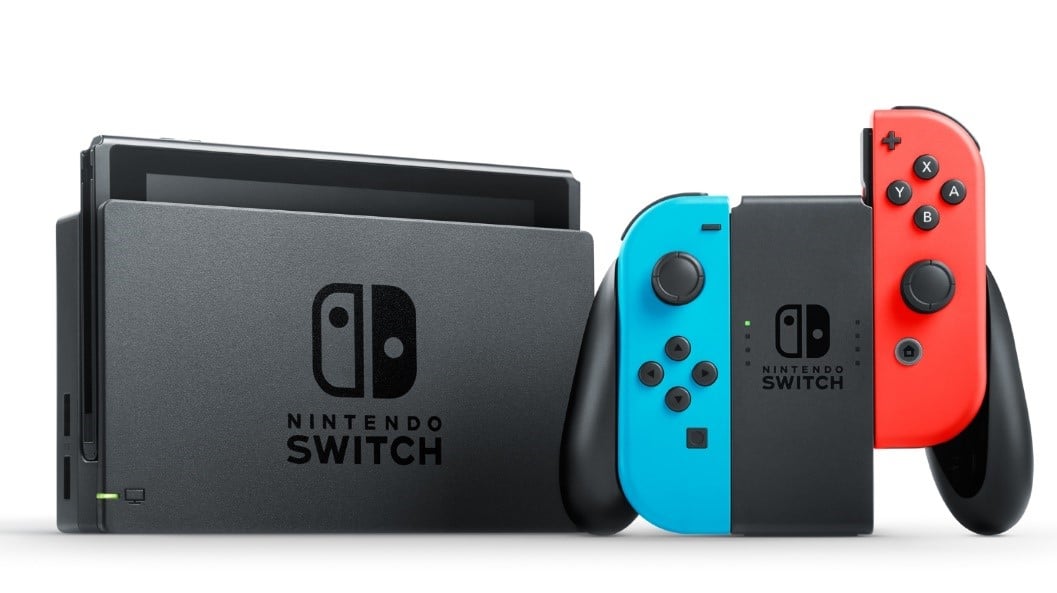
Most often used as a console, several compatible devices can be used with the Nintendo Switch to enhance the gaming experience. However, when you remove it from its dock, it quickly switches to portable mode. This means players can enjoy Nintendo games wherever they go.
But did you know that you can go online with the Switch? Yes, you can, but few people know that! In fact, the Japanese company has actually hidden navigation option in order to'prevent young people from surfing the Web on their console.
The Nintendo Switch's web browser is located in the meanders of the file system. Fortunately, it can be activated without a Jailbreak. In fact, to activate this feature, all you need to do is execute a sequence of actions in the right order Find out more here: " Nintendo Switch free gift card, where to get it? ". In this section, we'll show you how to go online using your switch!



By connecting your switch to the internet, you can:
- Play online with players from all over the world,
- Buy digital software from the Nintendo eShop,
- Receive news and announcements from Nintendo,
- Connect to parental control applications, and much more.
Two ways to access the Internet using Switch
There are two ways to go online:
Method 1: Accessing the Internet with the Nintendo Switch via a wireless network
This first method involves accessing the Internet with the Switch via a wireless network. This allows you to use Nintendo's hidden browser. To connect via a wireless connection, you'll need the following items:
- High-speed Internet connection ;
- Wireless router (wireless access point);
- Nintendo Switch.
Also, before you proceed make sure to check your SSID (network name) and wireless network password, in case it requires password.
To do this, follow these steps:
- Ensure strong signal quality by placing the Nintendo Switch less than 3.04 metres away ;
- Go to the HOME menu, then select "Settings" ;
- Then select Internet ==> "Internet settingsOnce you have selected it, the Nintendo Switch will automatically search for nearby WiFi signals.
- Select network name appropriate from the network list shown;
- If you can't find your SSID, go to your wireless router press Y to restart WiFi network scanning. This can happen in two ways:
Either the network name is grayed out, indicating that the type of wireless security used is not supported by Nintendo. Or it does not appear, in which case the problem is likely due to the wireless network environment.
- Once invited, use the keyboard to enter password wireless network ;
- At this point, Nintendo check Internet connection. Once the test is complete, select OK.
- If the test fails, an error code and a message will appear to help you solve this problem.

Method 2: Accessing the Internet with Nintendo Switch by changing the main DNS
Nintendo Switch's Internet functionality works on all system software of all console types. It should be noted, however, that this second method involves modifying the primary DNS.
For this reason, you must ensurenot to store sensitive data in your console during navigation. To do this, follow the steps below:
- First access the "Settings" . Click the visible gear icon on the interface.
- In the newly opened window, you'll see "Internet settings". Then click on the WiFi connection you're currently connected to.
- Then return to the " Settings » of your network before clicking on "change settings", then "DNS Settings".
- Be sure to toggle automatic DNS to the Manual DNS, you must define the Primary DNS on : " 045.055.142.122 ". It's the DNS Switchbru. Check carefully, because if you miss a digit or a dot, you'll get an error message.
- It should be noted that the secondary DNS will not have to be modified before registration.
- You will then see "Sign in" appear on your screen. Tap on it.
- You will then be asked to register on the network. In this case, select "Next".
- Once on the "SwitchBru DNS" all you have to do is click on "Continue to Google" before surfing peacefully with your Switch.
And there you have it!
Access Google from the console
You can access Google Chrome, the web browser fast, secure and customizable with the Switch. This is also possible if you have a Switch Lite. To access the browser, follow these steps:
- Check your Settings from the console.
- Scroll down and click on the Internet.
- Then go to Internet Settings.
- Select the wifi network you want to connect to, then go to 'Change settings'.
- Change the DNS settings in manual mode.
- Enter the Primary DNS and save your changes.
- Click on Connect to this network, then on ‘Next’.
- Click on ‘Continue to Google’ ,and there you have it!
Access YouTube from the console
Want to watch YouTube videos on your Switch? Then simply download the YouTube app:
- From the Home menu go to the Nintendo eShop and choose a profile associated with a Nintendo account (you must have a Nintendo account to visit the eShop and download Youtube).
- Use the search function and enter "youtube" in the search bar.
How to Get Netflix using Switch?
Netflix on Nintendo Switch arrived on the eShop a few years ago. A Nintendo app was available on the Wii until January 2019, when it was removed from the platform. Currently, Netflix is no longer available on any Nintendo Switch devices. Netflix cannot be downloaded to Nintendo Switch from the Nintendo eShop.
However, if you want to watch Netflix on your Switch, you can try this method:
- Install Android on Nintendo Switch so you can download Netflix on the console just like any other Android tablet or phone.
Installing Android on Nintendo Switch
The only way to run Netflix on the console is to include the Android operating system on the device. The operating system will give users access to the Google Play Store, allowing them to install Netflix as well as Android apps and games.
However : Be aware that you are essentially hacking your game console by adding Android to it. This exposes you to various risks, including rendering your device completely unusable in the event of an error. Nintendo also tends to prohibit users from using online services, so if it discovers that you have hacked yours, it may prevent you from accessing the Switch eShop or online multiplayer games.
Before installing Android, you must check whether your Switch is suitable for this method. To do so, check your serial number to see whether it is compatible with Android or not. All Nintendo Switch Lite and many Nintendo Switch devices are now immune to exploits.
Here are the requirements:
- A USB-C cable to connect the Switch to a PC
- A microSD card with at least 16 GB storage capacity
Once you have the requirements ready, you can start installing the Android system on your Nintendo switch.
- Insert the Switch SD card into your PC using a microSD card reader.
- Download the Hekate starter charger.
- Unzip the archive and move the files to the root directory of your SD card.
- Start the Switch in HOS and link the Joy-Cons.
- Reinsert the SD card into the switch and slide the RCM model onto the right-hand rail.
- Then connect your Switch to your computer using a USB cable and switch it off.
- You can access RCM mode by simultaneously pressing “Volume + Power” then include the Hekate payload "hekate_ctcaer_[version].bin "
- Delete the RCM model and run Nyx Options after you have started Hekate.
- Share the Joy-Con BT pairing information with the Joy-Con and check that the message is correct.
- Access the partition hekate and press "Tools
- Then use the slider to select 16 GB as the operating system and click Next.
- Connect the switch to your computer and select "SD UMS.
- Download the I tabcosa and unzip it to the root of your SD card.
- Download MindTheGapps on your computer and move it to the root of your SD card. Then remove SD UMS from your PC.
- Select "Flash Android on the switch and accept the prompt to restart in recovery mode.
Slide your finger to the right to write to the SD card. - Press on "Install, "Select storagethen on "MicroSD card during recovery.
Install the Lineage zip file. If you get stuck with voice recognition, go back to the Wi-Fi settings page and select "Skip for now." - Launch Switchroot Android from the advanced settings of Hekate -> Switchroot Android 10. Turn down the volume to return to Flash Zip recovery.
- Then press and hold Volume -.
- Select this option to return to Hekate without reinjecting the payload. Then restart the switch with the original firmware.
And that's it! You can now enjoy videos on Netflix using your Switch!
In addition to taking advantage of several multiplatform gamesThe Nintendo Switch also allows you to search Google and watch videos on YouTube. Several accessories (protective cases, screen protectors, charging stations and cables, grips, Joy-Con steering wheels, etc.) are sold with the Switch for a more immersive gaming experience.








 English
I didn't know you could go online with the Switch. Your explanations are clear and easy to follow.