A banner allows you to recognize a server andattract new membersAs with all social media platforms, it is advisable to personalize it in order to enhance the user experience.
Find out in this article how to create a banner for server Discord.

Types of server banners
Before embarking on the steps involved in creating a server bannerThe best thing to do is to first understand what this server banner is. This feature is an option that has been available to all users since June 2021.
The banner is a image that you can customize which appears at the top of the channel list.
The purpose of creating a server banner is to show subscribers in one image thepurpose of your server or community. The image also serves to differentiate the latter from others.
- It should be noted, however, that in order to have a server banner, you must pass the 2nd level of Boosting.
- If you want an animated server banner, it is essential to achieve the 3rd level of boosting.
Want to optimize your profile? Discover how to create a profile banner Discord à travers un autre article sur notre site.
Static server banners
You can add a static image to your server banner when it has reached the boosting level 2.
A static banner is a still image which is used on your server. The image is primarily used to give your community a sense of belonging and uniqueness. It also allows new users toeasily identify the server.
Ideally, you should use a static banner if you use text in your design. This makes it easier for future members to read your message and understand the information mentioned.
Animated server banners
You can add an animated image to your server banner when it has reached the boosting level 3In this context, please note that:
- The animation on the banner activates for 5 seconds when the guild is first loaded. It then pauses.
- When a user scrolls through the list of rooms, the banner disappears, then it comes to life again for 5 seconds when it reappears.
- The banner comes alive especially when flying over, just like an animated server icon.
- The banner does not animate when the reduced movement is active.
Creating a server banner
You must choose a image of your choice that perfectly suits your community's image. Here are some tips for creating a banner for your server:
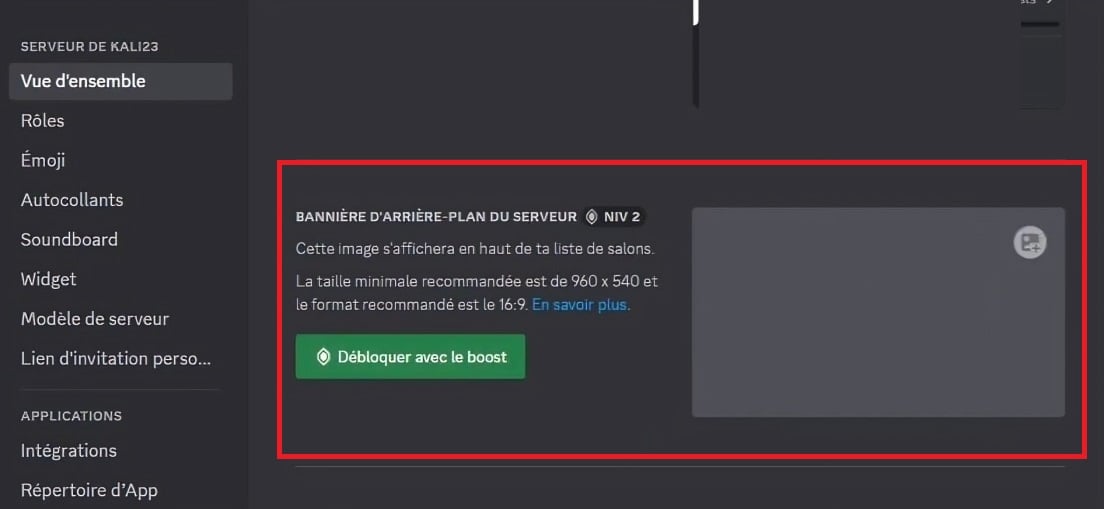
- Wondering what size a Discord server banner should be? The recommended size for a banner is 960*540 pixels, i.e., an aspect ratio of 16:9. If your image happens to exceed this threshold, don't worry, Discord will take care of resizing it.
- Choose one anyway. original image, unique and containing clearly visible elements.
- Do not use complex elements in the first 48 pixels of the file. This will allow you to highlight the server title.
- In terms of design, it is not advisable to use a GIF image containing text or a logo.
You can use images on Pinterest or on other platforms for your banner. Make sure that the image you use is royalty-free. Ideally, if you can, create a design inspired by these templates.
You can create a custom banner on the Adobe's official website or use online tools such as Kapwing.
However, you can also hire a graphic designer professional to improve your server banner if you don't have time to devote to creating it.
Integrating the banner on the server
The next step is to image downloadThe procedure is the same regardless of the device you are using.
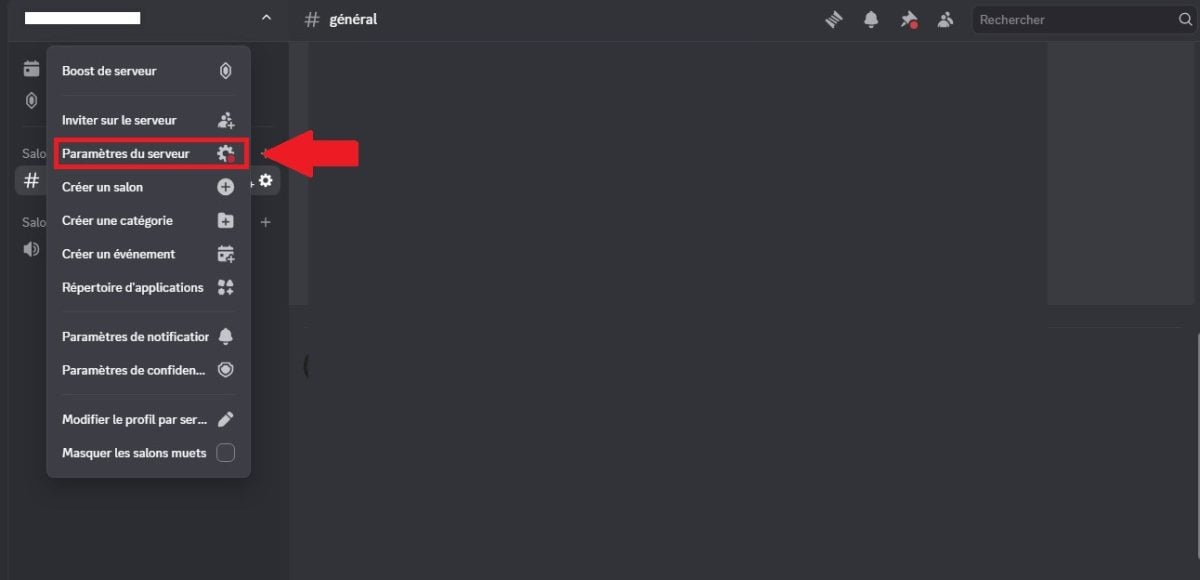
- First, you need to open your Discord application, then enter the server. Click on the server name in the top left corner, then go to the Server Settings section using the gear icon.
- Once in Settings, scroll down until you can access the option to change the banner at the bottom of the screen. There, you will see a message stating that your server needs level 2 boosting to be able to use the feature.
- Download then your image. Don't worry, Discord allows you to adjust the image if it has not been created according to the required size and dimensions.
FAQs
Is it possible to add a banner to a server without boosting?
According to the Discord support, if your server is verified or if it is a partner server Discord, they can benefit from a banner without having to purchase a boost level.
What happens to the animated banner if the server drops from level 3 to level 2 boosting?
In this case, the animated image on the banner will become automatically static. Image quality may deteriorate in this case, so it is important to take this into account if you wish to leave the image as it is.
If you have a problem with your banner, you can try to resolve the issue in the dedicated Discord space devoted to this topic via this link: Discord help pages about servers.
In conclusionIt is important to have a server with at least level 2 boosting to benefit from a banner. Animated banners are reserved for servers with level 3 boosting.
Some dimensions and formats File specifications must be followed when adding a banner to a Discord server.
Other articles are available on our page. Discord if you need additional resources on this platform. If you have any questions, please don't hesitate to leave a comment.









 English