To create a profile banner Discord, you need a subscription Discord Nitro and a free design tool like Canva.
You choose a template, then customize the colors, the text and images, and then export your file to PNG or in GIF animated. The result: a unique profile that sets you apart.
What are the essential elements of an effective Discord banner?

The profile banner Discord is an image you customize to decorate your profile. To make it really eye-catching, three elements are key:
- The background image : Choose a photo that reflects your passion or your world. It sets the tone from the very first glance.
- The text : If you add any, use a legible font and a color that matches the design. The text should be subtle and reflect your personal style.
- Colors : Stick to a harmonious color palette, ideally one that matches the colors in your profile picture.
If you use Discord for a community or a business, your banner becomes a powerful communication tool. It should reinforce your visual identity. Be sure to include:
- A short title accompanied by a clear subtext.
- A eye-catching image related to your industry.
- Your logo personal or professional, clearly visible.
- A call to action simple (join the server, visit the website…).
The goal is for all graphic elements align with your brand. Anyone visiting your profile should be able to understand what you offer within a second.
Registration on Discord is 100% (Free). However, to add a profile banner image, you must have a subscription Nitro.
If you don't want to pay, find out How to get Discord Nitro for free in another article on our website.
What are the ideal dimensions for a Discord banner?
It all depends on the type of banner you want to create. The profile banner (related to Discord Nitro) and the server banner do not have exactly the same constraints.
For a profile banner Discord, keep these values in mind:
- Recommended dimensions: 600 x 240 pixels at a minimum (a higher resolution improves the on-screen display).
- Recommended ratio: 5:2.
- File size: less than 10 MB.
For a server banner Discord, but rather aims to:
- Ideal dimensions: 960 x 540 pixels.
- Aspect ratio: 16:9.
- File size : less than 10 MB.
The higher the resolution, the better the on-screen quality will be. Always stick to the correct aspect ratio to avoid Discord Don't crop your banner.
Which file format should you choose for a Discord banner?

Discord accepts three file formats for your banner. The right choice depends on the content of your image:
- Choose the PNG if your banner contains illustrations, text, or sharp shapes. This format preserves quality and clarity, even along precise edges.
- Choose the JPG if you include a photo or a detailed background. It offers a good balance between quality and file size.
- Go to the GIF for a animated banner. It's the only format that supports animations on your profile Discord.
In any case, make sure to stay within the maximum weight limit of 10 MB by file, otherwise Discord refuses to send it.
Where can you find inspiration for your Discord profile banner?
The easiest thing to do is to get some ideas from Pinterest and Tumblr. Both of these platforms are full of images and templates organized by style.
Type “Discord banner” into the search bar, and you’ll find thousands of examples.
You'll also find plenty of video tutorials on YouTube to create your banner step by step.
Here are the most popular themes to help you find inspiration:
- Aesthetic : pastel shades, soft and minimalist effects.
- Animated : characters and scenes from your favorite TV shows, often adapted into GIF animated.
- Gaming : perfect for a server Discord of players.
- cyberpunk : neon lights, a futuristic atmosphere, and bright colors.
- Marvel and DC : For superhero fans.
- Floral or cute : perfect for a softer look.
You can also explore the free templates offered directly in Canva. The resource library contains hundreds of templates that are already in the right format, which you can customize with just a few clicks.
Please note that automatic resizing is a feature available only with the Canva Pro: With the free version, you can create your design directly at the correct dimensions.
You can also use a artificial intelligence-based image generator to create a completely original background image. Tools such as Adobe Firefly Where Microsoft Designer allow you to generate an illustration based on a text description, which you can then import into your favorite banner creator.
Use these examples for inspiration, but avoid copying an image protected by copyright. The goal is still to create a banner unique that reflects your own identity.
How do you add your profile banner to Discord?
Once you've created and exported your banner to PNG (or in GIF (for an animated version), all you have to do is add it to your profile.
Here are the steps to add your banner to Discord :
- Open the’application Discord, then finds the user settings in the lower-left corner, next to the profile icon.

- Next, access the profile options using the button Edit user profile.
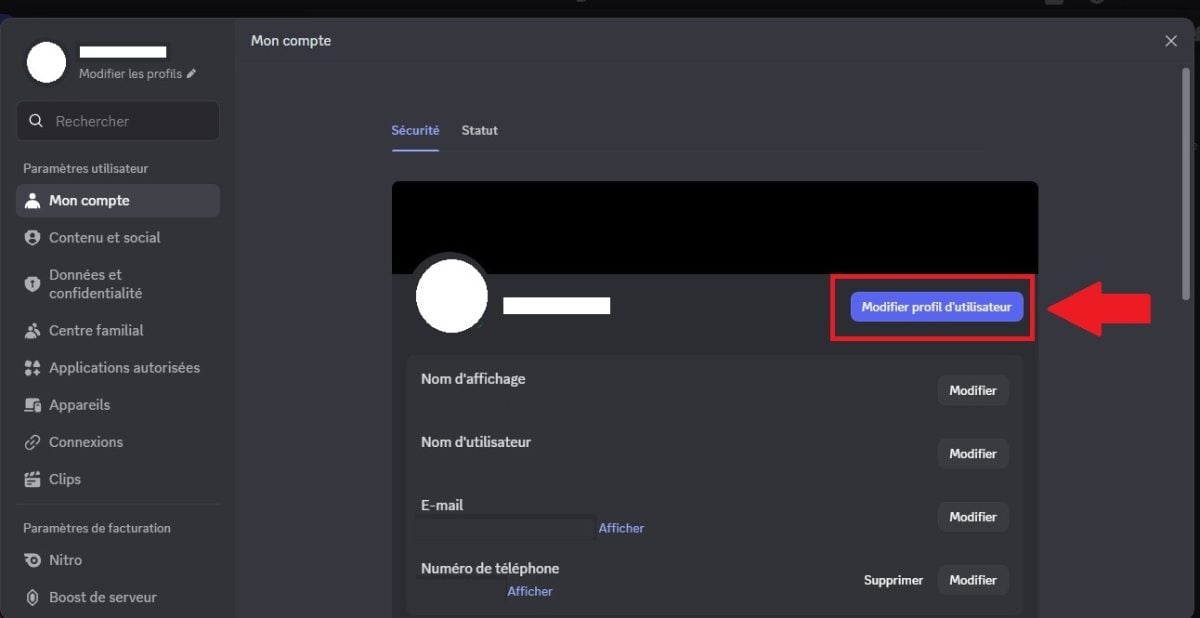
- On the Profile tab, select the option profile banner, located above your profile picture. From this tab, you can also access other customization options, such as your avatar or bio.

- Discord then asks you to Upload your file. Open the folder where your banner is located, then select the image.
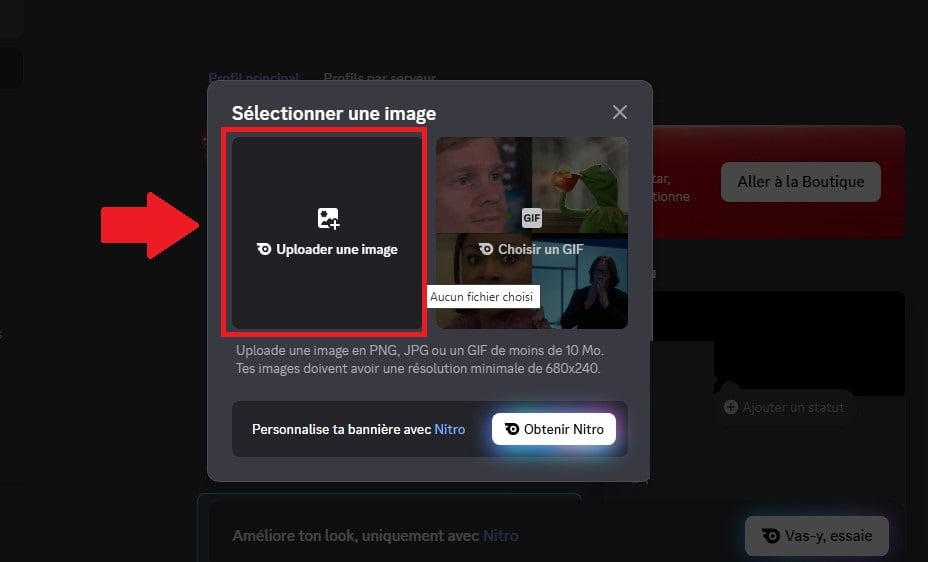
- Adjust the framing, then Save your changes. Your new banner Discord is online!

If you're having trouble adding your banner, check two things. Your The file may be larger than 10 MB, or your subscription Nitro is not active. Also make sure the image is in the correct format PNG, JPG Where GIF.
Why choose a Discord banner?
A banner Discord lets you stand out from other users at first glance, especially when it's consistent with your profile photo. In a professional setting, the principle is the same as with the others social networks : A well-designed banner highlights what sets you apart in your field.
It's also a real plus for a community. On a server Discord, a server banner A well-designed website strengthens members' sense of belonging and immediately conveys a more professional image.
Please note that the server banner is activated once the Boost Level 2 reached.
In both cases, good design is based on a clear theme, distinctive colors, and true consistency across all graphic elements.
If you need more articles about Discord, you can check out our page on this topic.








 English