The LinkedIn banner size varies depending on the account type. For a personal profile, the dimensions are 1584 x 396 pixels. For a company's corporate page, the recommended size is 1128 x 191 pixels.
These dimensions ensure that your LinkedIn is displayed correctly on all cameras, without distortion or unintentional cropping.
⚠️ The detail most guides forget: your LinkedIn profile photo covers the bottom-left corner of the banner. So keep any text or logo centered or offset to the right, never to the bottom left.
- You can create for free in just a few minutes at Canva (templates that are already the correct size).
- If you're short on time or want a truly professional results, and at the end of the article, we'll also show you how to hire a graphic designer on a budget.
What are the ideal dimensions, size, and formats for a professional LinkedIn banner?
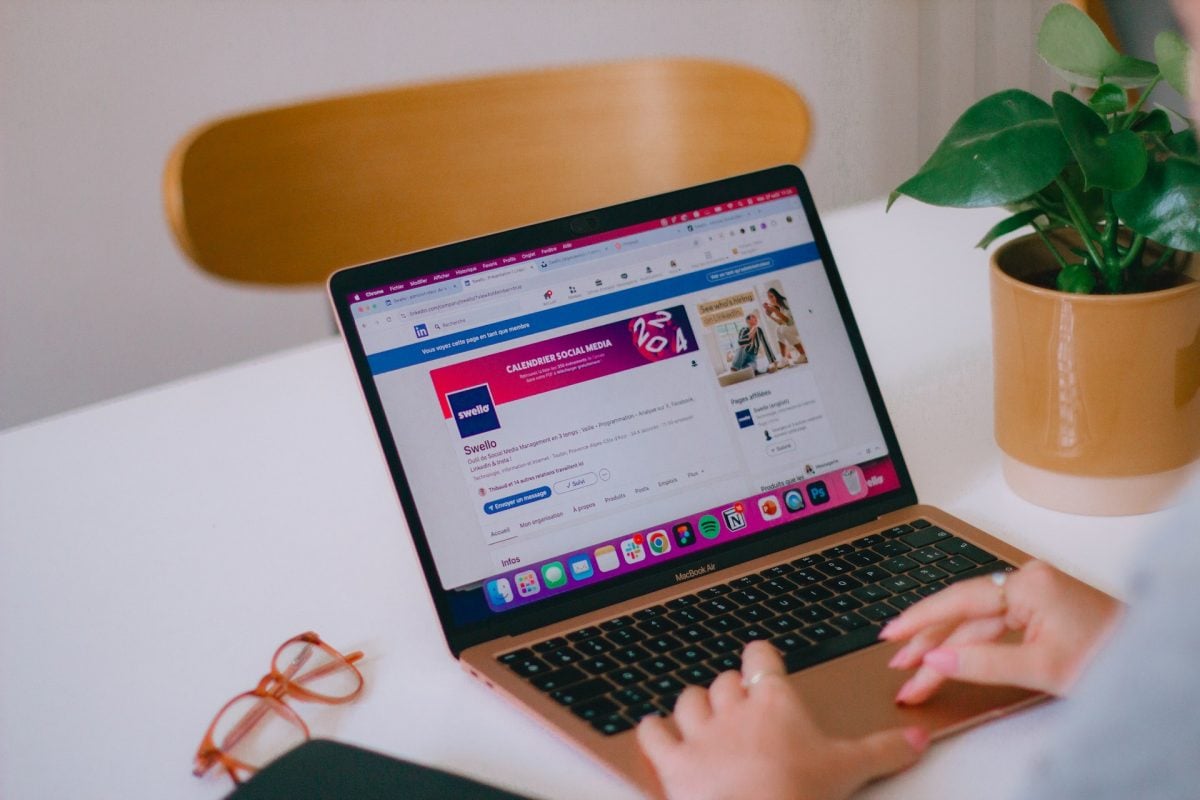
If you add a banner on LinkedIn, you must follow the specified dimensions and the required sizes on the social network:
- LinkedIn banner or cover photo for an account staff : 1584 × 396 pixels
- Banner or cover photo of a page LinkedIn: 1128 × 191 pixels.
In both cases:
- The size file size should not exceed 8 MB for a personal profile, and 3 MB for a company page.
- the format must be suitable for the web: JPEG or PNG.
If you want add work experience to LinkedIn, but you don't know how to do it, check out our article on the subject.
Where not to place your text: the area hidden by the profile photo
Before you finalize, keep one thing in mind: LinkedIn doesn't explain clearly: part of your banner is hidden.
Your profile picture covers the lower-left corner on a computer, and is positioned toward the bottom center on a mobile device, where the cropping is a little tighter.
Consequences Practical tip: if you center your slogan in Canva and then upload it, part of it may be hidden. To avoid this:
- 📌 Keep all text or logos outside the lower-left third, centered Where offset on the right.
- 📌 Leave a margin of security at the bottom of the image.
- 📌 Check the rendering on mobile once the banner is live, not just on a computer.
Which format to choose?
Choose the PNG As long as your banner contains text or a logo, the edges remain sharp, without the blurring caused by JPEG compression.
- the JPEG It's still decent for a banner that's just a photo.
- For flawless rendering on Retina/4K displays, export to double resolution (3168 × 792 px).
- For a personal profile, the minimum size The recommended resolution is 1584 × 396 px, which is 4:1 ratio.
How to design a good banner on LinkedIn?
Whether you are an individual professional or a company, designing a banner is always useful for promoting yourself and stand out from your competitors.
- Compliance with size, format, and dimension requirements is essential, but it is also necessary to use design elements, the right color, and the right pattern, to create a more engaging experience on this social network.
- Among the key elements to keep in mind, you should know that your LinkedIn banner should reflect your professional identity.
- The photo must be attractive and serve as a powerful communication tool.
You can draw inspiration from banners people who work in the same field as you to create your own. You can also find examples online.
This can spark your creativity, allowing you to create visuals that meet market expectations.
What tools should you use to create your banner?
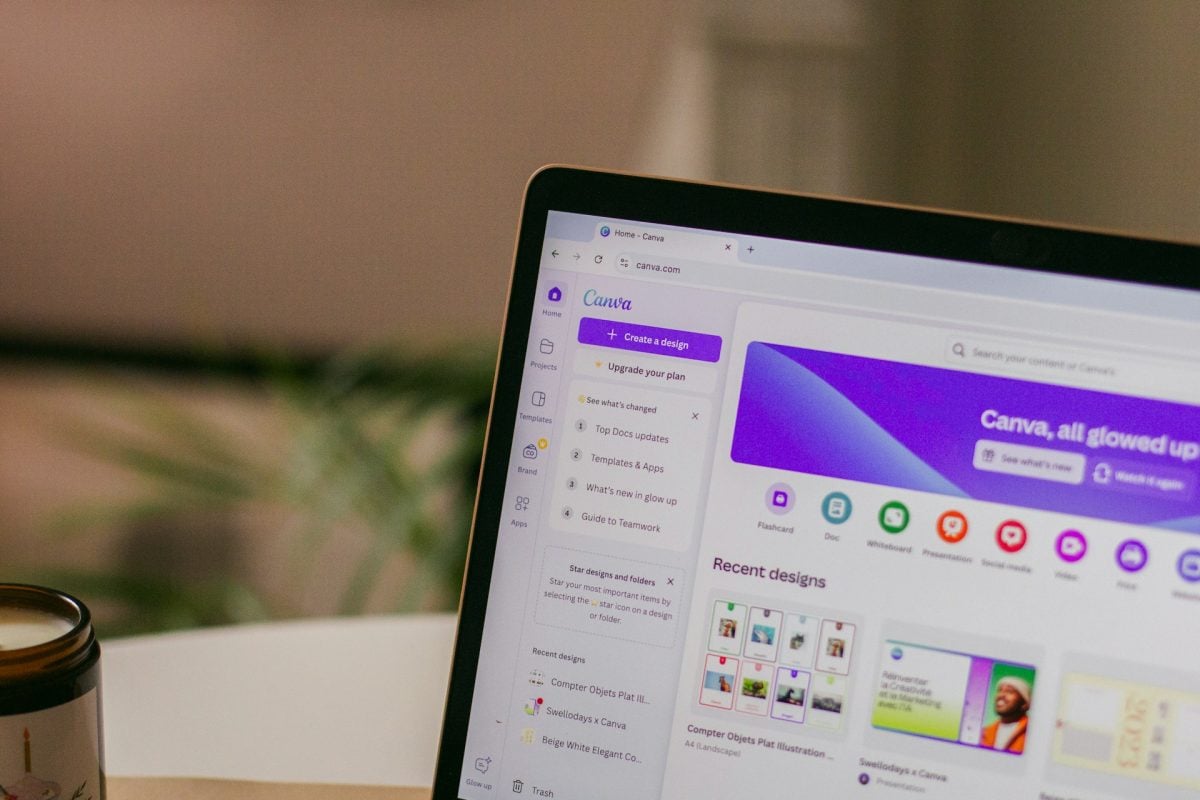
Many professionals create their professional coverage on Canva Nowadays, even those who are new to design can create their professional LinkedIn banner on this platform.
- The advantage of Canva is that you can access free templates created by professional graphic designers on the platform.
- You also have access to a library with over a million photos and images on it.
- This will allow you to create a LinkedIn banner which gives a professional impression in just a few clicks on Canva.
You can also find many professional banner templates for social networks such as LinkedIn at Pinterest. They can then be edited in Photoshop, Canva, or other platforms.
What elements need to be defined in advance?

Here's what you need to know before you do your LinkedIn banner.
1. Determine your main objective
Clearly define your message and your GoalsDetermine what you want to achieve with your LinkedIn profile. Then add a slogan to your banner.
Choose which message you want to convey through your professional banner. In general, this could be:
- Promote a product or a specific service.
- Showcase your skills.
- The quest for a new career or a new job.
- Strengthen your personal brand or highlight your experiences.
In any case, clarification of your Goals is essential for successfully designing your banner.
Our advice :
- Make sure the message does not interfere with other elements on your profile (photo, other text, etc.)
- Check the readability on other devices (tablet, smartphone, etc.).
- If you want a more professional result, you can hire professionals on various specialized platforms, including Fiverr.
2. Define colors and design
You must choose fonts and colors that match your professional identity and profile.
A background White remains a safe choice for a clean look, but the colors of your graphic charter are often more effective in reinforcing your personal branding.
The colors you choose should also stand out from the competition and give an impression of professionalism.
- Be aware that colors and design play an essential role in communicating your message. They can evoke emotions, attract attention, or send messages.
- The design, meanwhile, reflects your professionalism.
Besides, what do you want people to do? remember about you This question is crucial when creating your LinkedIn banner. You should therefore highlight:
- Your industry.
- Your skills.
- Your professional vision.
Here are a few tips To create a good visual:
- Use colors aligned with your brand.
- Ensure that the text is readable.
- Choose a sleek design and professional without visual overload, but which highlights your message.
- If you are working on personal branding or your company's branding, keep a visual consistency in your images. This helps people recognize your brand.
3. Identify your target audience
To know who we are addressing is essential for a good marketing strategy, whether you are an individual professional or a company.
To do this, we recommend that you examine the demographics, interests, and habits of your targets.
Thanks to this, you can customize your message and your pictures to capture the interest of potential visitors.
4. Choose a high-quality image
Choosing an image is essential to ensure your profile on this social network looks professional. Therefore, even though it may take time, you should choose high-resolution images to avoid the risk of blurry images.
Always remember that poor-quality images can make things look sloppy and non-professional.
The background image you choose should also reflect the essence of your brand. This could be:
- A photo of you working.
- A graphic design customized to reflect your brand.
In all cases, the visual must correspond to professional image that you wish to project.
Our advice :
- Choose an image from high quality.
- Don't neglect the resolution to avoid pixelation.
- Respect the recommended dimensions on LinkedIn.
5. Be clear and precise
L'art of brevity is essential on LinkedIn!
- A banner with too much text can be boring and distracting.
- Therefore, when creating your professional banner, your message must be precise, impactful, and to the point to attract your audience at first glance.
- Please note that a banner is one of the key elements visual communication.
- Therefore, prioritize short sentences, relevant keywords to quickly convey the message.
Why entrust the task to experts?
Even with a certain number of templates, In this case, you may not have enough time to design your banner. In this case, you may not have enough time to design your banner, or it may be difficult for you to do so.
- Calling on experts on Fiverr can be an ideal solution for creating your banner.
- You can also ask them for a profile photo LinkedIn, which has a real impact on visitors' perception of your profile.
These professionals design excellent banners at reasonable prices, whether you're a business or an individual, starting at €5.
Thanks to this approach, you will have an original profile and a banner that sets you apart from your competitors.
Get the help you need to create the professional LinkedIn banner of your dreams:
Get a professional LinkedIn banner with a professional
How to change your professional banner on LinkedIn?
Whether you have a free or premium account, the procedure for changing your banner is as follows the same. LinkedIn makes no distinction by subscription type for this feature.
Want to modify or add a banner on this professional social network, but you don't know how? In that case, follow these steps:
- Access your profile. Then click on thecamera icon in the upper right corner of the banner location. If you have already imported a banner, the button will take the form of a pencil.

- Click on Upload a photo. Select your banner, already saved on your computer, and click on Open.

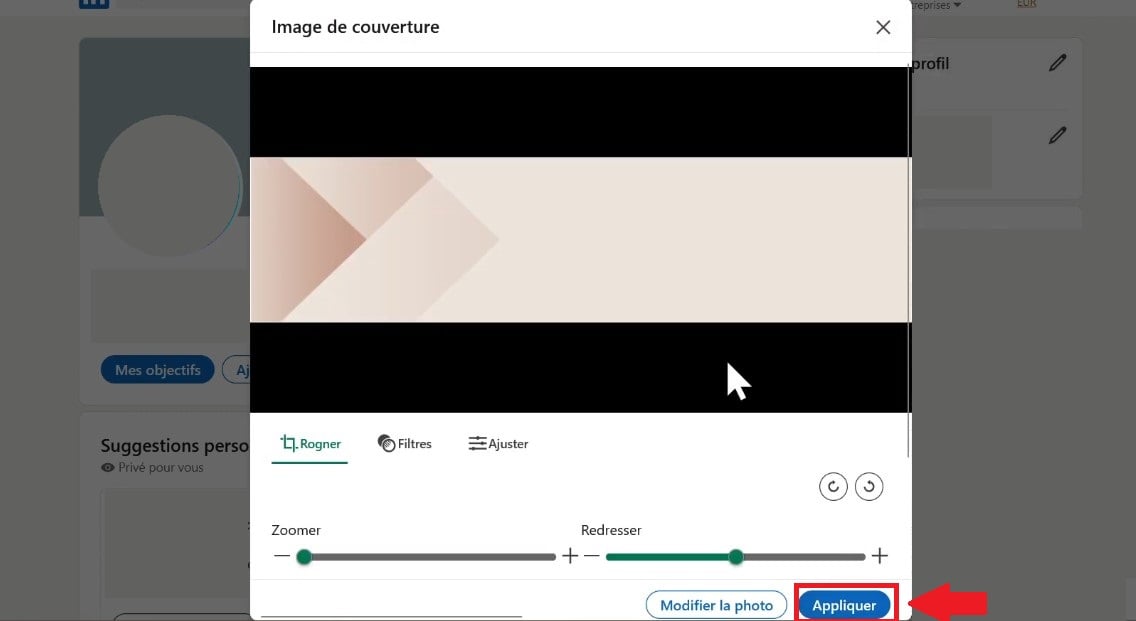
- LinkedIn will then suggest that you crop your image so that it's the right size. However, if you follow our tips, you won't need to crop the image.
- Click on Apply, and you will have successfully downloaded your banner!
Why respect LinkedIn's standards when creating a banner?
The banner is located at the top of the profile of a LinkedIn page or personal profile, just above the profile photo on LinkedIn. The placement of this visual element makes it the first thing your visitors see.
Pages on LinkedIn are consulted from various devices, It is essential to respect the recommended size to ensure that the image adapts correctly to all resolutions.
An image that is too small or incorrectly sized risks being enlarged and pixelated, This is detrimental to your professional image, whether for a company page or a personal profile.
- This adjustment may relate to cutting the image horizontally or vertically to comply with LinkedIn's recommendations.
- To ensure that your image can adapt to all screen resolutions, you need to download a high-quality image with limited text.
In conclusion :
- Create your free banner on Canva: models already in the right dimensions, professional rendering in just a few clicks.
- If you're short of time or want a tailor-made result, delegate to a graphic designer on Fiverr from € 5.
- Observe the dimensions LinkedIn's specific requirements for banners and other elements to ensure optimal display on different devices.
- You can improve your professional visibility on LinkedIn effectively by customizing your banner to reflect your brand identity and attract recruiters or potential customers.
If you have any questions about creating your LinkedIn banner, you can ask them in the comments area. Discover other similar articles on the Guides & How-To's on our website.








 English