An SSD (Solid State Drive) is a storage device that replaces the magnetic platters of a traditional hard drive with flash memory. Essentially, it stores your data on microchips, with no moving parts—much like a large USB flash drive built into your computer. The result: faster boot times, silent operation, and greater shock resistance.
Unlike a mechanical hard disk drive (HDD), which uses a read head that scans rotating platters, an SSD reads and writes data directly to memory via a controller. This explains its read and write performance: whereas an HDD tops out at around 100 to 200 MB/s, a SATA SSD reaches about 500 to 560 MB/s, and an NVMe model can reach speeds of 3,000 to 7,000 MB/s.
In this article, we'll take a detailed look at what an SSD is and how it works, what sets it apart from a traditional hard drive, which of the two offers better performance, and which one to choose based on your needs.
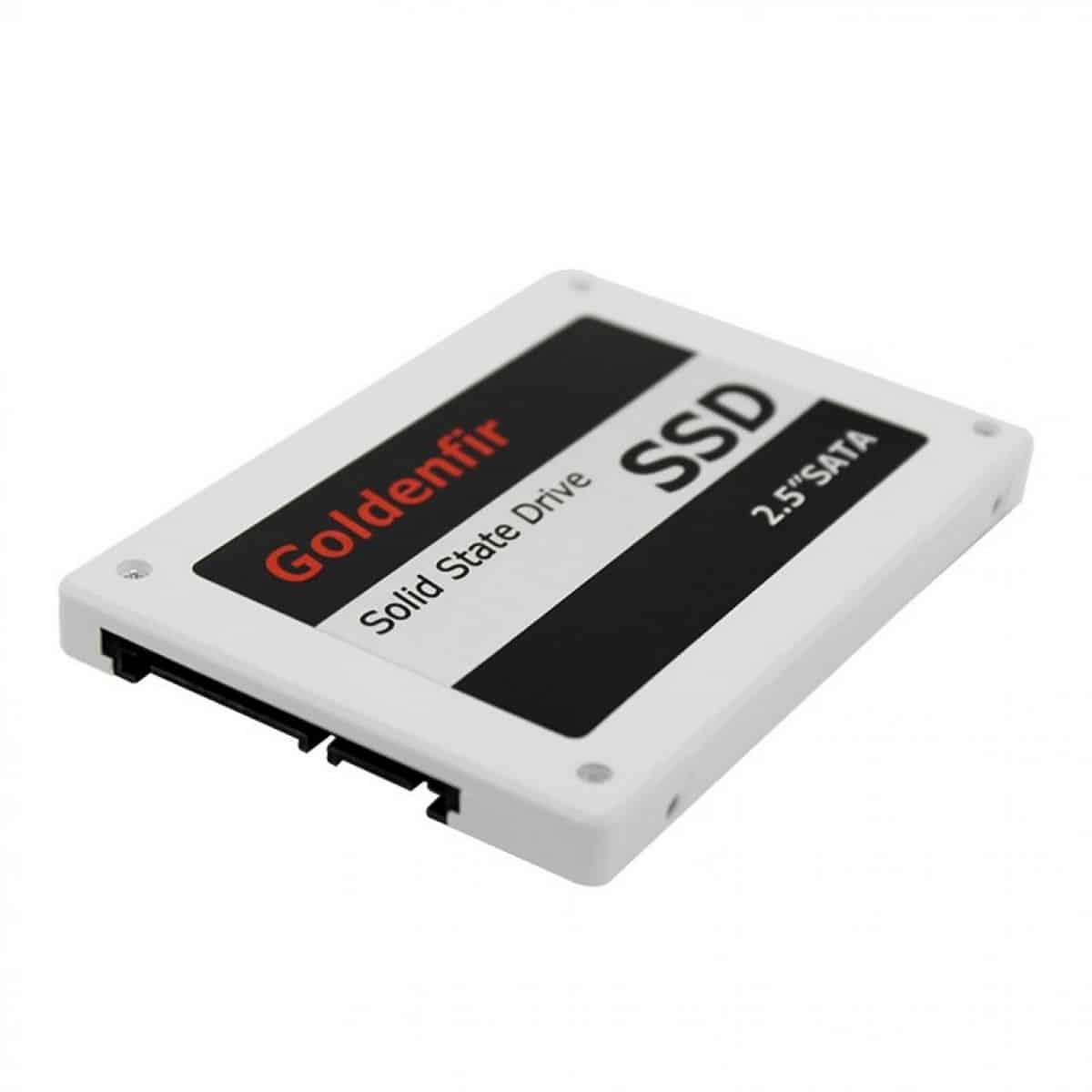
What is an SSD?
An SSD (Solid-State Drive) is a storage device that replaces the magnetic platters of a traditional hard drive with flash memory. In practical terms, an SSD stores data on electronic chips, much like a large USB flash drive built into your computer. The result: faster performance, completely silent operation, and much greater shock resistance.
Unlike a mechanical hard disk drive (HDD), an SSD has no moving parts. Whereas an HDD spins platters at 5,400 or 7,200 revolutions per minute while a read head moves across them to read and write data, an SSD accesses its flash memory cells directly. This explains its very high speeds and nearly instantaneous access time. Like a traditional hard drive, the SSD retains files even when the computer is turned off.
The operation of an SSD relies on two key components:
- NAND flash memory : These are the chips that store the data bits. Depending on the number of bits per cell, there are several types (SLC, MLC, TLC, QLC), which affect the drive's capacity, cost, and lifespan.
- The Controller : a small chip that addresses each flash memory cell, manages the write load across the entire memory to preserve its lifespan, and coordinates the file read and write processes.
Today, there are several SSD formats available, depending on the device and your needs:
- 2.5-inch SATA SSD : the most common format for replacing an HDD, with read and write speeds of approximately 500 to 560 MB/s.
- M.2 SATA SSD : a compact expansion card that plugs directly into the motherboard, with the same speed as SATA.
- M.2 NVMe (PCIe) SSD : the fastest, ranging from 3,000 to 7,000 MB/s on standard models, ideal for the operating system, video games, or video editing.
Thanks to this platterless technology, SSDs consume less power, generate little heat, and boot up in 10 to 20 seconds, whereas a traditional hard drive often takes 45 to 60 seconds. Because of these advantages, they are now found in most laptops, desktop PCs, and mobile devices.
What is the difference between a traditional hard drive and an SSD?
The main difference between a traditional hard disk drive (HDD) and a solid-state drive (SSD) lies in the data storage technology. A traditional hard drive is a mechanical device: it contains rotating magnetic platters and a read/write head that moves across these platters to read and write data. Speed therefore depends on the rotation of the platters, typically 5,400 or 7,200 revolutions per minute on consumer-grade hard drives (up to 10,000 or 15,000 RPM on server models).
An SSD, on the other hand, has no moving parts. It stores data in NAND flash memory, which is controlled by an electronic controller that addresses each cell and manages file transfers. This lack of moving parts makes the SSD faster, quieter, more shock-resistant, and more energy-efficient than a mechanical hard drive.
Specifically, regarding the sequential read and write performance of these storage solutions:
- HDD: approximately 80 to 200 MB/s, depending on the rotational speed and the density of the platters.
- SATA SSD: approximately 500 to 560 MB/s, which is the limit of the SATA III bus.
- NVMe (PCIe) SSDs: 3,000 to 7,000 MB/s for Gen 3 and Gen 4, up to 14,000 MB/s for PCIe 5.0.
This difference is noticeable in everyday use: an operating system installed on an SSD boots up in 10 to 20 seconds, compared to 45 to 60 seconds for an HDD. Applications and games also load much faster.
There are, in fact, several types and formats of SSDs, depending on your computer:
- 2.5-inch SATA SSD: the ideal size for replacing an old hard drive in a PC or laptop.
- M.2 SATA: a compact module with the same speed as SATA but without a cable.
- M.2 NVMe: the fastest option, connected to the PCIe bus in recent computers.
Here is a comparison table summarizing the differences:
| Criteria | HDD | solid state drive |
|---|---|---|
| Speed | 80 to 200 MB/s | 500 to 7,000 MB/s and higher |
| Cost per GB | about 0.03 to 0.05 €/GB | higher, depending on the model line and market |
| Moving parts | Yes (rotating trays) | None |
| Noise and Heat | Audible, get ready | Quiet |
| Storage capacity | Very large and low-cost | Increased capacity, higher price |
When it comes to lifespan, the common misconception that traditional hard drives last much longer needs to be qualified. Flash memory has a limited number of write cycles, but modern SSDs offer more than enough endurance for standard use over several years. Conversely, an HDD remains susceptible to shocks due to its mechanical components. For most uses, the lifespan of these two solutions is now comparable.
Which performs better: a traditional hard drive or an SSD?
In terms of performance, the SSD (Solid State Drive) far outperforms the traditional hard drive (HDD). Since it has no moving parts and stores data in flash memory, the SSD is much faster, quieter, and more shock-resistant. Conventional hard drives, on the other hand, retain only one real advantage: a significantly lower cost per gigabyte and greater storage capacity for the same price.
The difference in speed is the most telling factor. An HDD relies on a read head that moves across rotating platters (5,400 or 7,200 rpm), which limits both read and write speeds. An SSD, on the other hand, accesses its NAND cells directly via its controller, without any mechanical access time. In practical terms, on the same computer, booting the operating system, loading games, and transferring files are much faster with an SSD.
Here are the orders of magnitude for sequential read and write performance for these storage solutions:
- Traditional HDD: Approximately 80 to 200 MB/s, depending on the rotational speed and model.
- SATA SSD: approximately 500 to 560 MB/s, which is the SATA III bus limit.
- NVMe SSD (M.2 PCIe): from 3,000 to 7,000 MB/s on current-generation drives, and up to 14,000 MB/s on PCIe Gen 5 SSDs.
Beyond speed, SSDs consume less power, generate less heat, and help preserve battery life—a real advantage on laptops, which are more susceptible to impacts. In terms of cost, HDDs still offer better value, at around 0.03 to 0.05 euros per GB, compared to significantly higher prices for SSDs, depending on the model and the cost of flash memory.
When it comes to lifespan, the common misconception that SSDs are fragile needs to be put into perspective. The endurance of modern SSDs easily covers several years of standard use, comparable to that of mechanical hard drives. In short, for the vast majority of uses (office work, gaming, video editing), an SSD is the best-performing choice.
What to choose between classic hard drive and SSD hard drive
The choice depends on your needs. To improve performance and speed, opt for an SSD (Solid State Drive): it boosts your computer’s performance, speeds up the loading of the operating system and applications, and makes everyday use much smoother. To store a large number of files at a lower cost, the traditional hard drive (HDD) remains a good choice thanks to its high storage capacity and lower price per gigabyte.
In practical terms, a SATA SSD achieves read and write speeds of about 500 to 560 MB/s, while an NVMe SSD ranges from 3,000 to 7,000 MB/s—compared to 100 to 200 MB/s for a mechanical hard drive. The difference is noticeable in everyday use: Windows boots in 10 to 20 seconds instead of 45 to 60, games and video editing are more responsive, it runs silently, and it’s more shock-resistant since the SSD has no moving parts. The controller directly addresses the flash memory cells and manages the write load, making access to files and applications nearly instantaneous.
In terms of formats, you'll find several types of SSDs:
- 2.5-inch SATA SSD : Ideal for replacing an old hard drive in a desktop or laptop computer.
- M.2 SATA : compact, same speed as SATA but without a cable.
- M.2 NVMe (PCIe) : the fastest, perfect for newer computers and demanding tasks.
In practice, the best solution often combines both: an SSD for the operating system and software, and a hard drive for internal storage of large files. The lifespan of modern SSDs is now comparable to that of HDDs under standard use, so the gap that once existed is no longer a limiting factor. If you use your computer every day, an SSD remains the highest-performing choice among these storage solutions.









 English