The meaning of’Inserting a disc into a PS5 depends on where your console is. Whether your Sony PS5 console Whether it is placed vertically or horizontally, the logic remains the same once it has been identified.
Which side to insert a disc into a PS5?
The PS5 is available in two versions: with disc player built-in, or without a drive (the model digital). If you have the version with a disc drive, inserting the disc the wrong way can prevent the game from being recognized and damage the drive.
The basic rule: the printed side (the one with the game artwork) always faces you. What changes depending on the console's position is where “toward you” is.
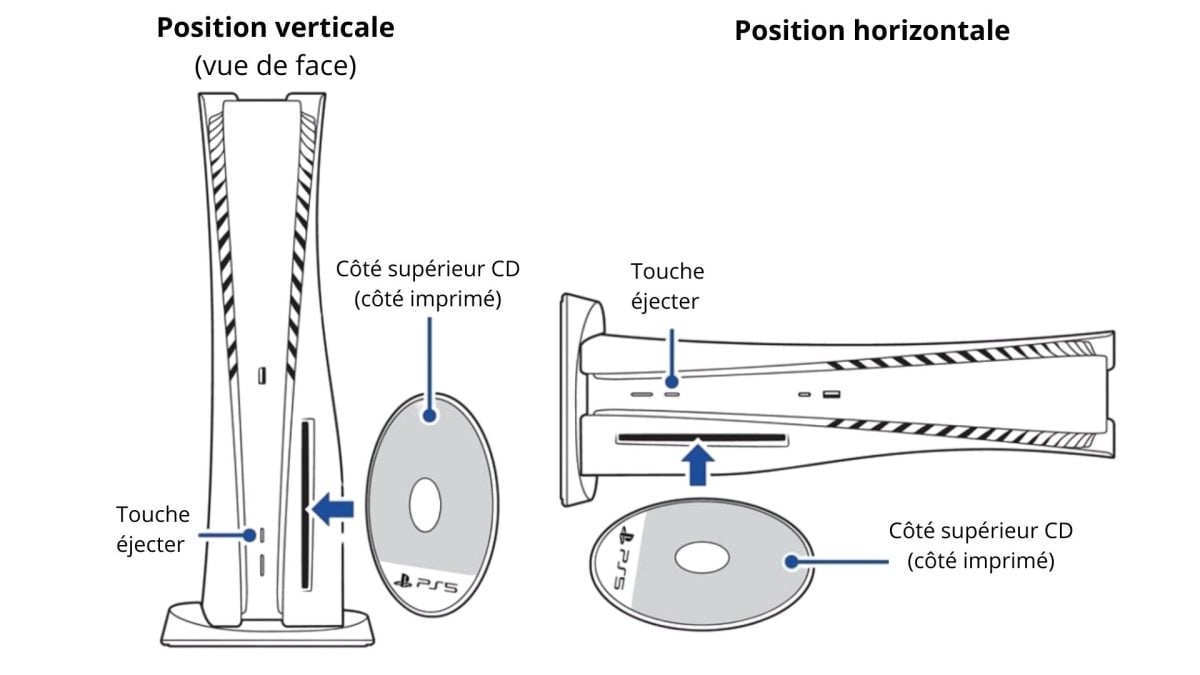
How do I insert a disc into a PS5 in the vertical position?
In vertical position, the console stands upright on its base. the disc player is then located at right from the front. Position your disc as follows:
- there printed side (video game screenshot) focused on the left
- there readable side (silver, unprinted) facing the right

How do I insert a disc into a PS5 in the horizontal position?
In horizontal position, the console is lying flat with the logo PlayStation visible on top. The disc player is located bottom left from the front. Position your disc as follows:
- there printed side (video game screenshot) focused on the high
- there readable side (silver, unprinted) facing the down
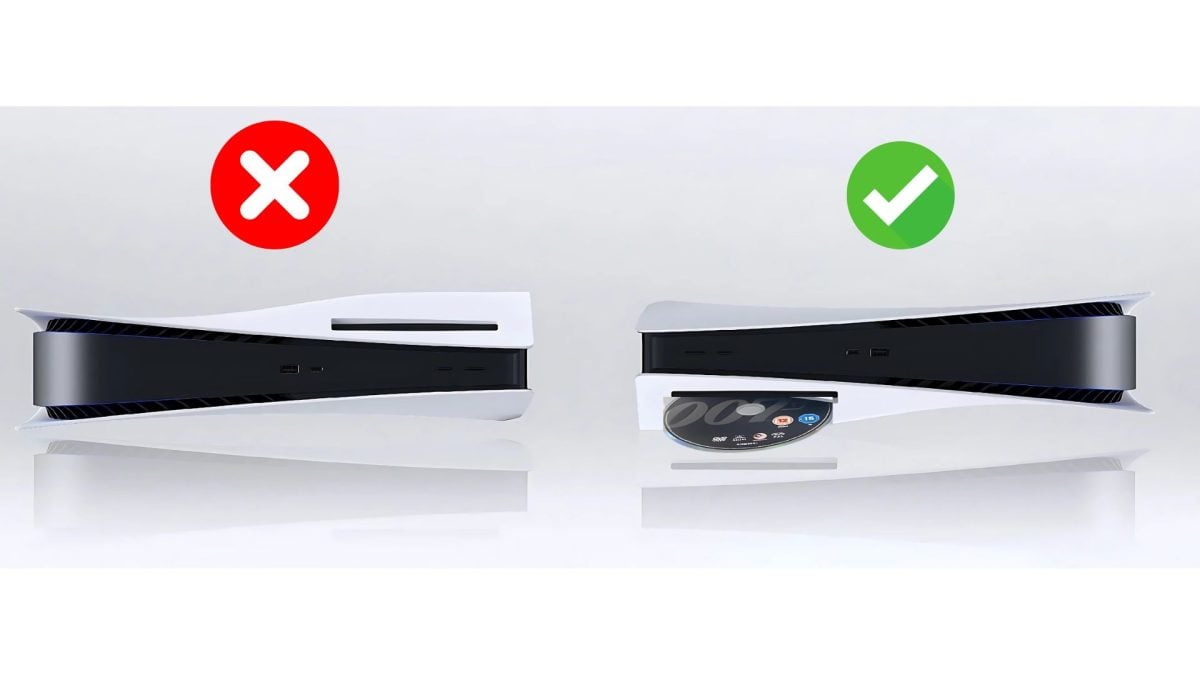
Also remember to check that the base is securely fastened. Know how to use the PS5 base to stand or lay down the console, it means making sure your console Sony is stable even before inserting a disc.
FAQs
What should I do if I have a problem with my PS5 CD drive?
Your PS5 Does it no longer read or recognize discs? Try these solutions in order:
- Clean the disk.
- Check to make sure it is neither striped nor damaged.
- Try inserting other discs: video games, Blu-ray Where DVD.
- Launch the safe mode to rebuild the database, or restart the console if necessary.
If nothing works, the disc player is probably defective. It will need to be repaired or replaced.
How do I eject a PS5 disc using the controller?
You can remove a disk directly from your joystick DualSense, without touching the console.
1. Press and hold the PS button to open the home screen.

2. On the’home screen, locate the video game disc currently inserted in the drive.
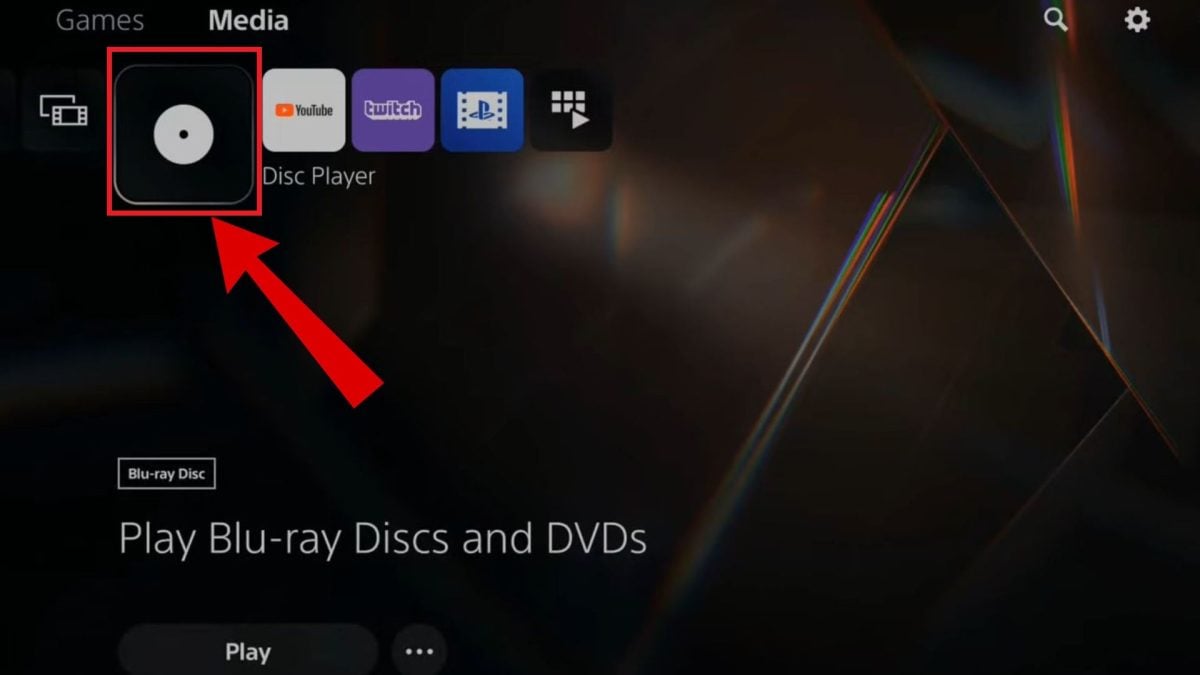
3. Once you're on the game icon, tap the button Options on your controller. It's the one with three superimposed lines, located next to the pad.

4. In the menu that appears, select Eject the disc.

May your Sony PS5 console whether in a vertical or horizontal position, the’Inserting the disc It's easy once you spot it. Have fun!
If your controller turns off while you're playing, check out our guide on how to charge a PS5 controller to get back to it quickly.
To learn more about your PlayStation 5. See also:









 English