There is no dedicated key for the thumbs-up on a standard keyboard, but there are two built-in shortcuts that let you insert this symbol in 2 seconds:
- The jumpsuit Windows + . on PC
- The jumpsuit Ctrl + Cmd + Space on a Mac.
The fastest way is still to copy it directly here: 👍
The code Unicode U+1F44D corresponds to this character on most platforms and social media sites. The emoji thumbs-up 👍 has always been a character that conveys the’approval or just “ok.”.
Widely used on the web and social media, it joins other common symbols such as how to make a heart using the keyboard or a raised fist ✊.
In this article, we show you How to type it using the keyboard at Windows as on Mac, without making any mistakes and without having to search through a list of special characters. Follow the guide.
How do I use the thumbs-up keyboard on Windows?
A built-in shortcut lets you insert this symbol in two seconds on a PC. Here's how to do it using the emoji panel in Windows, which can be used online or offline. To help you find your way around, be sure to check the keys on your keyboard Before you begin:
- Press the Windows + dot on your keyboard to open the emoji and special characters panel.

- In the panel's search box, type “inch” to quickly find that character, then select it. It will be inserted immediately at the cursor's position.

This shortcut works on Windows 10 (starting with version 1903) and Windows 11, in most applications and web browsers. For more information, see the official documentation for Microsoft On the use of emojis: https://support.microsoft.com/fr-fr/windows/
How do I use the thumbs-up keyboard on the Mac?
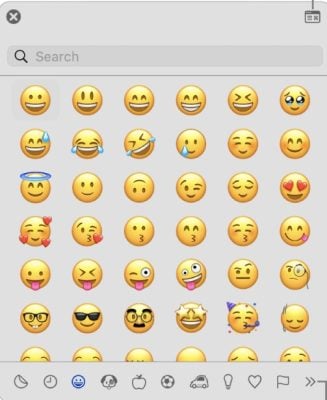
On Mac, the most reliable shortcut, which works on all versions of macOS, is Ctrl + Cmd + Espace. On newer keyboards with a Globe key, you can also use Fn + E.
If you're not sure where the Alt key on the keyboard, check your keyboard layout before you begin.
To insert this symbol:
- Press on Ctrl + Cmd + Espace (Where Fn + E (depending on your keyboard).

- Once the viewer is displayed, click the symbol to insert in your text.
Remarks :
- You can also use the menu Edition then Emoji and symbols to display the character viewer.
- The search bar lets you type in the name of the symbol (for example, “thumb”) to find it quickly.
- Skin tone variations (👍🏻 👍🏼 👍🏽 👍🏾 👍🏿) are displayed by holding down the mouse button on the character.
See the official procedure in the Apple documentation: https://support.apple.com/fr-fr/guide/mac-help/mchlp1560/mac. And be sure to check out the meaning of the pointing finger emoji to spice up your conversations on social networks.
FAQs
Is it possible to do a thumbs-up 👍 with the keyboard?
There is no no dedicated key nor a direct shortcut on a standard keyboard.
On the other hand, two built-in shortcuts open the emoji panel in two seconds: Windows + . on a PC, and Ctrl + Cmd + Espace on a Mac. The Unicode code point for this character is U+1F44D.
If you don't have access to emojis on your computer, the easiest way is to Copy and paste the symbol.
Here's how:
- Open a new tab Google and type “thumbs-up symbol.”.

- Select the result that works for you, then copy it.

- Paste it into your text, and you're done.
Tip: To adjust the skin tone, copy one of these variations: 👍🏻 👍🏼 👍🏽 👍🏾 👍🏿.
How do I add this symbol to an Outlook email?
Insert this symbol into an email at Outlook is fast, whether on a computer or a mobile device.
On computer
- Launch Microsoft Outlook and click “New Email.”.
- On a PC, press Windows + . to display the emoji panel, then select the thumbs-up emoji.
- On a Mac, use Ctrl + Cmd + Espace (or the Globe key on newer keyboards) to open the character viewer.
On your mobile
- Open the application Outlook, r
- Type your message,
- Then tap the emoji icon on your keyboard and select the symbol you want.
- The process is the same on Android and on iPhone.

What does the thumbs-up emoji mean?
On most platforms, this symbol appears as a clenched fist with the thumb pointing upward. Unlike the thumbs-down symbol, it conveys a positive message. Here are its main uses:
- To say “OK“, “Okay" Where "including”: It indicates agreement in conversations.
- To to congratulate someone after a job well done.
- To express admiration or a “I like” on a post or photo.
Warning: In some countries, this gesture may be perceived as an insult. Use it according to the cultural context.
For more information, see also our Guide to Keyboard Shortcuts and Emojis.
In summary :
- The Unicode is U+1F44D ; this symbol is used to express approval, consent where the Congratulations.
- No standard keyboard does not allow you to type it directly.
- To insert it: Windows + . on a PC, Ctrl + Cmd + Espace on a Mac, or copy and paste from a web search.
- Depending on the culture, this gesture can be interpreted in different ways, or even as an insult.
Do you use this symbol on a daily basis? Share your answer in the comments!








 English
I often use emojis and didn't know there was a simple way to type the thumbs-up symbol on the keyboard. Very handy!