Yes, your PS5 controller (DualSense) works on PCs. With USB-C, Windows recognizes it in a few seconds; with Bluetooth, it takes 30 seconds to pair up.
Two things can go wrong afterwards: a game that does not «see» the joystick (it only works with Xbox controllers), and the triggers that don't work. Good news: both issues can be fixed for free—we'll show you how.
In a nutshell:
- ✅ USB-C cable → plug it in, it's ready
- 📶 Bluetooth → hold Creation + PS (but limited haptics)
- 🎮 The game does not detect the controller → Steam or DS4Windows
- 🌀 Vibrations that don't work → Wired USB + disable Steam Input + DSX
1. Connecting a wired PS5 controller to a PC
For this type of connection, simply connect your PS5 controller to your computer with a USB cable on the PC. Here are the steps:
- Take a compatible USB cable with your gamepad 5 and your PC's USB port.
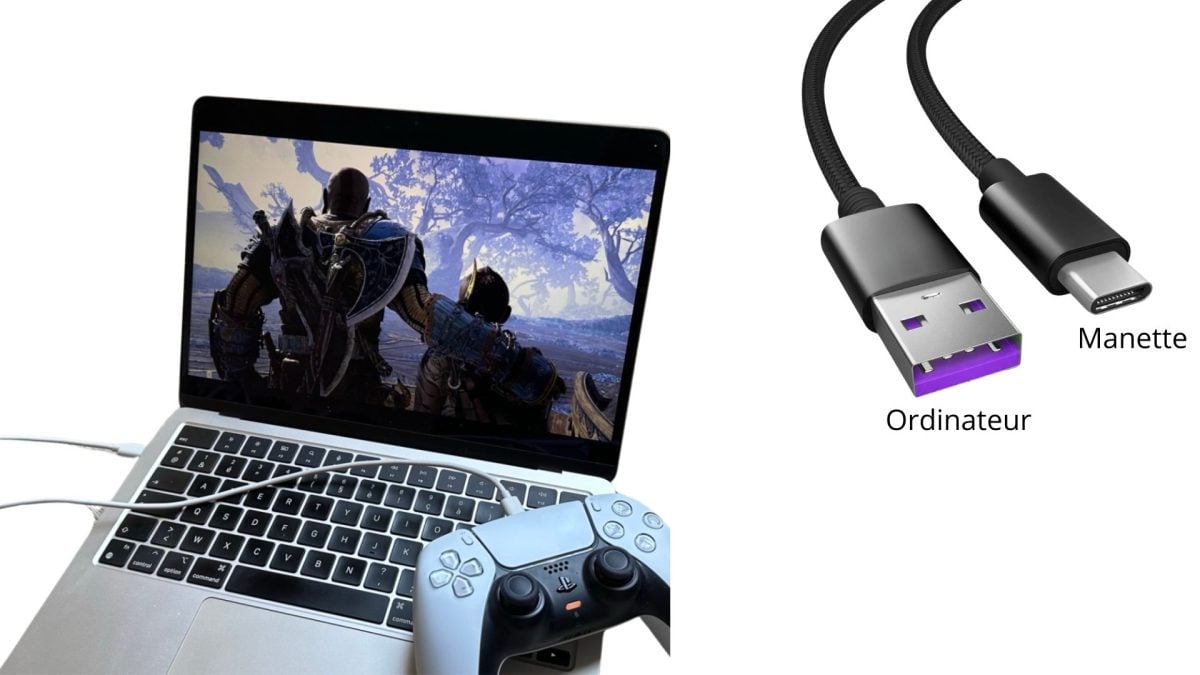
- Check that your game controller automatically appears in your device's connected peripherals. Go to Menu Start > Settings > Peripherals.

- Play a game for test your controller.
2. Connecting a PS5 controller to a PC via Bluetooth
Here's how to pair your PlayStation 5 controller with your PC via Bluetooth :
- See you in the Settings on your Windows PC.
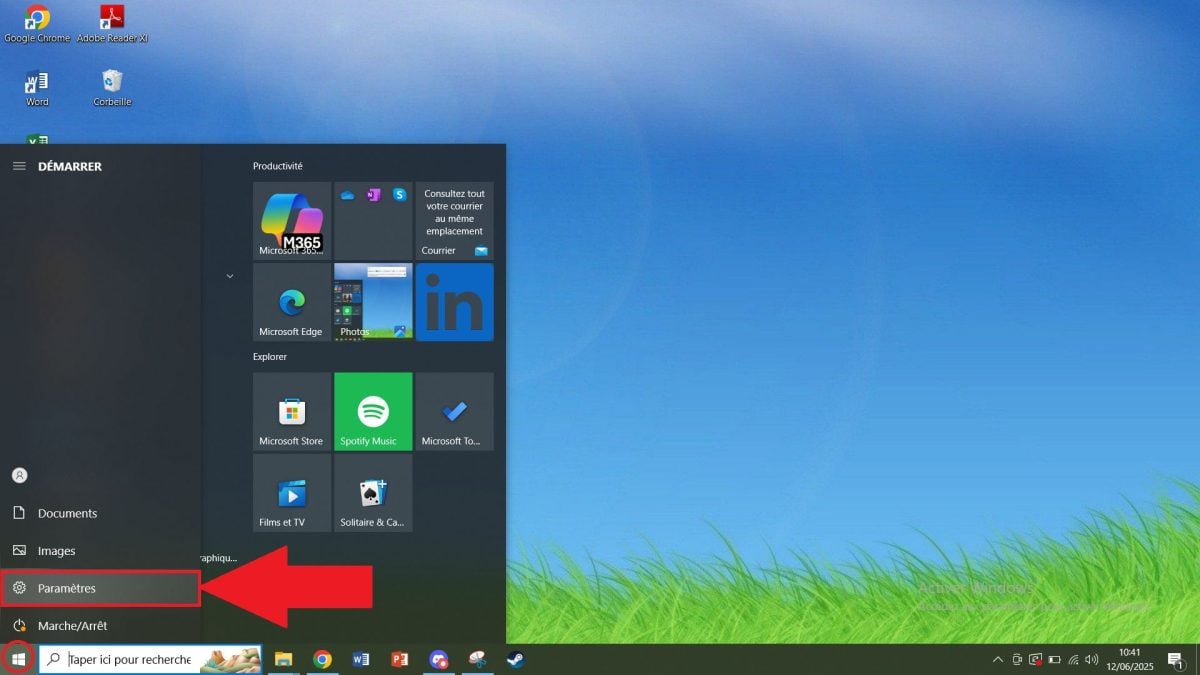
- Go to Peripherals.

- Click on “Bluetooth and other devices”then activate Bluetooth.

- Take your PS5 controller. Simultaneously hold down the "Creation” and the “P.S.” until the light bar flashes.
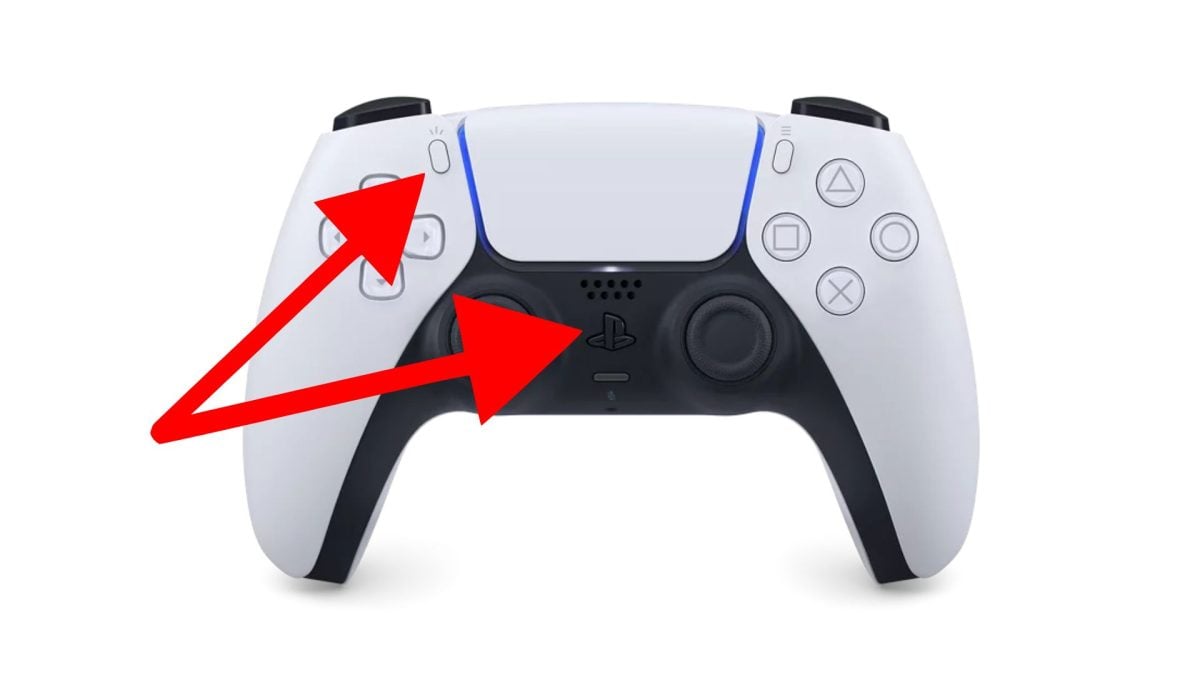
- “Wireless Controller” should appear in your Bluetooth Settings. Click on it to pair your DualSense controller with your computer.

📌 Why can't my game detect my controller?
The games Modern PCs generally speak to just one type of controller: Xbox controllers (XInput standard).
The DualSense, Windows uses a different standard (DirectInput), so Windows sees it, but the game can't interpret it.
Two solutions, both free of charge:
- 🎮 You play on Steam → activate PlayStation controller support in Steam (see next section). Steam translates on its own.
- 💻 Playing outside Steam (Epic, launcher, game installed live) → install DS4Windows, which disguises your DualSense as an Xbox controller.
3. Play with your PS5 controller on Steam
If you play on Steam, it's often the easiest thing to do: Steam supports DualSense without installing anything. You just need to know when to activate or deactivate your controller option.
To use a Gamepad 5 on Steam:
- Open the application Steam in Big Picture mode.
- Go to Settings general.
- Check “PlayStation controller support”.
When to disable it?
- ✅ Steam Input enabled (default) → The easiest to use—the buttons work everywhere without any adjustments.
- ❌ Steam Input disabled (per set) → Useful when the game has native DualSense support (PS icons appear, vibrations are recognized) or when you want to use DSX.
4. Using software to play with your PS5 controller
If your PS5 controller isn't working properly, whether you're using a wired connection or Bluetooth, you can install a program. It installs the correct drivers and ensures compatibility with your games.
Download DS4Windows to use a PS5 controller on your PC
DS4Windows is a simple, effective software package that makes your PS5 controller compatible with the majority of PC games.
DS4Windows makes your games look like a DualSense Xbox 360 controller. Useful for games launched outside Steam that only recognize Xbox controllers.
Follow these steps to install it on your machine:
- Go to official website from DS4Windows.

- Click on “Download” to download.
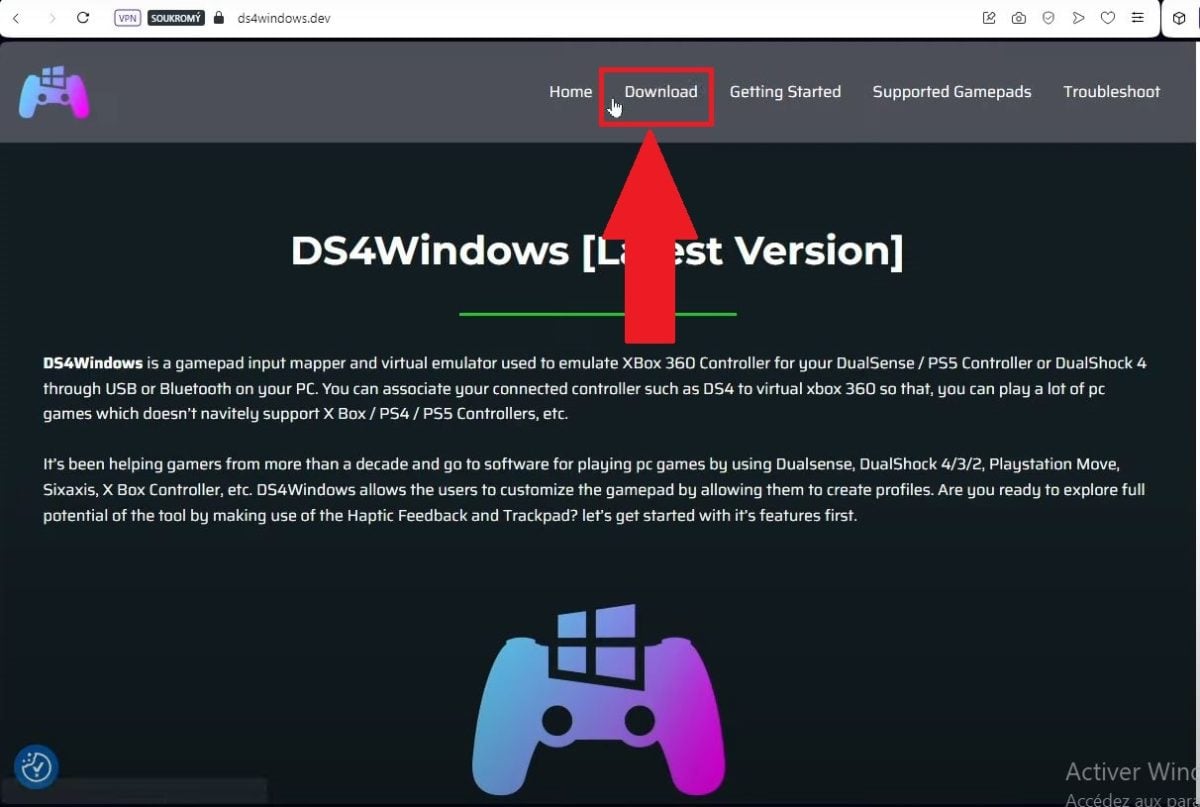
- Open the DS4Windows file and extract it by clicking on DS4Windows.exe.

- Open the extracted file and run DS4Windows.exe.

- Follow the instructions for install the necessary drivers. Click on “Finished” once everything is configured.

- Check that the PS5 controller appears in theDS4Windows interface.
- Make sure your controller is properly connected (via Bluetooth or USB cable).
- If it is, the software will display the following page:

Launch DS4Windows now to connect your PS5 controllers and enjoy your games without interruption.
Install PlayStation®Accessories to use a PS5 controller on your PC
PlayStation®Accessories is an official Sony software program. It is used to update and manage the DualSense's settings on a PC, particularly when connected via a cable.
It also lets you verify that your PS5 controller is well known. Follow these steps to install it.
- Download the app from this website: https://controller.dl.playstation.net/controller/lang/fr/2100004.html?sf274409979=1. It will automatically recommend that you download the missing drivers.

- Once the missing drivers have been downloaded, click on the file PlayStationAccessoriesInstall to start the installation.
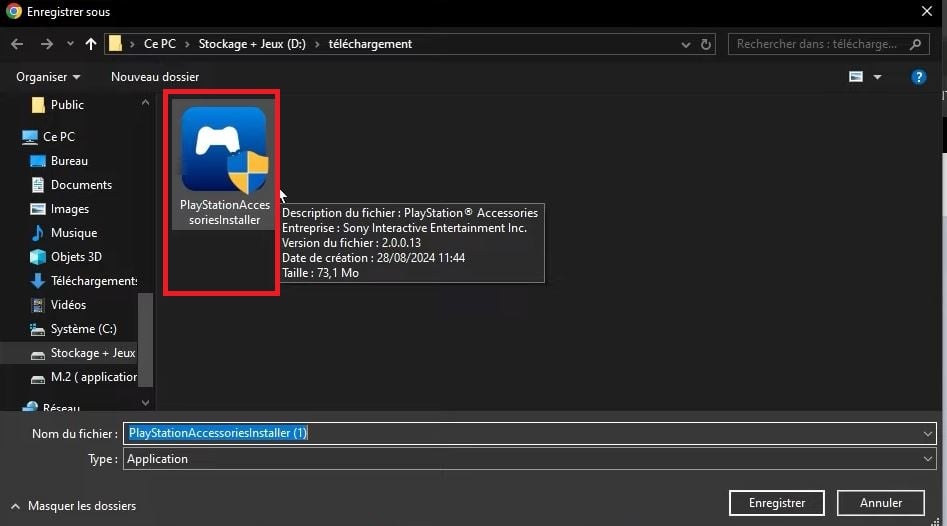
- After installation, the program gets started.

- Connect your controller in Bluetooth or by cable to your PC.
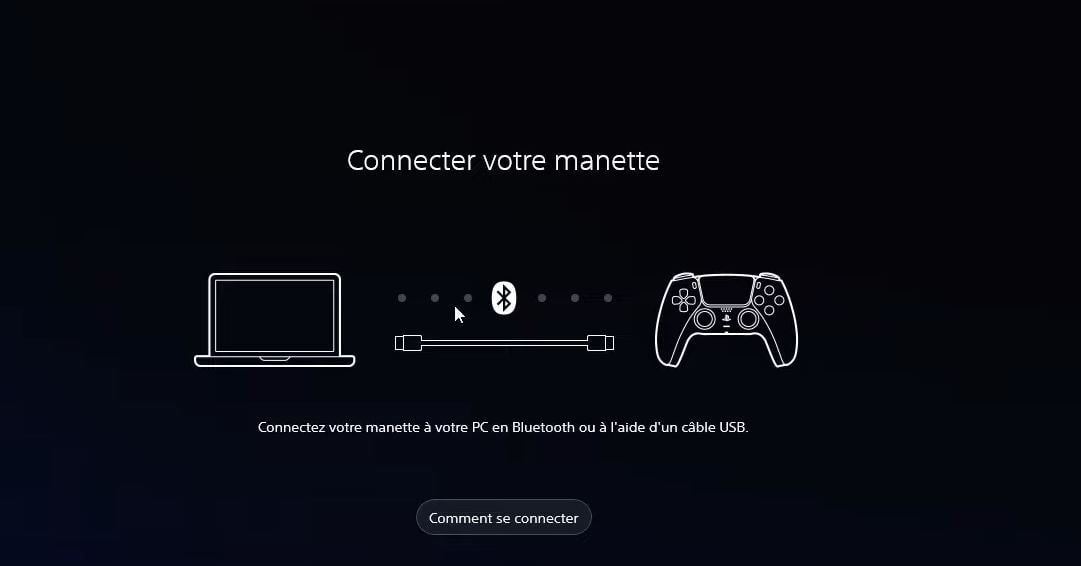
- Once you're connected, you'll see a brief introduction.

- You can connect 4 controllers simultaneously to your PC: wireless controller DualSense normal and Edge.
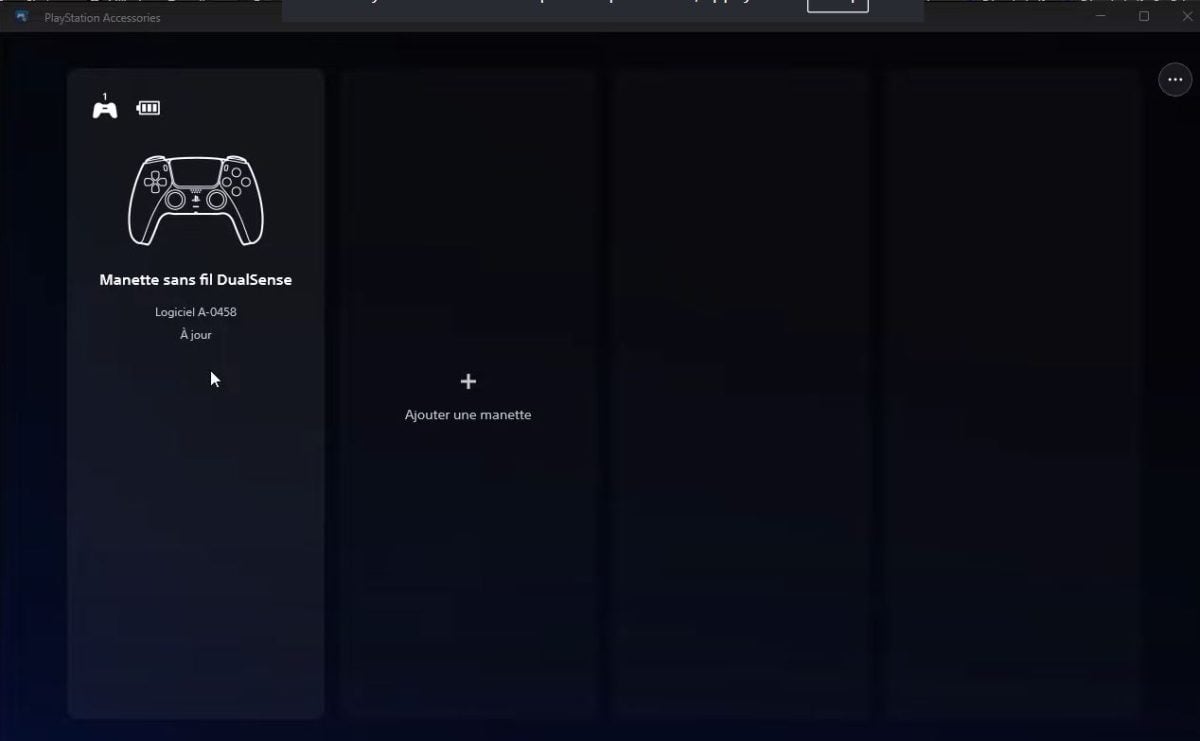
Putting haptics and adaptive triggers to work
Haptic feedback and adaptive triggers, That's the whole point of DualSense, but on the PC, they don't always activate themselves.
For these two features to work properly, you need to combine three settings:
- Connect the controller to USB-C : This is the most reliable method. Advanced vibrations aren't natively supported over Bluetooth; only DSX is starting to offer this in beta (DSX+ DLC).
- Deactivate Steam Input in games that natively support the DualSense.
Steam tries to handle everything by default, which sometimes «overrides» the game's native features. On Steam: right-click the game → Properties → Joystick → « »Disable Steam Input"
- For the titles without native media, install DSX (DualSenseX). This tool forces these two functions to work where they are not supported. A free but limited and static version is available for testing, and the full version on Steam costs about €8 (≈ 7.99 $), price to be verified on Steam in July 2026. The basic DSX handles the trigger resistance, but not the vibrations via Bluetooth.
⚠️ All PC games can't stand these functions, even with DSX. If nothing activates, it's often because the game isn't sending the right data to the controller.
FAQs
Why won't my PS5 controller work on PC?
If you are having problems with the PS5 controller on your computer, here are the possible causes:
- A damaged USB cable Where not compatible.
- Regarding the drivers are absent.
- Your Windows system is not up to date.
- the Bluetooth on your PC is not enabled.
How can you extend the life of your PS5 controller?
Here are a few tips to extend the life of your controller:
- Do not leave it connected to a continuous load.
- The clean regularly.
- The ranger protected from shocks and moisture.
- Disable haptic feedback in games where you're not using it to save battery life.
How to play GTA with a PS5 controller on PC?
Playing GTA with a DualSense controller is easy:
- Connect the device to your computer.
- Start the game on Steam or your usual launcher.
- Check in the Settings of the game if the controller is correctly detected.
- If this is not the case, use DS4Windows.
How can I update my PS5 controller on my PC?
All you have to do is Download PlayStation®Accessories.
In summary: Plug in the USB, use Steam or DS4Windows if the game doesn't detect the controller, and tweak the vibration settings a bit. With this guide, you've got everything you need. See also:








 English