Yes, you can use your PS4 controller (DualShock 4) on PC, wired or wireless.
The fastest way is still the USB cable. If you're playing on Steam, It is detected in a matter of seconds.
If nothing happens, check to make sure your cable is actually transferring data, since many micro-USB cables are only meant for charging. Try a different one before looking any further.
To play outside Steam (Epic, separate games...), install DS4Windows, free of charge, in 5 minutes.
1. Connecting a PS4 controller to a PC via Bluetooth
Follow these steps to pair your dualshock 4 via Bluetooth on a Windows PC.
- See you in the Windows settings.
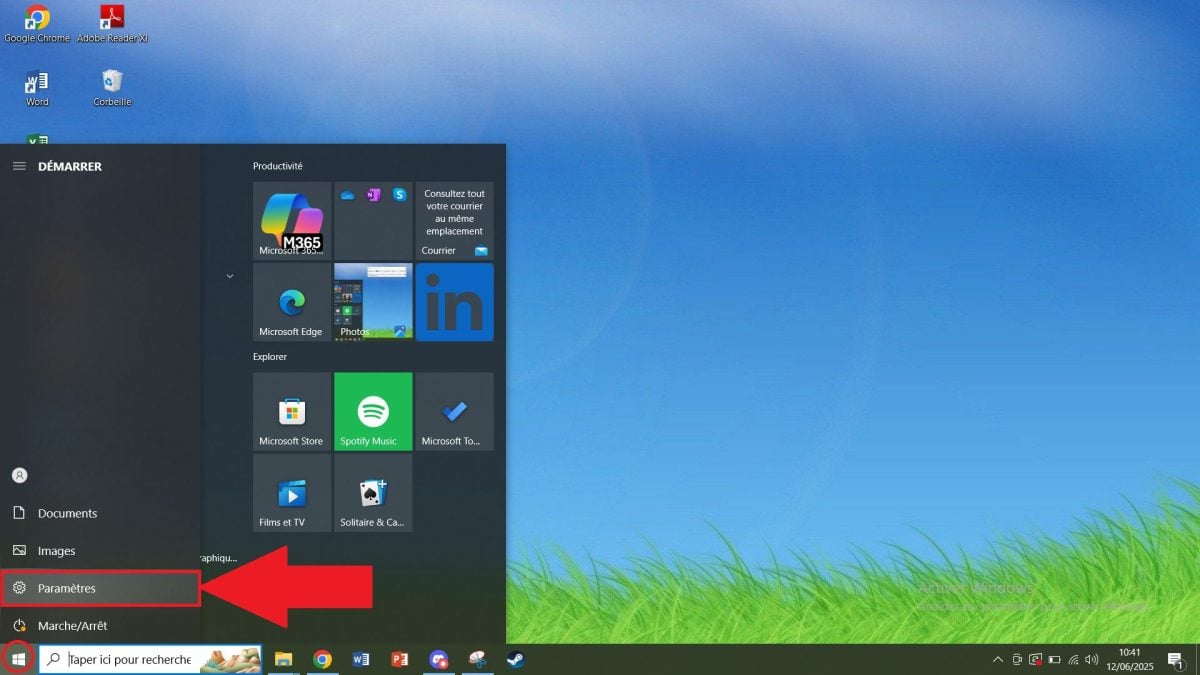
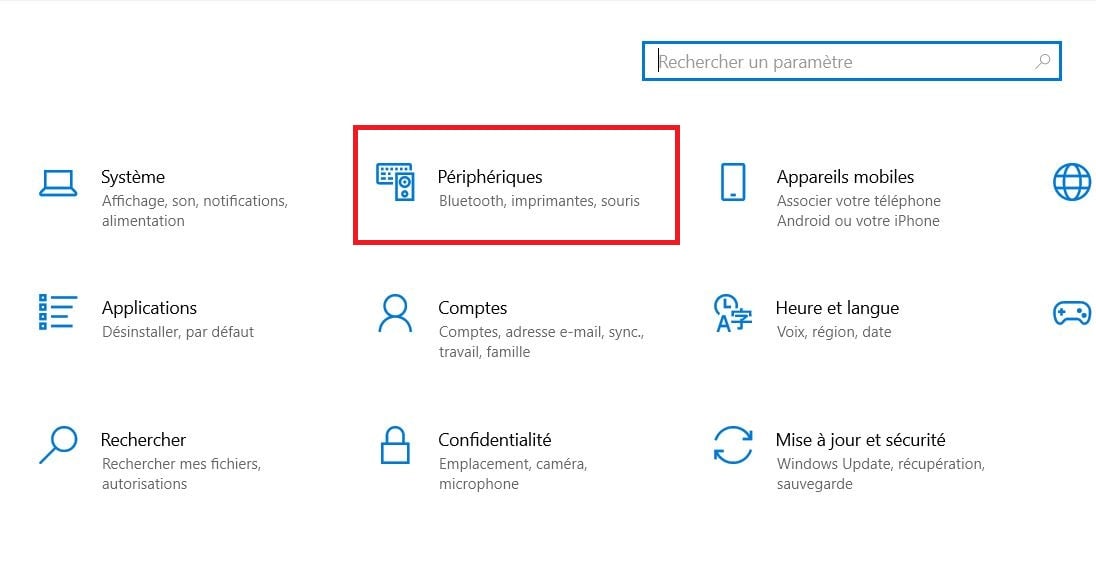
- Go to Peripherals.
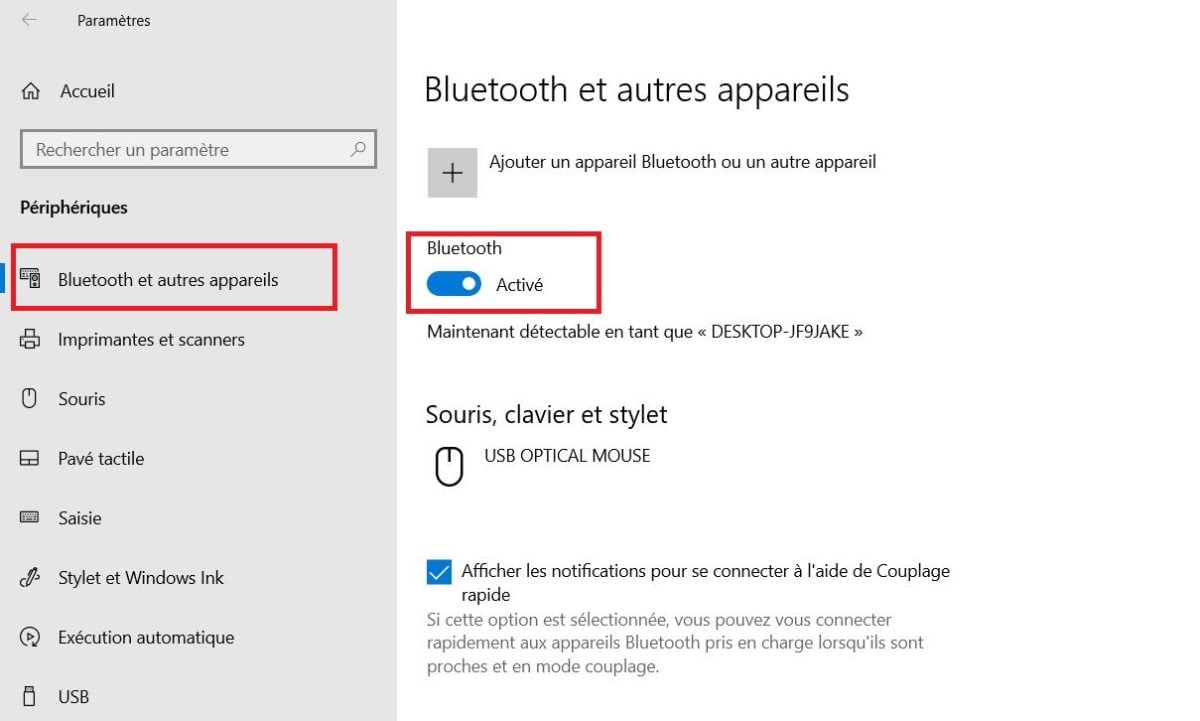
- Click on "Bluetooth and other devices” and activate your computer's Bluetooth.
- Take your dualshock 4.
- Hold down the “Share” and “PS” simultaneously until the light bar turns white and starts flashing.

- “Wireless Controller” should appear in your Bluetooth settings. This means that your DualShock has been successfully paired with your computer.

Key takeaways :
- Activate your PC's Bluetooth to use your wireless controller on your PC.
- Disable it if you no longer wish to use Bluetooth.
Recall :
- The dualshock 4 works with a built-in battery. If it suddenly turns off, it is likely that it is discharged.
- The connection between the controller and the PC works continuously as long as Bluetooth is in “enabled” mode.
2. Connecting a wired PS4 controller to a PC
In this case, simply connect your PS4 controller to your computer using a USB cable.
- Take a micro-USB cable compatible with the gamepad 4 and your computer's USB port.

- Your device should automatically recognize the joystick. Check the peripherals from your PC.
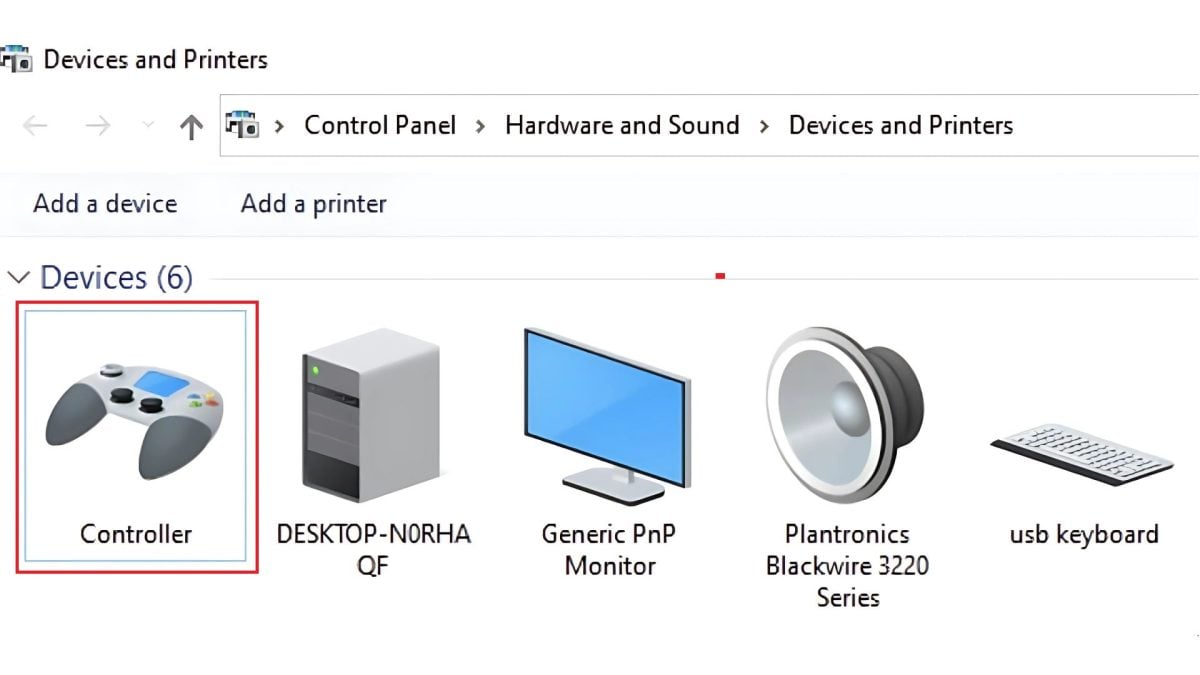
- Test your joystick by launching a game.
3. DS4Windows software for using a PS4 controller on PC
On Steam, your controller works without installing any software. Simply activate the “PlayStation Configuration Support” in the settings.
The problem occurs outside Steam. Many games only recognize Xbox controllers. DS4Windows solves this by emulating an Xbox 360 controller, which makes it compatible with almost everything. It's free and only takes 5 minutes.
⚠️ Do not use DS4Windows at the same time as Steam's PlayStation support.. If both are running simultaneously, the controller may not be recognized at all. Activate one or the other depending on the game.
Follow these steps to install DS4Windows.
Important note:
- Some modern games not available on Steam, such as Fortnite or Rocket League include now a native support for the DualShock 4. Only use DS4Windows if the game does not automatically detect your controller.
- Go to the official DS4Windows GitHub page using this link: https://github.com/ds4windowsapp/DS4Windows
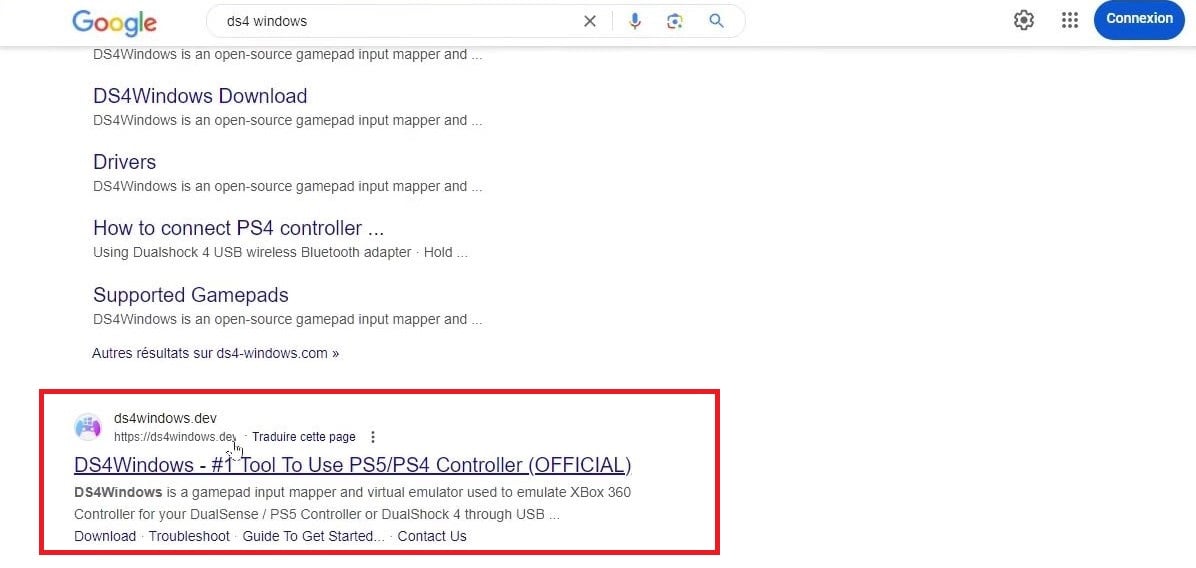
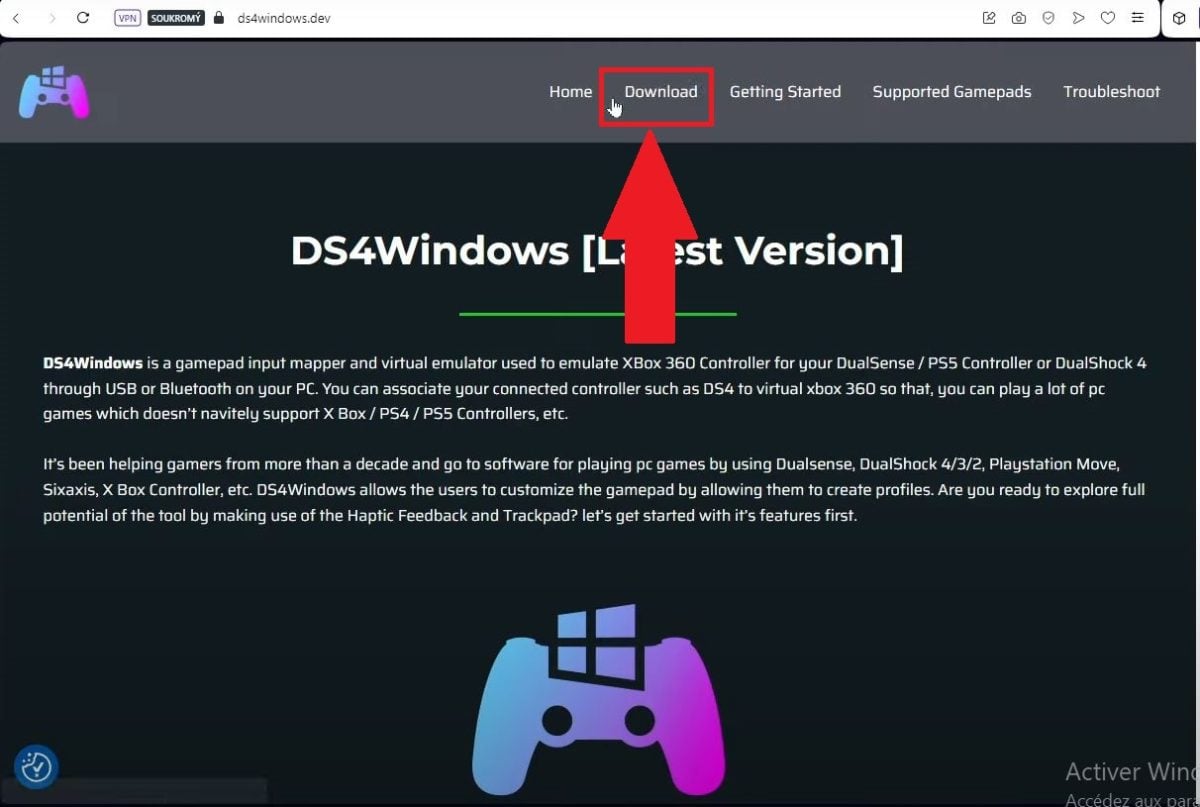
- Locate the “”Assets" of the latest version and click on the .zip file that corresponds to your system to start the download.
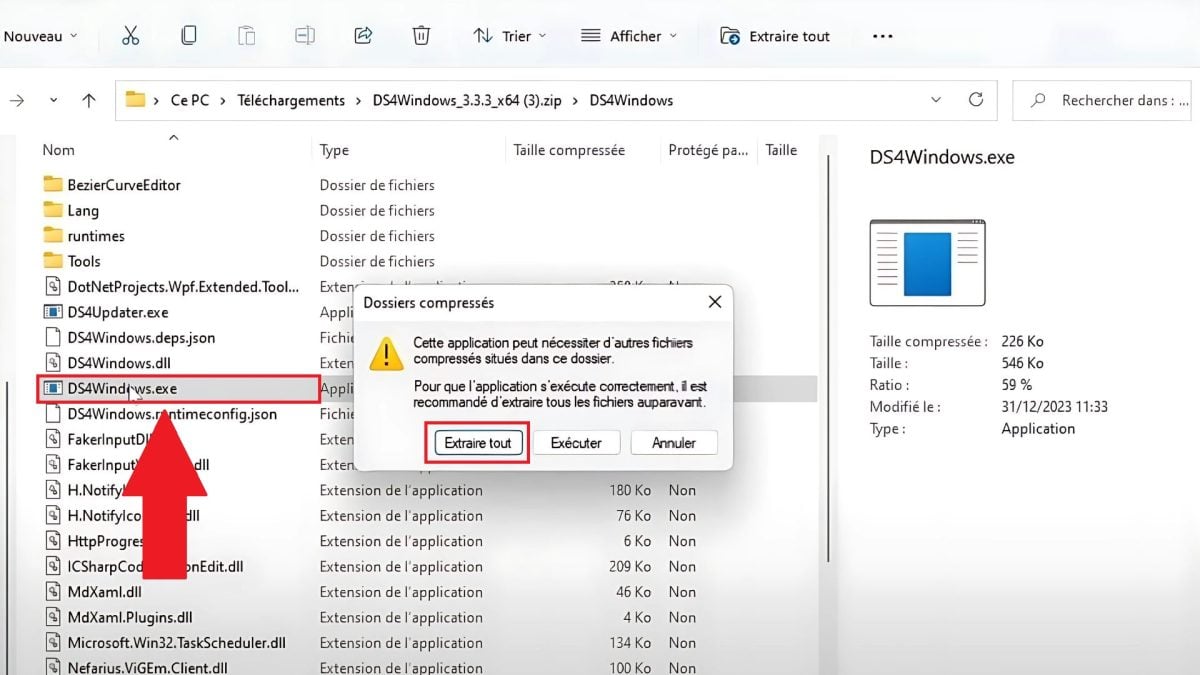
- Open the DS4Windows file and extract it by clicking on DS4Windows.exe.
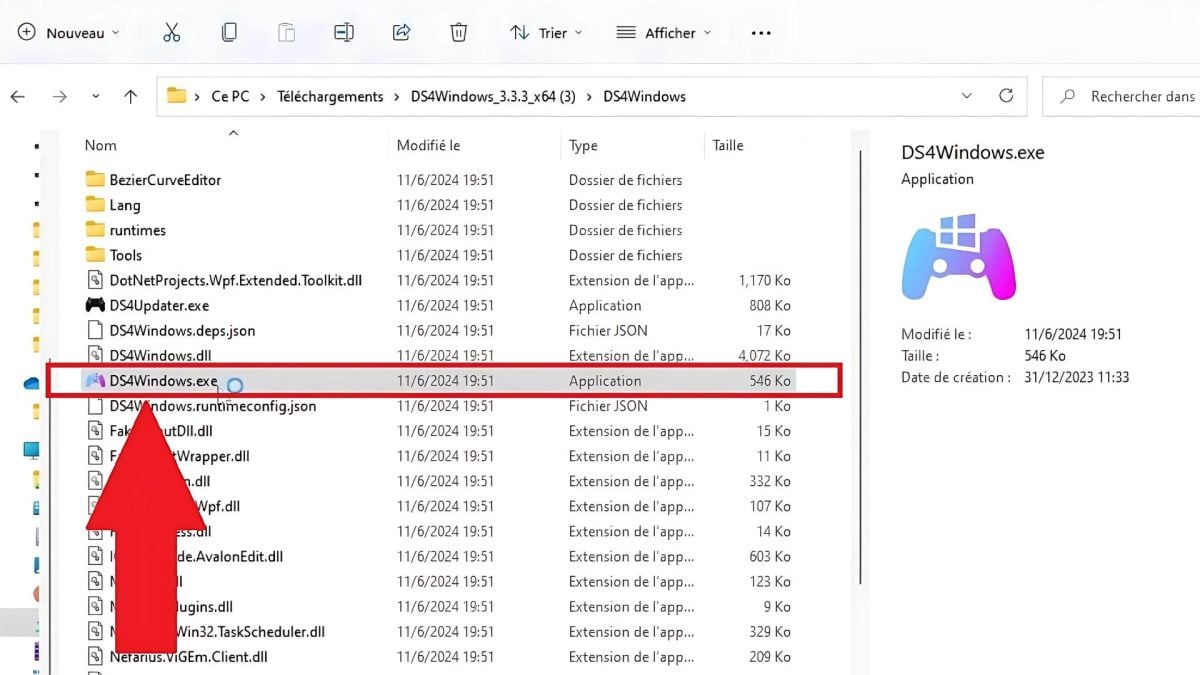
- Open the extracted file and run DS4Windows.exe.
- Follow the instructions for install the necessary drivers. Click on “Finished” once everything is configured.

- Check that the dualshock 4 appears in theDS4Windows interface.
- Make sure your controller is properly connected (via Bluetooth or USB cable).
- If it is, the software will display the following page:
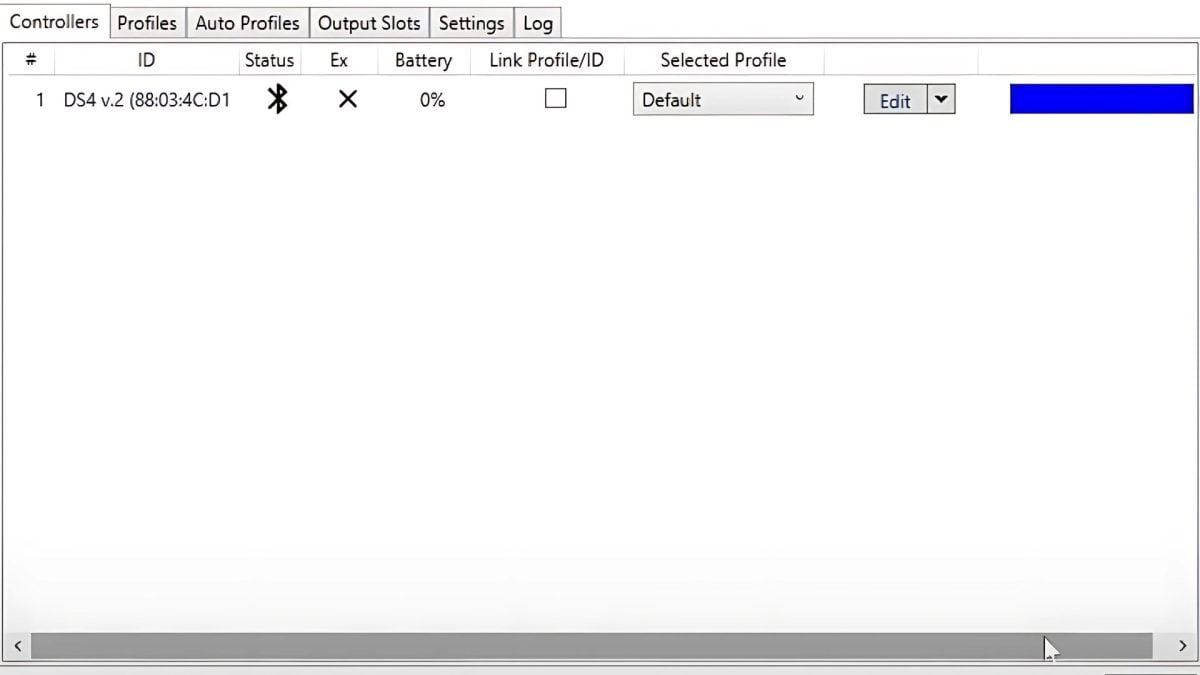
Basically, for games outside of Steam and for any launcher that only recognizes Xbox controllers, the solution is to use DS4Windows. In all other cases, use native support.
💡 Please note DualShock 4 also works on Mac, smartphone (iOS/Android) and PS5 (backwards compatible with PS4 games). Bluetooth pairing mode is identical:
Share + PS until the white light flashes, then pair it in the device settings.
FAQs
Why won't my PS4 controller connect to PC via USB?
If your Dualshock 4 does not connect via USB to your computer, there are generally two reasons for this:
- Many micro-USB cables are for charging only. Try another.
- USB port or driver failure.
What software can I use to connect my PS4 controller to my PC?
To connect your PS4 controller to your machine, you can use :
- The software DS4Windows.
How do I play with a PS4 controller on Steam?
To play with a PS4 controller on Steam :
- Plug in your game controller (wired or wireless).
- Open Steam.
- Go to Settings → Controller, then turn on the “PlayStation Configuration Support“. Steam will then automatically recognize your DualShock 4.
How do I navigate on a PC with a PS4 controller?
To navigate on PC with a PS4 controller :
- Connect your PlayStation controller to your machine and use software such as Joy2Key Where InputMapper.
How to play Rocket League on PC with a PS4 controller?
To play Rocket League on a Dualshock 4 :
- Plug in your game peripheral.
- Open Rocket League via the Epic Games Launcher.
- The game will automatically detect your PS4 gamepad.
How do I play Fortnite on PC with a PS4 controller?
To play Fortnite on a computer with a Dualshock 4 :
- Plug in the controller
- Fortnite detects it natively.
What should you do if your PS4 controller is not compatible with your PC?
If you encounter compatibility problems between your controller and your computer :
- Update your system Windows operating system.
- Update your drivers USB or Bluetooth.
- Launch DS4Windows software.
- As a last resort, you can contact Sony support.
There you go—your PS4 controller is ready. On Steam, the USB cable and the “PlayStation Configuration Support” is all you need. Outside of Steam, DS4Windows does the job. If you run into any issues, always start by trying a different USB cable.









 English