To delete your account Twitch, log in to twitch.tv, puis rends-toi directement sur la page de suppression de compte.
C’est une action final : Your account will first be deactivated, then permanently deleted by Twitch after 90 days, and no returns will be accepted after this deadline.
If you just want to take a break, the deactivation est réversible à tout moment : il suffit de te reconnecter pour réactiver ton compte.
Cette option est détaillée en bas de l’article. Avant de te lancer, pense à sauvegarder tes données et à vérifier si tu sais déjà how to use Twitch.
How do I delete a Twitch account?
Delete your account on Twitch, it is Permanently delete your account and all associated data. This applies in particular to:
- Your username and your profile,
- Your content and your broadcasts,
- Your subscribers and the people you follow,
- Your chat history,
- Your settings and preferences.
Attention : Deleting a Twitch account is an action irreversible. Once your account is deleted, you won't be able to recover it or retrieve your personal data.
If you just want to take a break, it's better to deactivate your account (it's reversible) than to delete it. To follow through with the permanent deletion, follow the steps below.
Step 1: Log in to your Twitch account
Rends-toi sur le site de Twitch et Log in to your account.

Step 2: Go to the Twitch account deletion page
Once connected, Go to this page : twitch.tv/user/delete-account. C’est ici que tu lances la suppression de ton compte.

Step 3: Fill out the form

- In general, the The name of the relevant channel appears automatically.
- It's optional, but you can state the reason that makes you want to delete your account.
Step 4: Confirm the deletion of your Twitch account
Once you have filled out the form, Click the “Delete Account” button” at the bottom of the page.

Your account comes first disabled, then inaccessible, before becoming permanently removed by Twitch within 90 days following your request. During this time, you can still cancel the deletion by logging back in. Once the 90 days, everything becomes final and your personal data are deleted.
So make sure you really want to delete your Twitch account before confirming.
How do I delete a Twitch account on my phone?
Delete Your Account Twitch You can do this from a smartphone in just a few minutes. Please note that the action is irreversible : your account and all your personal data are eventually deleted permanently.
You can do this from the app, but also from the web browser from your phone by going directly to twitch.tv. Here are the steps using the app.
Step 1: Open the Twitch app
Just like on a computer, you have to go through the platform. Open the app Twitch on your smartphone and log in to your account.

Step 2: Go to your profile
Tap your profile picture, in the lower-right corner of the screen, to access your Twitch profile.

Step 3: Select “Account Settings”
In the menu that opens, Select “Account Settings”.

Step 4: Tap “Account”
Next, open the section “Account”. This is where you'll manage the deletion of your Twitch account on your phone.

Step 5: Select “Permanently delete the account”
Select the option “Permanently delete the account”.

Step 6: Fill out the form
A form A message appears asking you to confirm the deletion.


- the Your channel name Twitch usually appears automatically. If not, enter the name of the channel you want to delete.
- (Optional) Specifies the reason deleting your account.
Step 7: Confirm the deletion of your Twitch account
Once you have filled out the form, click the “Delete Account” button”.

Your account comes first disabled, then permanently deleted by Twitch in the 90 days following your request. During this time, you can still cancel everything by logging back into your account.
Temporarily deactivate your Twitch account on your phone
If you just want to take a break, you can Deactivate your account instead of deleting it. This is the reversible solution.
Follow the exact same steps as for deletion. In step 5, instead of “Permanently delete the account,”, Select “Deactivate Account”.
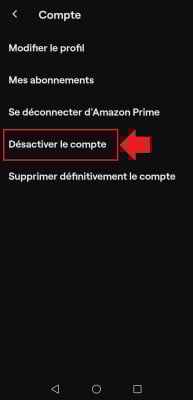
The big difference: turning off te allows you to reactivate your account at any time, simply by logging back in. Your data are retained; nothing is deleted.
Remark : These screenshots are from a Android. The procedure is the same on iPhone, from the Twitch app.
How to Delete an Account Twitch partner at Epic Games ?
Have you ever Link your account Twitch on your own Epic Games to take advantage of additional features. Today, you want to separate the two accounts ?
Don't panic—it's very simple. Here's the tutorial step by step to log out properly.
Step 1: Open the website or app Epic Games
Start by Open the website or the app Epic Games on your computer or game console.

To note : In my case, I used the app installed on my computer.
Step 2: Go to the «General Settings» page for’Epic Games
Once you've logged in to your account Epic Games, Go to your account settings. To do this :
- Click on your profile picture at top right.
- Select «Account». This opens your default browser and gives you access to the «General Settings».

Step 3: Select «Apps and Accounts»
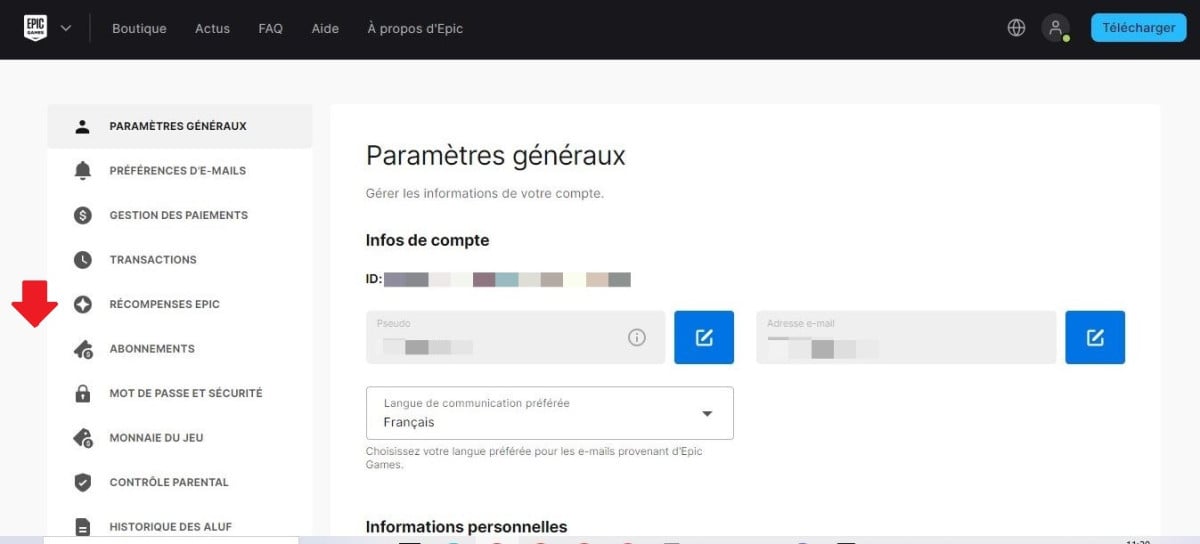
On the «General Settings» page, look at the menu list on the left. Select «Apps and Accounts».
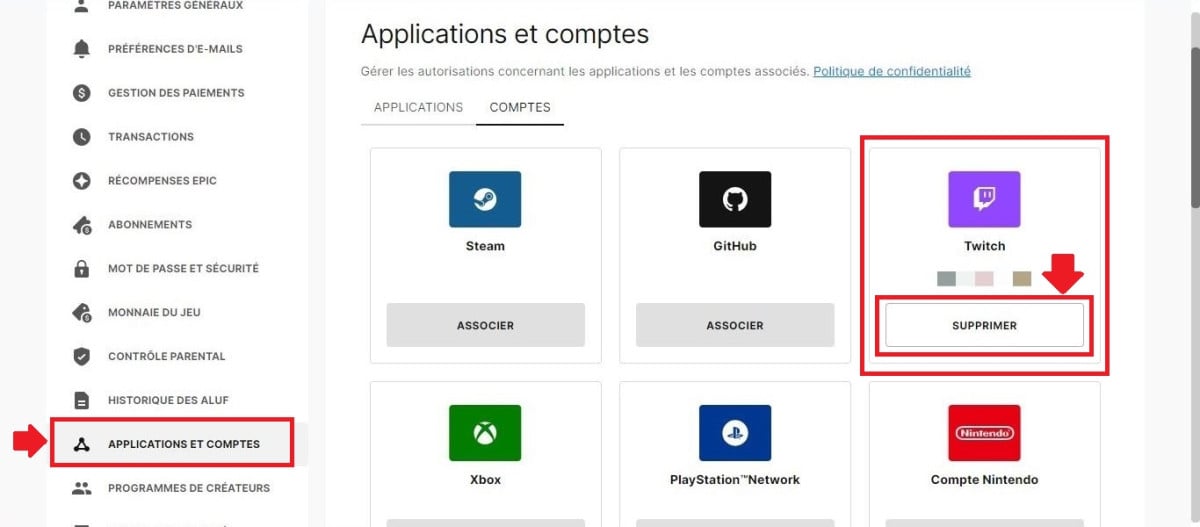
Step 4: Locate the icon Twitch then click «Delete»
Scroll through the list of connected accounts and look for the’icon Twitch. Click the «Delete» button» located below the icon.

To confirm the deletion, Click «Delete Account». Your request will then be processed.
Step 5: Go to Twitch and open your «Connections» page»
- Next, go to Twitch and Click on your profile picture in the upper-right corner of the screen.

- Select «Settings» in the drop-down menu.
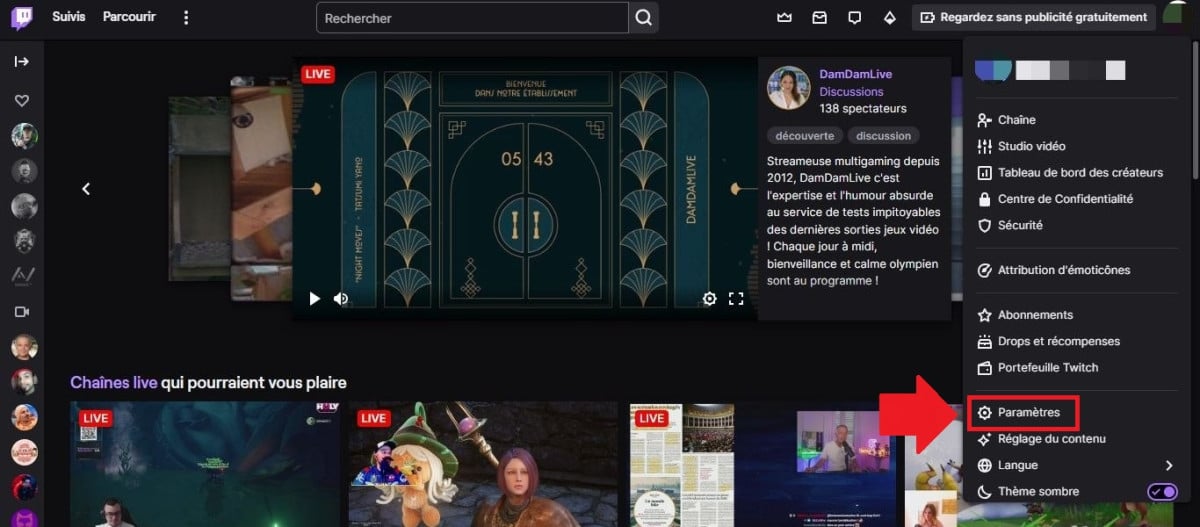
- In the «Settings» of Twitch, Select «Connections».

Step 6: Scroll down to « Epic Games » then click «Log Out»

- In the «Recommended Connections» menu, Scroll down to the «Other connections» section».

- Search for « Epic Games "then Select «Log Out».

- To complete the separation of your accounts, Click «Yes, log out».

It's done: your account Twitch is now unlinked from your account Epic Games.
Two things to keep in mind:
- Disconnect your two accounts does not affect your personal data on either platform.
- You can Reconnect your accounts later, easily, by following the linking procedure.
In addition to’Epic Games, you can also Link your account EA at Twitch. Check out our dedicated article for more details.
How do I delete a Twitch account from my PS4?
Unlink Your Account Twitch of your PS4 takes a few minutes. The operation is performed directly from the console.
Important : This action does not remove your Twitch account. She separates only your console account PlayStation 4, as shown above with Epic Games.
Here are the Steps to follow on your PS4 :
Step 1: Access your PS4's settings
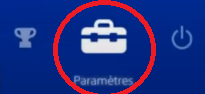
Turn on your PS4, then Go to “Settings”.
Step 2: Select "Account Management"
In the settings, Select “Account Management”.

Step 3: Select “Related Services”
Next, Open “Related Services” to see the platforms connected to your console.

Step 4: Find the Twitch icon
In the list of services, locate the icon Twitch and select it.

Step 5: Press the "Unlink" button.
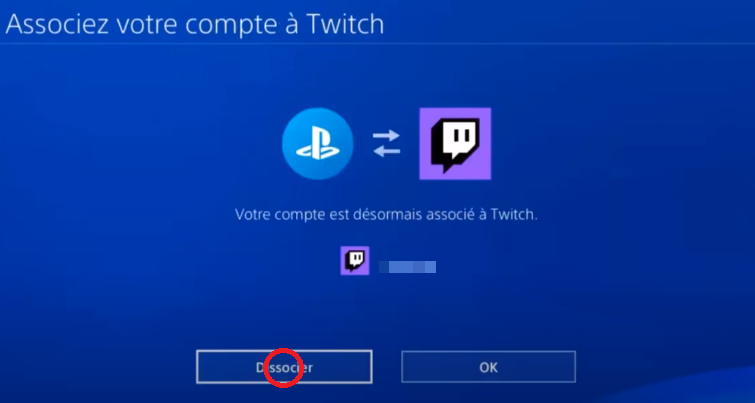
On the account page, tap “Unlink”.
Step 6: Confirm Twitch disassociation on PS4
Confirm the request to finish. Your Twitch account is then unlinked from your PS4.

In addition to these steps on your console, you can also go to your Twitch account to disconnect from the site.
Step 1: Go to Twitch and access your "Connections" page.
- Open a web browser and Log in to your Twitch account.
- Click on your profile photo top right on the screen, then Select “Settings” in the drop-down menu.
- On the settings page, click the tab “Connections”.
Step 2: Scroll down to "PlayStation® Network" and select "Sign Out."
- In the “Connections” list, locate the line “PlayStation® Network“.
- Click on the “Unplug” to unlink your two accounts.

- To confirm dissociation, Select “Yes, log out”.

It's done: Your Twitch account is unlinked from your PS4, both on the console and on the website.
How do I recover a deleted Twitch account?
Yes, you can Recover a Deleted Twitch Account, but only under certain conditions.
As a reminder, deleting an account Twitch is irreversible once the deadline has passed. If you've deleted your account more than 90 days ago, it's lost, and you can't get it back.
On the other hand, if you requested that it be deleted in the last 90 days, your account can still be recovered. Just log back in to reactivate it.
Here's how to do it:
- Go to the Twitch login page.
- Enter your email address and password.

- Click on the To log in.
- A message If this message appears, it means your account has been deactivated.

- Click on the Reactivate.

- Follow the on-screen instructions, then click Continue to complete the reactivation.

It's done, Your Twitch account is active again. You can start following your streamers again or start your own live streams.
How do I deactivate a Twitch account?
Want to take a break without losing everything? You can Deactivate your Twitch account instead of deleting it. The big difference is that deactivation is can be reversed at any time. You can hide your profile today and reactivate it whenever you want, with all your subscriptions and videos intact.
Deletion, on the other hand, is final : Your account will expire in 90 days and your personal data will be deleted. If you're still unsure, deactivating your account is still the safest option.
Here are the steps to deactivate your Twitch account.
Step 1: Log in to your Twitch account
Start by logging in to your Twitch account on the website or in the Twitch app.

Step 2: Go to your Twitch channel settings
Click on your profile photo top right on the screen. Then select "Settings in the drop-down menu.

Step 3: Deactivate Your Twitch Account
- On the settings page, scroll down up to the section «Profile Settings».
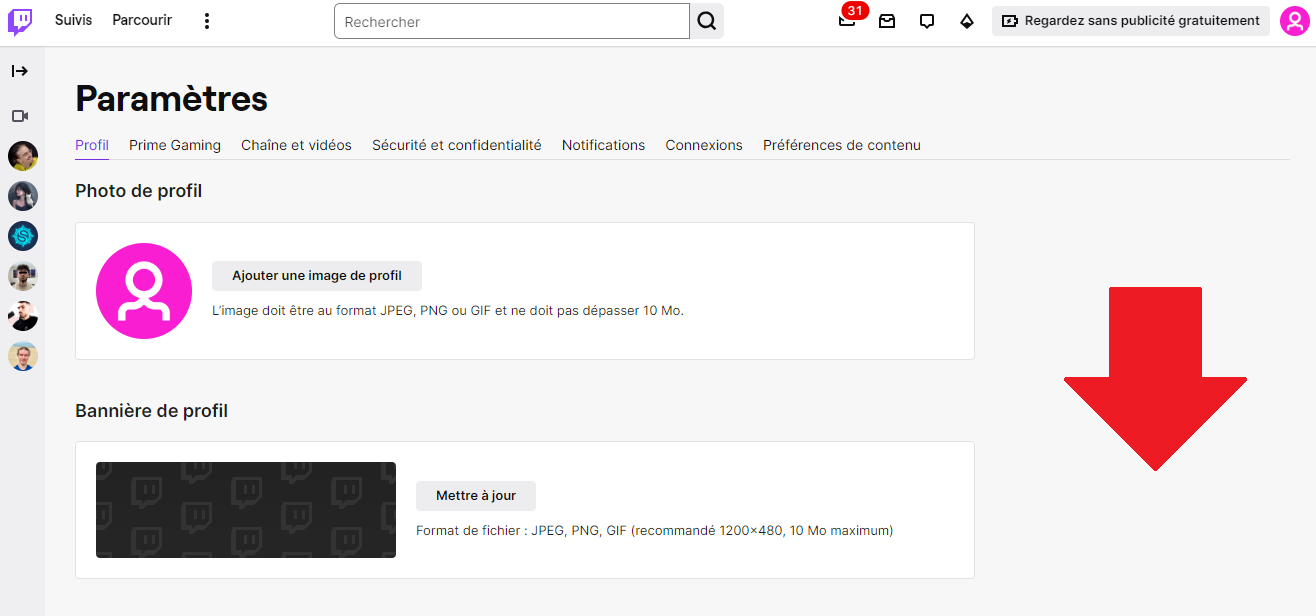
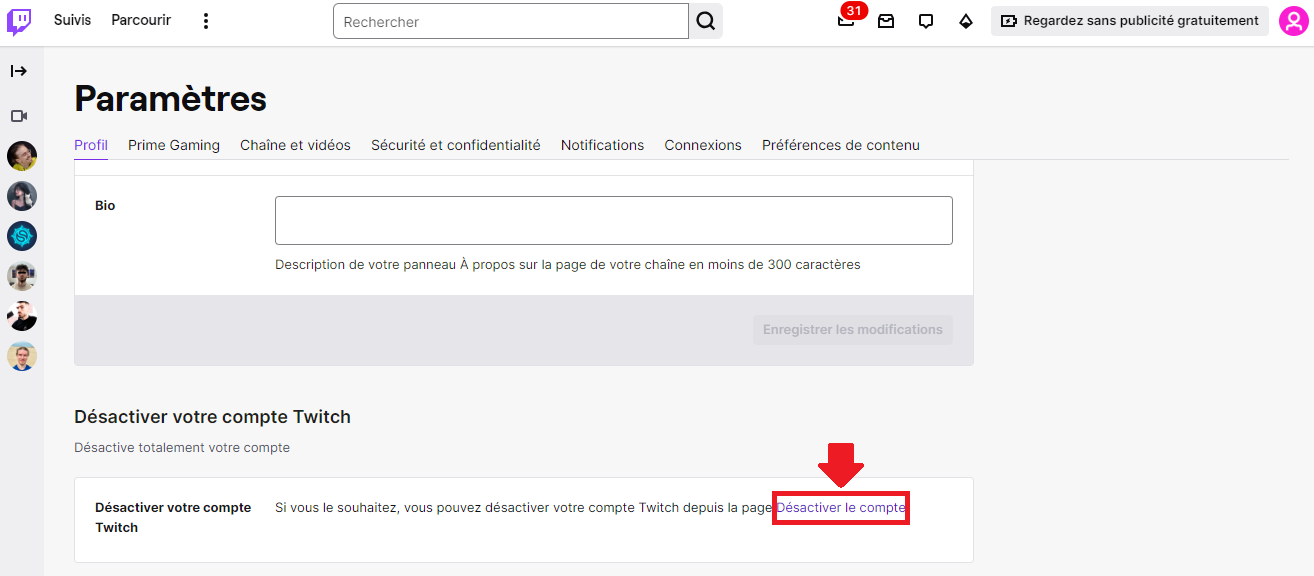
- At the very bottom of the page, Click «Deactivate Your Account».
Step 4: Fill in the form
A form will open to help you Confirm deactivation.
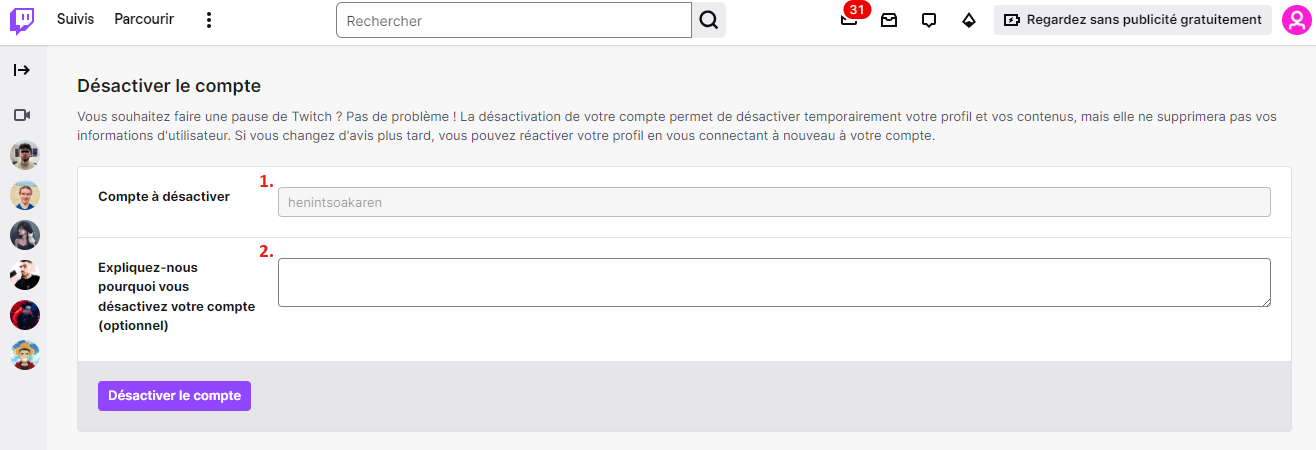
- In general, the Your Twitch channel name appears automatically.
- (Optional) Please indicate the reason for your deactivation.
Step 5: Confirm the deactivation of your Twitch account
- Once you've filled out the form, click on «Deactivate Account».
- For security reasons, a window prompts you to verify your identity by entering your password.

- After clicking on «Check», your Twitch account has been deactivated.

Once your account is deactivated, your profile and activity will be hidden from other users. As long as it remains turned off, you won't be able to stream or watch videos, follow channels, chat, or access your settings.
The good news is: you can Reactivate your account at any time. All you have to do is log back into your Twitch account—there's no time limit. Unlike when you delete your account, nothing is erased: you'll find your channel exactly as you left it.
Be sure to keep the distinction in mind. The deactivation is temporary and reversible: perfect for stepping away for a while and coming back later. The delete is irreversible once the 90 days have passed. As long as you're still unsure, deactivation is the safest option.
Take this opportunity to adjust your privacy settings : This way, you control who can see your information and your activities. And if you ever come back, you might be tempted to Change your Twitch username.









 English