Your PS3 controller works very well on computer, but Windows He can't recognize it on his own. You need a third-party driver, and the most common solution is still ScpToolkit.
How it works: The software sends your DualShock 3 for a Xbox 360 controller as far as the system is concerned, and your games detect it without any problems.
Before you begin, gather the necessary materials:
- A PS3 controller official (the DualShock 3)
- A computer at Windows (landline or cell phone)
- A USB Mini-B cable, the standard PS3 charging cable
- The coupon software and his drivers

Step 1: Make sure your PC is up to date
The DualShock 3 works well, of course Windows 10 and Windows 11. On the older versions, you may run into compatibility issues with the drivers. Updating also helps avoid bugs when installing the software.
Here's how to check in just a few seconds:
- Open the menu To start up, then go to Settings.
- Click on Updates and Security.
- Select Windows Update, then Check for updates.
- Install all the available updates, then restart your computer.

Once you've completed this step, your PC is ready to recognize the pilot of the controller. You can now proceed with the software installation.
Step 2: Download and install software to use a PS3 controller on PC
Windows does not recognize the PS3 controller natively. So you need to install a software or some third-party drivers to make it work. Here are the main tools available:
| Software | What he does | Status |
|---|---|---|
| ScpToolkit | Install the drivers and passes the PS3 controller for a Xbox 360, compatible with most games | Not maintained since 2017, but it's still the most widely used for the DualShock 3 |
| XPadder | Assigns each button to a keyboard key and control the mouse with the joysticks | Paid |
| JoyToKey | Keyboard and mouse mapping on the gamepad buttons, such as XPadder | Free, active |
| MotionInJoy | Legacy driver for connecting the DualShock 3 | Avoid (reported malware) |
ScpToolkit: the most widely used solution, but it has been discontinued
ScpToolkit automatically installs the pilots required and emulates a Xbox 360 controller, which makes the DualShock 3 compatible with virtually all games, including those from Steam.
The project is not No longer maintained since 2017 and was archived on GitHub : It's still running on Windows 10, but can be unstable on Windows 11. Always download the latest version from the official GitHub source—never from an unknown website.
There is an alternative way to set up a Sony controller on a PC: DS4Windows, which is free and available on GitHub. Keep in mind, however, that it is designed for PS4 and PS5 controllers and does not natively support the DualShock 3. For the PS3, ScpToolkit remains the go-to tool.
XPadder and JoyToKey: Mapping Your Keyboard to Your Controller
XPadder maps each button on the DualShock 3 to a key on the keyboard and also allows you to move the pointer using the joysticks instead of the mouse. This is handy for games that don't support controllers.

JoyToKey works on the same principle: it assigns the mouse and keyboard keys to the gamepad buttons. Its big advantage over XPadder is that it is free and is still actively maintained.

MotionInJoy: Avoid
MotionInJoy was a popular driver for connecting the DualShock 3 to a PC. Today, it is strongly discouraged : Many players have reported malware and adware built into the system. It’s best to avoid it altogether and opt instead for ScpToolkit.

Step 3: Connect your PS3 controller to your PC
Once your tool is installed, you can plug in your DualShock 3 to your PC. There are two ways to do this: the USB cable where the Bluetooth.
How to connect your PS3 controller to your PC via cable?
To connect your controller, use the USB Mini-B cable, the same one used to recharge it.
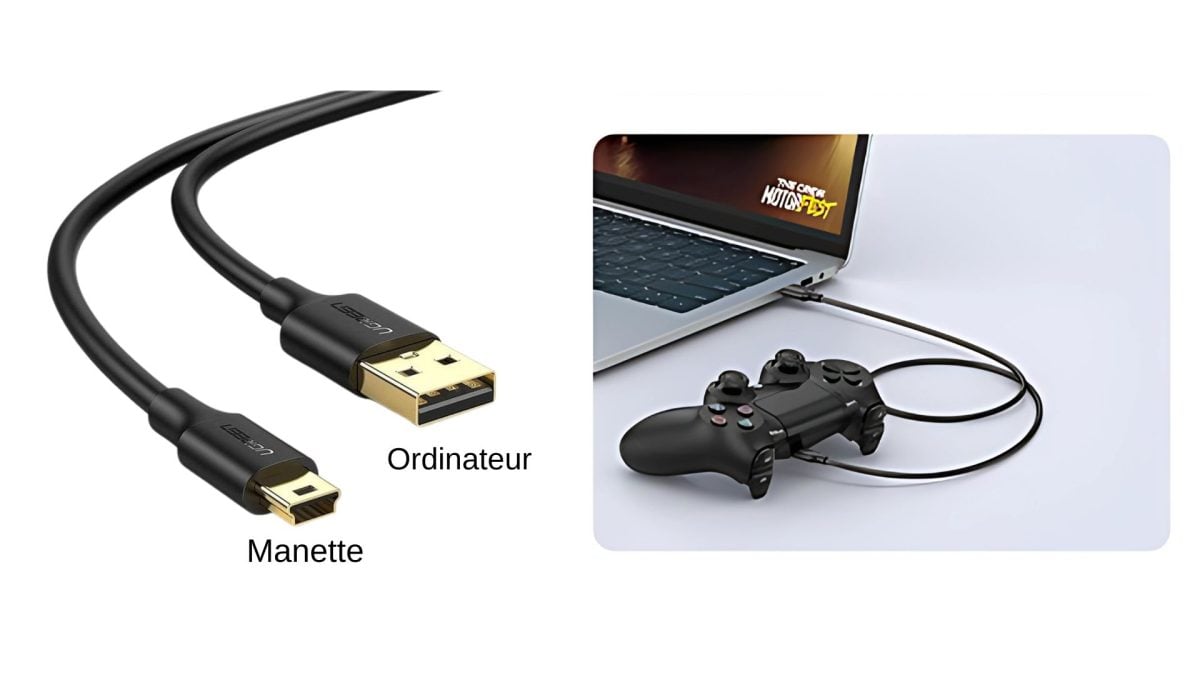
Once the connection is established, your PC should automatically detect a new device. The driver installed in the previous step takes care of the rest.
How to connect your PS3 controller via Bluetooth?
You can also use your controller via Bluetooth to play wirelessly. The initial setup still requires a USB connection. Here are the steps for pairing:
- Connect the PS3 controller to the PC using the USB cable.
- Launch the app ScpToolkit.

- Open the tool ScpToolkit Driver Installer.
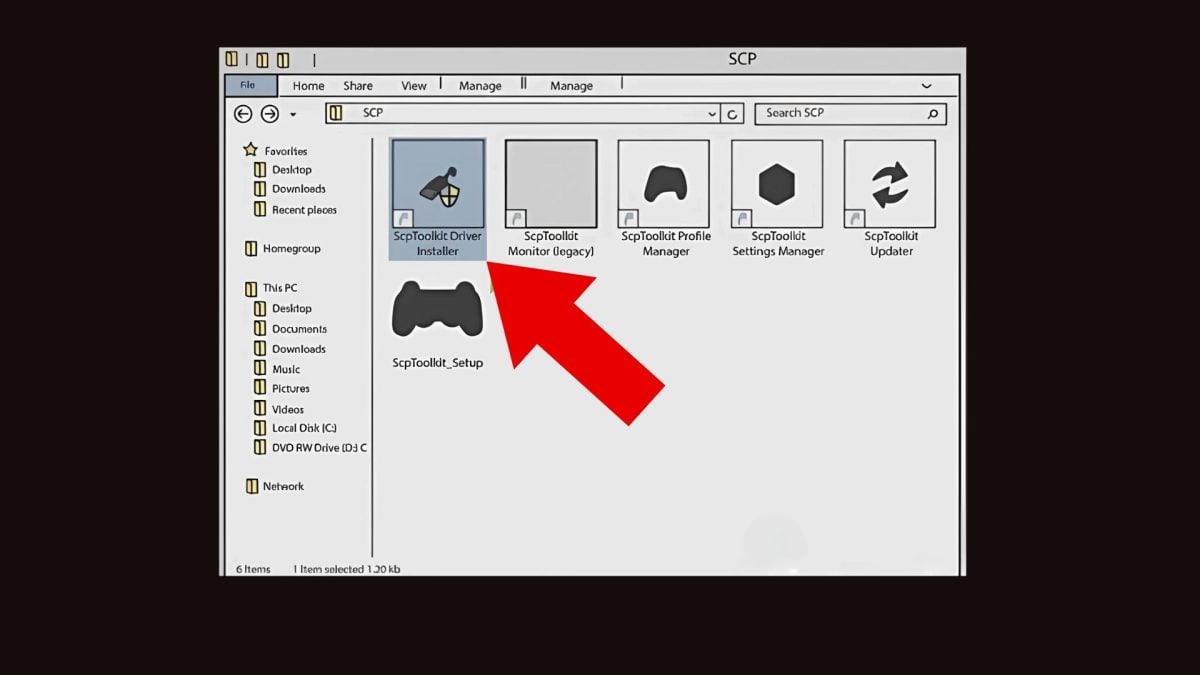
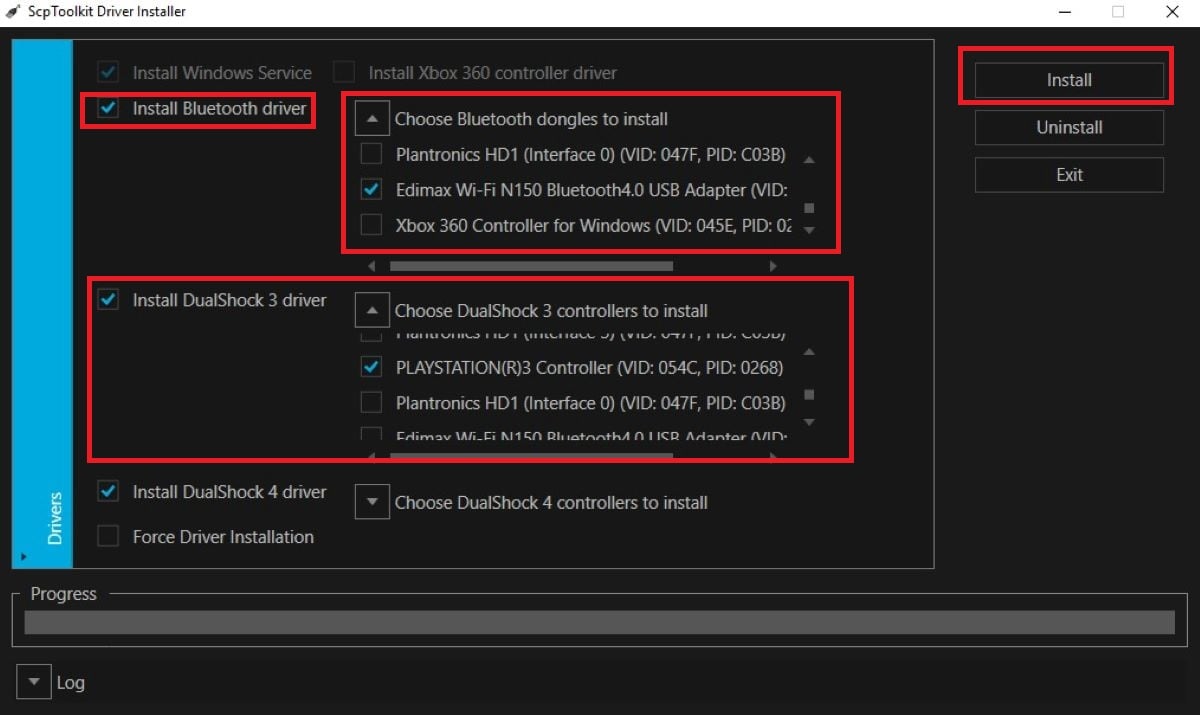
- Check the box Install Bluetooth Driver.
- Dans la section Select Bluetooth dongles to install, select your Bluetooth receiver.
- Check the box Install the DualShock 3 driver and select your PS3 controller.
- Click on Install.
- Once the installed drivers, unplug the USB cable.
- If the installation was successful, some information messages appear in the corner of your screen.
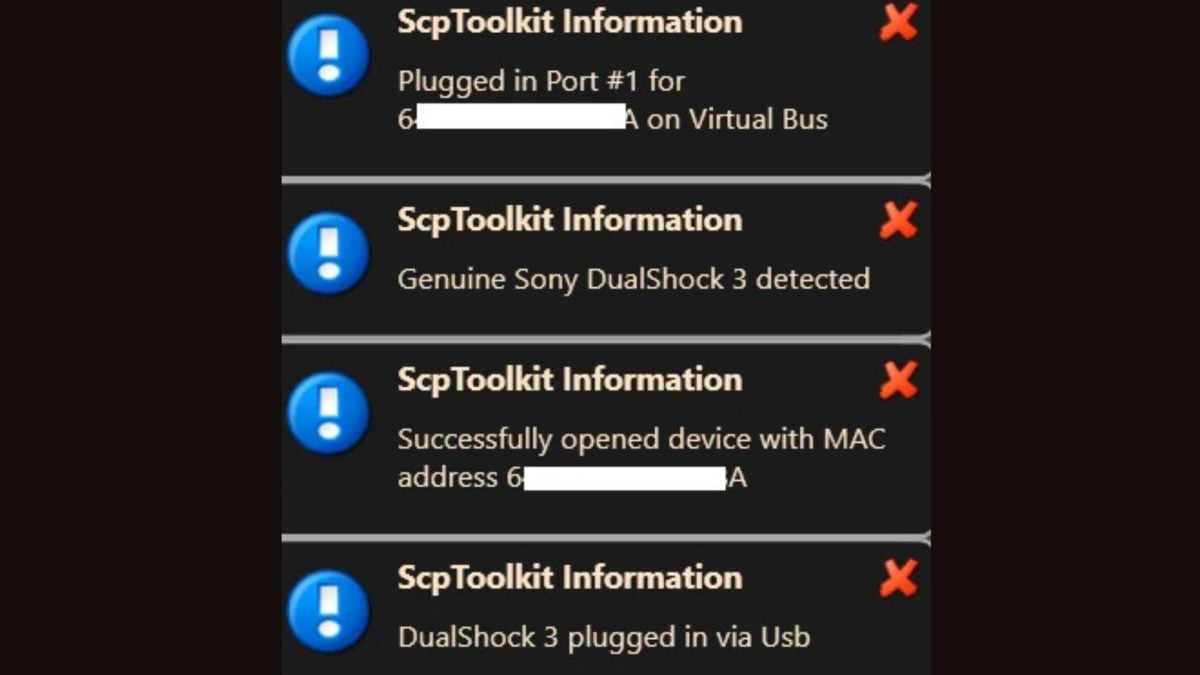
- Press the PS button to turn on the controller.

- The PS3 controller should then Automatically connect via Bluetooth to your computer.
Note: The DualShock 3's Bluetooth connection remains unreliable. If the wireless connection If it doesn't work the first time, reconnect the USB cable, restart the pairing process, and try again. If it fails repeatedly, the game wired always works reliably.
Step 4: Configure your software/driver
Does your PC recognize your PS3 controller? All that's left is to configure. The procedure varies depending on which tool you have installed. Here are the steps for each program.
Configure XPadder
- Spear XPadder. If your controller isn't plugged in, you'll see a blank window.
- Plug in the controller USB to display the buttons.
- Click on the’joystick icon.
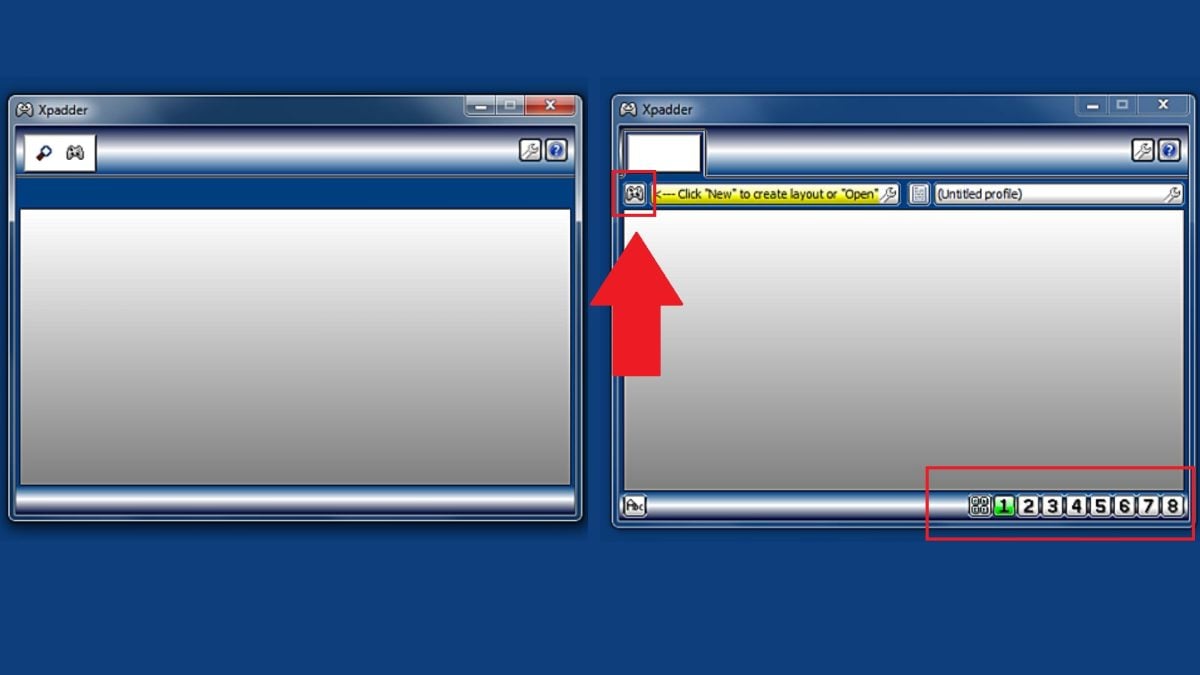
- Creates a new profile by clicking on New. A new window appears.
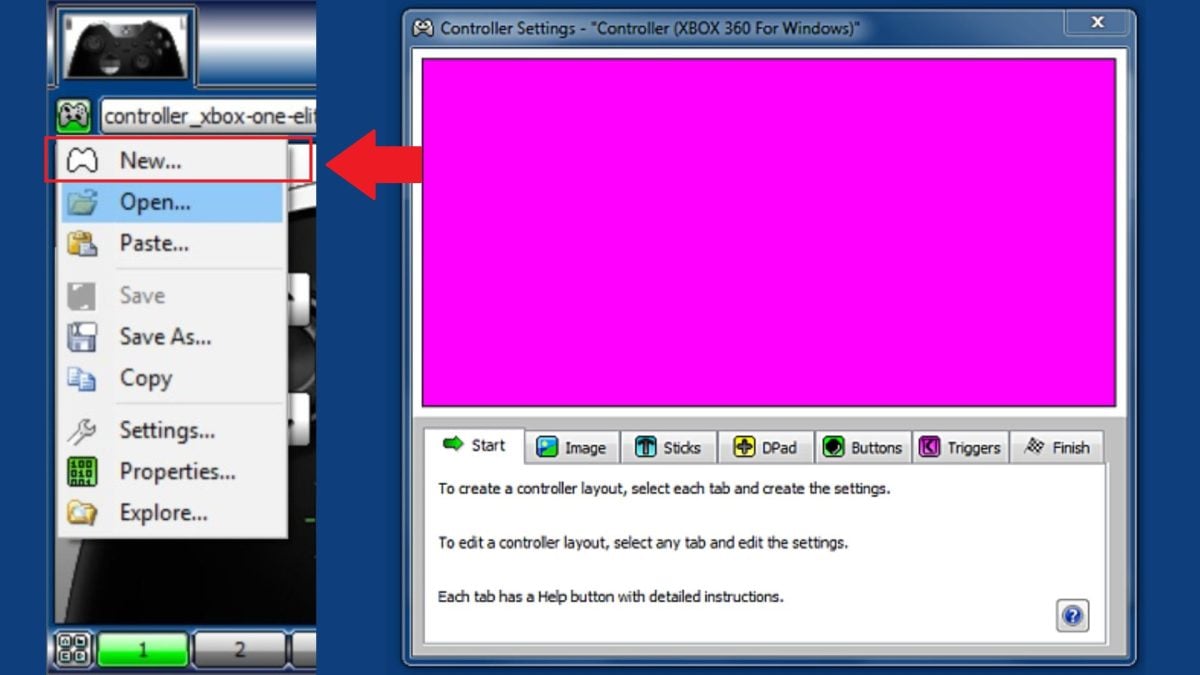
- Import or create a joystick image to make it easier to visually configure the buttons.
- Click on each area to combine keys intended.
- Register your profile via Save As…

Set Up JoyToKey
- Spear JoyToKey. A window appears.
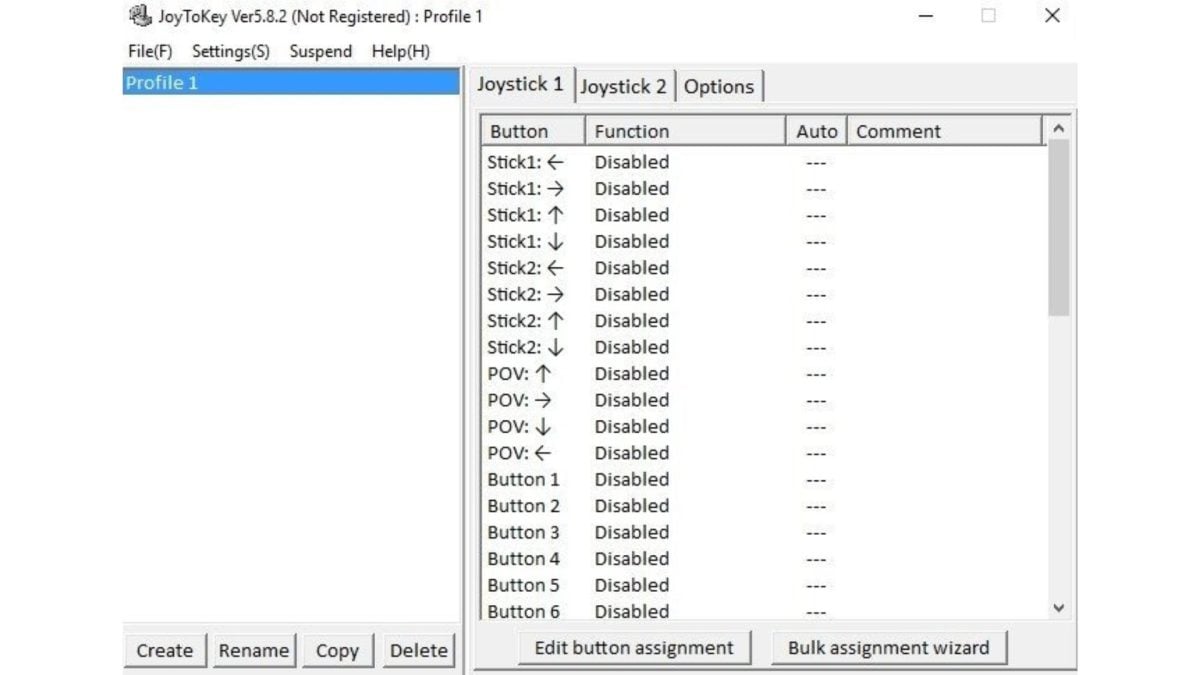
- Double-click on a line, on Stick 1 For example.

- A new window will open. Click on the first one Disabled to replace it with a keyboard key, the key Q For example.

- Test in an app to check that the controller is working properly.
Configure ScpToolkit
- Plug it in PS3 controller in USB.
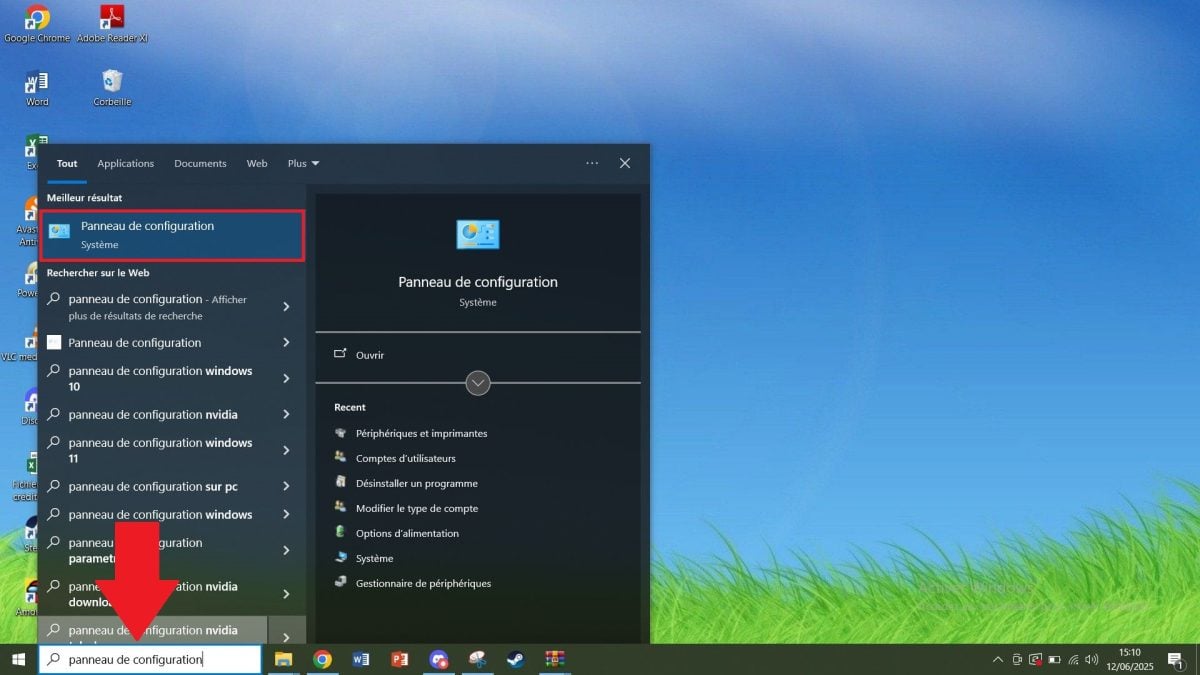
- Tape Control Panel in the Windows search bar.
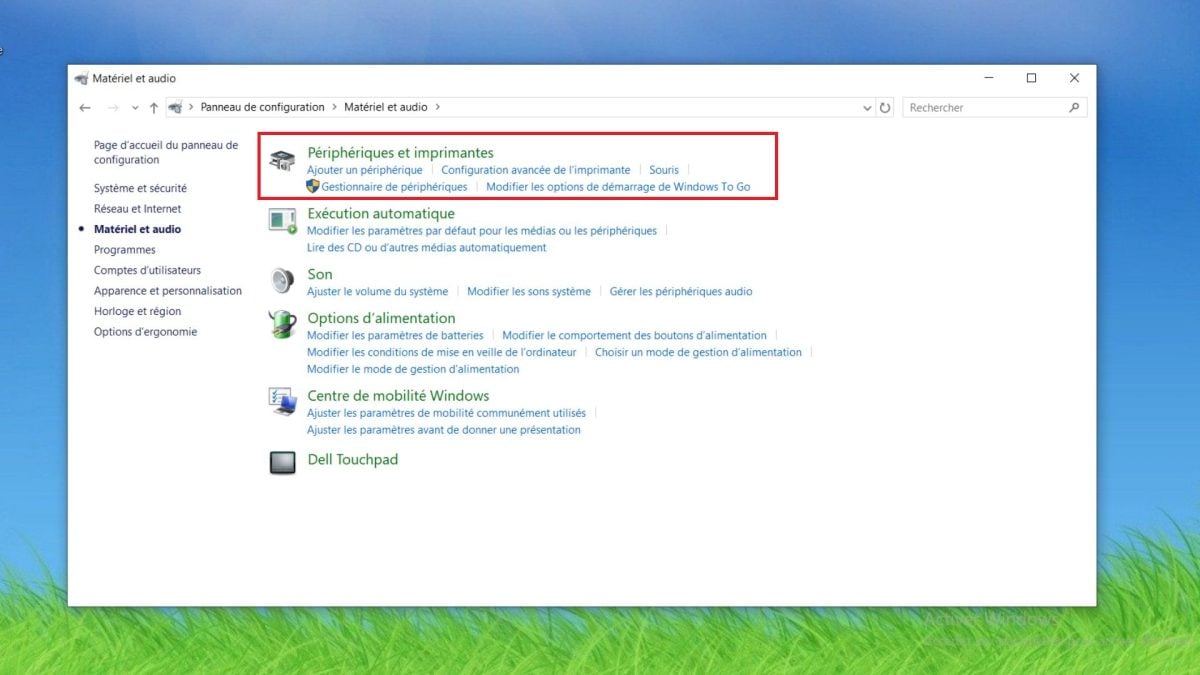
- Go to Equipment and Audio.

- Open Peripherals and Printers.
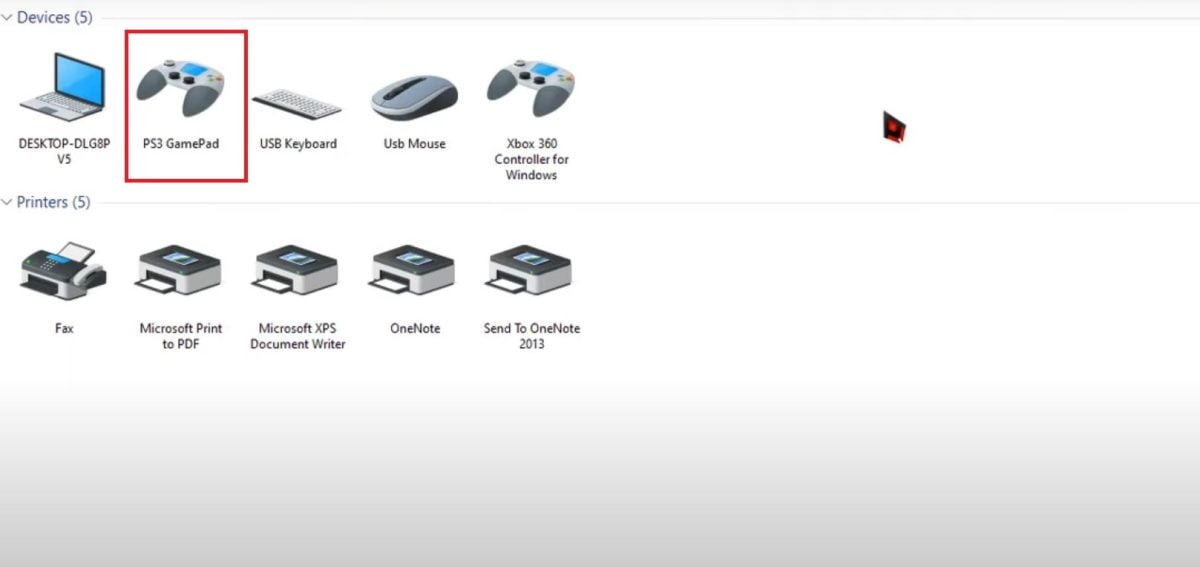
- Make a right click on the image, then click Properties.
- A test window opens. Press the buttons on your controller to check the responsiveness.

MotionInJoy: For informational purposes only
The procedure below is provided for informational purposes only. MotionInJoy (and its component DS3 Tool) is strongly discouraged: some malware and adware have been reported in his facility.
- Plug in your PS3 controller, then launch the tool.
- In the tab Driver Manager, check the small box above Load driver.
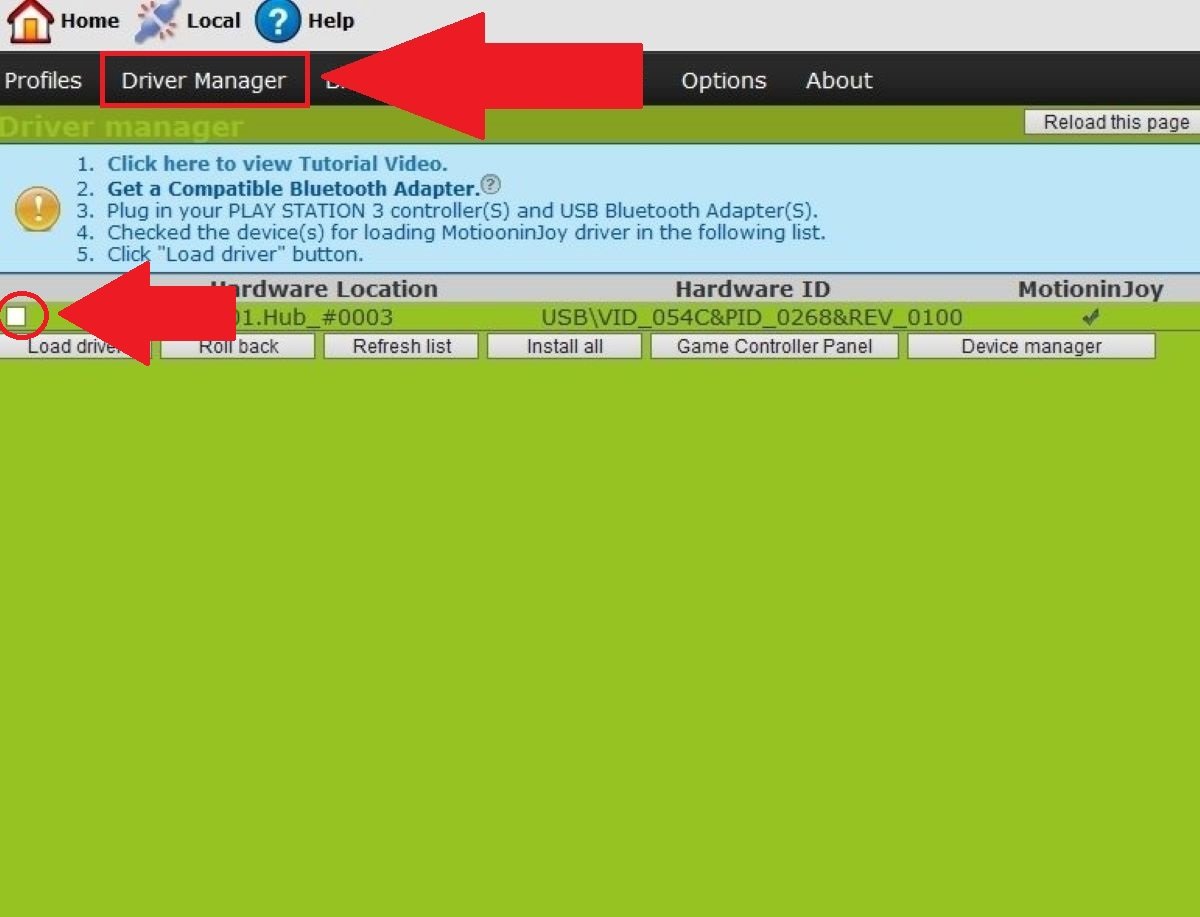
- Click on Load driver and wait for the message to appear Hit.

- Go to the tab Profiles, select PlayStation 3, then click on Enable.
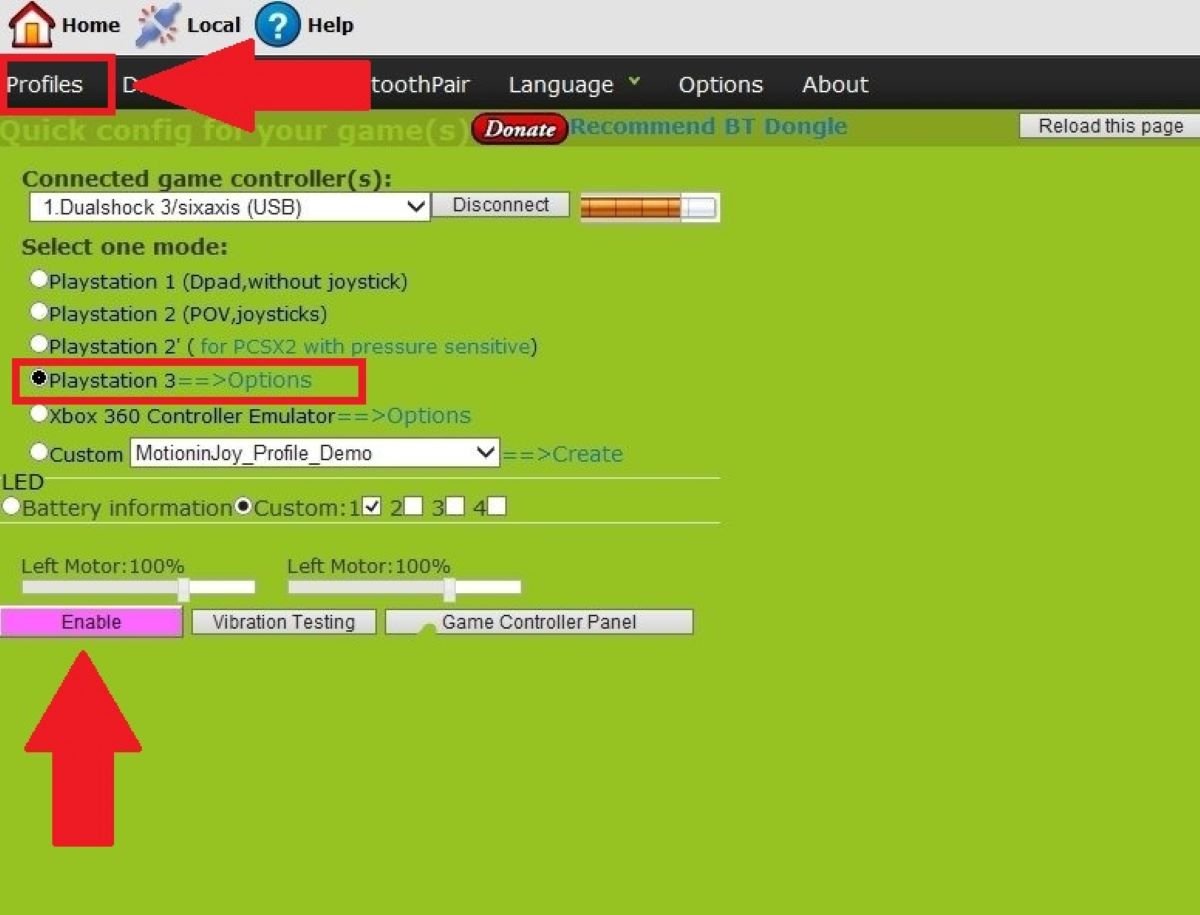
- Test the buttons on the tab Game Controller Panel to make sure everything is working.
Step 5: Testing your PS3 controller on PC
Once the driver is installed and configured, check that your PS3 controller It really works.
- Unplug it, then plug it back in Plug in your USB controller (or reconnect it via Bluetooth). You'll know right away if the system detects it.
- Select your controller from the gaming peripherals Windows, then click Properties. Press each button and move the joysticks : The keys should light up on the screen.
- Start a game to verify under real-world conditions.
- If all the buttons respond, your PS3 controller is ready to use.
If nothing appears on the screen, the driver was not installed correctly. Go back to step 2 and reinstall it. ScpToolkit. A defective USB cable It may also prevent detection: try using a different cable to rule it out.
FAQs
Why doesn't my PS3 controller work on my PC?
If your PS3 controller If it doesn't work on your PC, there are several possible causes:
- The drivers are not installed.
- the software The selected option is configured incorrectly.
- the USB cable or the port being used is defective.
What should I do if my controller is not detected via USB?
If your controller isn't showing up as a USB device, try the following steps in this order:
- Try another one USB Mini-B cable or another USB port.
- Open the device manager Windows to see if the controller appears.
- Check that your DualShock 3 is well established with ScpToolkit.
The Bluetooth connection fails or is unstable—what should I do?
For a Bluetooth connection A stable connection between your DualShock 3 and your PC:
- Remove obstacles and sources of interference: walls, electronic devices that are too close.
- Don't plug in too many Bluetooth devices at the same time.
- Make sure your Bluetooth adapter is compatible with the controller.
- Reinstall the pilot if the problem persists.
Why don't the buttons on my PS3 controller work properly on PC?
If the keys aren't responding properly, the problem is almost always due to the configuration:
- A bad button mapping in the software.
- An incomplete configuration of the driver installed.
- Conflicts with other controllers or connected devices.
Why isn't the vibration on my PS3 controller working?
Haptic feedback depends primarily on the software and the game used:
- Not all apps support this vibration function.
- Some drivers disable it by default: enable it in the settings of the software.
To learn more, check out our other guides:









 English