You just accidentally deleted a partition on your hard disk ? Don't panic: as long as the hard drive hasn't been overwritten, the lost partition is often still recoverable.
There are two solutions, ranging from the simplest to the most powerful.
1. Recover a deleted partition using CMD
The first solution is free of charge and integrated into Windows : the command prompt with the tool DiskPart, available without installation from Windows XP up to Windows 11.
Important : This method does not recover a partition whose space is marked “Unallocated” in Disk Management. It is used solely to reassign a letter to the editor to a partition that still exists on the hard drive. If the space is “Unallocated,” skip directly to Method 2.
So this works if your problem is caused by the loss of the drive letter or name.
Here are the steps to follow to recover your partition:
- Check the partition status: presses Win + R, then type
diskmgmt.mscto open Disk Management and view the status of your partitions.
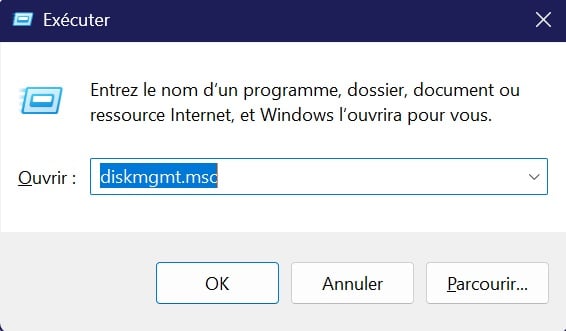
- Spear DiskPart : presses Win + R, type
diskpartand press Enter to confirm. - Tape
list diskand press Enter to display all the hard drives from your computer.
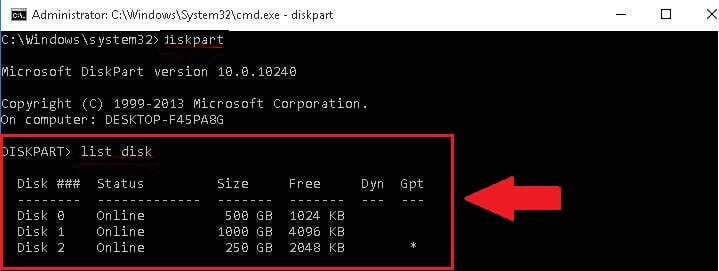
- Tape
select disk #by replacing # Select the hard drive that contains the lost partition, then confirm.
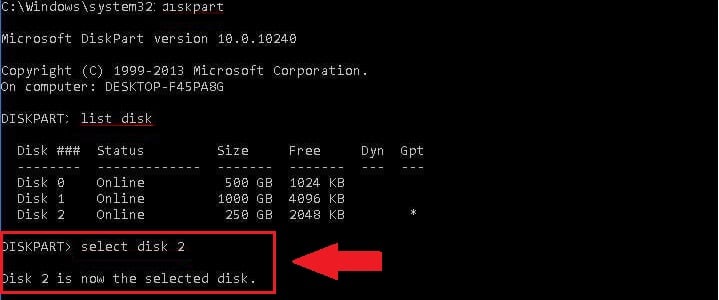
- Tape
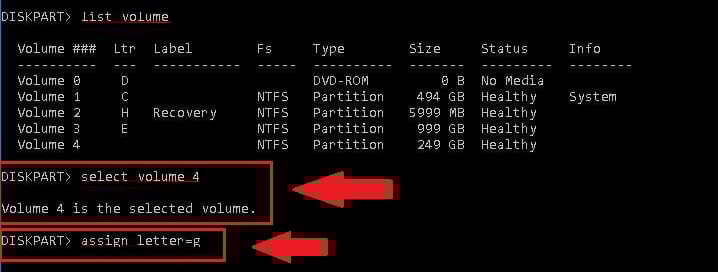
list volumeand press Enter to display all the sheet music and the volumes available on this hard drive.
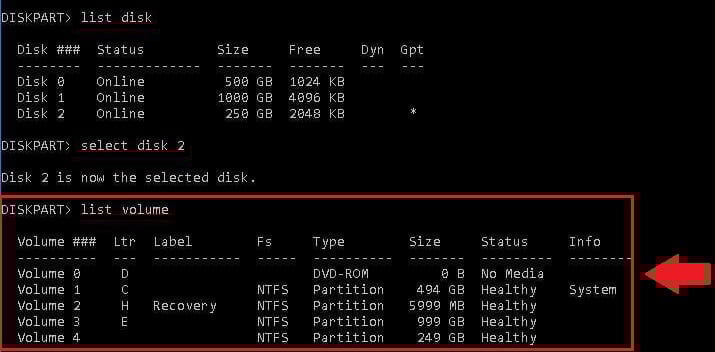
- Tape
select volume #(replaces # by the number of the lost score), then typeassign letter=#by replacing # with the desired drive letter. This step reassigns a drive letter to your partition.
- Close the window and see if you can do it again access your sheet music and to your files using the player.
If the partition still does not appear, it has been permanently deleted. In that case, only a data recovery software A specialized tool can recover your lost data and files.
Find out how Increase your Xbox's storage capacity à travers un autre article sur notre site.
2. Use recovery software to restore the partition
Whether DiskPart If that didn't work, data recovery software remains the most reliable solution for recovering a lost partition.
This type of tool performs a thorough scan of your hard drive to recover deleted partitions and lost files, even when the hard drive space appears to be “Unallocated”. This solution works just as well on a SSD than on a conventional hard drive.
Here we use AOMEI Partition Assistant Professional, one of the most effective partition recovery programs for Windows.
The The data recovery feature is available only in the paid version (Professional): The free version is primarily designed for standard partition management.
- Download and install the software. When you open it, the main interface displays the information about all your hard drives and their sheet music.

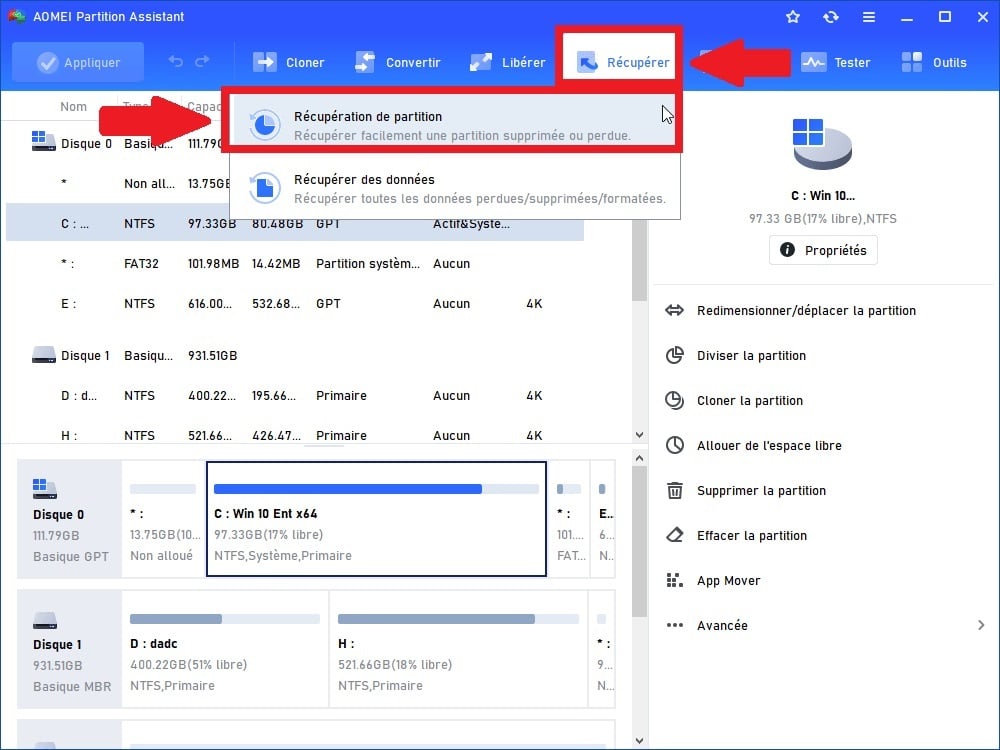
- Click on the the hard drive where the deleted partition was located, select the option Claim, then click on Partition Recovery in the toolbar.
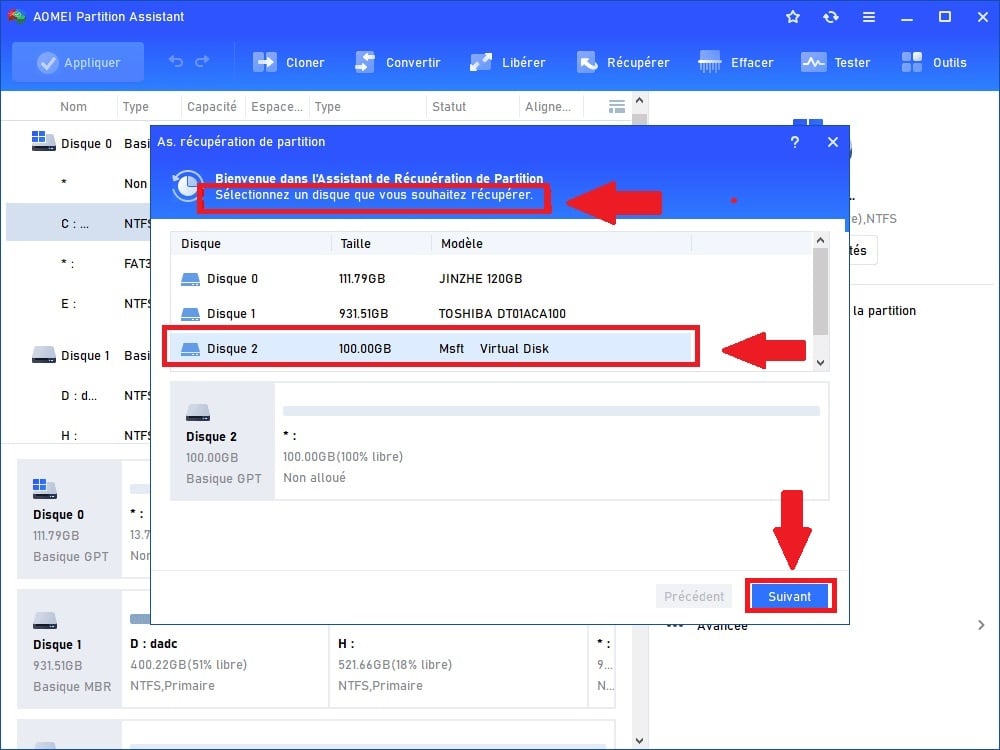
- Select the hard drive that contains the lost partition, then click on Next.
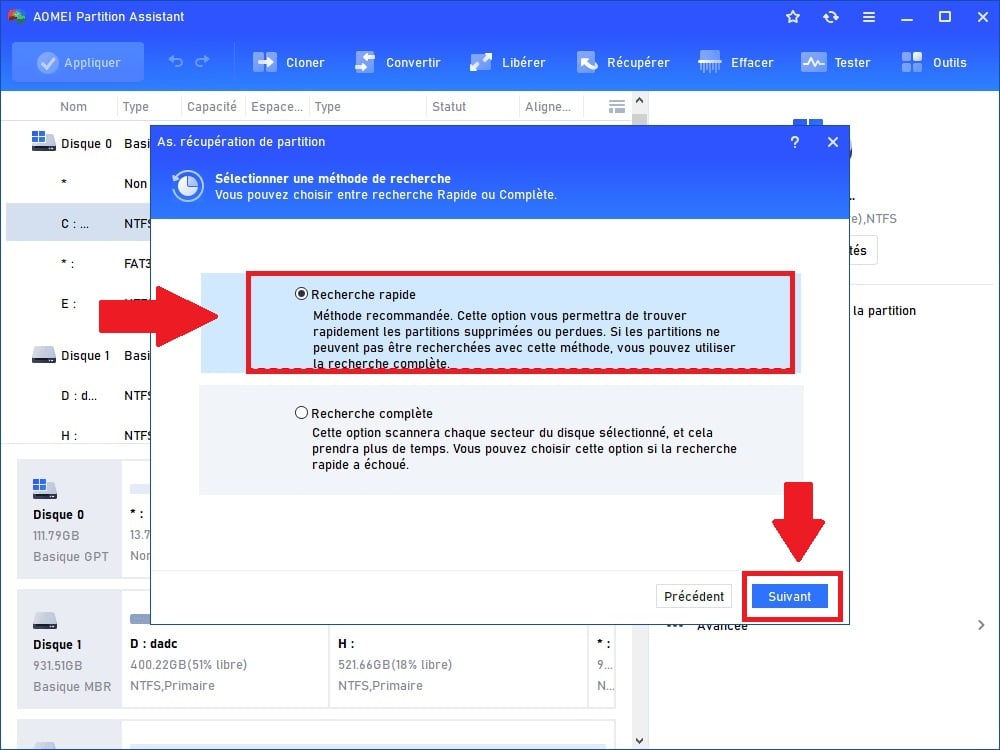
- Choose Quick search to run a quick scan of the hard drive. If this initial scan doesn't find the lost partition, choose the Advanced Search, which performs an in-depth analysis of the hard drive.
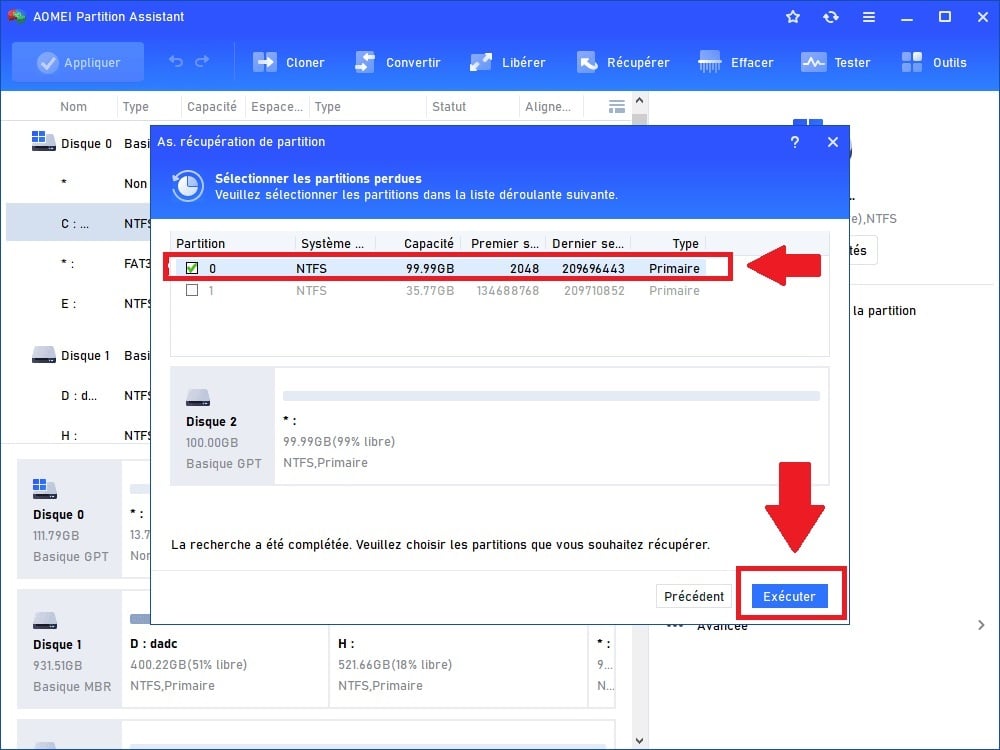
- When the lost partition appears in the results, check it. You can double-click it to check the files and data it contains before confirming. Then click on Run to start the data recovery process.
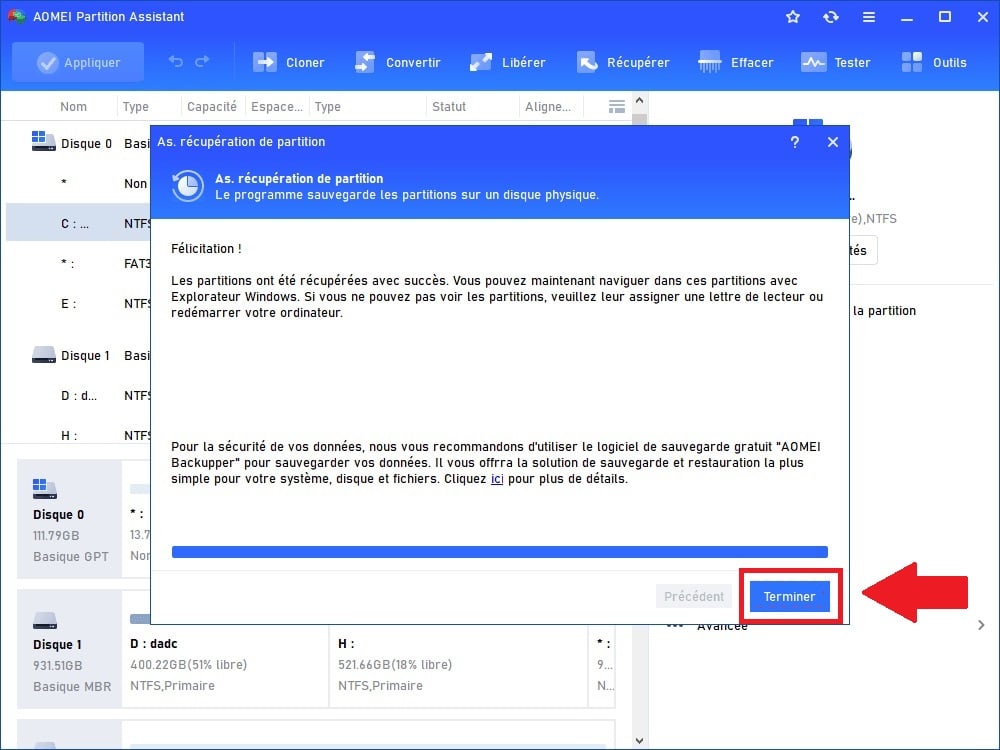
- Press Finish. Your recovered partition will then appear in the’File explorer Windows, along with all your data.
Security Council: Never save the recovered data on the same hard drive as the deleted partition. Use a external storage device (external hard drive, external USB flash drive) to avoid overwriting the files still on the hard drive.
FAQs
What is a partition on a hard drive?
A score is a partition on your hard drive, created to organize it into several independent storage areas. A single hard drive can thus be divided into several partitions, each identified by a letter.
Specifically, sheet music is used to:
- Bringing Together two operating systems on the same hard drive, with a separate file system for each.
- Organize and tidy up your data and files properly.
- Maintain a recovery partition on the hard drive (recommended under Windows 10 and 11) to restore your data after a reset.
What happens when a partition is deleted?
When a partition is deleted, the space it occupied on the hard drive is freed up and becomes “Unallocated”. It can then be used to create new partitions or to extend an existing one.
Good news: as long as the partition table Since the hard drive hasn't been reformatted, your data is still physically there. The partition table stores information about the location of each partition. That's why you need to act quickly and avoid writing new files to that hard drive before the recovery process.
What could be the causes of a lost partition?
Several situations can lead to a lost partition on a hard drive:
- Accidental deletion: The most common reason. You accidentally delete a partition—sometimes one that contains important files and valuable data.
- Hard drive problem: Hardware malfunction or wear and tear can lead to data loss and make partitions inaccessible.
- Power outage: A sudden power outage can corrupt a partition's file system and make its data unrecoverable without recovery software.
- Virus or malware: Some attacks delete your data or render your partitions and their partition tables unusable.
How can you prevent partition loss on a hard drive?
Prevention is better than cure. Here are a few simple habits to Avoid losing your sheet music and data :
- Back up your data regularly to an external drive or to the cloud. A recent backup allows you to restore your files without needing recovery software.
- Use a reliable partition management software during partitioning, to minimize errors and file system corruption.
- Protect your computer with a up-to-date antivirus and a firewall to prevent attacks that target your partitions and data.
- Secure your accounts with complex passwords and thetwo-factor authentication to minimize the risk of unauthorized access to your hard drive.
- Maintain your hard drive by regularly checking for errors using Windows management tools to detect any issues before data loss occurs.
- Keep a external USB flash drive or an external drive with a backup of your critical partitions, in addition to your cloud backup.
Now you know how to Recover a Deleted Partition, whether through DiskPart for simple cases or via AOMEI Partition Assistant Professional to recover partitions and data that have been permanently deleted.
If you accidentally delete files, the most important thing is to act quickly and avoid writing new files to the hard drive before starting the data recovery process.
For more articles like this, check out our page Guides & How-To's. You can also ask your questions in the comments section.








 English