To Recover a Lost Partition, begins with MiniTool Partition Recovery : free, simple, and effective on Windows.
If you have more than’1 GB of data to save, or if you're on Mac, a paid solution such as Stellar Data Recovery becomes more relevant.
Here are the Top 7 Software Programs listed by usefulness, with details for each one on compatible systems, price, and the ideal use case.
1. Stellar Data Recovery Pro
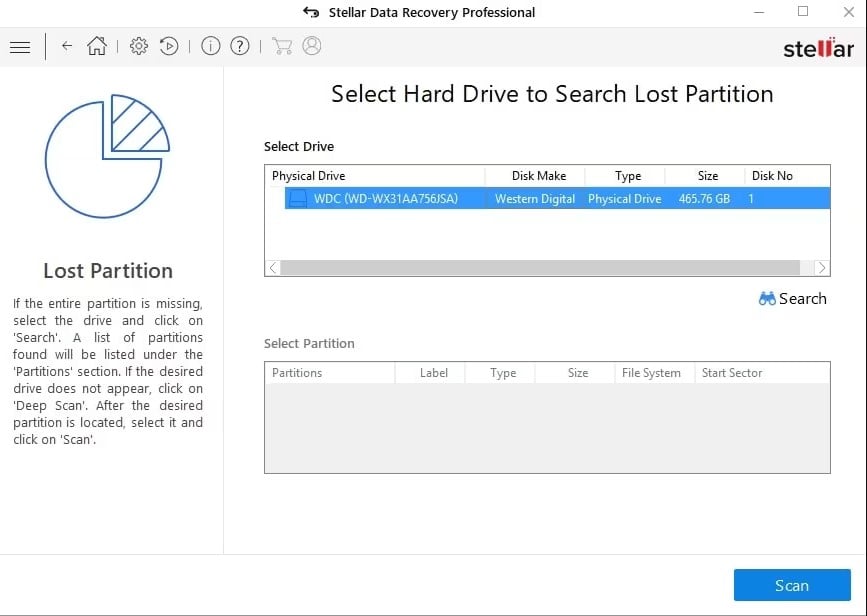
Stellar Data Recovery Pro is a powerful solution available on Windows and Mac, making it one of the few cross-platform options on this list. It recovers files from any hard drive or storage device, regardless of the cause: accidental deletion, formatting, file system corruption or a virus attack.
It supports the major file systems: NTFS, FAT and exFAT. You can preview each recoverable file before starting the recovery process, then filter by type or extension to speed things up. It also lets you create a disk image file to ensure a secure recovery.
Please note: the RAID device management and virtual servers is not included in the Pro edition. It is available only in the higher edition Technician, designed for professionals.
Pricing and Free Version
The free version lets you scan your disk and recover up to 1 GB of data. Beyond that, the paid version is displayed starting at approximately 89 $ per year (around €82), depending on current promotions.
For whom?
This is the right choice if you want to first check for free whether your files can be recovered, and then restore a large amount of data.
| Advantages | Disadvantages |
|---|---|
|
|
2. MiniTool Partition Recovery
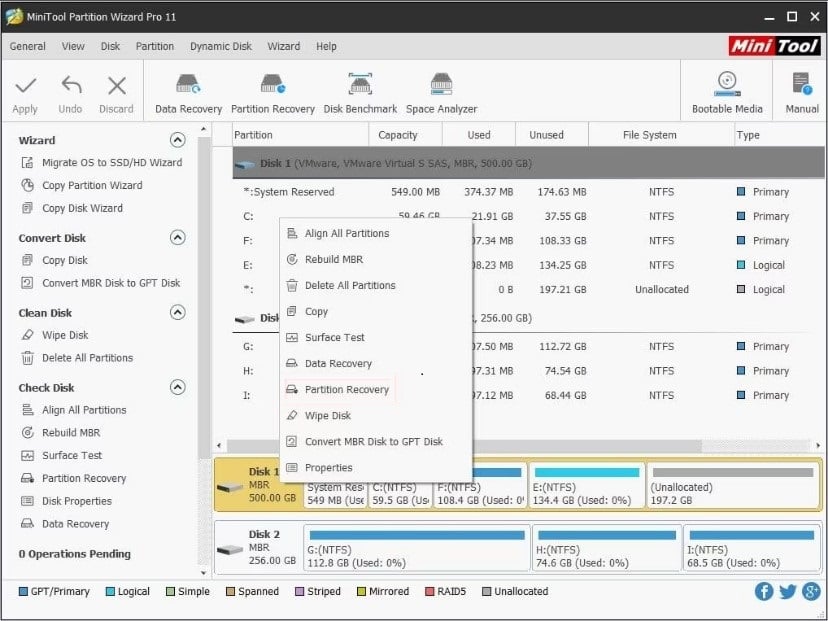
MiniTool Partition Recovery is designed for recover lost sheet music, deleted or damaged on Windows. It takes the form of a step-by-step wizard, making it one of the easiest tools for a beginner to use. It's the perfect choice if you want to download a sheet music score for free, without any technical hassle.
Startup Menus
The home page offers several options depending on your situation:
- Undelete Recovery : to recover deleted files.
- Lost Partition Recovery : to scan the hard drive and recover files from a deleted partition.
- Digital Media Recovery : retrieves data from a removable storage device such as a USB key or a memory card.
- CD/DVD Recovery : the same thing, but for CDs and DVDs.
- Damaged Partition Recovery : Recovers files from a corrupted or formatted partition (RAW, for example).
How to Use It in Practice
All the menus work the same way. You choose an action, select the disk or partition to scan, and once the scan is complete, check the items you want to restore. The The free version is limited to 1 GB recovery. Beyond that, we need to move on to a paid license, but for simple lost files, this limit is more than enough.
| Advantages | Disadvantages |
|---|---|
|
|
3. Wise Data Recovery

Wise Data Recovery is a software program totally free to Windows, designed to recover deleted files and lost partitions with just a few clicks. It's a good choice if you're looking for a lightweight tool, available in French, without spending a penny. You run a scan on the relevant drive, then go through the results to restore what you want.
- Two search modes: one quick analysis to recover recently lost data, and a in-depth analysis for older files or after formatting.
- Recovers many types of files: videos, emails, photos, and documents.
- Supports the major Windows file systems (NTFS, FAT, exFAT) on hard drives, USB flash drives, and external storage devices.
- Available in portable version, with a preview of the files before recovery and an indication of the chances of success.
This is the ideal solution if you've accidentally deleted files or lost a small partition and want an option 100 % free before considering a paid tool.
| Advantages | Disadvantages |
|---|---|
|
|
4. Disk Drill

Disk Drill works on both Windows and on Mac. It recovers your lost files regardless of the cause: accidental deletion, formatting, a lost partition, or a virus attack. It supports many file systems, including NTFS and exFAT.
Its biggest advantage: you can Preview the recoverable data before paying. So make sure your files are actually there before you pull out your credit card. The free version limits the recovery to 500 MB on Windows. To go beyond that, the Pro version costs about 89 $ per year, with a lifetime license available for around 149 $.
This is the right choice if you're on a Mac, or if you want to scan and check what can be recovered before making a purchase.
| Advantages | Disadvantages |
|---|---|
|
|
5. Do Your Data

Do Your Data Scans formatted, deleted, or inaccessible partitions. With its advanced search feature, it locates lost, corrupted, or damaged files and restores them to the location of your choice.
The free version allows you to scan your entire disk and preview the recoverable data before making a purchase. However, full recovery is only available with the pay version. This is a good option if you want to first check what can be recovered after an accidental deletion or formatting.
| Advantages | Disadvantages |
|---|---|
|
|
6. Find & Mount Partition
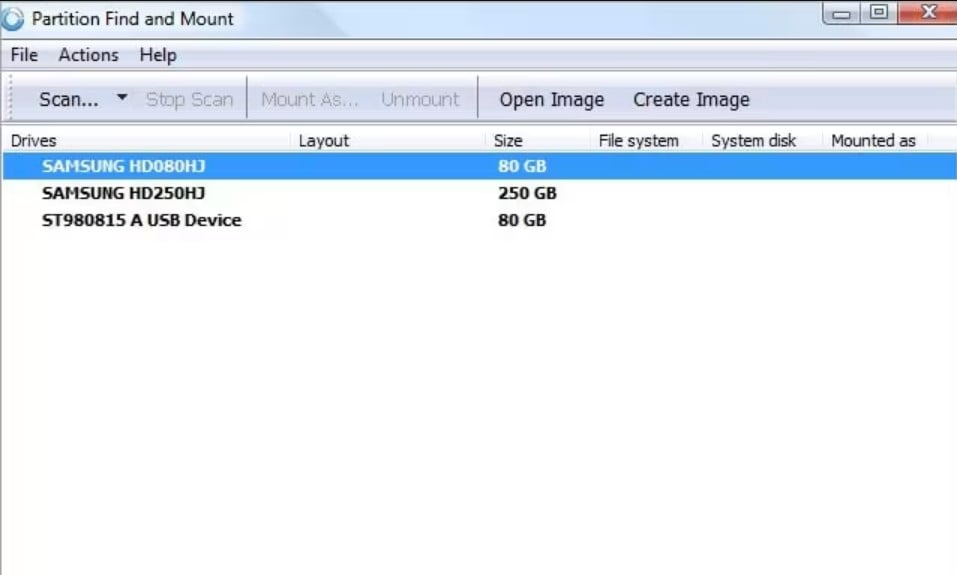
Partition Find & Mount is a free tool on Windows which works differently from the other programs on this list. Instead of rewriting the partition table, it locates the lost partition and the mount as a temporary volume in the system. You can then open it and copy your data to another disk without ever altering the original structure. This is an approach non-destructive, which is particularly secure. It supports file systems NTFS and FAT, which covers most Windows hard drives.
Please note: the’in-depth analysis can take a very long time on a high-capacity drive. It's also an ideal tool if you simply want to recover data from a unallocated partition without carrying out a thorough structural repair.
| Advantages | Disadvantages |
|---|---|
|
|
7. Active Partition Recovery

Active Partition Recovery is the right choice when you want to Restore an entire partition, not just a few files. It targets lost partitions, the defective sectors and corrupted partition tables. Its function SuperScan goes even further: it can even recover a partition that was deleted after a new one was created on top of it.
It runs on Windows and can also be run from a bootable startup media, which is useful when the operating system won't boot. It supports the following file systems NTFS, FAT and exFAT. You have two recovery modes available: manual Where automatic.
The free version lets you scan and detect Lost partitions. Full recovery requires editing Professional, available as a paid version. This is exactly the tool you need if you've accidentally deleted an entire partition on an external hard drive, or if a power outage has rendered your drive unreadable.
| Advantages | Disadvantages |
|---|---|
|
|
FAQs
How to choose the most suitable partition recovery software?
It all depends on the amount of data you need to recover and on your system:
- You lost less than 1 GB data: MiniTool Partition Recovery Where Wise Data Recovery are sufficient within this limit.
- You need to retrieve more than 1 GB or manage RAID: go to Stellar Data Recovery (The RAID feature is available in the Technician edition.).
- You are on Mac : Disk Drill remains the most versatile, with a preview before purchase.
- It's a Entire partition deleted : Check out Active Partition Recovery Where Partition Find & Mount.
What are the common causes of partition loss?
Several factors can cause a partition to be lost or deleted:
- Accidental deletion : You accidentally delete a partition that you needed.
- Data Corruption : The partition table is damaged by a virus or a disk malfunction.
- Power failure : A power surge or sudden power outage can damage the partition's structure.
- Defective Sectors : They prevent the operating system from recognizing the partition.
- Unintentional formatting : A quick format erases access to the data without immediately destroying it.
What are the consequences of data loss on a partition?
When a partition is lost, the files it contained disappear along with it. The Timing is crucial : The system simply removes the allocation for that disk location; the area becomes rewritable, but the data remains there until it is overwritten. The more you use your computer, the more likely it is that this area will be overwhelmed by new data.
As soon as you spot the problem, stop writing to the disk and take action immediately, or you risk losing your files permanently. For more information, see our guide on how to retrieve data.
If you're using an iPhone, the same steps apply: check out our guide on recovering Lost Data on iOS to tailor the process to your device.
Do you have any questions? Ask them in the comments!








 English