A unallocated partition, it's a space of your own hard disk that Windows no longer recognizes as usable.
The good news is: in most cases, you can get for free using Windows' built-in tools, without any third-party software.
If you've also lost some files By the way, software like Stellar Data Recovery can find them.
How to recover unallocated partition on Windows?
The methods below allow you to recover unallocated space on your hard disk, directly below Windows, in a way simple, free, and fast. Here are the steps for each available solution.
Update or reinstall drivers
A pilot outdated or corrupted may prevent Windows to recognize a hard disk, which then appears as unallocated or disappears entirely from Disk Management. This scenario remains rare, but it's worth ruling it out first if your disk doesn't appear at all.
Here are the steps to resolve driver-related issues :
- Right-click the Start button on your computer and choose «Disk Management».
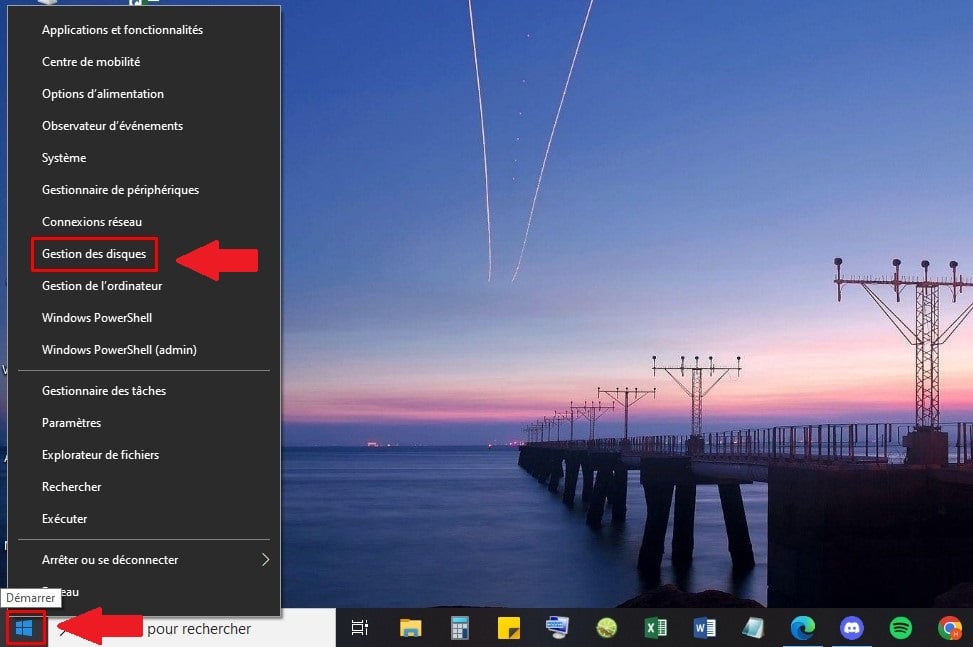
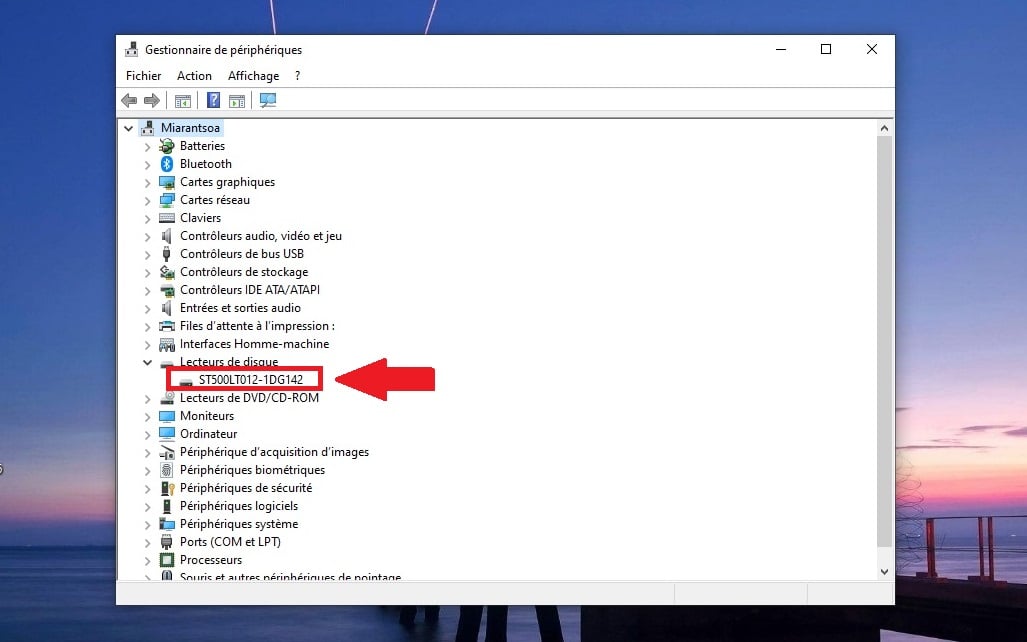
- Start the game «Disc Players», then right-click on your disk.
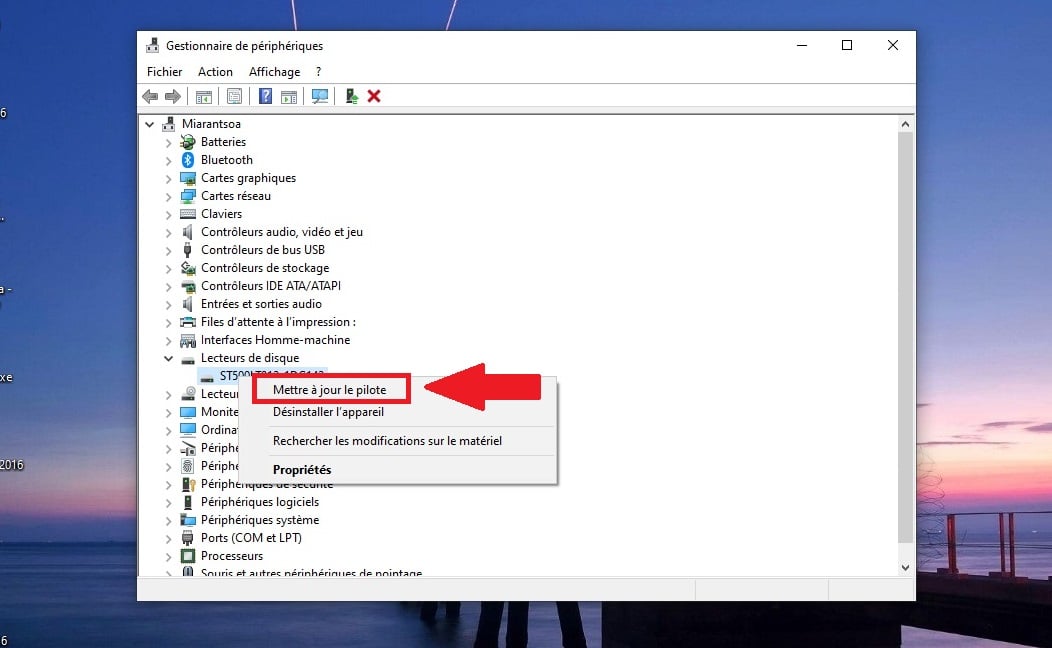
- Click on «Update the driver».
- Click on «Search for drivers automatically».
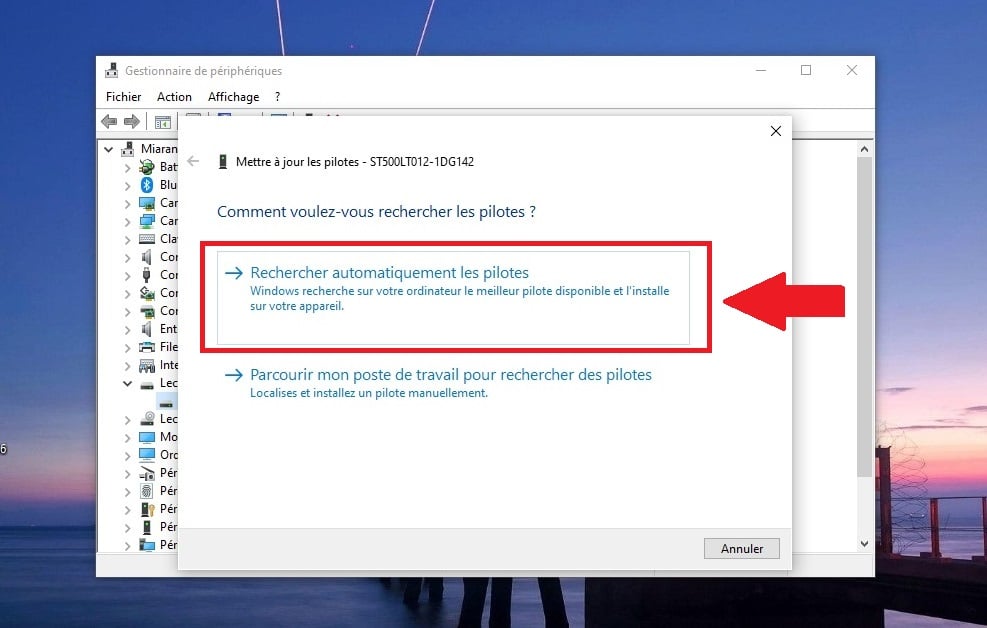
If the problem persists, close the window and uninstalls the driver. Restart your computer: the drivers will reinstall automatically during startup.
Check out How to fix a USB port that is not working on Windows in another article on the website.
Use the DiskPart command to recover an unallocated partition
DiskPart is a command-line tool free integrated into Windows. This method lets you create a new score and retrieve a unallocated space on your hard disk in just a few steps.
Here are the steps to follow:
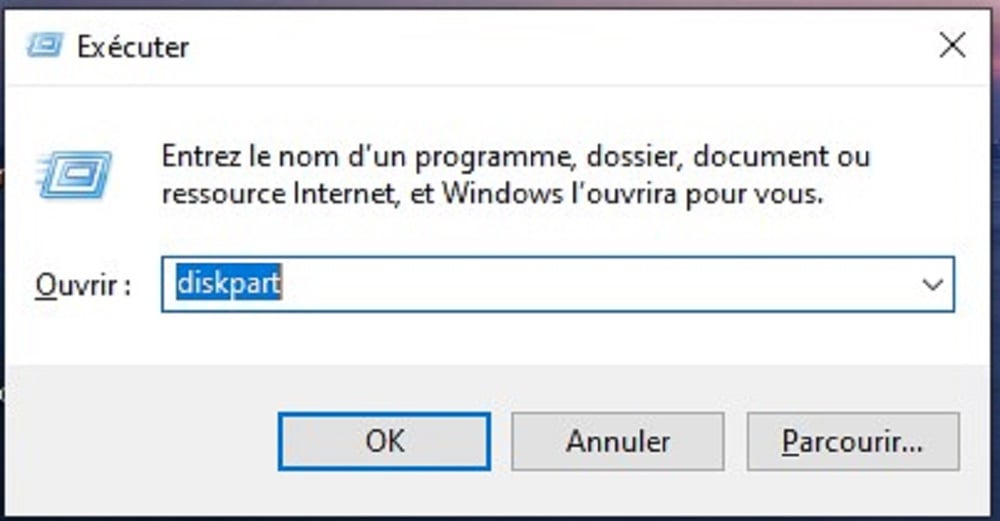
- Press the Windows key and the R key at the same time, then type diskpart in the field that appears. Click OK to launch the tool.
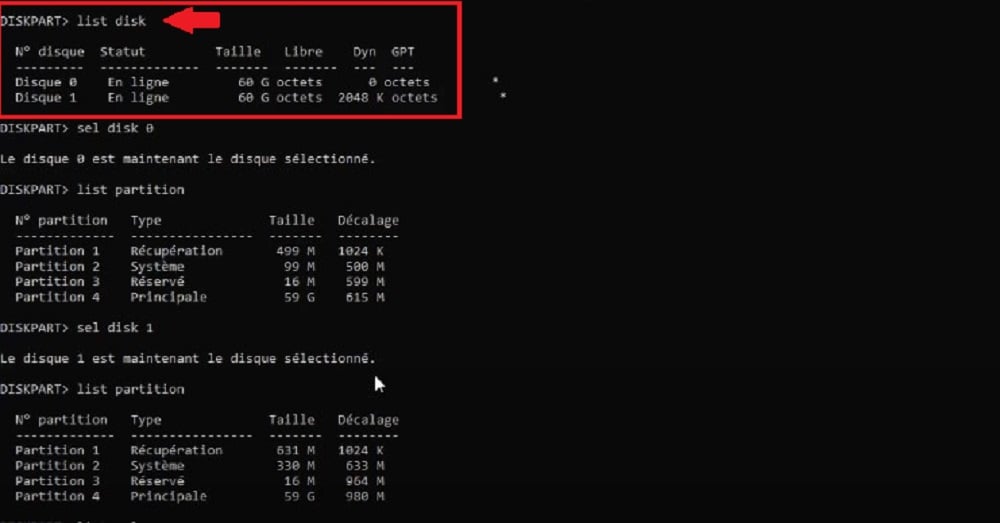
- List your disks using the command list disk, then press Enter.
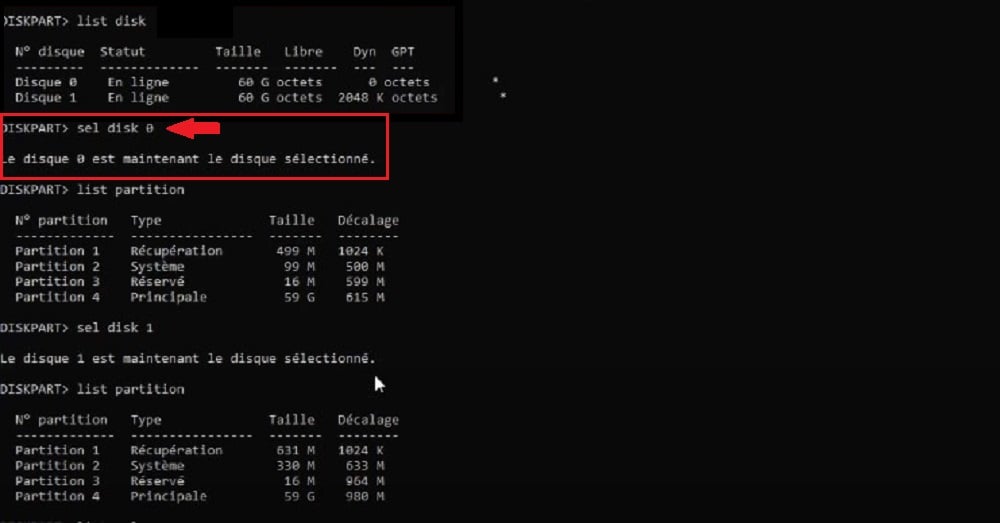
- Select the hard disk concerned with sel disk X (replaces X by your number disk (unallocated), then press Enter. If you can't find the letter to the editor, check in Disk Management.
Attention : the order delete partition is only useful if you want to Delete an existing partition to free up some space.
She removes the entry from the partition table and makes the data inaccessible by default under Windows. This data remains potentially recoverable using third-party software as long as the disk hasn't been rewritten, but don't count on it.
If your unallocated space is already present on the hard disk, skip this step and go straight to creating score :
- Create a new one score by typing help create partition to see the available options. For example, click on create partition primary to create a primary partition (replaces primary (using the one that's right for you), then press Enter.

- Format the score : tape help format to view the available options, then press Enter.
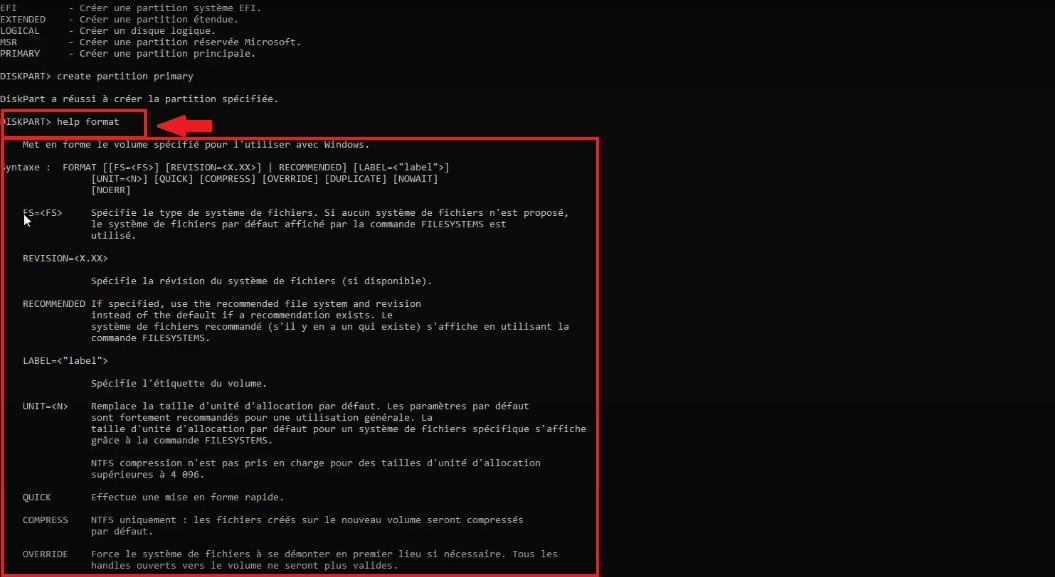
- For example: type format fs=ntfs for a NTFS file system. Check your list of scores with list partition Before confirming, to avoid formatting the wrong one hard disk.
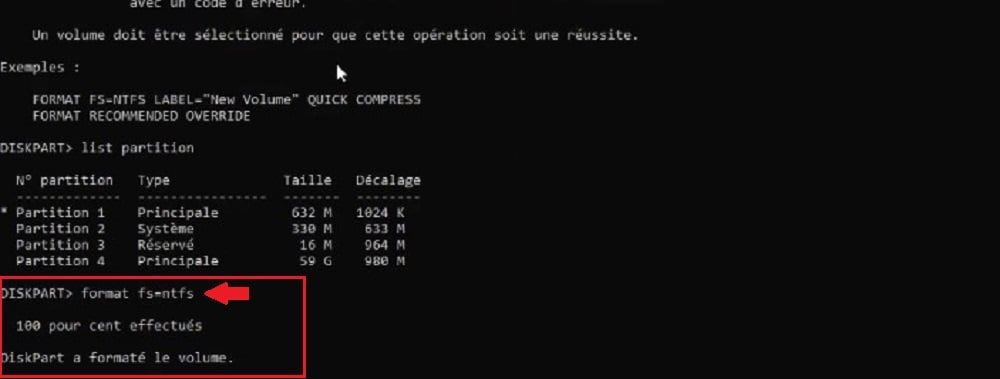
Remember to press Enter after each command to execute it.
Extend an existing partition
If you have any unallocated space left on your hard drive, you can add it to an existing partition to free up storage space.
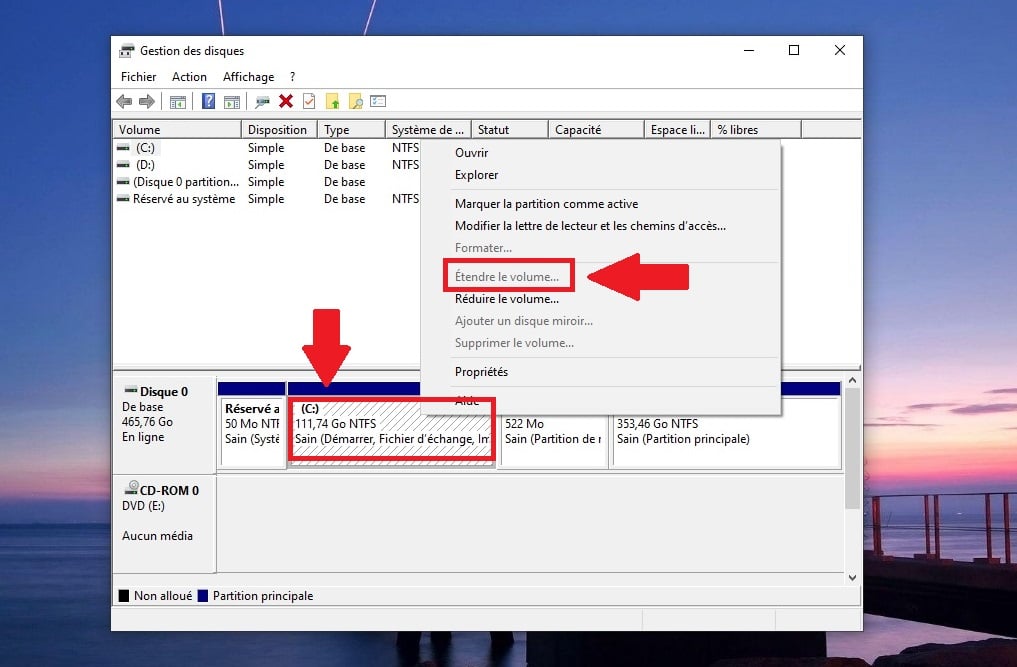
Condition : The unallocated space must be immediately to the right of the partition to be extended.
If it is separated from it by another partition (a recovery partition, for example), the «Extend Volume» option will remain grayed out. Here are the steps:
- Open Disk management (Right-click Start, then select «Disk Management»).
- Right-click on the score to enlarge and select «Expand the volume», then follow the on-screen instructions.
When should you seek professional help?
Sometimes, traditional methods aren't enough. Your hard disk remains illegible, the’unallocated space doesn't reappear, or your important files remain missing.
In that case, entrust your disk has a professional recovery service is the last available option.
It comes at a cost, but if it allows you to restore access to lost data For truly critical items (work, photos, documents), it's often worth the investment. A service like Stellar Data Recovery is used when software alone is no longer sufficient to recover a unallocated partition :
- Regarding the qualified technicians step in when data recovery becomes too complex for a consumer-grade tool.
- They handle extreme cases: water-damaged disks, bad sectors, or physically damaged devices.
- The service is transparent: free diagnosis, a fixed price announced in advance, payment based on results.
- All you have to do is’send your hard drive or your storage device, and then wait for a response.
A internal drive classic or a external hard drive can be covered. Be careful, though: the longer you wait, the more the disk the more it is used, the greater the chances of restore your data are decreasing. Act quickly, before new data is written over them.
How to recover data from an unallocated hard drive?
There are two ways to recover files from a unallocated disk the Windows native backup and one data recovery software. We always start with the free option.
Using backup on Windows
The Restoring from a backup is the simplest and most reliable way to recover files from a unallocated partition. It works only if you've backed up your data beforehand, and the steps below apply to Windows 10:
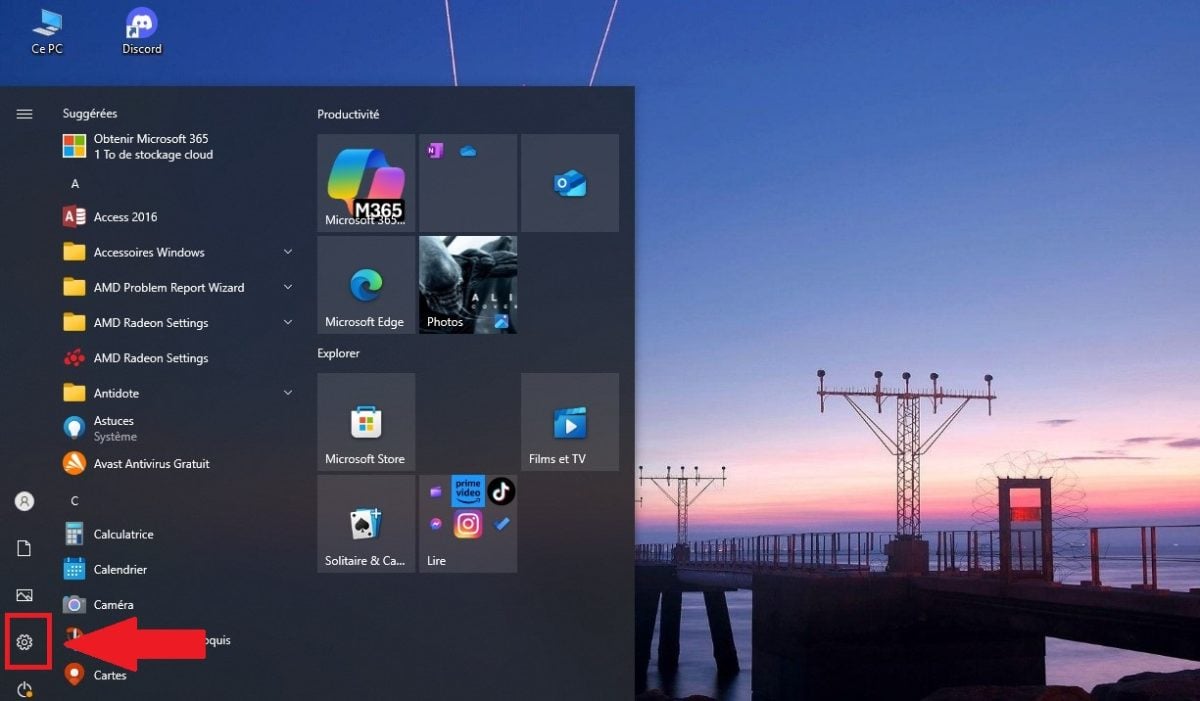
- Click the Start menu, then open the Windows Settings.
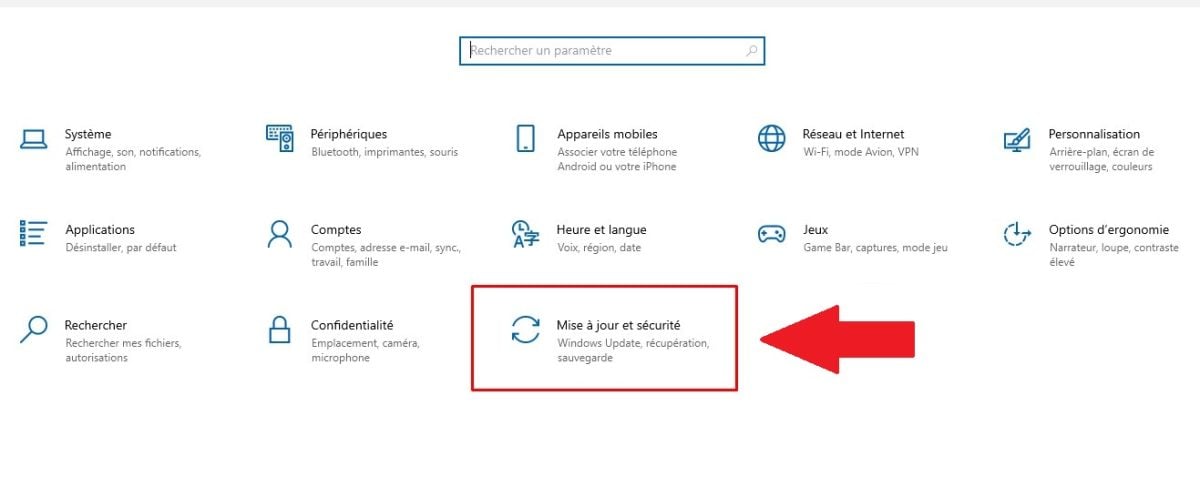
- Click on «Updates and Security».
- Click on «File Backup».
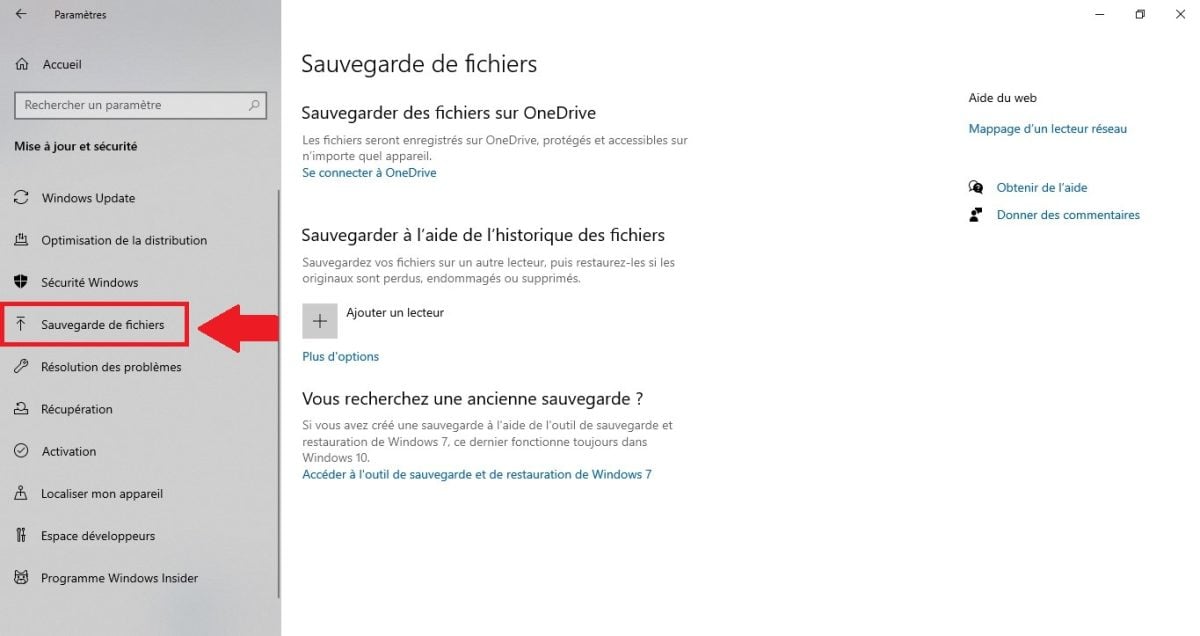
- Click on «More Options».

- Click on «Restore from a current backup», located at the very bottom of the page.
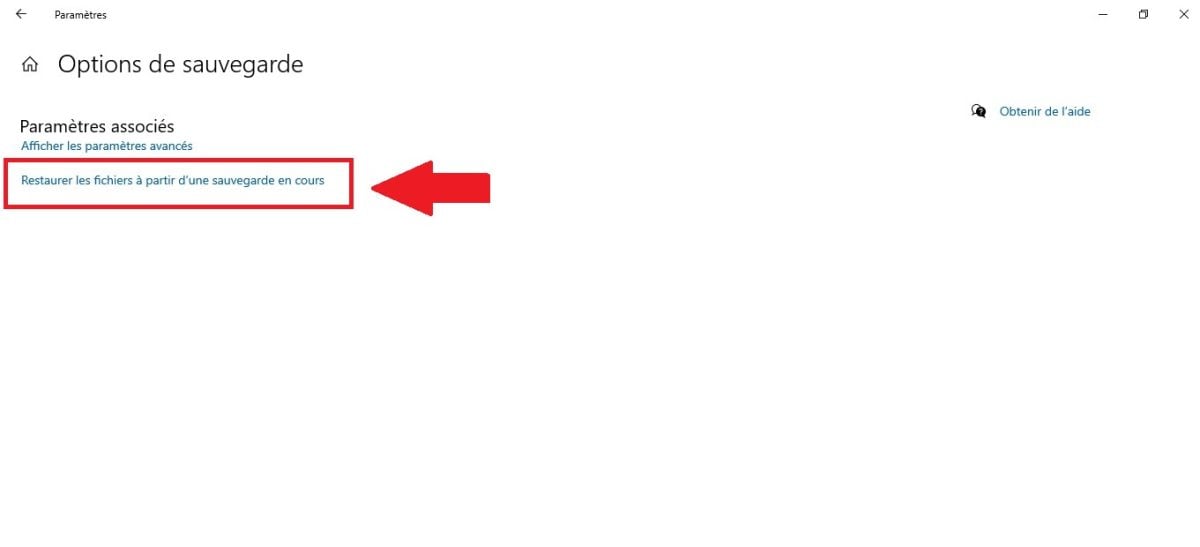
The system then displays all the folders that have already been saved using the feature File History. Double-click the folder you're looking for to preview the files to be recovered.
Select the recoverable files, then click the green button at the bottom of the screen: Windows automatically returns them to their original location.
If you don't have a backup, or if it's not enough, you'll need to move on to the next step using a data recovery software.
In Windows 11, the «Update & Security» category no longer exists. Go to Control Panel → System and Security → File History → «Restore personal files» in the left-hand column.
Use third-party software to recover an unallocated partition
Without a prior backup, a data recovery software becomes essential. The solution proposed here is Stellar Data Recovery Pro, designed to recover lost or deleted files from any computer or storage device on Windows.
It works regardless of the cause of the loss : deletion, formatting, system crashes, or malware.
Its advanced features include:
- L'Overview of Recoverable Files before the restoration.
- the Filter by type or file extension during the recovery process.
- The RAID configuration management and virtual servers, for professionals.
Here are the steps for using it:
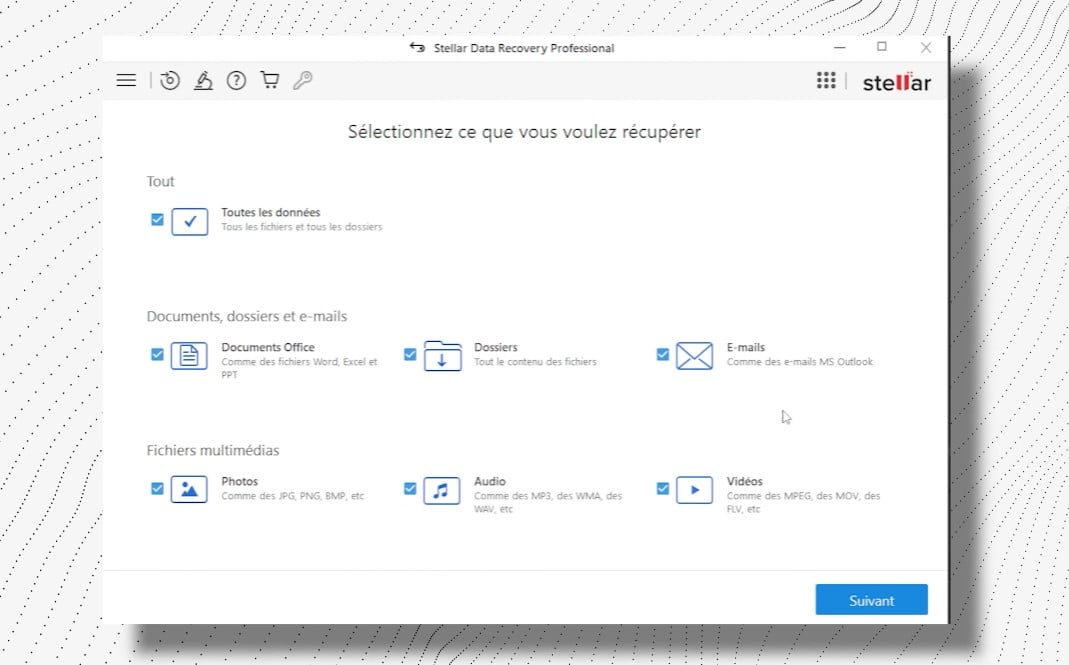
- Download and install the software on your computer, then Select file types to be recovered.
- Click on the hard disk, the USB drive or memory card that contained the lost data, to select it.
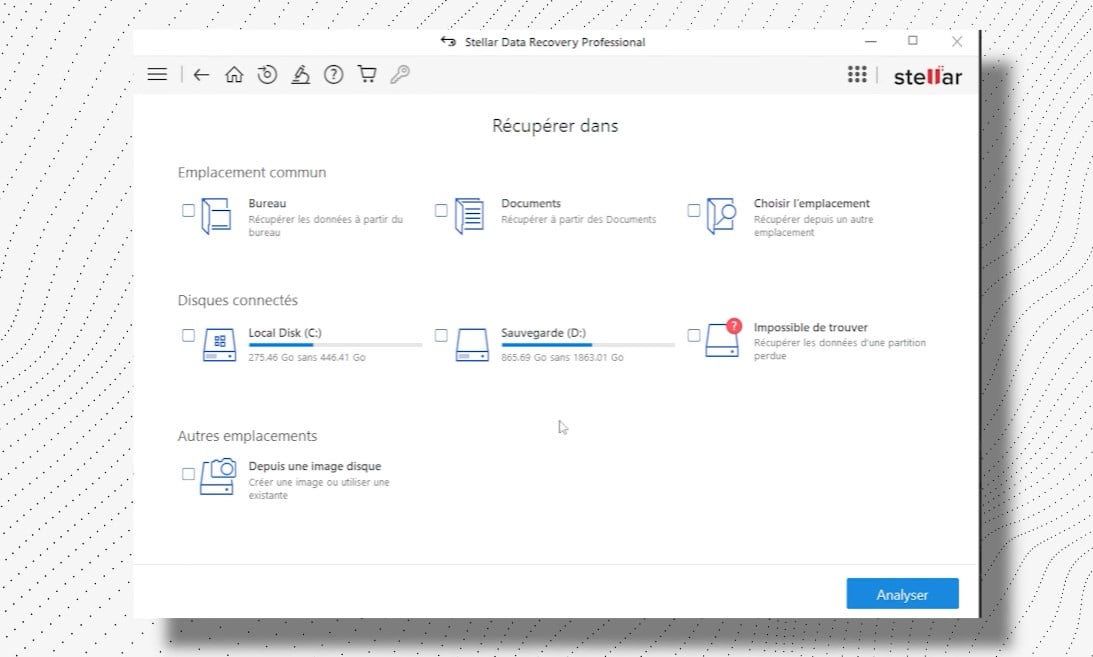
- Launch the’quick or in-depth analysis to detect lost files. The in-depth scan takes longer, but yields better results on a unallocated space.
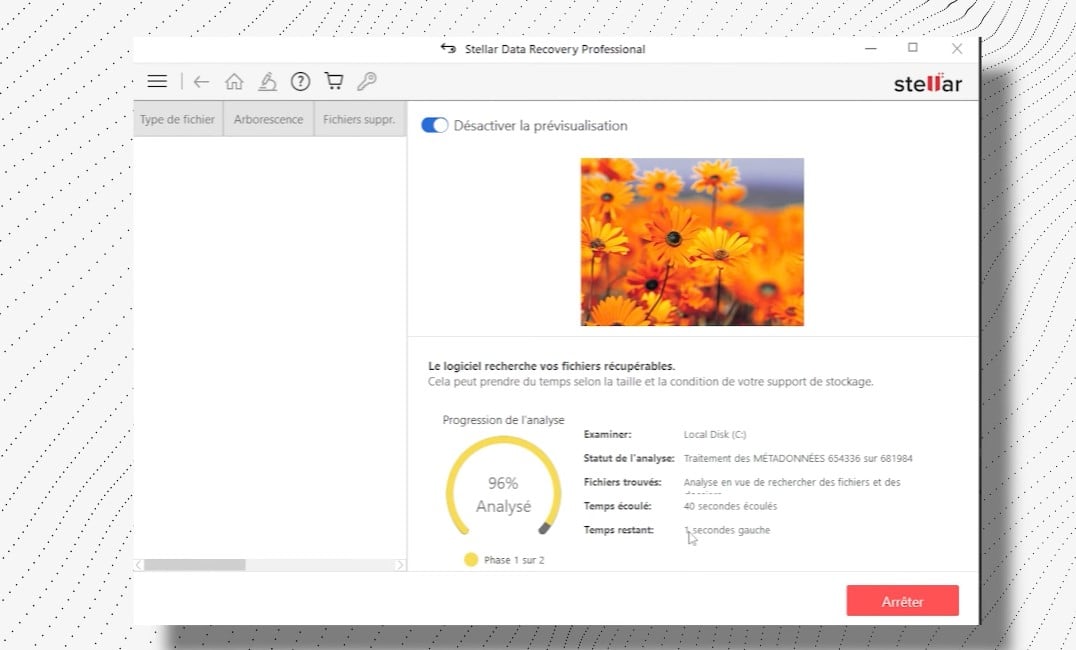
- Once the analysis is complete, preview and Select the files to restore. That's it.
Stellar Data Recovery stands out for its support of numerous file systems (NTFS, FAT32, exFAT) and its user-friendly interface accessible even to beginners.
The free version has limitations, and the premium version costs money, but it offers features not found elsewhere.
There are other data recovery programs as well. Here are the main ones:
- Recuva : free, fast, perfect for basic use (files deleted by mistake).
- Disk Drill : Provides a preview before recovery.
- Windows File Recovery : Microsoft tool 100 % free, but from the command line.
Important reminder: After a deletion, a score is not immediately overwritten. As long as the hard disk has not been rewritten; the Sectors are often still recoverable. So avoid writing new data to it before running the analysis.
FAQs
What is a partition on a hard drive?
A score refers to each range of tones hard disk, designed to organize it into several separate storage areas. In practice, your disk can be divided into several partitions, each identified by a letter to the editor precise.
Specifically, a score allows you to do two things: make them coexist two operating systems on the same hard disk, and organize your data neatly. Each partition stores your files using a file system as NTFS, FAT32 Where exFAT.
Sometimes a score bECOMES unallocated : the’disk space is no longer associated with an existing partition. It’s kind of like an empty plot of land—available but unusable until you assign it in the Disk management.
What causes an unallocated partition?
Have you spotted a unallocated partition on your hard disk And you're wondering why? It happens more often than you'd think. Here are the most common causes.
| Cause of an unallocated partition | Details |
|---|---|
| Deleting the partition | The most common reason: a accidental deletion deletes the partition table and makes the’unallocated space. |
| Hard drive problem | A malfunction, normal wear and tear, or defective sectors may cause data loss and display the score as unallocated after a reboot. |
| Power failure | A sudden breakdown can corrupt the partition table In the middle of writing. Your computer can then display the score as unallocated once the system is restarted. |
| Attacks or viruses | Some attacks on malware can delete entire partitions and make the’disk space unallocated. If you suspect a breach, also check whether your My computer is being spied on. |
To avoid these unpleasant surprises, keep these two simple habits in mind: make sure to regular backups your important files on a external hard drive or in the cloud, and check the status of your drives from time to time using the native tools in Windows.
You now have everything you need to Recover an unallocated partition or recover your lost data. Have a question? Ask it in the Comment section!








 FR
FR  RU
RU  EN
EN  ES
ES  IT
IT  DE
DE  ZH
ZH  PT
PT  ID
ID  JA
JA  DA
DA