the Terminal in Lethal Company, that's your onboard PC. You use it to route traffic to a moon, buy gear, keep an eye on your teammates, and disable turrets. Here is the complete list of Terminal commands, organized by purpose.
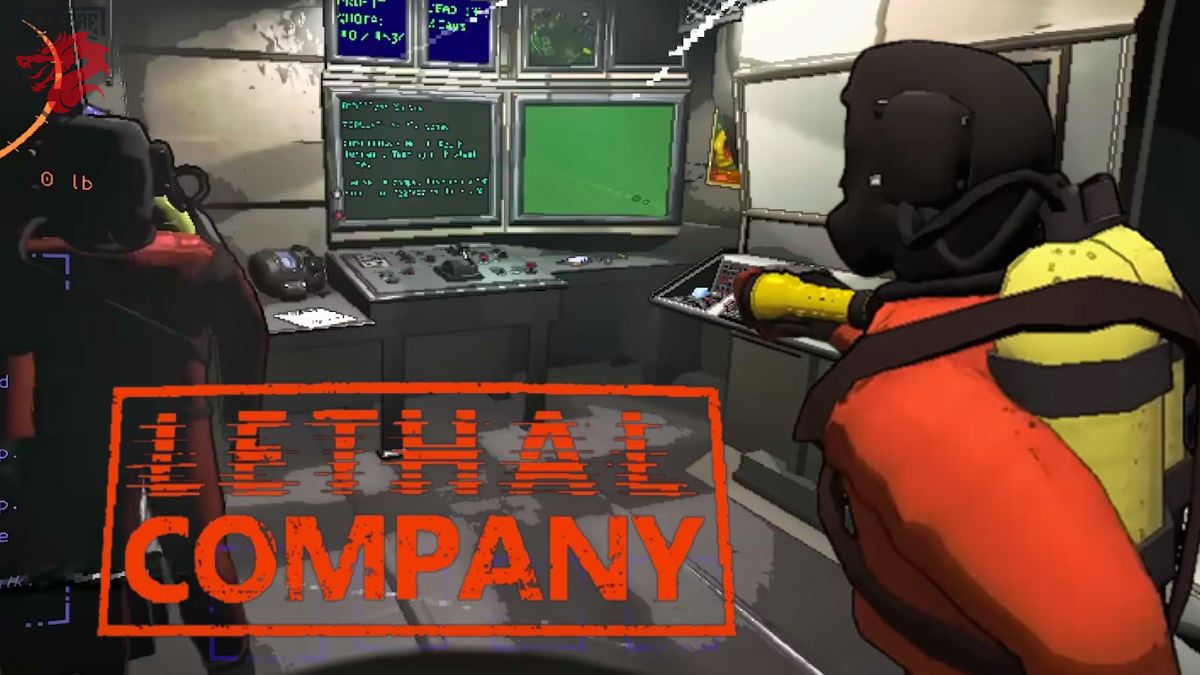
How to Use the Terminal in Lethal Company
The Terminal is located at the rear of the ship. You approach it, activate it, and a text menu appears. You type in a command, confirm it, and the ship carries out the action.
Using the Terminal is simple: all the commands are in English, but they work right away. If you don't know where to start, type Help to see the complete list of available commands. This is the best place to start exploring Terminal's features.
Two basic commands often appear after an action:
- Confirm : confirms an action (for example, confirming a trip to a moon or a purchase in a store).
- Deny : Cancels the current action.
Complete List of General Terminal Commands
Type a valid command, and the ship will carry out the action. Here is the complete list of general commands available in Lethal Company.
| Ordered | Effect |
| Help | Displays the ORDER LIST available. |
| Bestiary | Open the bestiary : list of monsters scanned along with their information. |
| [Monster] INFO | Displays the detailed file on a creature already scanned. Example: “BRACKEN INFO“. |
| Storage | Provides access to objects and furniture stored in the vessel. |
| [Unique Identification Code] | Used for disable turrets and to open the security doors. You enter a code consisting of a letter and a number, which is displayed on the door itself or on the base unit's monitor. A member of the group must be standing near the door. |
| Sigurd | Open the log entries from Sigurd to explore the game's lore. |
| Confirm | Confirm an upcoming action (purchase, trip to the moon, etc.). |
| Deny | Cancel a pending action. |
Terminal Commands for Interacting with the Environment
These commands let you take action remotely from the ship: monitor your teammates on the screen, interact with secure doors, neutralize mines and turrets, or send a message via the radar. This is the heart of the coordinated gameplay in Lethal Company.
| Ordered | Effect |
| Switch + player name | Go to the player camera on the main monitor. Useful for locating the security doors and teleport the bodies back to base. Example: “Switch + ”player's name". |
| Ping + name of the Radar Booster | Do make a noise to Radar Booster to trick blind dogs. The names are generated randomly: Alberts, Betty, Billy, Blue, Bobbie, Brody, etc. Example: “PING BRODY”Give your teammate time to get away.". |
| Flash + name of the Radar Booster | Triggers a flash to blind the monsters. Example: “FLASH BETTY“. |
| Transmit + your message | Sends a message via the signal translator. Useful for communicating remotely with a teammate. |
| [Unique Identification Code] | Open the security doors or turns off the turrets and mines. The code is displayed on the door or on the monitor screen. A teammate must be near the door. |
Terminal Bestiary: Accessing Monster Information
The Terminal's Bestiary in Lethal Company lists all the monsters you've already scanned. It's a valuable resource for planning your missions and anticipating the dangers on each moon.
- Tape Bestiary to see the complete list of scanned creatures.
- Tape [monster name] INFO to view a monster's detailed profile. Example: “BRACKEN INFO”displays information specific to the Bracken.
Check out our Monster Guide to Lethal Company to explore each creature in detail.
Terminal Store Orders
These commands are used to browse the store, check a price, and buy your equipment before heading off to the moon.
In the vanilla version, there is no command to sell items at the Terminal: to sell items, you must physically drop them off at the Company’s counter.
| Ordered | Effect |
|---|---|
| Store | Open the store and displays a list of items available for purchase. Example: flashlight, walkie-talkie, Boombox. |
| Buy [Object] | Allowsbuy an item from the store. Example: Buy Flashlight. |
| Upgrades | Displays the ship upgrades available. |
Be sure to check your quota before you spend your entire budget at the store.
Navigation Controls for Moving Between the Moons in the Terminal
These controls let you navigate between the moons and control the ship's movements during the game in Lethal Company.
| Ordered | Effect |
| Moons | Displays the List of Moons available with their weather conditions of the moment. |
| Route + name of the moon | Allows you to Choose the Moon where to travel, and then confirm with Confirm. Example: “Route Titan“. The ‘Route + moon name’ command works for all destinations: Experimentation, Assurance, Vow, Offense, March, Rend, Dine and Titan. |
| Launch | Used for launch the vessel to the chosen moon. |
| Return | Makes you return to the ship from the moon. |
| Scan | Count the number of objects still present on the moon and displays their total value. For weather conditions, go to Moons. |
| Eject | Allowsremove all team members, including you. Requirement: to be in orbit around a moon. |
Journal of Sigurd : Access entries via the Terminal
The Journal of Sigurd is one of the game's lore elements that can be accessed directly from the Terminal.
Tape Sigurd to view the list of available entries. Each entry tells a piece of the Company’s history. It’s a great way to explore the world of Lethal Company between assignments.
Storage Controls and Ship Customization
How to order Storage gives you access to the items and furniture stored on the ship. This allows you to manage and customize your ship between missions. Check out our complete guide to ship items and upgrades in Lethal Company to view the complete list of available items.
Take It Further with the Terminal
If you want to take the Terminal's capabilities even further, some mods add additional commands. The community Lethal Company offers modified versions that enhance the gameplay.
Also, remember to manage your backup so you don't miss a thing. Also, check out our tips and tricks in Lethal Company to better survive and maximize your earnings.









 English
Se vc escrever K9 no computador ele desativa as torretas 👍🏻