Meshy AI Turn your text or photos into 3D models in just one minute, without having to install anything or know how to draw. Just import your image, click on “Generate” and download the result.

What is Meshy AI, and what does it actually offer?
Meshy AI is a reference tool for create 3D models without any drawing skills or knowledge of complex software.
What it lets you do:
- Text to 3D : Generate a 3D object from a simple textual description.
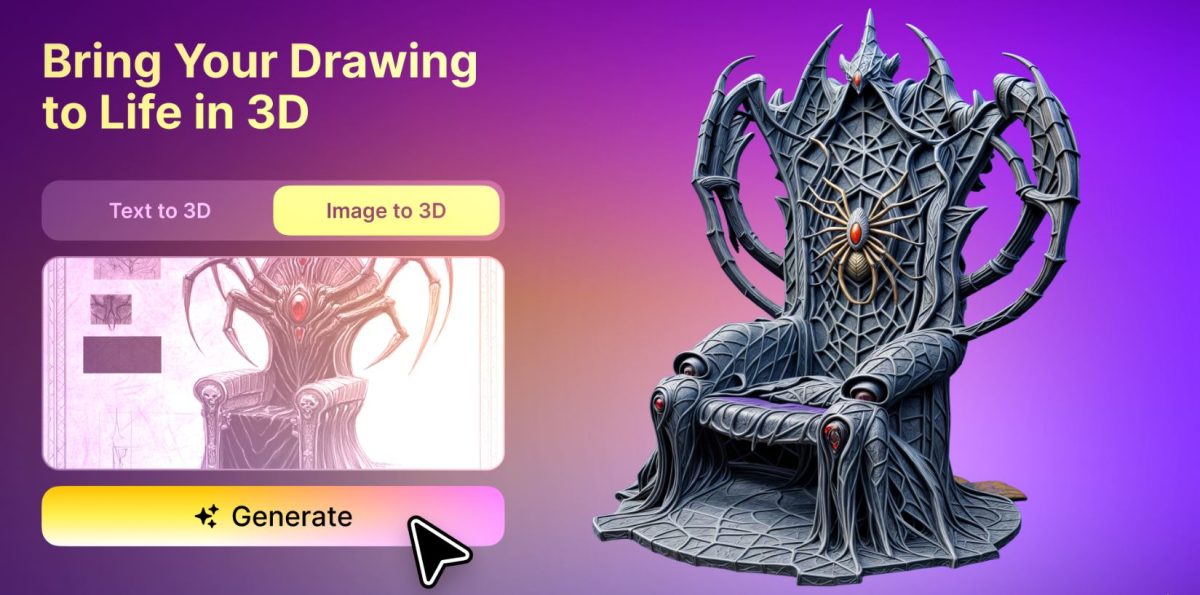
- Image to 3D : Convert an image into a fully textured 3D model.
- Easy Editing : Edit and adjust automatically generated textures.
- Universal Export : Export your creations in standard formats (FBX, OBJ, GLB, USDZ) for your 3D software or game engines.
- For text mode, you enter a prompt describing the desired object, and the AI generates the model in a matter of seconds. A good prompt Keep it short and focused on the main topic. Try out different prompts to refine the results and obtain the assets that align with your vision.
The goal is clear: reduce the time it takes to create 3D assets. It's designed for independent video game studios, product designers, and freelance designers.
Compared to other tools for 3D design using AI, Meshy AI focuses above all on the simplicity :
- Choose a starting point: text Where image.
- 3D files that can be used directly as assets in your usual software and game engines.
Convert an image into a 3D model with Meshy AI
Meshy AI converts a 3D model image textured in 4 steps. You start with a 2D image, and the AI reconstructs a complete 3D model.
- Import the image : a photo, an illustration, or concept art.
- AI Analysis : The algorithm detects contours and volumes to reconstruct a coherent 3D geometry.
- Generate the template : A 3D model is created and then automatically textured based on the source image.
- Export : The file downloads in a format suitable for your software and your needs.
Here's how to do it in practice:
- Go to the tab workspace and select 3D Image.
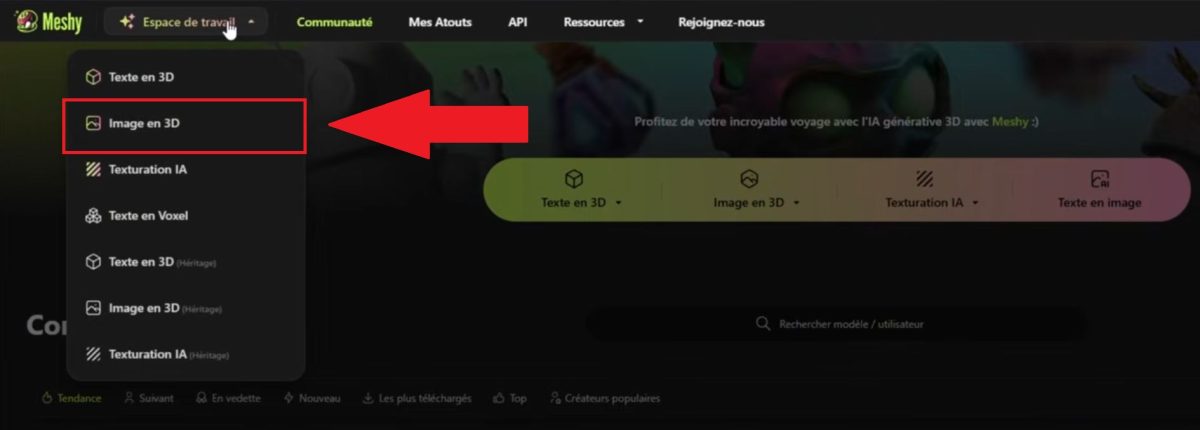
- Download, drag and drop, or paste your 2D image, then click on “Generate”.
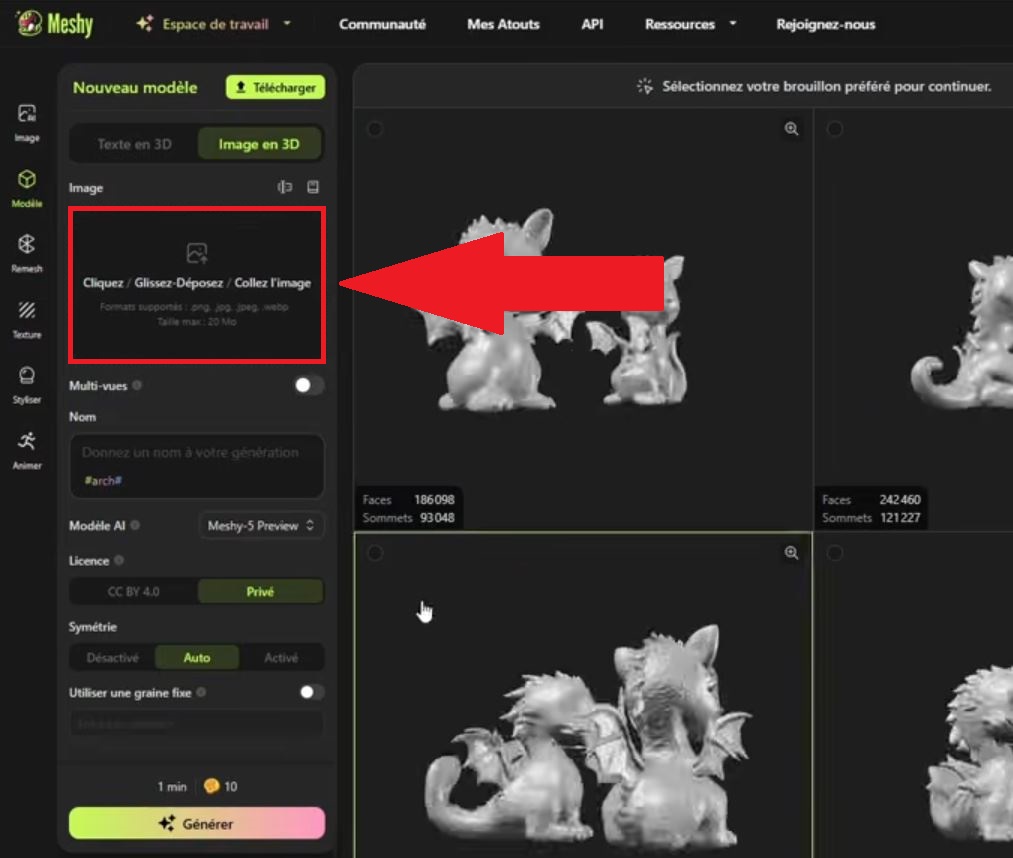
- Preview the 3D model Generate it, then refine it if necessary.
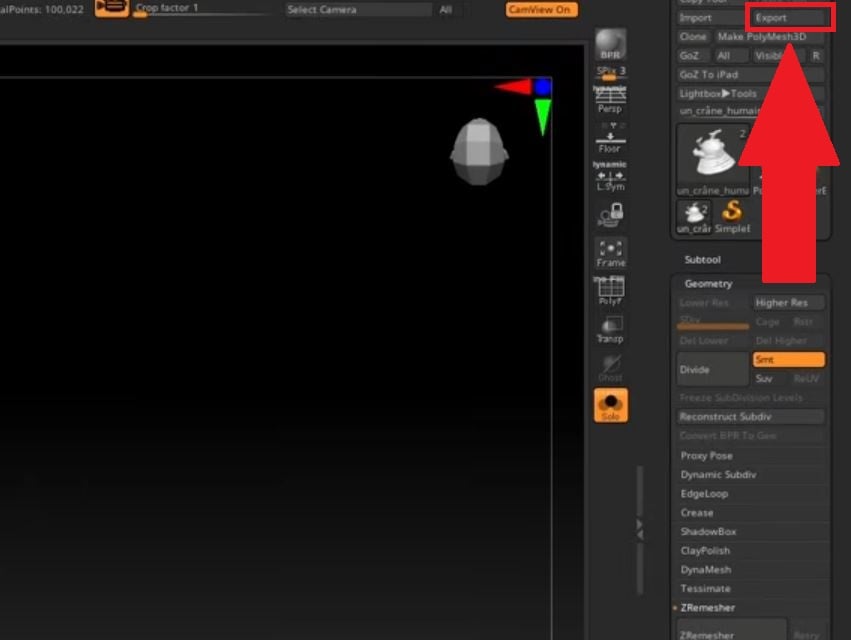
- Upload your file by clicking on “Export”, in the format compatible with your software.
As for credits, there are about 30 credits by generation with texture, compared to 20 credits without it.
Generation is fast: the geometry is output in 20 to 30 seconds, and the textured model is ready in 1 minute or so. It's much faster than modeling everything by hand, especially when you need to quickly produce a first test prototype.
For a clean result, import a sharp image into white or solid-color background, with the subject clearly centered. The formats JPG and PNG are accepted as input.
Who is this for? Meshy AI ?
Meshy AI is suitable for both beginners than professionals. Three types of people find that it really saves them time every day.
Video Game Developers
Create 3D assets (sets, props, or characters) takes a lot of time, especially for small teams. Whether you work in a studio Whether used on its own or in combination with other tools, AI significantly reduces the time it takes to create content.
With the AI-powered 3D image conversion, a concept art or a reference photo is enough. Describe it text the desired asset or import an image directly. You get a A 3D database ready to use in just a few minutes, ready to be integrated into your engine. Integrate Meshy AI in your workflows to make much faster progress in development.
Product Designers
A sketch, a mood board, or a photo of a physical prototype: anything can become a digital 3D model.
You test new ideas very quickly. You can even launch a 3D printing using the generated model to physically validate your prototype. This is a workflow quickly turn an idea into a tangible result, and present your projects to clients with a realistic preview of the final product.
3D Printing Enthusiasts
Starting with a simple image, the tool generates the 3D model of a real-world object. You then export it in the desired format for the’3D printing at your place, without using any software to modeling.
The resulting file (for example, by STL Where OBJ) opens directly in standard cutting software. A quick check of wall thickness A print preview is often useful for avoiding unpleasant surprises.
Conclusion
The AI-powered 3D modeling is now within everyone's reach. Whether you want a rapid prototyping, scan an object, or test a new idea from a text or an image, MeshyAI clearly shows just how much AI simplifies the work of creators.
For the game developers studios or freelancers looking for assets Before long, designers and enthusiasts of’3D printing who are looking for a workflows faster, the Converting an image into a 3D model It's still the best way to see everything this technology can do for your projects and your workflow right now.
FAQs
Is Meshy AI free?
Meshy AI offers a free plan with 100 credits per month, enough to test the 3D modeling from text or an image, with some usage restrictions.
Paid plans unlock more generations and advanced features. It's the logical choice for regular professional use.
Can the templates be used for commercial purposes?
Yes. 3D models generated using a paid subscription may be used for commercial purposes.
With the free plan, they are subject to the license CC BY 4.0. It requires you to give credit to Meshy AI in the case of public or commercial use.
What export formats are available?
You can export your models in several industry-standard 3D formats. There’s a format for every use:
- GLB : ideal for the web and interactive experiences.
- FBX and OBJ : perfect for editing meshes and textures in your usual 3D software.
- STL : the standard format for 3D printing.
- USDZ : Designed for augmented reality on iOS.
Is the quality good enough for a video game or 3D printing?
The generated models form a solid foundation and quick to obtain. They often require a modification based on the intended use.
For a video game, you optimize the mesh and textures. For the’3D printing, check the wall thickness before starting to cut. You can also refine the prompt initial to get a model that better meets your expectations right from the first iteration.
If you want to explore other applications of artificial intelligence, check out our guides on:








 English