the MEE6 bot on Discord is relatively popular for its diverse features.
Find out everything you need to know about it configuration and its use through this article.
Add the MEE6 bot on Discord here:
Visit what we are going to discuss :
- What is MEE6?
- How to add the MEE6 bot on a Discord server?
- How to configure MEE6?
- How do I correct an error on MEE6?
What is MEE6?

MEE6 is one of the most widely used bots on Discord servers. This bot mainly provides a good system for moderation on the :
It also allows you to leave users from your server:
- Level up when they talk in a text chat room.
- Customize the welcome messages.
- Create orders personalized.
- Etc.
Like all Discord bots, MEE6 uses a prefix, which is “!(the command)”.
How to configure and add the MEE6 bot on a Discord server?
Here are the steps to follow on the official MEE6 website and on Discord :
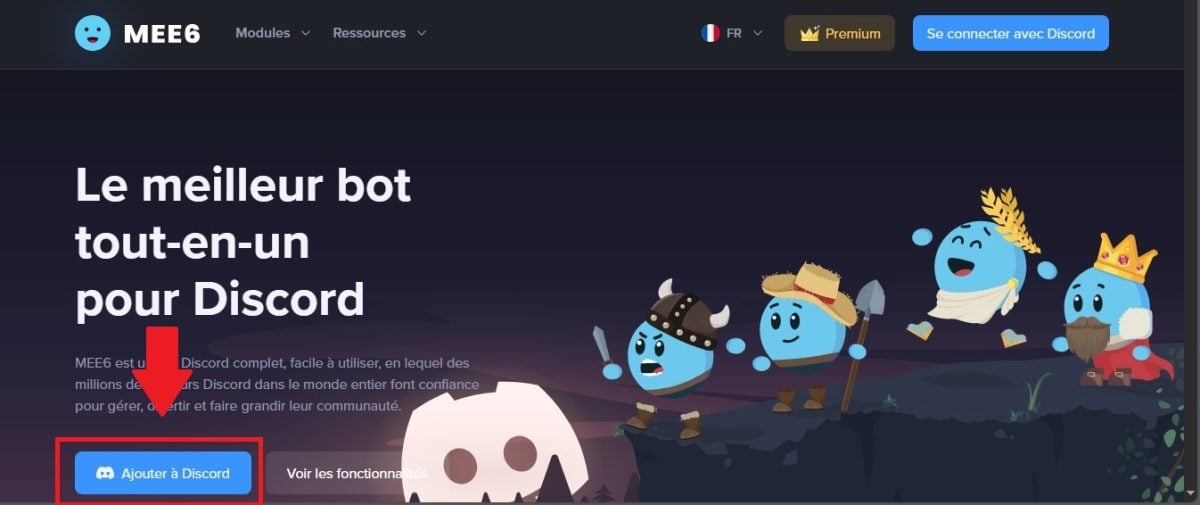
- To begin, go to the MEE6 website. Once on the home page, click on “Add to Discord”.
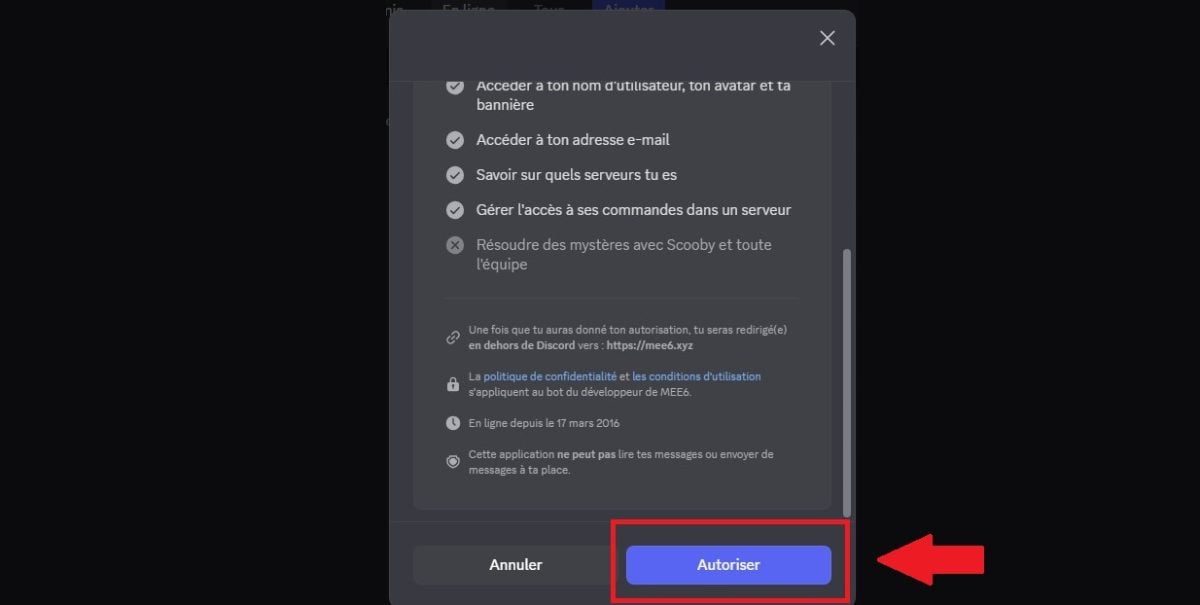
- A window then opens showing the permissions that the bot needs on your server in order to function. Accept these permissions by clicking Allow.
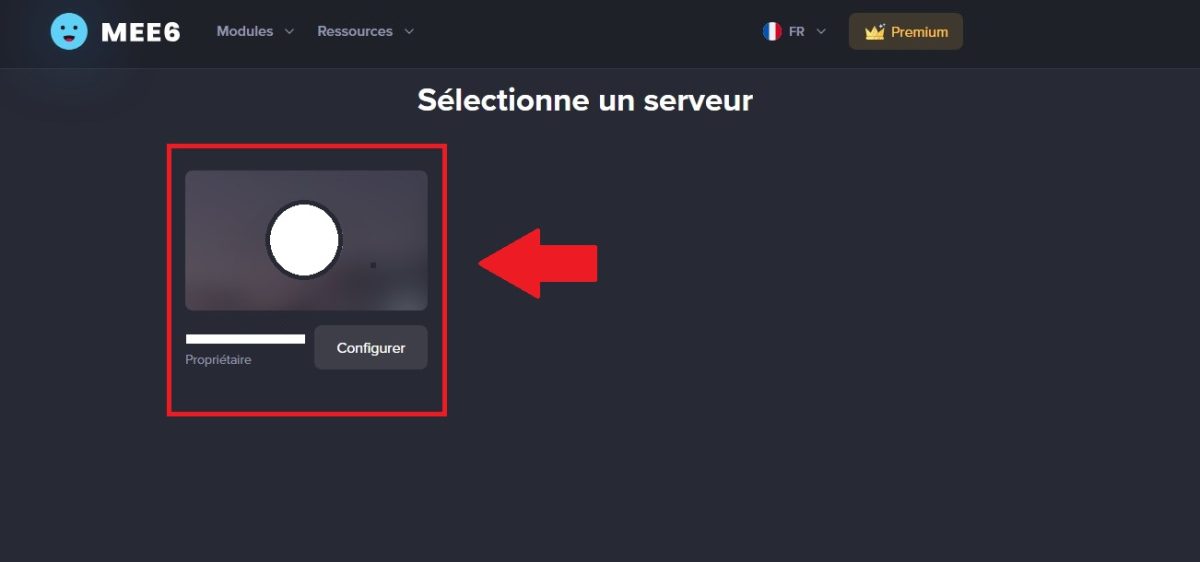
- Then, return to the MEE6 site. You will have to choose on which server Discord you want to put your bot. You just have to click on the icon of your server.
- A new window will open, asking you to confirm the server to which you want to add MEE6.
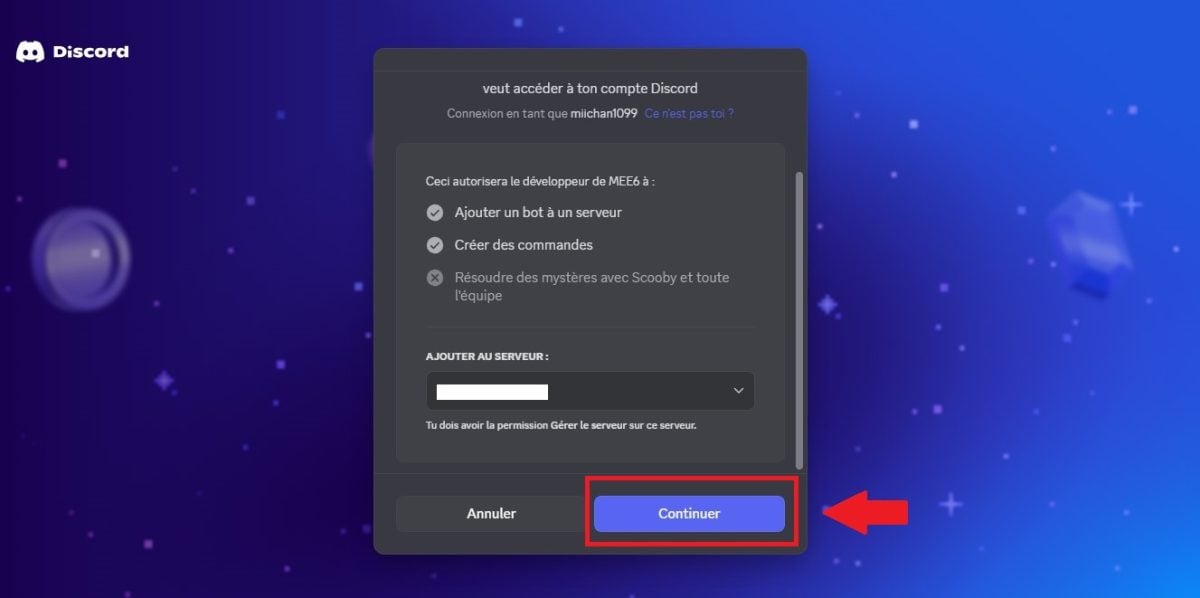
- Then authorize MEE6 on the server.
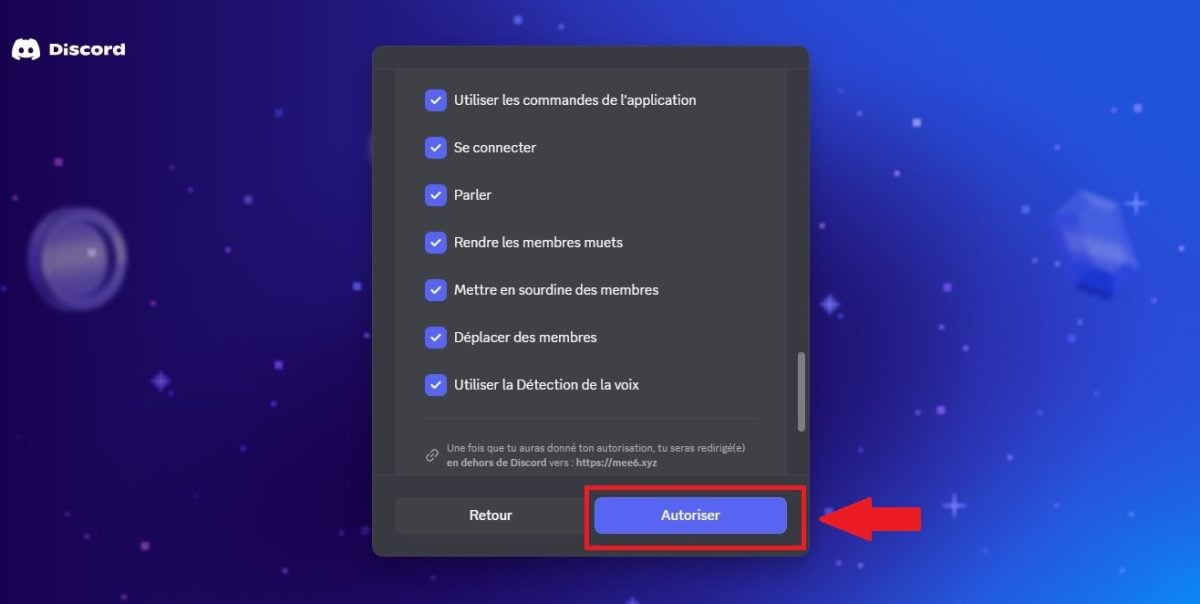
Your MEE6 bot is now on your server. Also, if you use other bots, find out how to do this on our website. put a bot on your Discord server.
Important Note :
If your Discord server on which you want to put MEE6 does not appear notis that you do not have sufficient permissions to do so.
To resolve this issue, go to your server settings, then to the Roles section and enable the Administrator permission.
How to use MEE6 on Discord?
It is important to note that you have certain features that are accessible to everyone, but also a Premium category with the bot MEE6. The latter adds additional, advanced features for a fee.
In the features accessible to everyoneFor example, you may find the following items:
- the custom command plugin to create your own orders.
- the level plugin or Leveling plugin so that your server members earn XP by writing in a chat room.
- the welcome message plugin customized.
- A system of automatic message that you can set up with a specific time and in a specific room.
- the moderator plugin for moderating your servers.
- the music plugin, a feature that allows you to listen to music directly on your 1TB server.
- the search plugin to refine the results for what you are trying to find.
If you choose the Premium option, you can unlock additional features such as:
- The MEE6 plugin for voice recording or the Record plugin, which is an option that allows you to record your conversations and save them as MP3 files.
- Music Quiz which is a game involving guessing the name of a song and the artist in order to earn points.
- Plugins related to Twitch, Reddit, YouTube, or other social media platforms.
Now that you know what the bot offers, find out below how to use Each of these features of the MEE6 bot on Discord.
To use the Discord MEE6 bot:
The custom commands plugin

You can use the Custom Commands plugin in order to create custom commands with MEE6 on Discord.
- These commands can be commands for text responses when a user writes something on the server.
- This is very useful for people who want answers. quickly.
Here's how to configure this plugin on MEE6 :
- Go to the tab Custom Commands or custom orders.
- Then click Add.
- You will see a window pop up.
In Name of the ordered, indicate what text should be written for the command to work.
In Deed, you can add an action:
- Answer The bot responds in the chat room.
- Send The bot sends a message to a specific chat room.
- Assign roles : allows you to add a role to the user who types the command.
- Delete roles.
With MEE6You can choose whether the message is sent in the chat room or as a private message. Here, for example, the command is: !alucare and the bot then responds with a private message: Here is the link to the Alucare server: https://discord.gg/CHdwmwR!
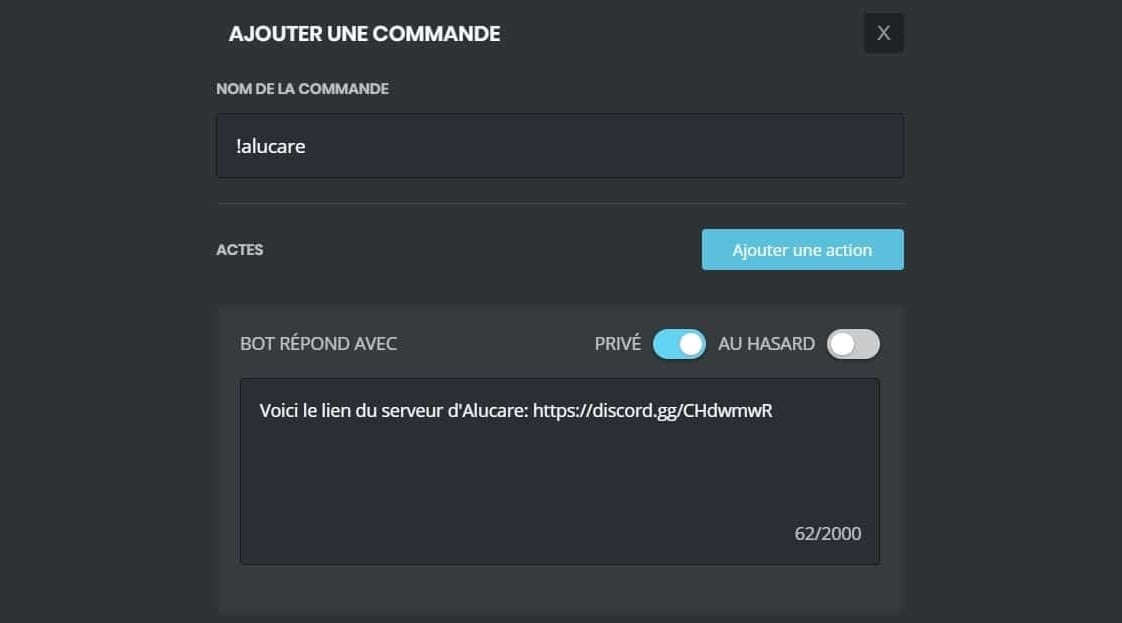
You can add other permissions to your order on MEE6 according to your needs and frequent actions on your server.
The MEE6 plugin for levels
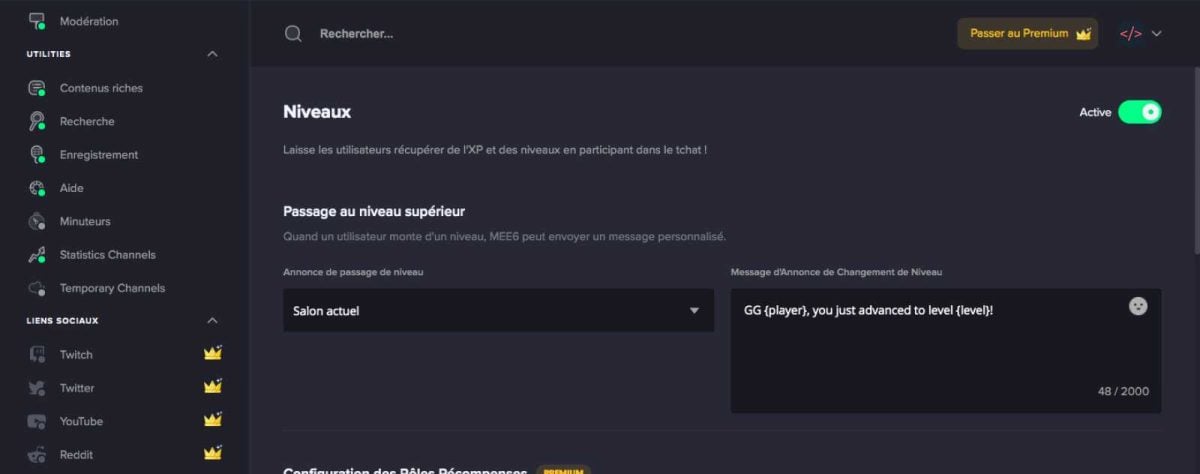
The level plugin on MEE6 from Discord is also called the Level Up plugin or LevelingWhen a user levels up, the bot writes a message in the chat room where the player writes or in a specific chat room.
You can customize the message to be sent by MEE6 in the Level Up Announcement Message section. Here are the commands.
| 📃Order name | 🎯Order | 🔎Effect |
|---|---|---|
| Display the classification | !levels | Displays the link to the leaderboard or the ranking of members by level |
| See the level | !rank (username) | Displays the rank of a member |
The welcome messages plugin
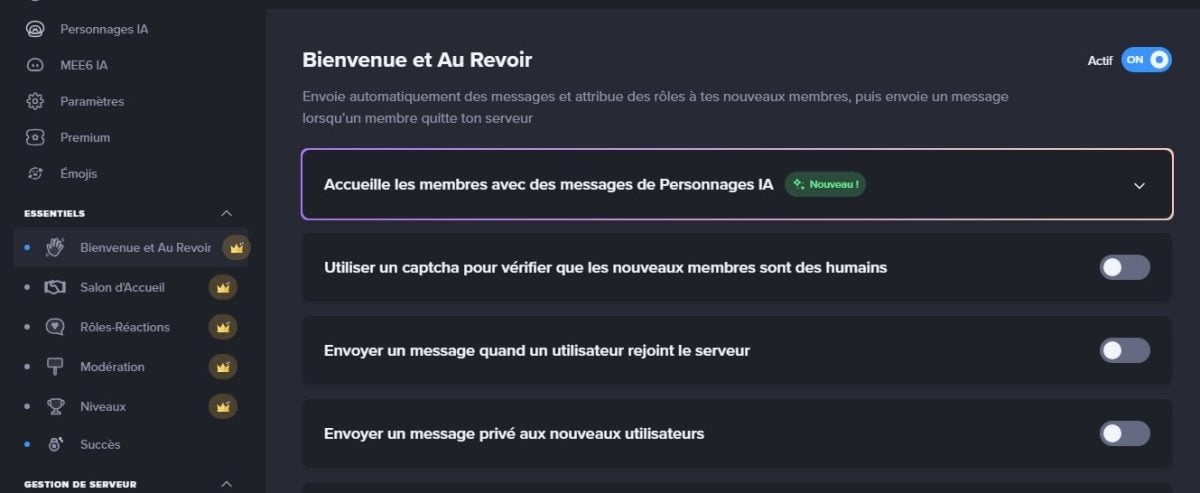
the MEE6 Welcome plugin allows you to customize your welcome messages on your Discord server. This feature is very useful if your server regularly welcomes new members.
For the configure and use correctly:
- Enable the functions that interest you, and write down the message you want.
- Keep the {user} and {server}The {user} function refers to the person's name (for example, @Anonymous#0000) and {server} indicates the server name.
The MEE6 timer plugin

If you need to send regular messages On your Discord server, it is best to use the Timers plugin on MEE6 to avoid oversights.
- Go to the “Timers”.
- Click on Add a timer“.
- A window appears: choose the living room where the message should be sent, then write the desired message.
The interval can be understood between one minute and two hourss per message.
Moderation controls
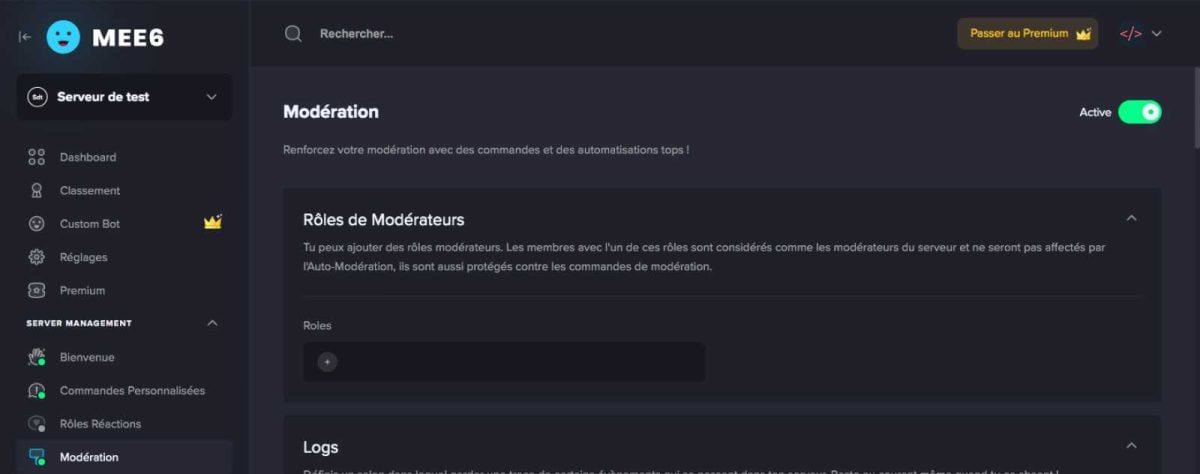
The plugin for moderation is undoubtedly the most popular with MEE6. It is very comprehensive and allows you to create rules to penalize server members based on their behavior.
To can use it :
- First, choose who moderates your server.
- On the latter, create a moderation room where every action appears.
- When MEE6 becomes your moderator, you can set up "Anti Insults," which means you block certain offensive words. There is also the abuse of smileys, external links, spam, or mass mentions.
Discover also possible penalties on Discord through another article on our website. Here are the music commands with MEE6 on Discord.
| 📃Order name | 🎯Order | 🔎Effect |
|---|---|---|
| Ban | !ban [member] (reason) | Banned permanently a member |
| Temporary ban | !tempban [member] [duration] (reason) | Banned temporarily a member |
| Clear messages | !clear (member) (counter) | Deletes a specific number messages |
| See violations | !infractions [member] | Displays the violations recorded |
| Kick | !kick [member] (reason) | Expel a member of the server |
| Mute | !mute [member] (reason) | Prevents a member from talk across the entire server |
| Temporary mute | !tempmute [member] [duration] (reason) | Makes silent a temporary member |
| Slow mode | !slowmode (time) (off) | Active or disables slow mode in a living room |
| Unmute | !unmute [member] | Makes the word to a member |
| Warn | !warn [member] (reason) | Warns a member |
These other orders on MEE6 may also be useful to you:
| 📃Order name | 🎯Order | 🔎Effect |
|---|---|---|
| Delete the posts from the bot | !delete bot message | Removes messages sent by MEE6 |
| Information waiter | !server-info | Displays information about the waiter |
| Information user | !user-info [member] | Displays information about a member |
To obtain the Discord MEE6 bot:
The Music plugin

With this plugin, you can play music in a channel on Discord. Advanced features such as creating playlists still require MEE6 Premium status. Here are the orders.
| 📃Order name | 🎯Order | 🔎Effect |
|---|---|---|
| To play a clue | !play | Launch the reading of a sound |
| Search music | !search | Research a sound in the music database |
| Forward in music | !seek | Go to one precise moment sound |
| Volume | !volume | Modify the audio volume |
| Add to the playlist | !add | Add a sound to the list reading |
| To display there playlist | !tail | Displays the list of sounds in progress |
| Clear playlist | !clear-queue | Delete the music file |
| Switch to sound following | !skip | Play the next song |
| Vote Skip | !vote-skip | Allows one vote change the music |
| Attach a voice channel | !join | Do join the bot in a voice channel |
| To leave the vocal | !leave | Disconnect the voice bot |
| Stop music | !stop | Stop completely the music |
| Start blind test (Premium) | !start-quiz | Start one blind test musical |
| Stop blind test (Premium) | !stop-quiz | Stop the blind test |
The MEE6 search plugin
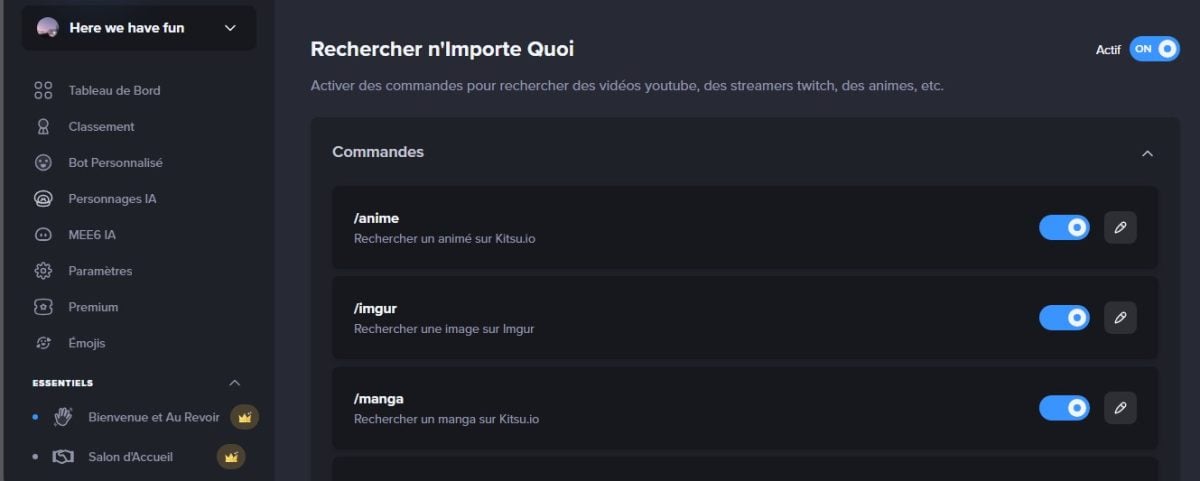
MEE6 also allows you to perform searches using several APIs. Please note that the results are in English, but it is still very useful. Here are the commands.
| 📃Order name | 🎯Order | 🔎Effect |
|---|---|---|
| Animated | !anime [search] | Search for a Animated on Kitsu.io |
| Manga | !manga [search] | Search for a Manga on Kitsu.io |
| Pokemon | !pokemon [search] | Search for a Pokémon in the Pokédex of the Pokéapi API |
| Memes | !imgur [search] | Search for Memes on imgur |
| Streamer | !twitch [search] | Search for a Stream on Twitch.tv |
| YouTube video | !youtube [search] | Search for videos on YouTube |
| Slang | !urban [search] | Search for slang in the dictionary English-speaking "The Urban Dictionary" |
The voice recording plugin
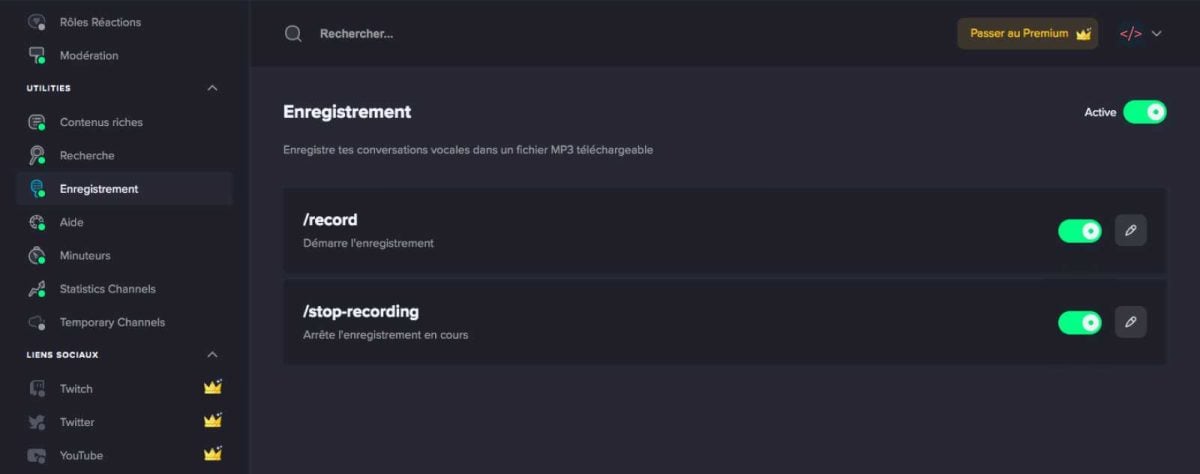
The voice recording plugin or Record plugin on MEE6 Discord allows you to transform conversations in a voice chat room in mp3 formatIt is important to note that this feature is subject to a fee.
| 📃Order name | 🎯Code | 🔎Effect |
|---|---|---|
| Record the voice | !record | Start recording in a voice chat room |
| Stop recording (Premium) | !stop-recording | Met end at check-in |
MEE6 plugins Twitch and YouTube and Reddit
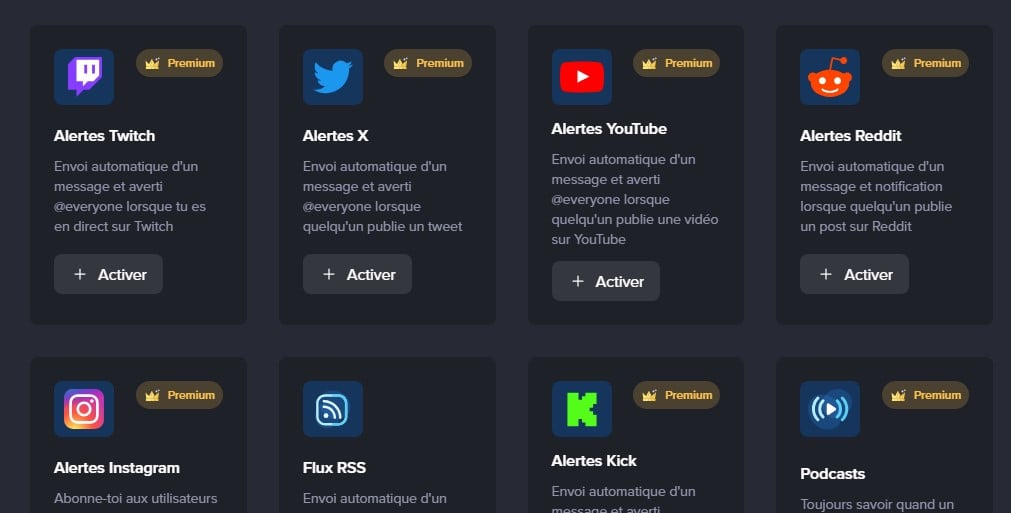
You can also use the MEE6 bot if you are on Twitch Where YoutubeThe bot can create alerts on the server when you are streaming or when you post a video.
It is also possible to link your account. Reddit with MEE6 on Discord. This allows you to see messages on Reddit automatically and directly on Discord.
- Visit the official MEE6 page.
- Click Plugins, then Reddit.
- Click on Add.
- Add the subreddits in the fields indicated.
- Select trade shows on which you wish to use the feature.
- Click on Save.
According to the MEE6 website, other social networks such as TikTok and instagram are also included if you wish to use this feature. Please note, however, that this command is subject to a fee.
How do I correct an error on MEE6?
Sometimes you may see this mention with MEE6 on Discord:
“Oops, it seems I can't give one of the roles listed here. Thank you for correct by placing my role above the roles listed here."
To correct the error, it is necessary to:
- Set the MEE6 role to administrator.
- Set the role of MEE6 above the roles he must assign.
Now you know the different properties of the MEE6 bot, its commands, and how it works. You can see how MEE6 is used on the official Discord server of Alucare.
Other articles similar to this one are available on our page. Discord, please feel free to consult them. If you have any questions, we invite you to visit our Discord or add a comment at the bottom of this page.









 English
Good evening, I would like that as soon as the members check the box of the rules they can access it otherwise no but I do not know how to do for that
Good evening, I would like to know how to separate each role (example: Your age: 17-18, Your region: Brittany) what is the order to be made, etc. thank you in advance
can you explain it to me in more detail?
can you explain it to me in more detail?
Hello, how is it possible to make an order where we have a message posted by the personal bot? (I think it was the same question as Miss Miss Miss)
I will animate for example to do a /say command and that the bot posts the message directly
Please and thank you!
Must create a custom order 🙂
how to put your server logo in welcome with MEE 6 please thank you in advance
Hi, you have to take the paid mode 🙂
hello, I would like that when a person on my server gains a level, the message is displayed in a specific channel, does anyone know how to do this?
Yes, just do it in the settings of mee6 by telling him in which channel announced that
Hello
How can I send an anonymous message with MEE6?
What do you mean by anonymous message?
Hello, when I want to create a Reactions Roles it does not work. I can put a message and the reactions appear but the role does not apply when the reaction is selected. I also have this message appearing in the Roles Reactions tab when I select a role to associate with the reaction “Whoops, it looks like I can't give one of the roles listed here. Please correct this by putting my role above the roles listed here.”
Puts the bot's role at the top of the list
Hello,
I have a small request ^^
I was on a Discord that an old “friend” had created, from there, I bought 2 lifetime keys for Mee6.
On this server I had put my bot Mee6 in Mod Dev.
Unfortunately, we got into a fight and I was fired from the server (which I also manage…)
From there, I find myself with my token but I can't do anything with it, when I go to my DEV Mee6 portal I can add it to my discord but I see it offline and I can't configure :'(
Clearly disgusted if I lost it..
Hi, I invite you to go to the MEE6 server and contact support 😉
Hello I just added the MEE6 bot and I can't add orders because the orders page is not loading. Am I the only one? And if so how to solve this problem please?
Try in private browsing or other 🙂 Empty your cache too because I don't worry but I don't know where it can come from
Hi, I'm looking to get MEE6 to grant the higher rank to any member who has reached the XP level relative to that rank. How can I do ? So far it's me and my moderators who manage the ranks but the server grows in members and it becomes difficult to check the rank of each member regularly. Thanks in advance !
Normally you can make sure that with the rank gains he wins roles in the mee6 site panel, right? (or has it become a paid option?)
Hello, I have a problem with MEE6 when I want to select an option in MEE6 ( for example: Welcome ) The page does not load and I have a gray screen please help me ;-;
it comes from you or your connection ^^
Hello, I have installed Mee6 and in the welcome tab, I would like it to associate anyone who arrives on the server with a defined role. Despite all permissions for the bot, mee6 does not work. He always tells me “Whoops, it looks like I can't give one of the roles listed here. Please correct this by putting my role above the roles listed here.”
Yes he has admin rights, I see no solutions. Paid for it sucks.
Hi, go to my discord to talk about it with Faucino 🙂 and tell me the problem, I'm on vacation until the end of AUGUST ^^
Hello,
I can't put a forbidden word, when I try, the bot doesn't save them. How can I solve this problem?
How exactly do you do?
impossible to adjust mee6 I have a black page I am disgusted with this bot
So there are other music bots ^^
Hello I would like to know if we can use mee6 without having the admin perm
yes
Good evening, I would like to know how to activate the !clear command because when I do it nothing happens (I specify that however when I do !help, the bot reacts)
did you make a !clear 10?
Can we change the language of Mee6?
Thanks !
What language is it currently in?
Hello,
Mee6 doesn't want to ban malicious people doing an action that leads to a ban. I configured them and set all the permissions but it still won't.
Here Here...
you have trouble adjusting, take a good look, you have to read everything completely because if you put the role as a moderator in mee6 they will never be banned
Hello,
I think you ban someone you do: !ban Pseudo#0000 30d [reason]
Out, you must not put in the form of Pseudo#0000 but take its identifier directly. To do this, you must first enter developer mode. To do this, go to your Discord settings then “Appearance” and go down a bit you will have the “Developer mode” which you will have to activate. Now that this is done, right-click on the member you want to ban and do “Copy username” and now you can ban him with !ban [username] [duration] [reason].
I hope I helped you.
Hi there !
Miss, can you tell me more precisely where are the parameters of Discord please?
I'm starting with a Discord server and I'm far from finding it perfectly.
Thanks in advance 🙂
Hi, do you want DISCORD settings? or bot?
Hello I would like to know how can we remove a warn mit before. If it is possible how do we do it.
Thank you for your reply
I don't know at all dsl 🙁
!clear-all-infractions
yes ?
Hello Jeremy,
No, you cannot remove a warn from the “history” of one of your members. But that won't change whether there was one or not. ^^
Hello, can you put automatic links to update a website?
Hello,
No, you can autolink Twitch links but not site updates. However, you can define a command that informs about new updates. But you will have to change the message manually.
Hello, can we change the prefix of mee6?
Hello, you cannot change the prefix of MEE6, sorry.