To add a bot Spotify on Discord, go to the bot's website, click on Invite, select your server, then confirm the requested permissions.
With just a few clicks, the bot joins your chat room, and you can start the music reading in a group.
Discord does not natively stream music in vocal recital for everyone. A bot fills this gap by managing the playlist, them playlists and the mode 24/7, with a clean sound and plenty of customization options.
Here's a quick comparison of the three bots recommended in this guide and their premium subscription.
| Bot Discord | A few key points | Premium subscription |
|---|---|---|
| FlaviBot |
|
Starting at €3.49/month |
| Cloudy |
|
Starting at 1.99 $/month |
| GrootBot |
|
Starting at 2.99 $/month |
Step-by-step guide to adding a Spotify bot to Discord
Adding a music bot to your server takes less than two minutes. Go to the bot's website, then click on Invite, choose your server and accept the permissions.
Here are the details, screenshot by screenshot.
Step 1: Invite the bot to the Discord server
First, you must Invite the bot on your server Discord. You can choose between FlaviBot, Cloudy Where GrootBot, which are discussed later in the article.
Go directly to on the bot's website, or go through Top GG, which lists a wide variety of music bots. Once you've made your choice, click on «Invite».
The app Discord This page then opens.

Next, click the drop-down menu to select server in which you want to add the bot.
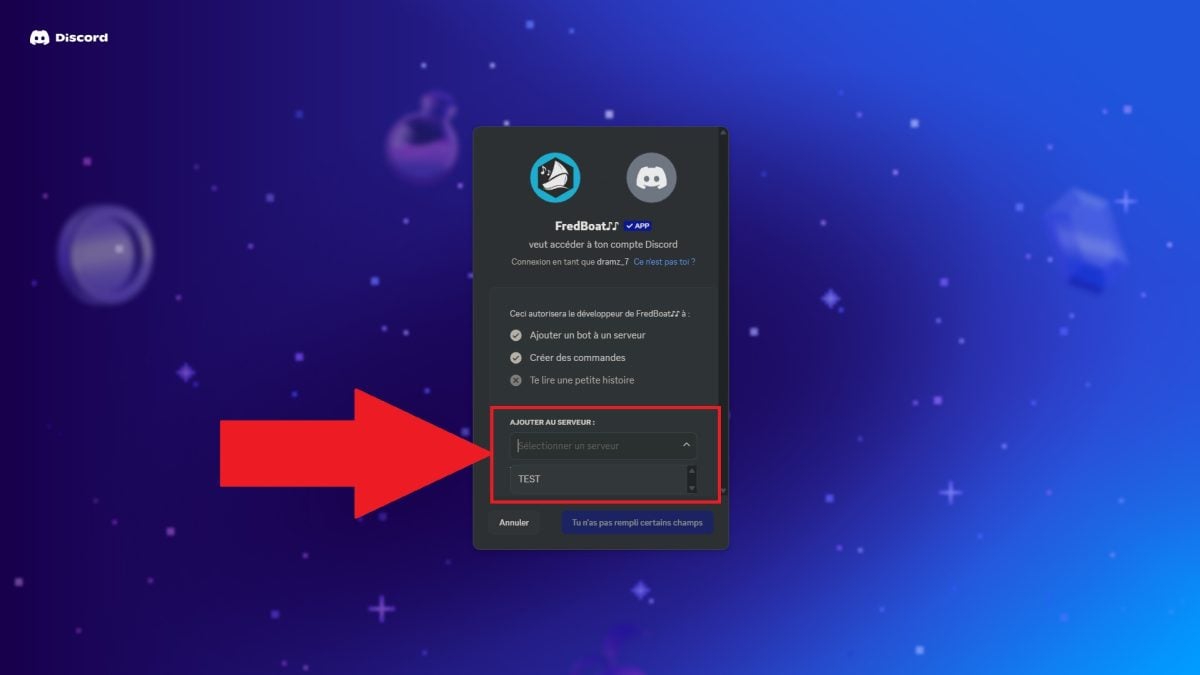
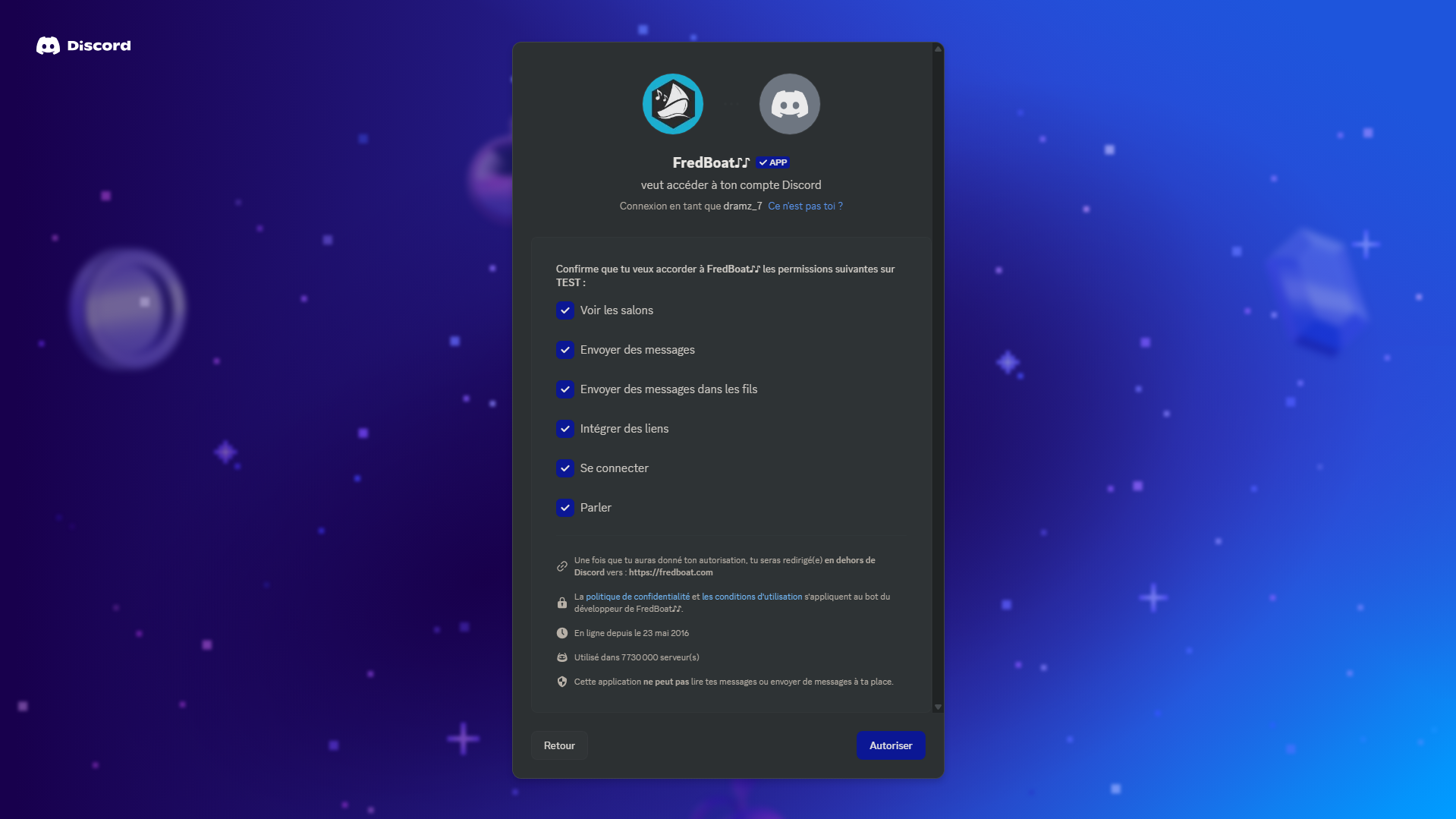
You finally have access to the permissions page requested by the bot. The table below summarizes the purpose of each of these permissions.
| Permission | Function |
| See the exhibitions | Allows the bot to access text and voice chat rooms where it can interact. |
| Send messages | Allows the bot to respond to commands and display information about stocks. |
| Send messages in threads | Enables the bot to communicate in dedicated threads. |
| Integrate links | Displays enhanced previews, such as album covers or links to Spotify. |
| To log in | This is essential for the bot to join a voice chat room and stream audio. |
| Talk | Allows the bot to play music and stream audio to members of the voice chat room. |
Also, you can check out our dedicated article to find out How to Use the Rythm Bot on your server.
Step 2: Using bot commands
Your bot is now installed on your server Discord. All that's left to do is use commands to make the most of its capabilities. Here are the most common ones.
| Ordered | Usefulness | Example |
| /play [nom ou lien Spotify] | Start playing a specific song. | /play Rolling in the Deep |
| /queue [nom de la musique] | Adds a title to the queue. | /queue Blinding Lights |
| /skip | Go on to the next song. | /skip |
| /pause | Pauses playback. | /pause |
| /resume | Resumes playback after a pause. | /resume |
| /shuffle | Turns shuffle mode on or off. | /shuffle on Where /shuffle off |
| /repeat | Play the song or playlist again. | /repeat one |
| /volume [niveau] | Adjusts the playback volume. | /volume 70 |
| /search [terme] | Search for a music or artist. | /search Central Cee |
The The exact commands depend on the bot whichever one you choose. Check its documentation for the complete list, since some use ! or another prefix instead of /.
For links Spotify, simply Paste the link to the song, album, or playlist right after your order. For example:
- /play https://open.spotify.com/intl-fr/track/2FDTHlrBguDzQkp7PVj16Q (music)
- /play https://open.spotify.com/intl-fr/album/1pnm9zBlblhTRlE46ItLzU (one album)
- /play https://open.spotify.com/playlist/37i9dQZF1DWX0o6sD1a6P5 (a playlist)
You can copy these links from the web reader of Spotify or directly from the mobile device or computer.
Feel free to check out our article to find out how to pay less for Spotify.
Which Spotify bot for Discord?
It's hard to tell which one to choose when you're just starting out with bots. Here's a A selection of popular bots and tried-and-true by the community for listening to music Spotify on Discord.
Compare the features, reliability, and price before making your decision.
1. FlaviBot
FlaviBot is a well-known music bot, Installed on more than 900,000 Discord servers. Its popularity is a testament to its reliability in everyday use.
Its main advantage is that it supports multiple audio sources : You can start playing from Spotify, Apple Music, Tidal, SoundCloud Where Deezer.
Direct links and radio are also supported.
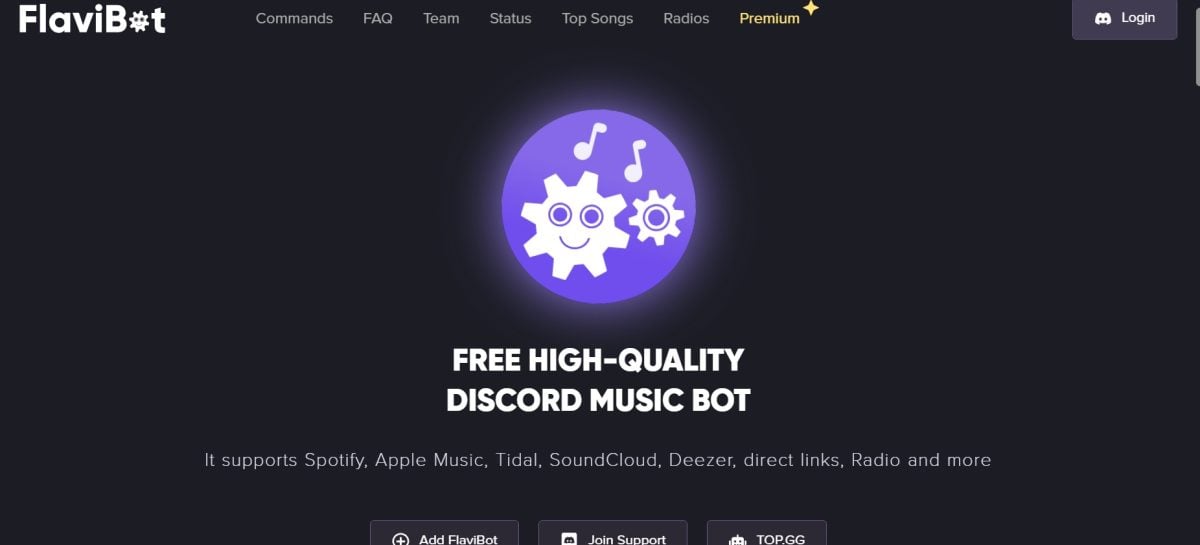
Most of the These features are free. To unlock everything, you need to upgrade to the premium version, billed starting at €3.49 per month.
2. Cloudy Bot
Cloudy Bot is another solid option, with a user-friendly interface which makes it easier for all server members to get started.
You can listen to your music from Spotify, YouTube, Apple Music, SoundCloud Where Deezer.
The management of custom playlists is a real plus for livening up a vocal showcase.
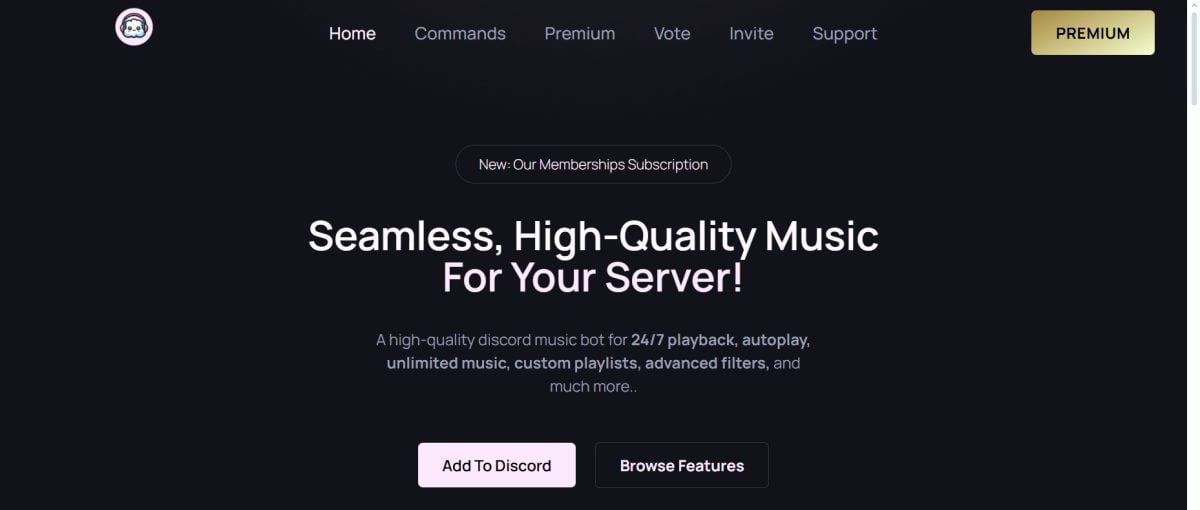
Cloudy is free of charge. For unlimited use, the premium version starts at for 1.99 $ per month per server.
3. GrootBot
GrootBot stands out for its versatility and its wide range of features. It's a great choice if you want more than just a simple audio player.
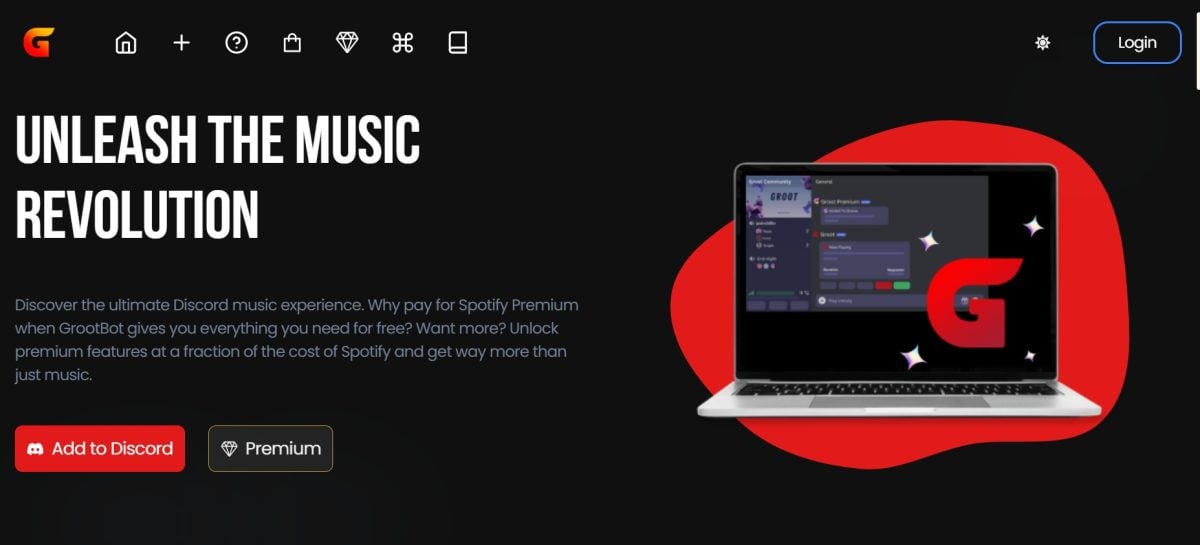
You can Use GrootBot for free, the music broadcasting Spotify works without upgrading to a premium account.
To access all the options, the premium version begins for 2.99 $ per month, with the option to choose a annual subscription, which is often more cost-effective on a large server.
What criteria should you take into account?
Before choosing your bot, keep in mind a few key criteria To make sure you don't make a mistake:
- Ease of use: Is the interface accessible to all server members?
- Features: Are you looking for a bot that's strictly for music, or a multifunctional one?
- Stability and reliability: Does the bot stay online without any interruptions?
- Updates: Is the team behind the bot responsive and does it provide good support?
Why use a Spotify bot on Discord?
The real question is what a bot offers you beyond just Log in to your account Spotify at Discord. Here are the main advantages.
- Real-time shared listening: A music bot lets you listen to your favorite songs with your friends in sync, directly in a voice chat room. Everyone hears the same thing at the same time.
- Playlist management : You can install collaborative playlists where each member of the server adds their own songs. The bot plays them one after another for the whole group.
- More features than the native status: match your account Spotify In the settings, it only displays one employment status on your profile. Convenient, but limited. The bot goes a step further with the direct audio playback, commands, and listening as a group.
Discord also offers a native simultaneous playback For subscribers only Spotify Premium connected to one another.
The bot is still useful when your friends don't all have the same subscription, or when you want to stream audio to a voice chat room for everyone at once.
Is there an alternative way to share Spotify music on Discord?
Yes. Discord includes a built-in shared listening feature, with no bots to install.
Once your account Spotify connected, your employment status displays the song you're currently listening to on your profile Discord.
This connection is free of charge to implement. On the other hand, real-time shared reading requires a subscription Spotify Premium on both sides.
Here's how Sign in to your account Spotify at Discord to enable the feature.
How do I connect Spotify directly to Discord on Windows PC/Mac?
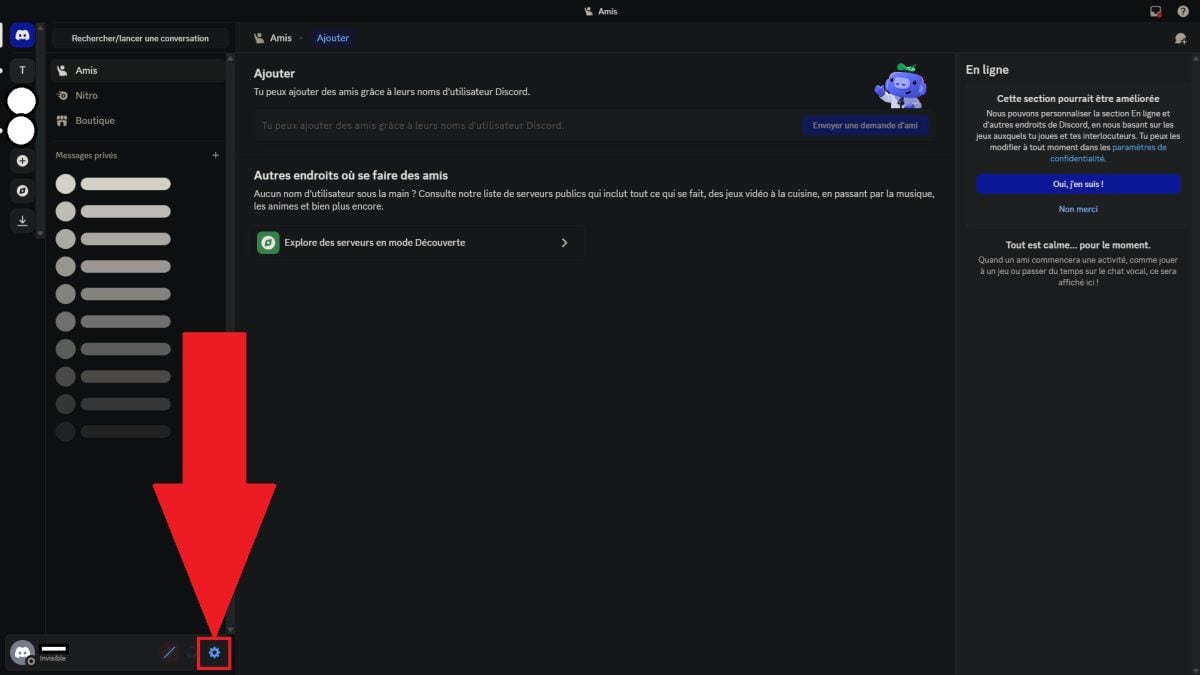
- Open the app or the web player of Discord.

- Click the gear icon to access the settings.
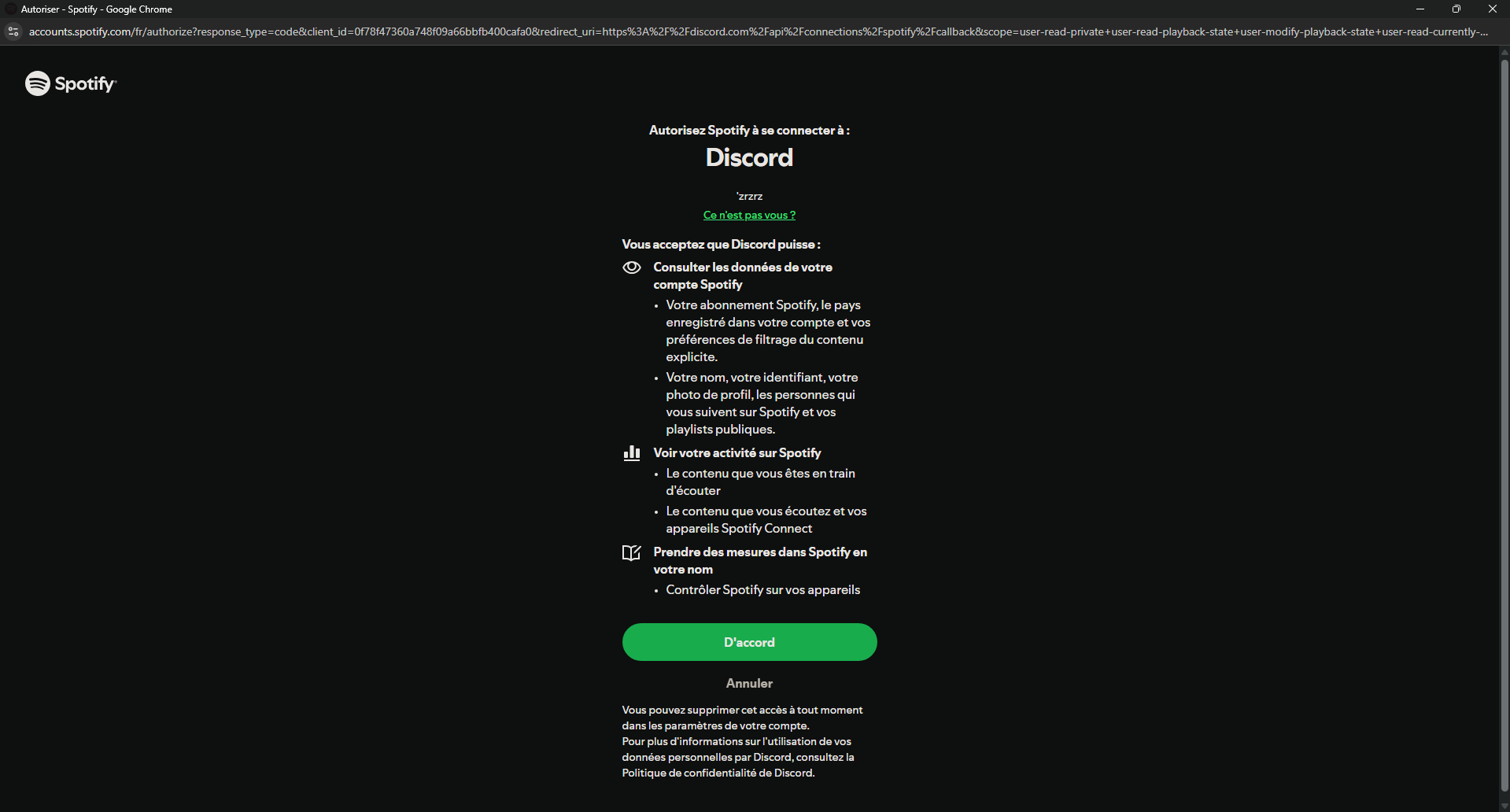
- Go to the section «Connections», then click on the logo for Spotify.

- Grant the requested permissions, then sign in.
How do I connect Spotify to the Discord mobile application?
- Open the app Discord mobile on Android or iOS.
- Click on your profile photo.

- Click the gear icon to access the settings.

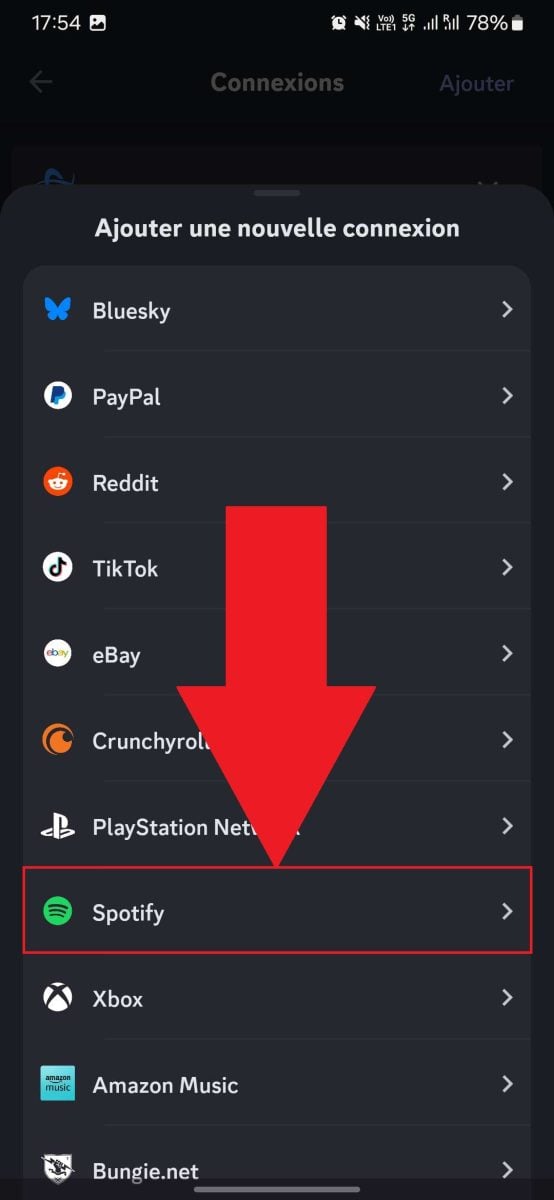
- Go to the section «Connections», then in «Add».
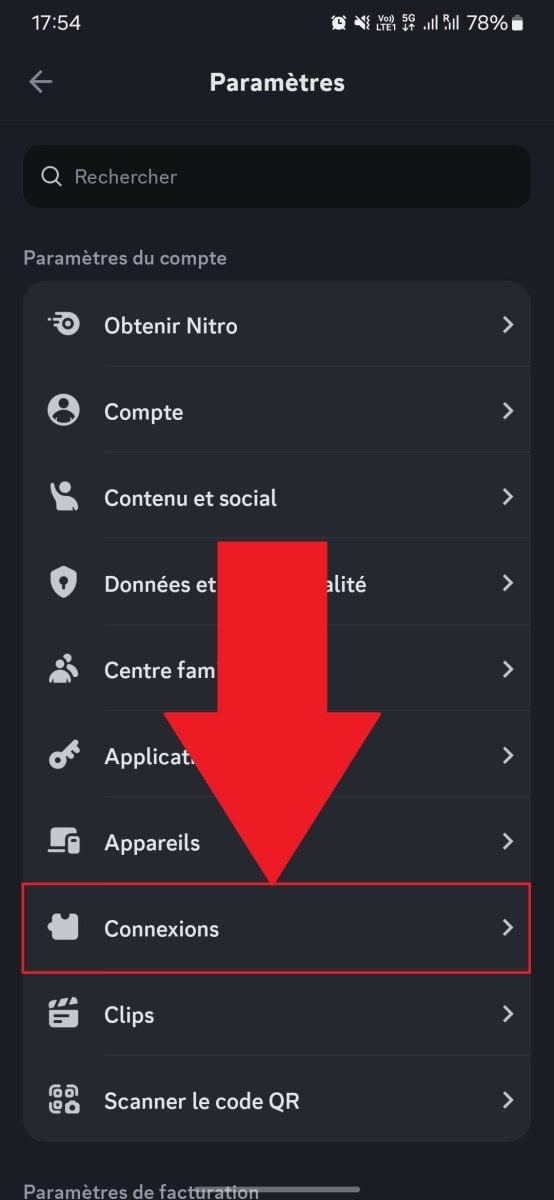

- Click on Spotify and log in.

Do you want to download music from Spotify ? We have an article dedicated to this topic.
FAQs
What should I do if my bot is offline on Discord?
If your bot is offline, there are several possible causes. Either the server hosting it is under maintenance, or the bot is awaiting an update. These two points can be easily verified on the the bot's official page.
Also remember to check that the required permissions were indeed enabled when they were added.
Why don't the bot's commands work on Discord?
If your controls stop responding, check these two things:
- Does your bot have the Required Permissions to run commands on your server? Without them, nothing will start.
- Do you use the good prefix ? The most common one is the /, but some bots work with a !. See the bot's documentation for the complete list.
I'm having sound problems with the bot. What should I do?
If the audio cuts out or is missing, start by checking the permissions. The bot must have permission to log in and «chat» in your voice chat rooms.
If the problem persists, check the volume. Sometimes it is too low or cut off, which can be fixed with a single click.
Finally, a unstable hosting server can cause latency and brief audio dropouts, and there's not much you can do about it.








 FR
FR  RU
RU  EN
EN  ES
ES  IT
IT  DE
DE  ZH
ZH  PT
PT  ID
ID  JA
JA  DA
DA