Spotify doesn't have a button to clear your listening history with a single click. This direct deletion is simply not possible.
There are two ways to keep your listening sessions private: the private session and disabling the artists I've listened to recently. Here's how to do it, step by step, on both a computer and a mobile device.
Can you delete your Spotify history?
No, Spotify doesn't have a single button to delete your entire listening history. This limitation is structural. Your recent plays remain visible on your profile, and you can't delete them yourself.
Spotify relies on your listening activity to refine its music recommendations. The more you listen, the better the algorithm understands your tastes and suggests songs that suit you.
That's also what determines your ranking Spotify Wrapped at the end of the year. Your history is retained for 90 days by default.
There are several ways to achieve a similar result. You can hide your activity to your friends, listen to private session or cut the share of your real-time listening sessions, from your Spotify account on both computers and mobile devices.
Where can you view your listening history on Spotify?
Before you try to delete or hide your listening history, here's where to find it, depending on your device.
On a computer (Mac or PC): Open the desktop app Spotify, then look at the left column. The “Recently Played” section” lists the songs, albums, and podcasts you've listened to recently.
On a mobile device (iPhone or Android): opens the’application Spotify, then tap the tab Welcome. Recently played tracks appear right at the top of the screen as thumbnails.
It is in this "Recently Played" section that your listening activity is visible to your friends if social sharing is enabled on your account.
What are the alternatives for managing your Spotify history?
You have two practical options. The first is the private session, lets you listen without saving anything to the "Recently Played" section. The second one allows you to hide the displayed titles to your friends. Here's how to do it, device by device.
1. Use private mode (private session)
the private mode of Spotify is the best alternative when you can't delete your listening history. It lets you listen to songs or podcasts in complete privacy.
These titles don't appear in your activity flow. Your friends and followers can't see them from your profile. They also don't appear in the song list recently played.
Please note: the private session It hides your activity from others, but it doesn't hide your history from you. The songs you've played remain visible in your own library, “Recently Played” section.
How do I enable private mode on Spotify on a computer?
On a computer (Mac or Windows PC):
- Open Spotify from your computer.
- Click on the’profile icon at top right.


- From the drop-down menu, select «private session».

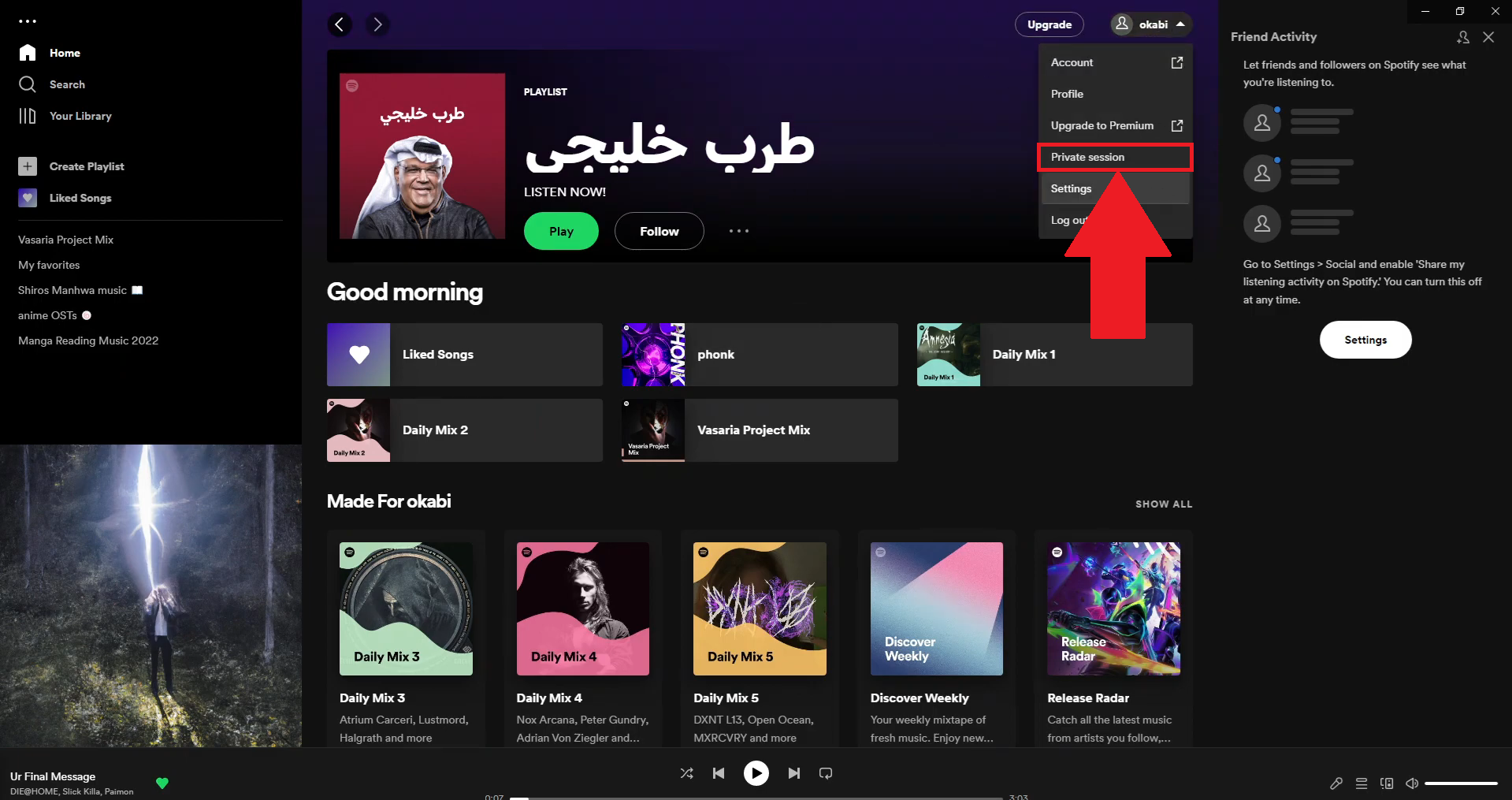
- Enjoy the private mode of Spotify.


How do I turn on private mode on Spotify on my phone?
On a mobile device (iPhone or Android):
- Open the’application mobile Spotify.
- Press the’your profile icon.
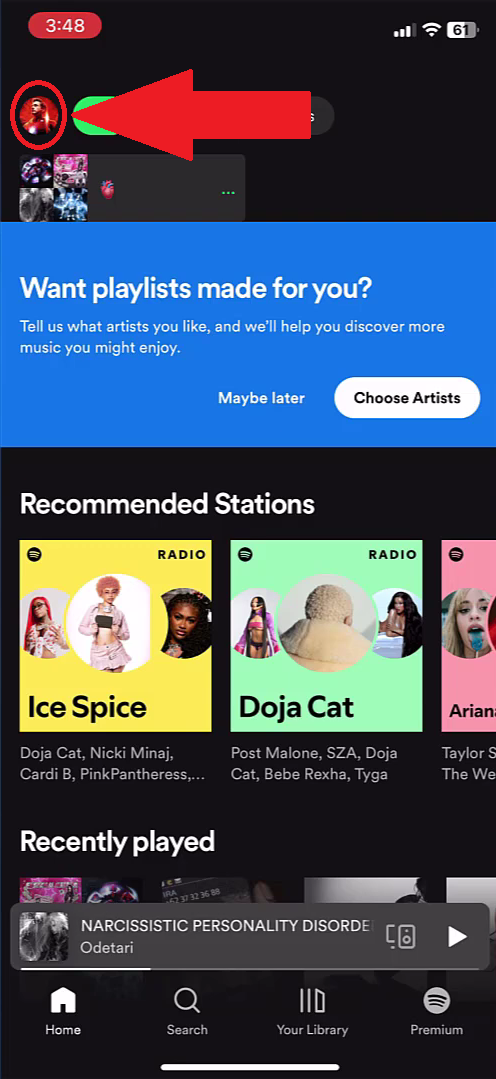

- From the menu, select «Settings and Privacy».
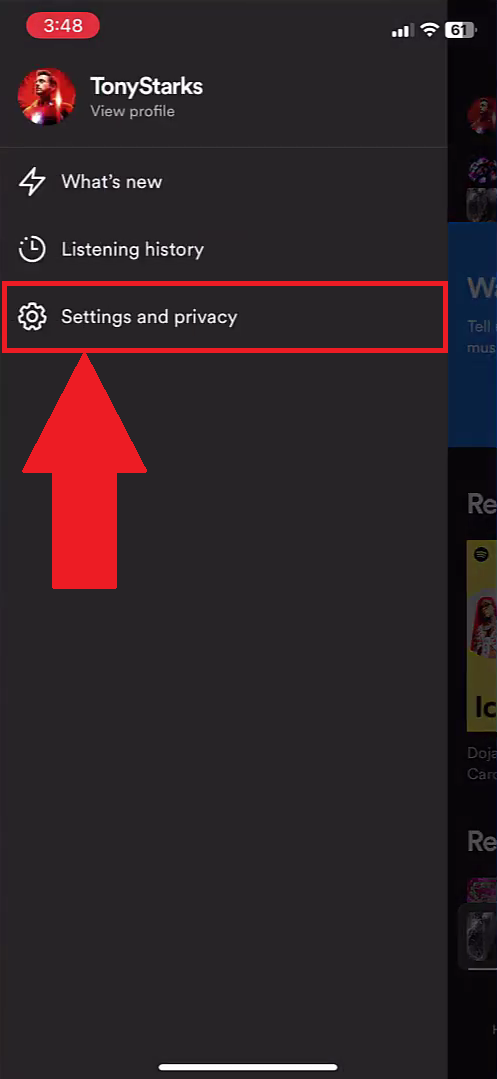
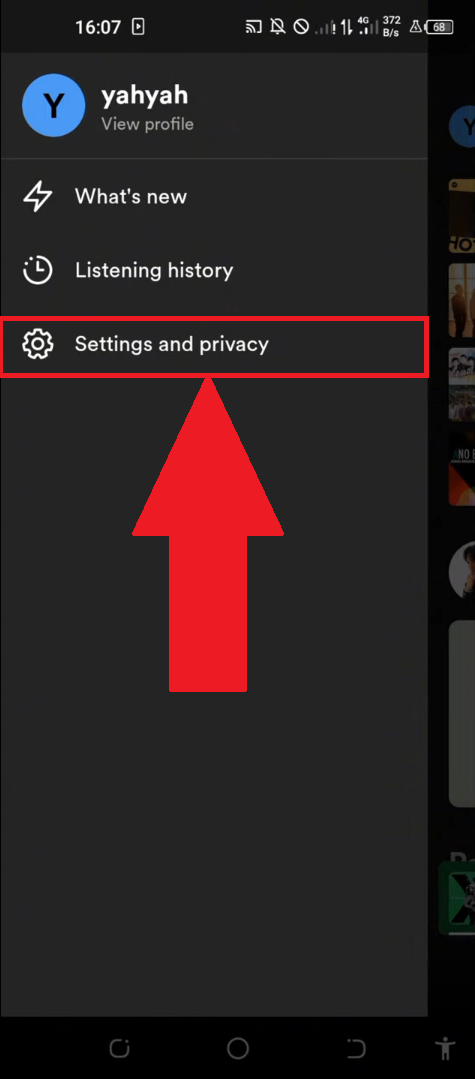
- Find the section «Privacy and Social Media» and press it.
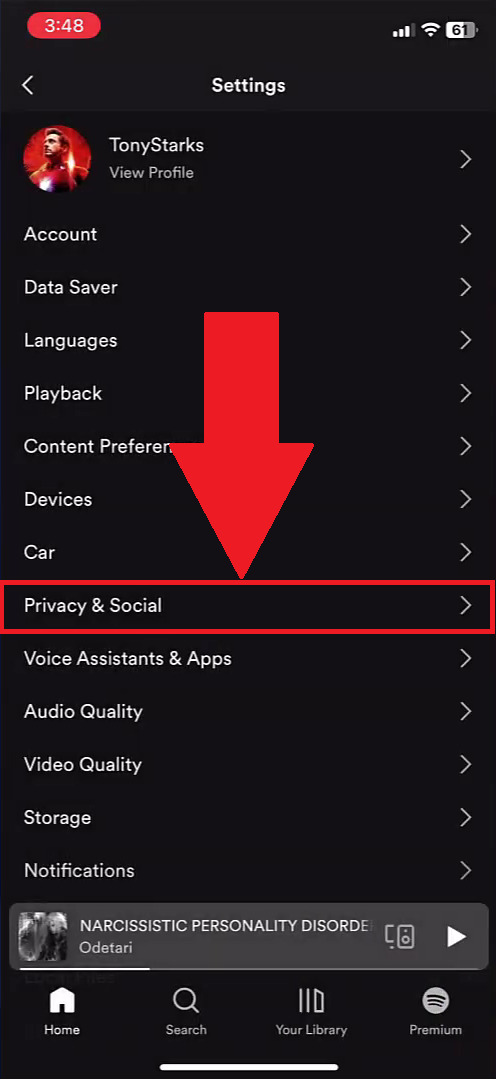
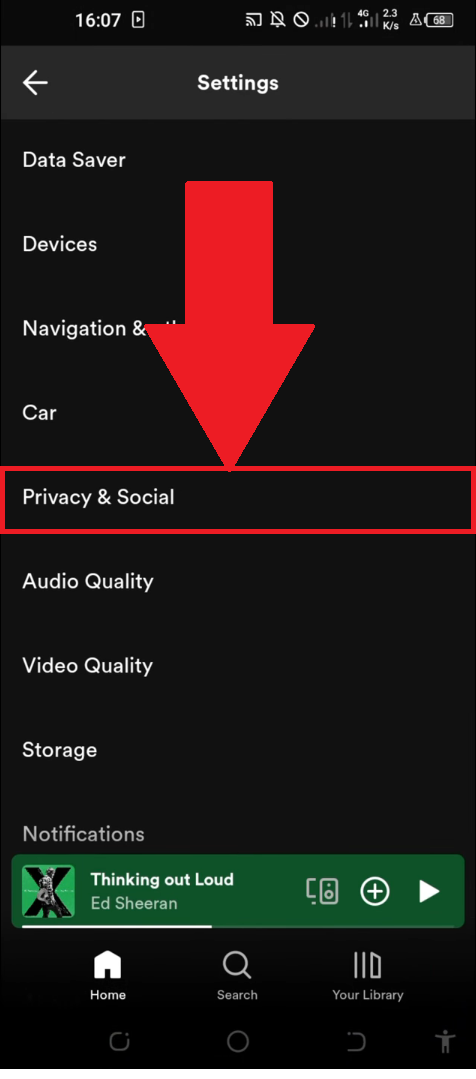
- Turn on the option, then enjoy the private mode.

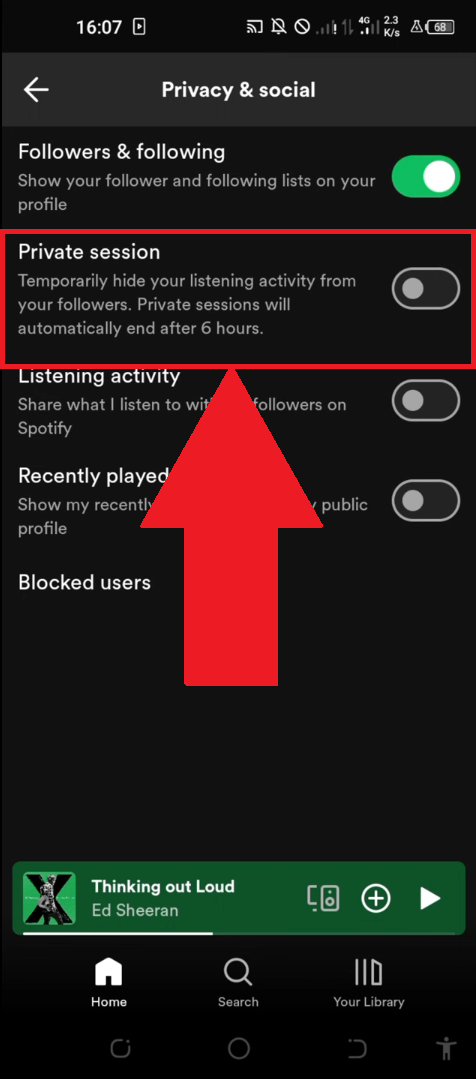
How do I turn off private mode on Spotify?
To turn off incognito mode, follow the same steps for your device and simply toggle the option. Note: The session will end. automatically when the application restarts, or afterward 6 hours of listening time continues.
| Advantages | Disadvantages |
|---|---|
|
|
2. Hide items in the “Recently Played” section”
Permanently delete the titles displayed in the "Recently Played" section is technically not possible on Spotify. However, you can make this section private so you don't reveal it to your friends or followers from your account.
How do I hide my "Recently Played" list on my computer?
On a computer (Mac or PC):
- Open Spotify and click on the’profile icon at top right.
- From the drop-down menu, select "Parameters.
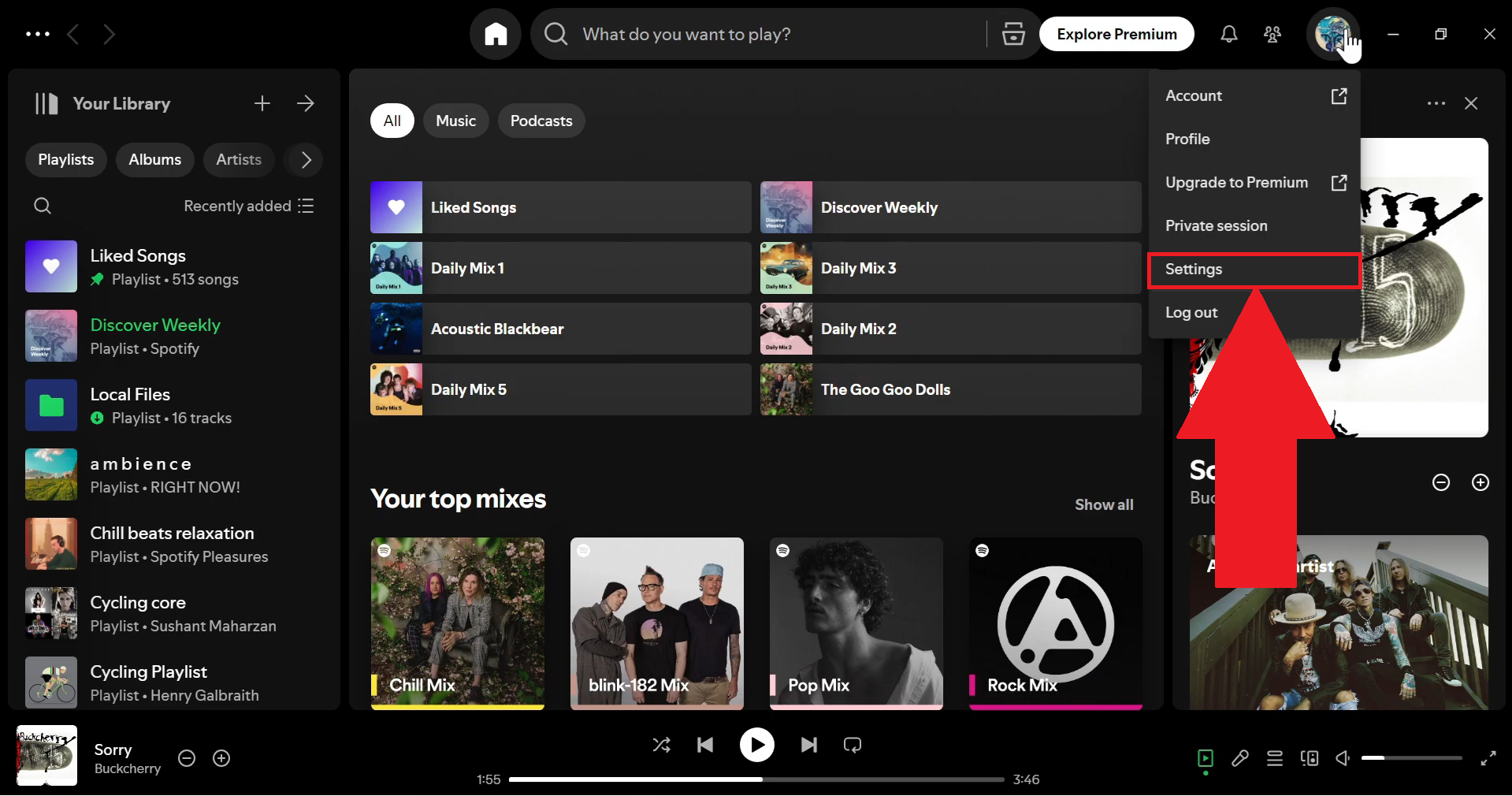
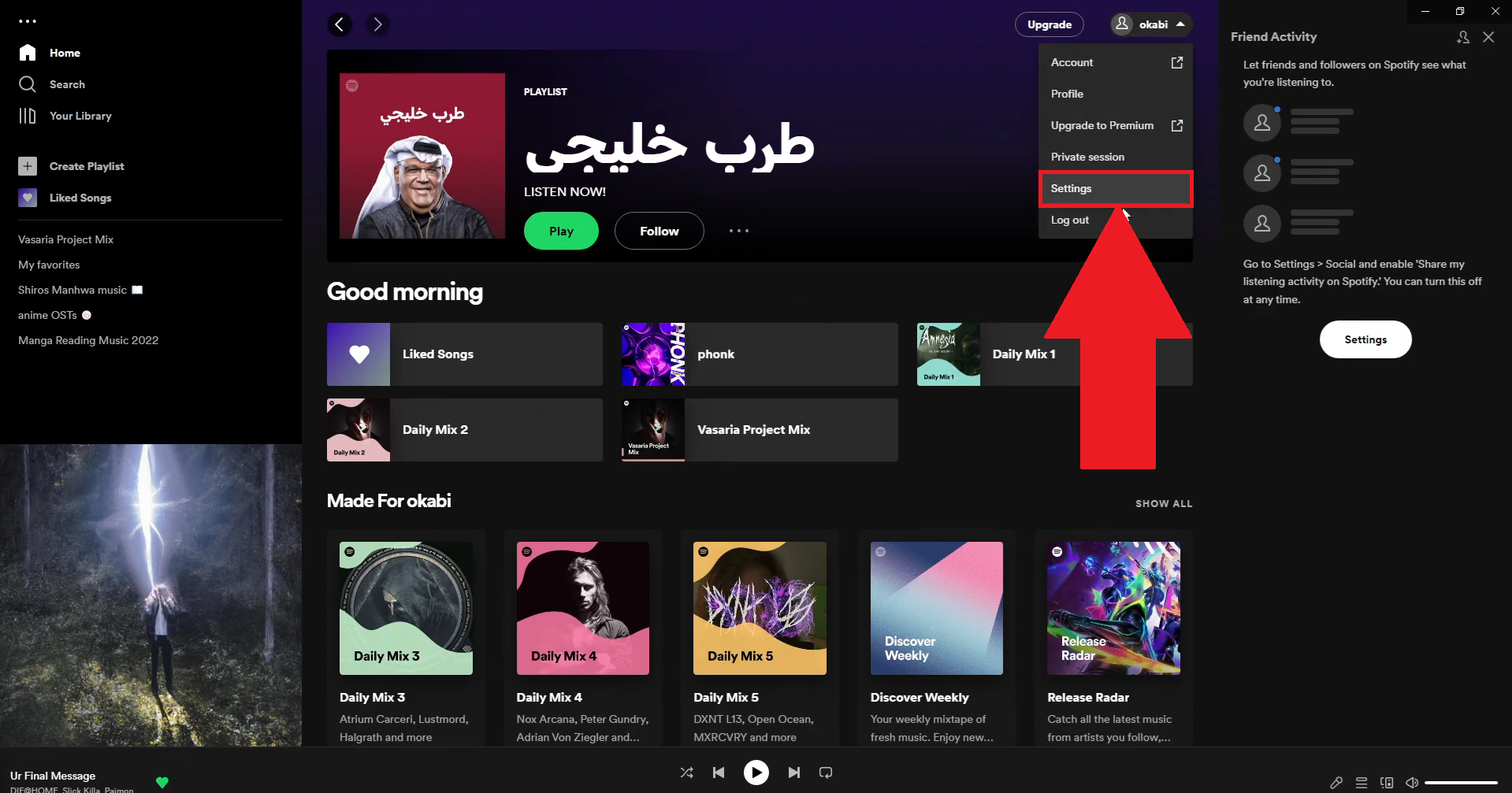
- Search the section «social activity» and turns off the option «Share my business».
Once this option is turned off, your friends will no longer be able to see what you're listening to in real time, and your "Recently Played" list will no longer be accessible from your profile public.
3. Turn off real-time listening activity sharing
Spotify share your listening activity in real time with your friends via the social feed. To turn this off share, here's how to access the coupons settings depending on your device.
On computer : in the settings of your account, search for the section «social activity». Disables the options of share to hide your listening activity from your friends.
On mobile (iPhone and Android): presses the’profile icon, then select «Settings and Privacy». Open the section «Privacy and Social Media». Disables the option to share activity to cut off the flow to your friends.
This feature is different from the private session : It doesn't delete the entry in your listening history, it only hides what your friends can see on their screens.
4. Clear the Spotify cache
Empty the hidden of Spotify Don't delete your listening history stored on the servers. But this frees up space on your device and can resolve certain issues with playback or locally stored data.
On a mobile device (iPhone or Android):
- Open the’application Spotify.
- Press the’profile icon, then go to «Settings and Privacy».
- Scroll down to the section «storage».
- Press «clear the cache» and confirms the action.
On a computer (Mac or PC): in the settings in the desktop app, look for the section «storage» and select the option to clear the cache. Your downloads and local data will be deleted, but your account and your listening history remain intact on the servers Spotify.
Frequently Asked Questions About Spotify History
Does Spotify show my listening history to my friends?
Yes, if the share Social is enabled on your account. Your friends can see what you're listening to in real time on their activity feed. They can also view your "Recently Played" section on your profile. Turn off the share in the privacy settings blocks this view.
Does my listening history affect my recommendations?
Yes, directly. Spotify analyze your listening activity to customize your recommendations music, including playlists Discover Weekly and Daily Mix. Listen in private session Don't let these songs influence your future recommendations.
How long does Spotify keep your listening history?
Spotify keep your listening history for 90 days. After this period, the oldest data will no longer be accessible through the interface. Your history complete list of Last 12 months is still used to generate your Spotify Wrapped annual.
Can you retrieve your Spotify listening data?
Yes, Spotify allows you to download all your personal data, including your listening history Complete. Access your account via the website on spotify.com, then go to «privacy» and click on «Download your data». Spotify sends you a file via email at 30 days. This is useful if you want to keep track of what you've listened to before deleting account.
Does deleting an account also delete the listening history?
Yes, permanently delete your Spotify account deletes all of your data, including your listening history, your playlists, and your recent plays. That's the only way to perform a delete total and irreversible loss of tone Spotify History.
If you want to take your online history management to the next level, check out our guides on’Netflix history and theYouTube history. And if you use Spotify on Discord, our article on the Spotify bot You might also be interested in this.









 English