On android, the app Google Clock lets you set Spotify directly as alarm.
On iPhone, you'll need to use a third-party app such as Spotify Alarm Clock Where Morning™.
And if you have a smart speaker, it's even simpler—as long as you know the limitations of each device.
This guide covers every scenario: alarm Android with Google Clock, alarm iPhone using a third-party app, and wake-up via a smart speaker.
1. Use Spotify as an alarm clock with Google Clock on Android
The Clock App Google Clock natively supports Spotify on Android. It lets you set an alarm using a song or playlist of your choice, without having to use a third-party app.
Before you begin, check two things:
- L'application Spotify must be installed and up to date on your device.
- A free account allows you to use the integration, but not to choose a specific song: songs are played in shuffle mode. To wake up to a specific song, you must Spotify Premium.
Here's how to set your alarm step by step:
- Open Google Clock on your device Android.
- In the lower-left corner, select the category «Alarm».
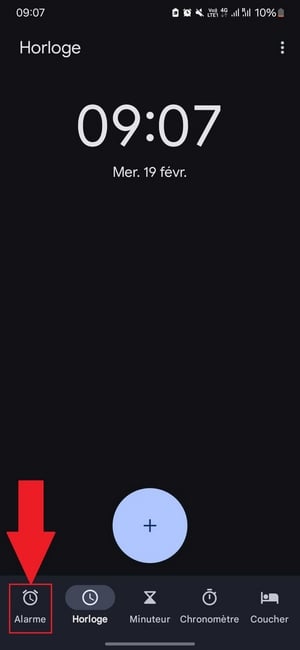
- Press the button " + " to create a new alarm.
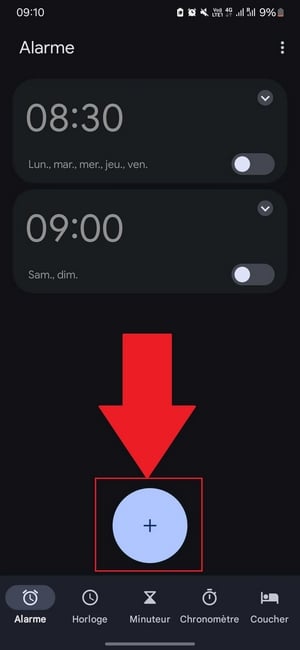
- Set the’hour at what time you want your alarm to go off.
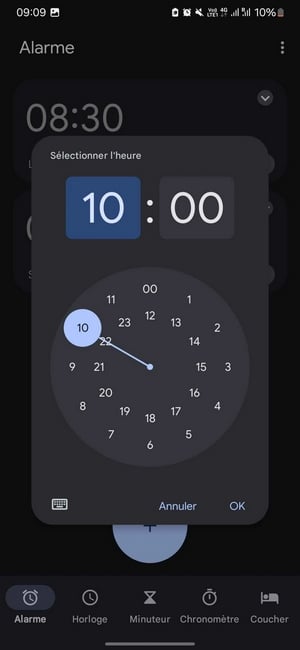
- Press «Default Ringtone».

- Select the section " Spotify ».
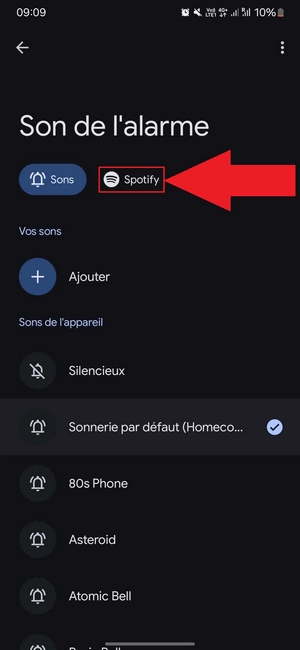
- Log in to your account Spotify : Your playlists and songs appear right away.
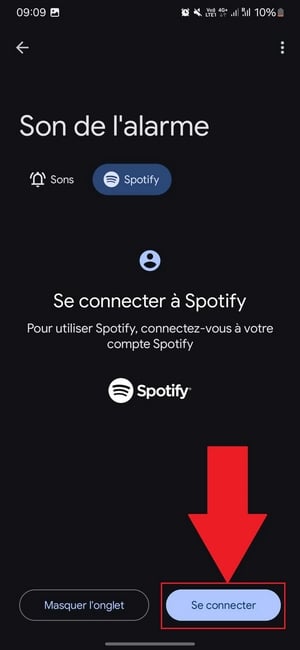
All that's left to do is Choose a song or playlist that will wake you up every morning.
Good to know: If your smartphone Android has its own Clock app, the process is the same.
Create a new alarm, go to «Alarm Sound», then select Spotify. Your music library becomes your alarm tone.
One last point of honesty:
This integration depends on the version of the apps and your device. Some users have reported that Spotify is not detected, or the alarm returns to the default ringtone upon waking. Keep Spotify up to date and Test your alarm clock at least once before you entrust it with your important mornings.
2. Set up wake-up apps on iPhone to put Spotify
On iPhone, there is no built-in option to play a song Spotify as an alarm tone. You have to go through a third-party app available on the’App Store.
The principle is the same for most of these applications under iOS :
- Download a compatible app with Spotify since the’App Store, as Alarm Clock App for Spotify.
- Open the app, then authorize the Log in to your account Spotify.
- Creates a new alarm and set the desired time.
- When choosing a ringtone, select a song or a playlist from your library Spotify.
- Set the alarm and enjoy your favorite music as soon as I wake up.
Please note: Most of these apps require an account Spotify Premium to start playback without interruption.
With an account free, the ringtone can be limited to a snippet or a random playback. Some apps also paying or lock certain features behind a subscription: be sure to check before downloading.
3. Download the app Spotify Alarm Clock
Spotify Alarm Clock is a third-party app available on the’App Store to iPhone.
This is not an official app from Spotify, but it's designed to help you wake up to music.
It stands out for several reasons:
- The possibility of Customize your ringtone with the song or playlist of your choice.
- A simple interface for creating a Set a new alarm in just a few seconds.
- Compatibility with multiple devices, including certain smart speakers.
As for limits, one account Spotify Premium is recommended for a complete reading experience without commercial breaks.
Also keep reliability in mind: some of these apps need to remain open in the background so that the alarm goes off properly.
the offline download, on the other hand, is available only to Premium users in the app Spotify herself.
4. Use the app Morning™ Wake-up call for Spotify
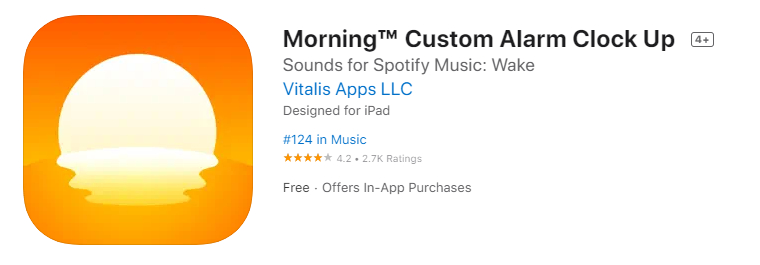
Morning™ Alarm Clock is another third-party app designed to iPhone.
As Spotify Alarm Clock, it lets you play your music Spotify upon waking up.
You can download it from the’App Store, then log in to your account Spotify.
Two strengths make it an attractive option:
- You are free to choose the song or playlist that wakes you up every morning.
- The interface remains intuitive : Setting up a new alarm takes just a few seconds.
As for Spotify Alarm Clock, a subscription Spotify Premium is necessary to enjoy it to the fullest.
If you want pay less for Spotify For information about your subscription, check out our dedicated guide: you'll keep your Premium benefits while saving money.
Use a smart speaker to start Spotify upon waking up
The smart speakers allow you to set an alarm and wake up to music with a simple voice command. Depending on the device, the integration of Spotify It works more or less well as an alarm clock.
Google Home
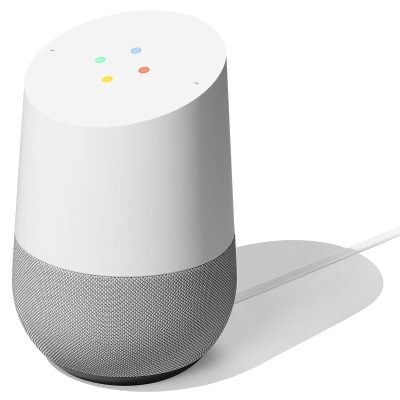
With a Google Home or a speaker Google Nest, you can ask the assistant to set your favorite song as your alarm tone. You can set this up through the’application Google Home, and then by voice.
Start by connecting Spotify to your Google Home :
- Open the app Google Home.
- Go to the Settings, then in « Music » (or «Multimedia Services,» depending on the version).
- Choose Spotify and follow the instructions to log in to your account.
- Defined Spotify as the default music service.
Next, use your voice to set the alarm. For example: «OK Google, set an alarm for 8:30 a.m. with [playlist or song name]».
To note :
Media Alarms are not available everywhere : This feature is limited to certain countries and languages (French is one of them). Another thing to keep in mind: if the speaker isn't connected to the Wi-Fi When it's time to wake up, it automatically switches to the standard alarm tone. It's a useful safety, but that means a connection problem is keeping you from listening to your music.
An account Spotify Premium is recommended for stable operation without commercial breaks.
Amazon Echo
The enclosure Amazon Echo allows you to communicate with Alexa to set a music alarm. There's one thing you should know before you get started.
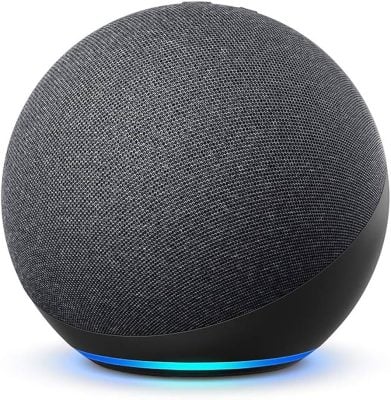
Alexa officially manages the musical alarms with Spotify. The real catch is the subscription: Spotify on devices Alexa is available only to Premium accounts.
Amazon Music still has an edge when it comes to certain advanced features (such as waking the device by quoting song lyrics or by asking for a mood or activity), which only work with Amazon Music.
Here are the steps to follow:
- Open the app Alexa.
- Go to «More», then "Settings.
- Under «Preferences" Alexa », select «Music and Podcasts».
- Press «Default Services».
- Select Spotify and confirm by clicking «Done.».
Then talk to Alexa : « Alexa, wake me up at 7 a.m. with [song title] every day ». If Spotify If this isn't your default service, specify it in the command.
Sonos
With Sonos, you can certainly use Spotify as a source of alarm.
Tip: First, add your playlist or album to your Favorites Sonos, then select it when choosing your alarm music.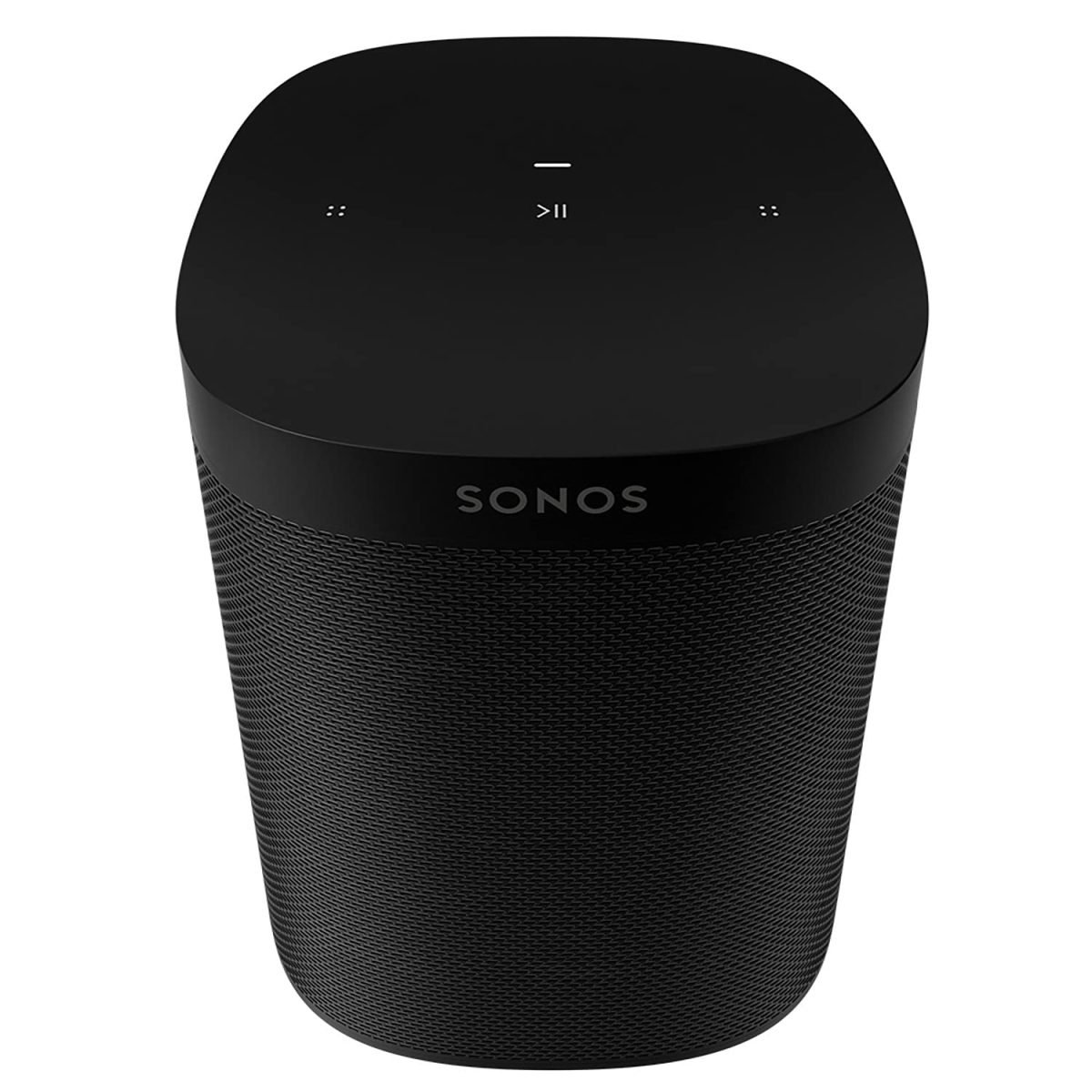
Here's how:
- Open the app Sonos.
- Go to Settings → To manage → Alarms.
- Creates a new alarm.
- Select the time, room, frequency, and volume.
In «Music,» select your playlist Spotify (previously added to Favorites Sonos), or another source such as Sonos Radio, Apple Music Where Deezer.
There is a known bug: the alarm sometimes plays the chime Sonos instead of the playlist. Reauthorize Spotify in the app Sonos Or resetting the alarm usually solves the problem.
To wake you up to your favorite music Spotify, sOn a cell phone, the easiest way is still Google Clock on Android or a third-party app on iPhone.
On a smart speaker, Alexa and Sonos work, as long as you have a Premium account.








 FR
FR  RU
RU  EN
EN  ES
ES  IT
IT  DE
DE  ZH
ZH  PT
PT  ID
ID  JA
JA  DA
DA