Want to set the mood on Discord and add music Good news: after a few years of absence, Rhythm is back!
Smoother, simpler, and fully integrated, Rhythm change the game!
Find out everything you need to know about this in this article. new version of Rhythm and the game's orders !
Sound problem?
If you have sound issues, click on the link below and come to Discord :).
How to use Rythm on Discord?
Before we begin, let us remember that in September 2021, The Rythm bot has ceased operations. It is in June 2024 that he did his return to Discord.
This grand return comes with some major changes:
Unlike the previous version, Rhythm is no longer a bot that joins your voice chat room, it is now a fully integrated application at Discord, that you can launch and control visually with a single click.
This new version also includes:
- A more user-friendly interface aesthetics,
- Legality and stability : no risk of being banned by YouTube,
- Transition to Slash Commands : All commands now begin with “/”.
However, just as before, Rhythm offers two versions: the version free of charge which allows you to enjoy the essentials, and the version paid, which offers additional and more comprehensive features.
1. Before connecting the Rhythm activity to your server
Before succeeding in connect Rythm to a server Discord, Here are some necessary prerequisites:
- Be connected to your account Discord via the browser,
- Be administrator the server you want to add Rhythm,
- Have a good Internet connection.
- Have a living room vocal in this one.
2. Connect Rythm to your Discord server
Here are the steps to follow:
- Open your browser and click on this invitation link from Rythm Bot,
- The link will open in a new tab so you can easily follow this tutorial.,
- Once on the page, select the server Discord to which you wish to add the Activity Rhythm or enter the name manually,
- And click on “Continue“.
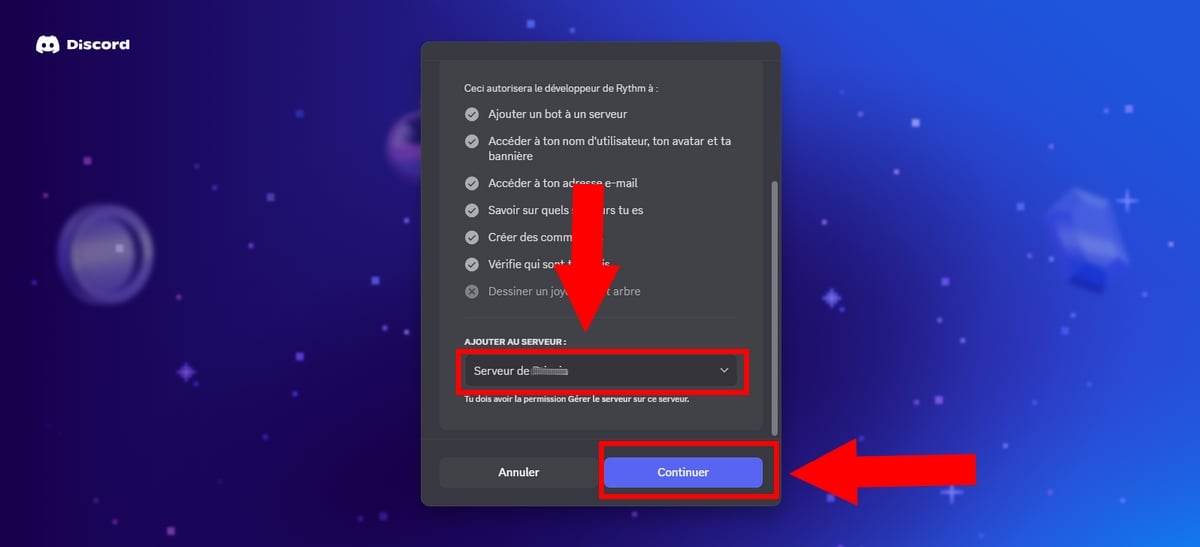
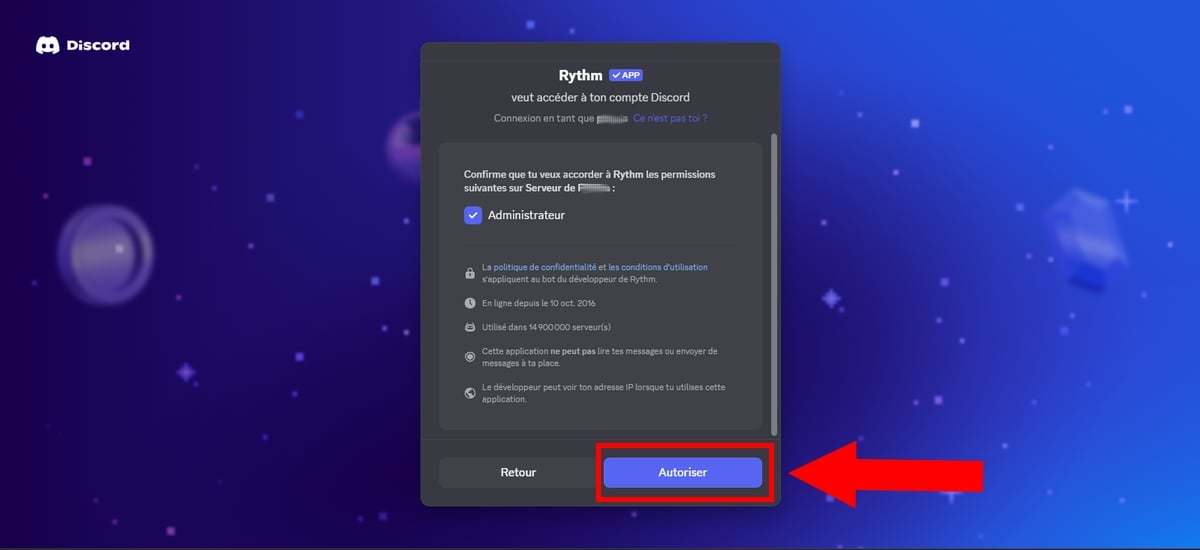
- From now on, grant Rhythm the necessary permissions by clicking on the button “To allow“.
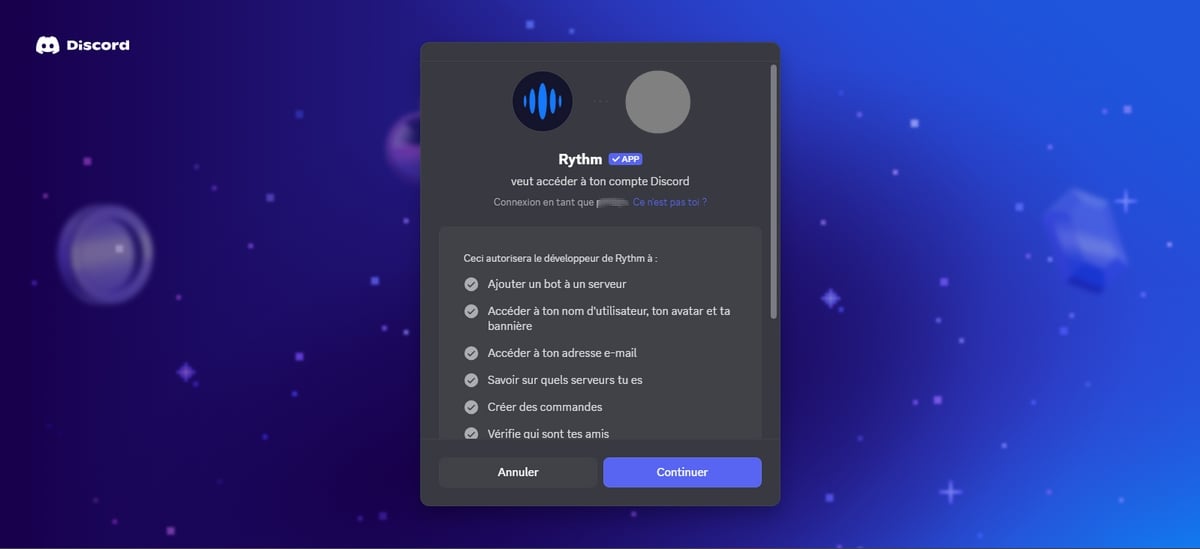
- Then, continue by clicking on “Continue“.
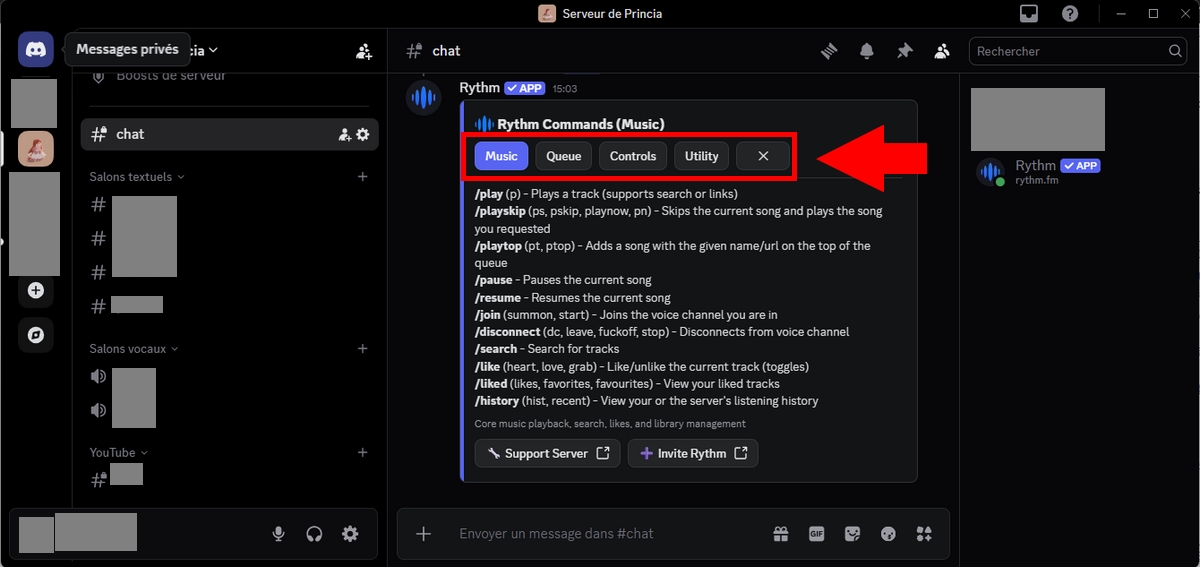
- Once Rhythm Once added to your server, you will see a message like the one in this image:

- Finally, verify that Rhythm is present in the list of right-wing members. Indeed, if you have followed the instructions correctly, it will be there.
- Otherwise, give to Ryhtm (by going to the server settings) permission ”Director”, or expel him and restart the tutorial from the beginning.
Various commands for the Rythm music bot
Rhythm allows configuration at the top thanks to numerous orders, to such an extent that it is difficult to find one's way around.
Here is a detailed explanation of most of the commands.
Note:
- () = required
- []= optional
1. Basic commands
Here are a few orders What you need to know to monitor your listening:
| ▶️ Basic order | ✅ Utility / Action |
|---|---|
/join |
Connect Rhythm in the voice chat room where you are currently located. |
/disconnect |
Disconnect the bot from the chat room (the old prefix !dc is obsolete). |
/play (name or link) |
Plays the requested music. Supports YouTube, Spotify, and SoundCloud. |
/search (noun) |
Search for a title on YouTube and suggest several choices to add. |
/np |
Displays information (title, artist) about the currently playing music. |
/pause / /resume |
Pauses playback or restarts. |
/replay |
Restarts the current track from the beginning (0:00). |
/volume [0 to 100] |
Displays the current volume or changes it according to the selected value. |
/info |
Displays general information about the bot and its status. |
2. Commands for the queue
How to manage queue music?
The following features are useful for those who own a Premium subscription :
| 📜 File Command | ✅ Utility / Action |
|---|---|
/queue [page] |
Displays the list of songs that will be played soon. |
/playtop |
Adds the requested music to the top of the queue. |
/playskip |
Add music and jump immediately towards her. |
/move (position) |
Moves a song to a new position in the list. |
/skipto (position) |
Jump directly to a specific song in the queue. |
/remove (number) |
Removes a specific song from the queue. |
/removed duplicates |
Automatically removes duplicate songs from the queue. |
/shuffle |
Randomly shuffle the order of all songs in the queue. |
/clear |
Completely clears the queue with one click. |
/leavecleanup |
Removes all music added by users who have left the room from the queue. |
Audio settings and effects
For those who want to monitor their sound streams, Here are the various commands to know:
| ⚙️ Settings & Effects | ✅ Utility / Action |
|---|---|
/seek (seconds) |
Jump directly to a specific point in the music (e.g., 60 for 1 min). |
/forward (seconds) |
Fast-forward by a specified number of seconds. |
/rewind (seconds) |
Go back a specified number of seconds. |
/loop |
Turns loop playback of the current track on or off. |
/effects |
(Premium) Opens the audio effects menu (Bass, Speed, etc.). |
/settings |
Access the full control panel (DJ role, restrictions). |
/premium |
Displays your subscription status and available benefits. |
How do you set up the Rythm bot on your server?
Here we will see how to configure Rythm sur votre waiter !
- Use the
/settingsto access the settings, OR type the command/helpfor general assistance.
a) Change the prefix of the Rythm bot
the Rythm bot no longer supports the default prefix “!“.
- Now, with the new version, you must use the prefix “/” for all orders.
b) Disable commands in certain chat rooms
To disable commands from Rhythm In Discord salons, you have several choices, including:
- Click on the gear icon to the left of the text chat room to Edit the living room,
- Then select Permissions,
- Disable permissions related to posts and to apps order in this specific showroom.
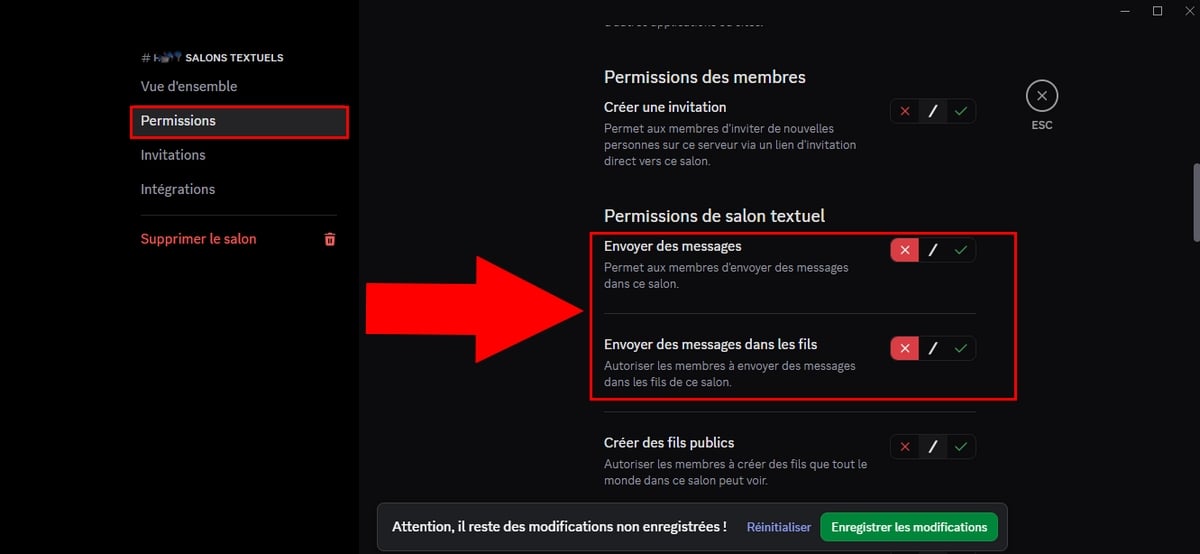
But you can also follow these steps:
- Right-click on your server,
- Click on Settings from server,
- In “Integrations”, search for “Rhythm” then “To manage“,
- In the option “Trade shows“Manually choose which salons can use the app's commands and which roles have access to them.
c) Music announcements
To view the music while playing, use the command /nowplaying.
d) Maximum length of the queue size
This Rythm Premium option allows you to limit the size from the queue. To do this:
- Type the command
/nowplaying. - Then look for the option Max Queue Length.
- By default, it is unlimited and this command is used to impose a limit, namely 10 or 20 songs maximum per user, to prevent abuse!
- In this image, the number of Max Queue Length authorized is 10.
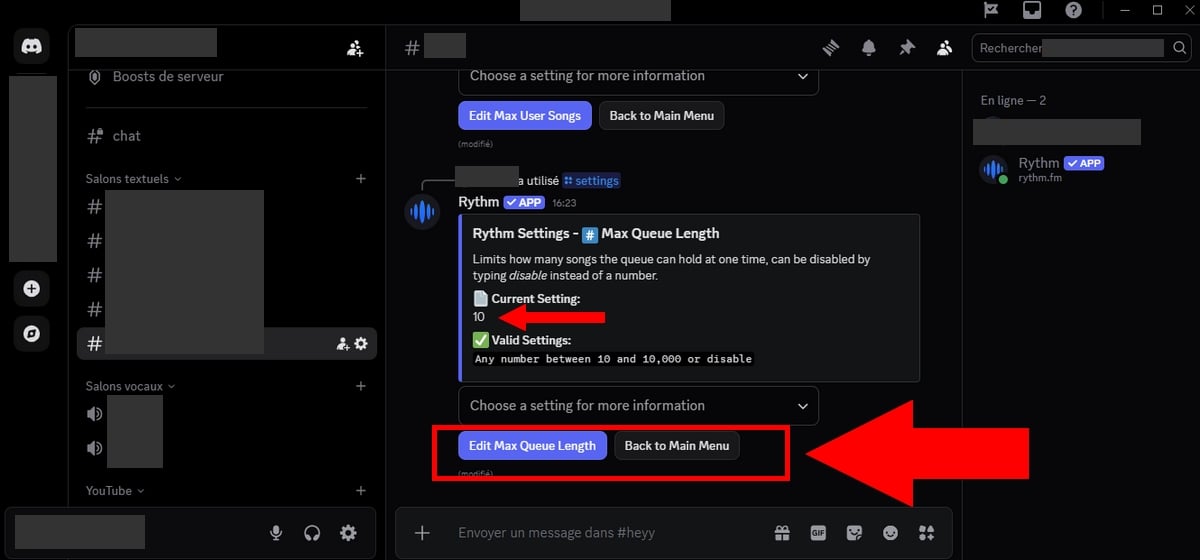
However, if you use the free version, this option is disabled by default. And although you have the right to configure, the setting will not be applied.
With this in mind, you can:
- Assign the role to members (or a trusted person) DJ,
- Type the ordered
/skipto skip to the next track. If multiple members press this command, the unwanted music will automatically skip. - Or ask users to prepare a playlist in advance to better control the content.
e) Maximum number of songs per user
This feature is useful for directors where the DJs may limit the number of songs that users can add to queue at the same time.
Indeed, once Premium Rhythm When enabled, the queue becomes unlimited.
- To change the maximum number of songs per user, simply type the command /settings.
- Then look for the option Max User Songs (Premium feature).
- Select the number of songs you allow per user by clicking on “Edit Max User Songs“.
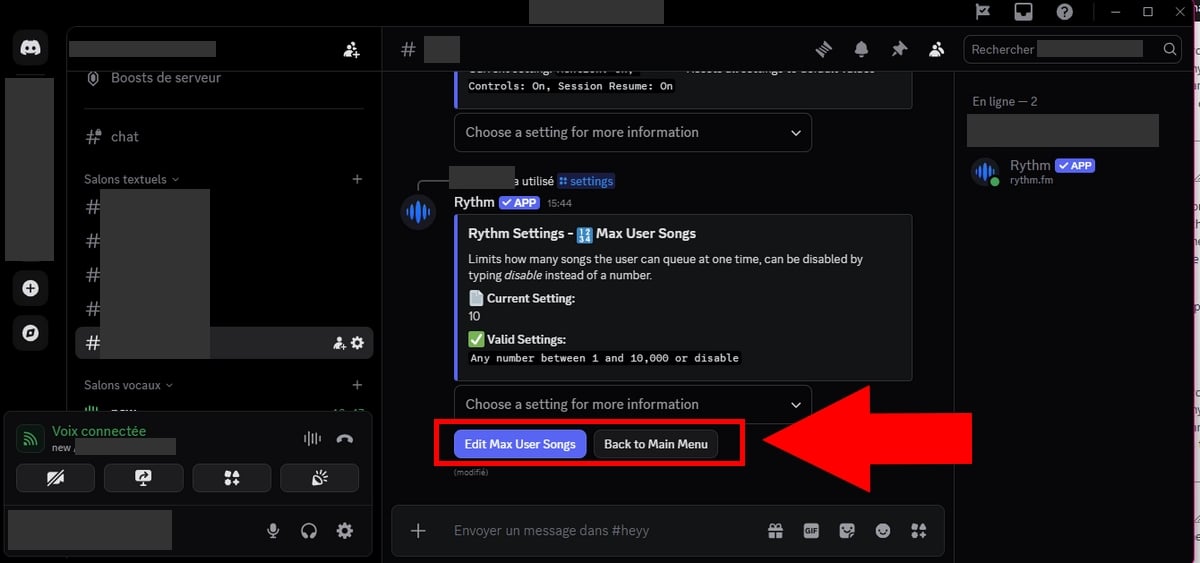
⚠️ Important note :
You can change this setting in the free version, but it will remain without effect. This option is only taken into account for servers or users subscribed to Premium Rhythm.
f) Remove duplicates from the queue
Also among the benefits of a Premium subscription. To prevent users from posting duplicate music In the queue, you can use one of the following commands:
/drm/rd/removed duplicates/rmd
However, you can also follow these steps:
- Use the
/settings. - Choose Duplicate song Prevention
- To activate it, click on We in the drop-down menu that opens.
- To disable it, click on Off.
g) Configure the DJ role on the server
To activate the DJ mode, Everything happens in one place!
- Type the command
/settingsto display the different possible options.
1. Define the role of the DJ
If you haven't already done so:
- Go to Settings from waiter > Roles
- Next, create a new role named DJ, (the role name must be exactly DJ)
- Then, assign this role to the members you wish to authorize.
2. Activate DJ mode
- You must use the
/settings. - Among the options offered after placing your order, look for the option DJ Only (or similar),
- In the image below, the function DJ Only is on Off.
- To activate it, switch it to “Turn On“.
In fact, all members who have access to the role of DJ will have access to the cmanagement orders (edit the list, skip music, etc.), even if you have set certain restrictions.
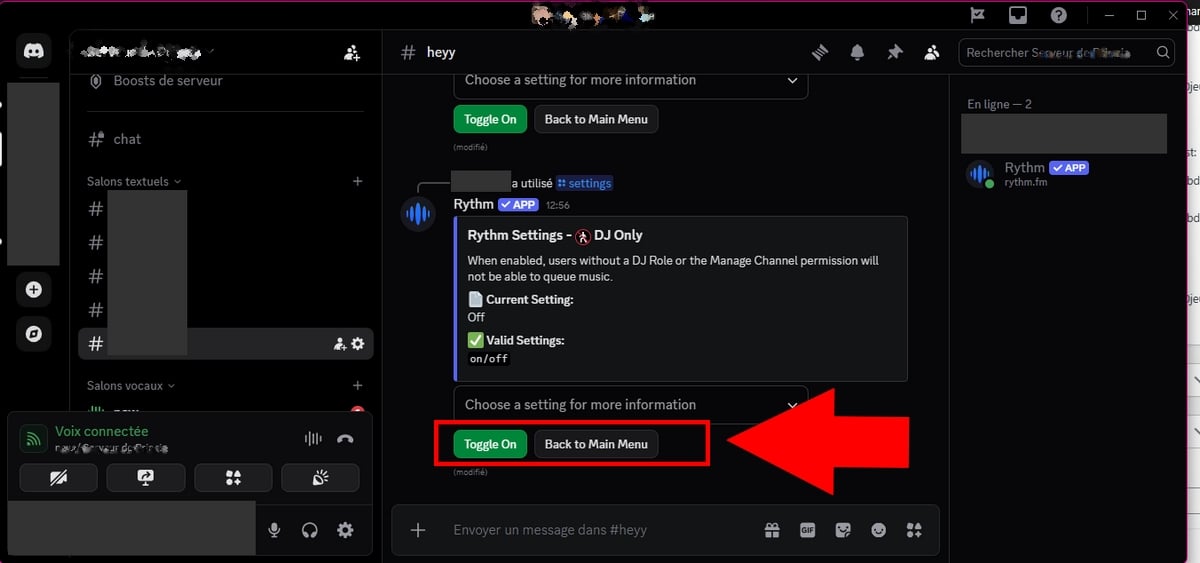
h) Resetting settings
Did you make a mistake in your settings? Don't panic!
- Use the
/settingsto display the various options available to you, - Click on the last option Reset(or similar),
- Then select “Yes, reset all" Where "Cancel”if you've changed your mind.
WARNING: this will reset ALL Rythm settings to their default values!

What to do after use
You have now finished configuring Rythm! If you have a problem, check this tutorial, everything is there! You can also come to on our server Discord) !
We invite you to leave a comment if you find the tutorial comprehensive and easy to follow, or if you have any feedback, among other things.
FAQs
Is the Rhythm feature free on Discord?
the Rhythm on Discord offers a free version but is also available in a version Premium.
What is the purpose of the Rythm premium on Discord?
Here are the various advantages of Premium Rhythm :
- Change the bass, speed up or slow down the sound.
- Create queues unlimited,
- Automatic playback without interruption (advertisements),
- Best quality audio,
- Play music during 24 hours a day, 7 days a week,
- Premium Sharing All participants in your session benefit from Premium features.,
- Personalized listening Control what you listen to.
What's more, to discover all the benefits available to you when you subscribe to Premium Rhythm, don't hesitate to enter /premium in your chat.
How much does the Rythm Premium bot cost?
Here are the different rates for the Premium offer:
- 1 single server = 4,99 $ per month
- Multiple servers = 6,99 $ per month
- Large server = 9,99 $ per month.
Comparison: Free Rythm vs. Rythm Premium
Here are some notable differences between the version free of charge and the version paying of Rhythm :
| 🌟 Features | Free version | Premium Version |
|---|---|---|
| Audio Quality | Standard | Better audio quality (HD) |
| Advertising | Yes | None |
| Queue | Limited | Unlimited |
| Audio Effects | ❌ No | ✅ Included (speeds, bass, etc.) |
| 24/7 playback | ❌ No | ✅ Included |
| Shared benefits | ❌ No | ✅ Yes (The entire voice chat benefits) |
Rhythm and MAC: is it feasible?
Yes, Rythm can be used on Mac and Windows.
Meeting on AppStore Where Google Play !
Lag and games
Nope, If you are a player, Rhythm will not impact your gaming performance if you play games at the same time.
Can moderation change the song list?
Yes, they can delete what they don't like and change the way the songs are played.
Using spotify premium or twitch?
the Rhythm bot on Discord allows you to listen to different tracks from several music streaming platforms, including Spotify, YouTube, Twitch, and others.
However, please note that the activity Rhythm does not allow you to read the entire catalog on these platforms.
How can I see the video and images of the songs?
Now, with the new version of Rhythm, you cannot access video streams. It specializes in audio streaming only.
Any other concerns?
You can visit the official help page for Rhythm If you encounter other difficulties when using Rythm bot on Discord:
See the list of our tutorials:









 English