In brief
Positives
- Free package available for life
- Diversified functionalities
- Responsive and always available customer support
Negative points
- Possible problem in reimbursement with paid offers
Metricool at the best price
- Free 0 €
- Starter 14 €
- Advanced 39 €
- Custom (to be discussed according to your needs) €
To see your Instagram statistics, press the button Professional Dashboard displayed on your profile, or go through the menu ≡ then Statistics.
It is free and built into the app, provided you have a business account (creator or business)!
Track Your Instagram Stats with Metricool
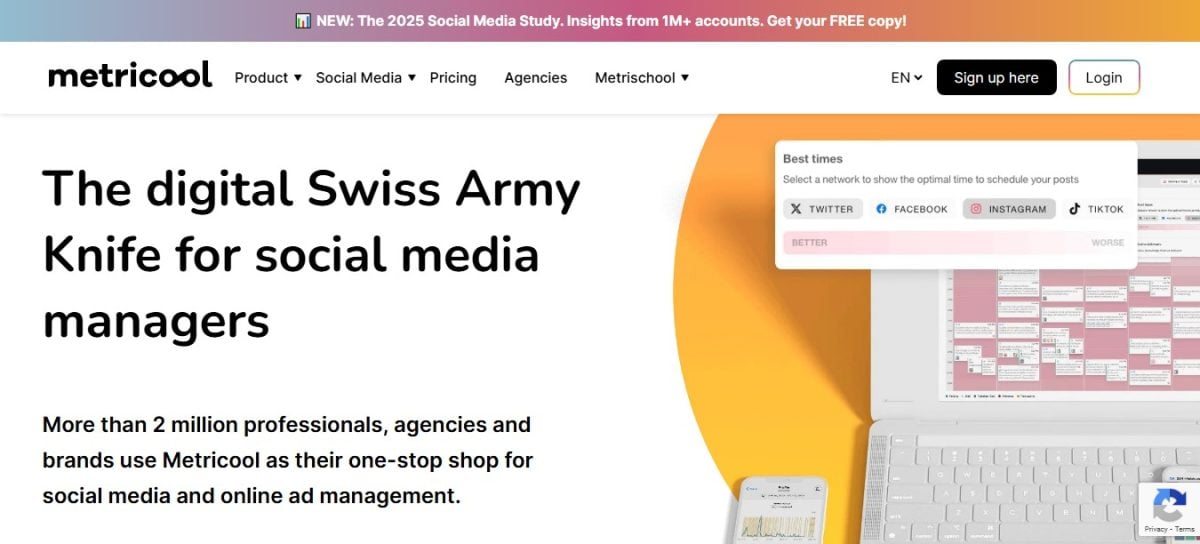
Instagram's built-in analytics are useful, but limited. Metricool complements them with a single dashboard, which is more advanced and free in its basic version.
Why choose Metricool?
Metricool Gather all your Instagram data all in one place. You can track your community’s growth, monitor your hashtags, and analyze your performance in depth—all without having to switch between multiple tools.
The platform helps you refine your strategy on social media. You can try it out free, with no obligation.
What Metricool Offers You
Here are the main ones benefits of this analytical tool:
- A overview about your account activity, your customers, or your competitors.
- The possibility of compare performance from your posts and stories.
- A interaction monitoring and commitment rate to understand what works.
- Regarding the detailed information on the organic growth of your Reels.
- Regarding the comparative statistics compared to those of your competitors.
Growing Your Instagram Community
the growth chart shows you how several key figures have changed over time:
- Your number of’subscribers and subscriptions.
- The total number of subscribers gained during the period.
- The average number of subscribers acquired per day.
- The average number of subscribers acquired per publication.
- How often you post—daily and weekly.
Changes in the Number of Your Followers
You can also see the’Changes in your followers in detail, including the ones you won and the ones you lost.
- The bars green mark the days when you have gained subscribers.
- The bars roses mark the days when you have lost followers.
- You can view the statistics for each post.
- Your posts appear in a carousel, along with the likes and the game's comments of each person.
If you want to take your follower engagement even further, a good follower tracker can supplement this data.
Interactions
The likes and comments are key metrics for measuring the performance of your content. On Metricool, you can access the list of all your posts for the time period of your choice. You can sort the results by these criteria:
- Date
- Impressions
- Scope
- Backups
- Clicks
- Interactions
- Commitment
Reels
Metricool also analyze your Reels and their organic growth, as measured by several indicators:
- L'commitment
- The interactions
- Number of views
- Number of shares
- Backups of your videos
Stories
A dedicated section provides you with statistics on the stories posted to your account. A chart displays the impressions, the number of stories, and the reach for each piece of content.
A table supplements this data with the following for each story:
- The date
- The impressions
- The scope
- The answers
- Clicks
Competitors
You can also analyze your competitors' accounts. Add them to the analysis table to get an overview of their statistics and compare yourself to them.
Analysis of Your Instagram Hashtags
Metricool includes all the analysis of your hashtags. In particular, you can see:
- The hashtags the ones you've used and the photos or videos where they appear.
- The prints generated by your posts containing that hashtag.
- the number of posts in which you used each hashtag.
- the total number of likes on posts with a specific hashtag.
- the Total Comments on photos and videos with that same hashtag.
You can also sort this data in the table, depending on which metric you want to highlight.
How do I use Metricool?
It's easy to get started. Just create an account, then connect your Instagram profile.
- Go to Metricool and click on the register button.
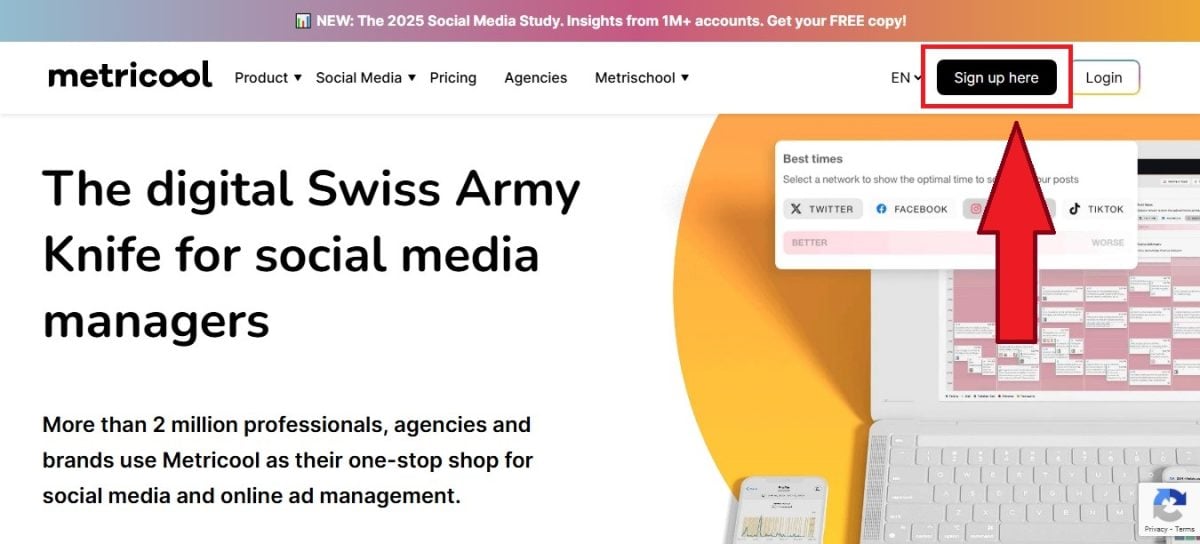
Registration button on Metricool. Mia for Alucare.fr - Sign up with your e-mail address. You can also use your account Facebook.
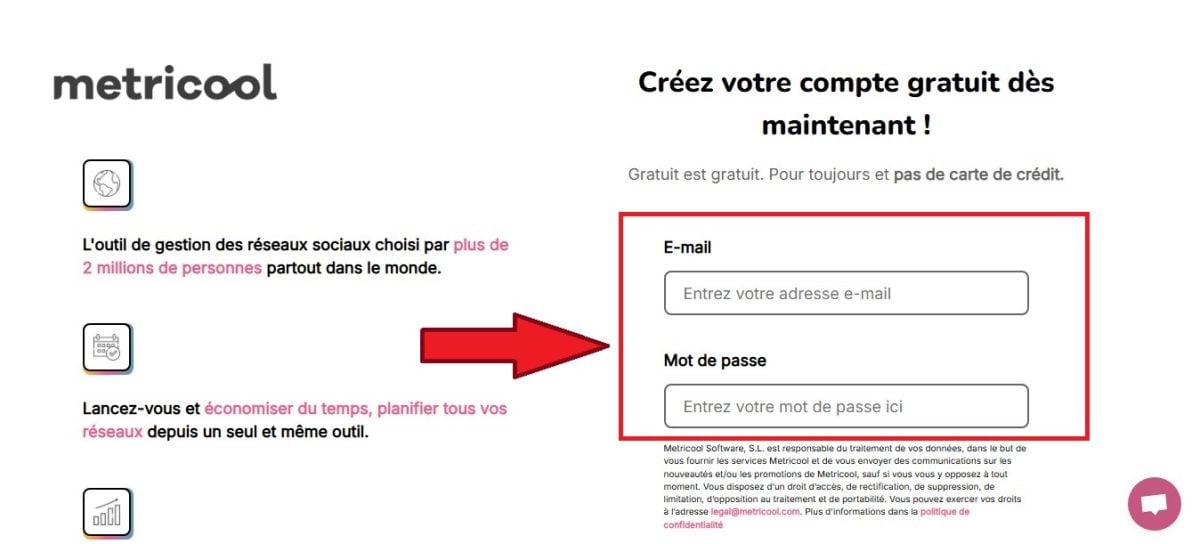
Register with an e-mail address on Metricool. Mia for Alucare.fr - Once you're logged in, click on Connect then choose Instagram. Authorize access from your business account.
- Your dashboard is automatically filled in with your Instagram stats.
View your Instagram stats from your business profile
Instagram also includes free tools right in the app. No need for external software to get started. Here's what you need to know to View your Instagram stats in a matter of seconds.
A professional Instagram profile: an essential prerequisite
To access the native statistics On Instagram, you need to have a business account. This type of profile offers several useful features for both creators and brands.
- Regarding the real-time data on the performance of your Stories and posts.
- Regarding the call-to-action buttons to facilitate contact.
- The possibility of advertise to reach more people.
- the access to Instagram Shopping to tag your products in your posts and stories.
To turn your personal profile into business account, follow these steps.
- Go to the settings from your account.
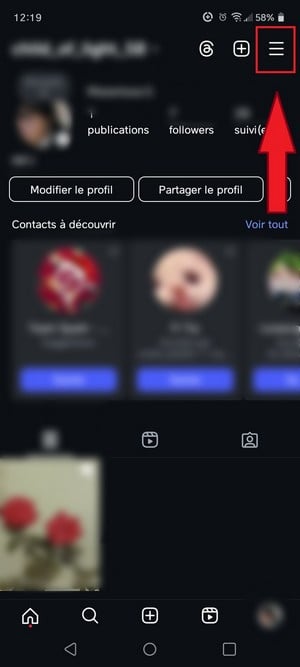
Button to access settings on Instagram. ©Mia for Alucare.fr - Select "Account type and tools.

Account type and tools option on Insta. ©Mia pour Alucare.fr - Click on "Switch to a business account.
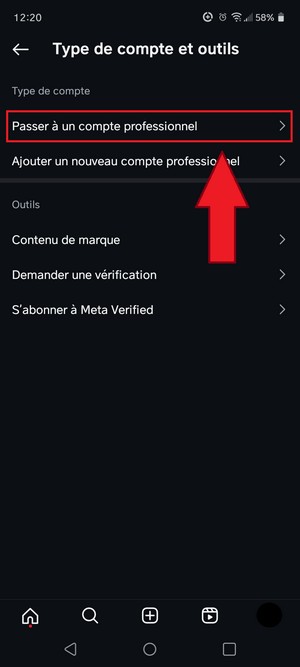
Option to switch to a Professional account on Insta. ©Mia pour Alucare.fr - Click on «Next».
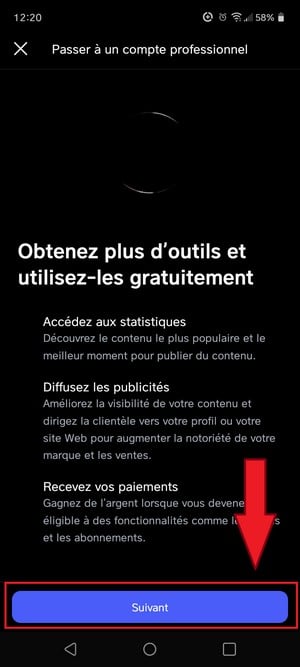
Button to confirm switch to a professional account. Mia for Alucare.fr - Choose a category from among those offered.

Choose the type of Insta business account ©Mia pour Alucare.fr
Where to Find Your Instagram Stats in the App
Once your profile has been converted, there are two ways to get started. The fastest option is still the button «Professional Dashboard» displayed directly on your profile page, below your bio. You can also go through the three horizontal lines in the upper right corner, then open "Statistics.
The menu changes regularly. If you don't see it right away, look for the dashboard directly on your profile. Instagram distinguishes between three categories of statistics :
- statistics on stories ;
- General statistics for the profile ;
- statistics on publications.
Understanding the Statistics for Posts and Stories
The data for your posts includes the number of likes, of comments, recordings, and shares. Story statistics, on the other hand, emphasize the scope, I'commitment and clicks.
Method 1: At the post level
Open the post from your profile, then press "View statistics. You get the details of that specific content, which is very handy for finding your best-performing publications.
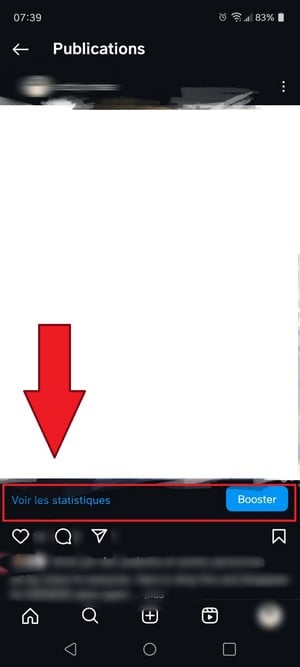
Method 2: The Big Picture
For an overview, check out the three strokes in the top right corner of your profile.
- Open "Statistics.
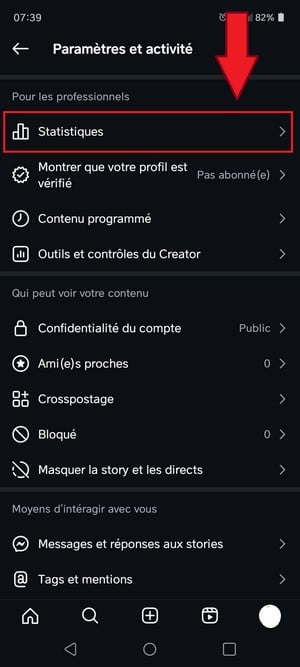
Button to open statistics in Instagram settings. ©Mia for Alucare.fr - Next, analyze the data displayed.
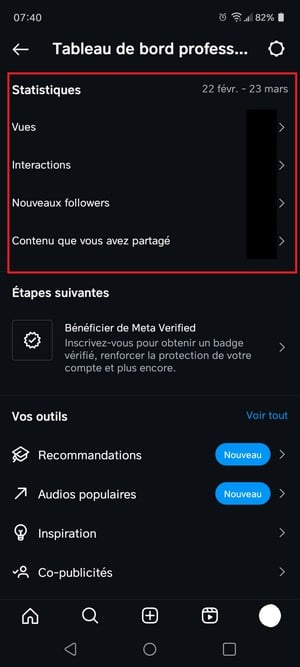
Data from an Instagram account's statistics. ©Mia for Alucare.fr
Key Metrics to Monitor
Regardless of the method chosen, these indicators are essential for properly interpreting your Instagram statistics:
- Scope : the number of unique accounts reached by your profile.
- Impressions : the total number of views generated by your content.
- Interactions : the total number of interactions (likes, saves, comments, shares) generated by a post.
- Commitment rate : The relationship between these interactions and your reach is a good indicator of the quality of your content.
- Profile visits : the number of times your profile has been viewed.
- Clicks to the website : The total number of clicks on your link from your profile.
- Demographic data : the age, location, and times of activity of your subscribers.
These demographics are especially valuable. They help you know when publish and to get to know your audience to adjust your content strategy. Understanding the’Instagram algorithm will allow you to get even more value out of it.
To take it a step further and make your analysis easier with Metricool :
Analyze Instagram statistics with Metricool 🎯
FAQs
Why don't I have the stats on Instagram?
If you don't have access to the statistics Before you log out of your account, first check to make sure your profile is professional mode. Personal accounts do not display any data or audience metrics. See the dedicated section earlier in this article to learn how to switch to a creator account or one business account.
How can I see the statistics of another Instagram account?
Instagram doesn't let you see the statistics from another account directly. However, you can go through a third-party tool as Metricool Where Fanpage Karma to analyze a competitor's public activity.
These tools allow you to track the publication schedule and the commitment rate an account. It actually helps you gauge where you stand and adjust your content strategy. Our guide to analyze a competitor's Instagram account explains the process step by step.
Where can I find the dashboard on Instagram?
On a business account (Creator Where Business), the most reliable entry point is still the button Professional Dashboard displayed directly on your profile page, below your bio. You can also access the stats through the menu (≡ icon) and then the dedicated section. The label may vary depending on the app version, so it’s best to use the button visible on your profile.
What statistics should I track on my Instagram account?
Here are the indicators really useful for managing your community:
- The croissance du nombre d’abonnés over time.
- The scope and the game's prints of your posts.
- the commitment rate (likes, comments, and shares).
- The views and the retention rate of your Reels.
- The Your Stories' Stats (views, responses, clicks).
- The demographics : the age and location of your audience.
- The clicks to your website and the traffic it generates.
More articles are available at our Instagram page. Check them out to get the most out of this social network.








 FR
FR  RU
RU  EN
EN  ES
ES  IT
IT  DE
DE  ZH
ZH  PT
PT  ID
ID  JA
JA  DA
DA