Looking for a powerful extension to extract data from Firefox? You've come to the right place.
In this article, we have selected the Best Firefox extensions for web scraping. Benefits, features, target audience, usage... we tell you everything!
| 🧩 Extensions | ⭐ Highlights | 🌈 For whom? |
|---|---|---|
| Web Scraper |
|
Beginners and advanced users |
| Hexofy |
|
Beginners and occasional users |
| GrabzIt Web Scraping Assistant |
|
Occasional users |
Top 3 best Firefox extensions for web scraping
1. Web Scraper (webscraper.io)

Very popular for web scraping on Firefox, Web Scraper is a powerful extension. It allows you to create scraping plans («sitemaps») to navigate a website and extract data.
You can also configure selectors to scrape specific elements (titles, images, prices, etc.).
👉 Key features :
- 📌 Point-and-click interface
- 📌 Support for dynamic sites (JavaScript) and pagination
- 📌 Allows for better page exploration thanks to selectors
- 📌 Export data in CSV, Excel, and JSON formats
- 📌 Free extension for local use
👉 For whom?
Web Scraper is well suited for beginners AND to seasoned scrapers.
The extension is primarily designed for small projects, but you can use it to scrape any web page on Firefox.
2. Hexofy (hexofy.com)
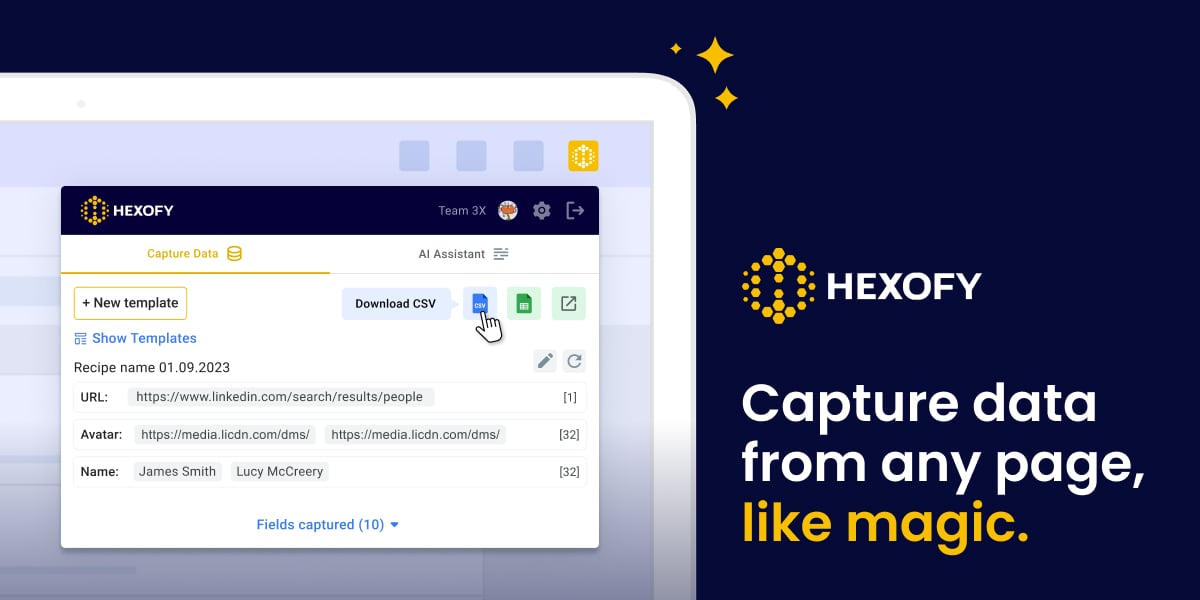
Hexofy is the perfect solution if you need a quick and easy to use to scrape on Firefox.
Rather than configuring complex selectors, this extension focuses on efficiency. It allows you to transform web pages into spreadsheets. with a single click.
All you have to do is go to the webpage, click on the extension, and that's it. Hexofy then collects all the data for you!
👉 Key features :
- 📌 Point-and-click interface
- 📌 Built-in AI assistant (GPT)
- 📌 Simple configurations to extract information quickly
- 📌 Option to export data directly to Google Sheets
👉 For whom?
Hexofy is the ideal choice if you are new to web scraping. The extension should also be a boon to those whose needs are occasional and who want to scrape without complex configurations.
3. GrabzIt Web Scraping Assistant

GrabzIt Web Scraping Assistant is a tool designed to simplify data extraction on Firefox. It acts as an assistant that helps you gather information quickly.
You can use it to scrape tables or entire lists in just a few clicks.
👉 Key features :
- 📌 Scraping without code
- 📌 Targeted data extraction
- 📌 May disable security features on certain websites
- 📌 Automation of repetitive tasks
👉 For whom?
Designed for simple tasks, GrabzIt Web Scraping Assistant is perfect for occasional users. You can extract all the data you want. quickly and hassle-free.
Are there any other alternatives?
Yes, there are other effective alternatives for web scraping on Firefox.
Among the best alternatives, we suggest:
- 👉 Scraper Master
- 👉 Visual Web Scraper
- 👉 Scraper Biz
Each of these web scraping extensions has its own unique features. It all depends on your needs!
| 🦊 Firefox extensions | 📌 Specific features | ⚙️ Key features | 🌟 Highlights |
|---|---|---|---|
| Scraper Master | Simple tool, no complex configurations | Allows you to extract text, links, and more with just a few clicks. | Simplicity, intuitive user interface |
| Visual Web Scraper | Visual tool for scraping without code | Real-time scraping monitoring, ability to rename data columns according to your needs | Visual 100 % interface, easy to use |
| Scraper Biz | Specially designed for web scraping on Google Maps | To collect information on Google Maps, you must have an account on Scraper.biz. | Saving data directly to an Excel file |
How to use Firefox for web scraping with Web Scraper?
Here's how to use it Web Scraper to make scraping on Firefox. We explain it step by step:
Step 1: Installation and configuration
- 🔹 Go to the Firefox Add-ons Store.
- 🔹 Search for Web Scraper (developed by webscraper.io).
- 🔹 Click on «Add to Firefox», then confirm the installation.
Once installed, a new Web Scraper icon will appear in your browser's toolbar.
Step 2: Creating a Sitemap«
A sitemap is a plan that defines which pages to scrape and which elements to extract. It is the basis of any project with Web Scraper. To create one, here's how to proceed:
- 🔹 Click on the Web Scraper icon in your browser, then on «Open sitemap ».
- 🔹 Then click on " Create a new sitemap ».
- 🔹 Give your sitemap a name.
- 🔹 Enter the URL of the starting page (the page you want to scrape).
- 🔹 Click on " Create sitemap ».
💡 The sitemap will then contain all the elements (selectors) that you define for extract specific data.
Step 3: Selecting elements (selectors)
The next step is to tell Web Scraper which data to extract. It's very simple:
- 🔹 Click on «Selectors» in your sitemap.
- 🔹 Add a new selector (e.g., «title,» «price,» «description»).
- 🔹 Thanks to the visual tool, you can click directly on elements on the page (Web Scraper will open a special interface for this).
- 🔹 Then choose the type of data to be extracted : text, link, image...
- 🔹 Then repeat for all the items you want to recover.
Rest assured, the interface is visual and intuitive. Even without technical knowledge, you will have no trouble selecting all the items that interest you.
Step 4: Start scraping
Once your sitemap is ready and your selectors are defined, you can finally start scraping. To do this :
- 🔹 Click on your sitemap, then on «Scrape».
- 🔹 A new window will open: this is Web Scraper's internal browser.
- 🔹 Then click on "Start scraping".
In the new window, you will be able to monitor the progress of scraping in real time, with the pages visited and the data collected. The window also displays errors and pages that fail.
Step 5: Export the data
Once scraping is complete, you can retrieve the data.
- 🔹 Return to the Web Scraper main menu.
- 🔹 Then click on «Browse data» to see a preview of the results.
- 🔹 Select the format by clicking on «Export data as CSV» Where «Export data as JSON».
You can then use the files in a spreadsheet, database, or script as needed.
What are the alternatives to web scraping with a Firefox extension?
The web scraping extensions are mainly designed for small projects. But rest assured, there are more powerful alternatives that allow you to Performing mass scraping on Firefox:
Web scraping tools
The web scraping tools are dedicated platforms that offer a complete infrastructure and integrated services. You will then be able to scrape data in bulk, quickly and efficiently.
👉 Bright Data is one of the most popular and effective web scraping tools. The platform offers all the essential features for web scraping: data collection, proxy management, anti-blocking system, and more. With Bright Data, everything has been designed to make your life easier!
You can consult our full review of Bright Data for all the details.
Software and programming libraries
Are you looking for a scraping solution for complex projects and highly personalized ? The use of software and programming libraries is the best option.
They offer more than power and of flexibility compared to web scraping extensions and tools.
Here are the best options:
- 📌 Python and its libraries
Python is one of the most popular languages for web scraping. This is thanks to libraries such as BeautifulSoup, Scrapy or Selenium. They enable information to be extracted in a structured manner, navigation to be automated, or even manage dynamic pages.
the web scraping with Python gives you complete control over the data collection process.
- 📌 Node.js: Cheerio and Puppeteer
With Node.js, you can find powerful tools for web scraping in JavaScript.
Cheerio allows you to manipulate the HTML content, similar to jQuery. puppeteer, on the other hand, is used to interact with web pages like a real browser, including for JavaScript rendering.
- 📌 PHP
PHP can also be used for scraping, particularly with tools such as cURL or DOMDocument. Even though it is not the most common programming language for this task, the web scraping with PHP remains a possible option for basic needs.
FAQs
What is web scraping?
the web scraping, it is a technique that allows you to automatically retrieve data on a website using a script or software. It's a bit like a robot visiting the pages for you and copying all the information you're interested in (titles, prices, descriptions, etc.).
For example, instead of manually copying all the products from an e-commerce site, a web scraping tool or extension allows you to’extract data in just a few clicks.
Is web scraping legal?
The legality of web scraping is a complex issue and depends on several factors:
- 📌 Terms of use of the website
- 📌 The type of data extracted
- 📌 Local laws
In general, the scraping public data is not illegal, but the scraping of protected data or private data can be. The use of’Firefox extensions for web scraping is subject to the same rules.
How much does a web scraping extension cost?
| 🦊 Firefox extensions | 🎁 Freemium plan? | 🏷️ Premium plan |
|---|---|---|
| Web Scraper | ✅ YES (free local version) | Starting at $50/month (cloud) |
| Hexofy | ❌ NO | Starting at $7.16/month (annual subscription) |
| GrabzIt Web Scraping Assistant | ✅ YES (limited functionality) | Starting at $1.69/month (monthly subscription) |
What are the best web scraping extensions for Chrome?
Are you using Google Chrome instead of Firefox? Don't worry, there are web scraping extensions that enable scrape on Google Chrome.
These include Scraper Where Instant Data Scraper which are very popular. Want to know more? You can read our article on web scraping extensions for Chrome.
Now that you know all about web scraping extensions for Firefox, which one do you plan to use? Feel free to share your feedback with us or ask any questions you may have in the comments section.




![What are the best puzzle games on PC? [Top 15]](https://www.alucare.fr/wp-content/uploads/2025/12/www.alucare.fr-quels-sont-les-meilleurs-jeux-denigme-sur-pc-top-15-Quels-sont-les-meilleurs-jeux-denigme-sur-PC-Top-15-150x150.jpg)




 English