Want to extract data online without writing a single line of code? The three best extensions Chrome for the web scraping are :
- Web Scraper.io (the most powerful)
- Instant Data Scraper (the simplest)
- Data Scraper (perfect for paintings)
All three can be set up with a single click and export your data to CSV Where Excel. Here's how to choose the right one for your skill level, along with step-by-step instructions for scraping a page in just a few minutes.
Top 3 best Chrome extensions for web scraping
1. Web Scraper.io

Web Scraper.io is the most popular Chrome extension powerful of the trio. It works just as well on a simple website as it does on complex pages with dynamic content.
Its principle is based on a sitemap : You define a navigation map, and then the extension scans the pages and retrieves the specified information.
Key features :
- Creation of sitemaps personalized
- Management page numbers
- Extraction of text, images, links, and attributes HTML
- Export data to CSV Where JSON
- Scraping locally or via the cloud (paid service)
For whom?
Web Scraper.io is ideal if you need to recover large amounts of data. It's the perfect solution for developers, them data analysts and professionals in the marketing.
2. Data Scraper

Data Scraper is an extension very easy to use, perfect for quickly extracting data from a table HTML or a list of items displayed on a web page.
Key features :
- Automatic detection of paintings and lists
- Live Preview of Scraped Data
- Quick export to Excel Where Google Sheets
For whom?
Data Scraper is primarily intended for beginners and for those who want to extract simple data without any configuration. In practice, you get an array of results or a list of contacts by just a few clicks.
3. Instant Data Scraper

Instant Data Scraper is the ideal solution for scraper without code. It excels at tables (prices, comparisons, rankings) and lists of items (emails, product descriptions, contacts, titles).
No need to create a sitemap or understand the DOM structure: its automatic detector identifies structured data for you.
Key features :
- Scraping automatic, without any configuration
- Intelligent Detection of Structured Data
- Export results to CSV Where Excel (formats xlsx (included)
For whom?
It's the perfect extension for marketers who do lead generation. You collect a list of contacts or customer reviews by a few minutes, without changing a single line of code.
These three extensions work on Chrome, but if you use other browsers, keep in mind that equivalent solutions are available for Firefox and for Opera.
How to use a web scraping extension on Chrome?
Here's a simple tutorial for scrape data in just a few clicks with Web Scraper.io. You don't need to know how to code: just follow the steps, and the extension takes care of the’extraction in your place.
Step 1: Add the extension to your Chrome browser

- Go to the Chrome Web Store.
- In the search bar, type Web Scraper.io, then click on the extension.
- Click on the ADD TO CHROME.
- Confirm with ADD THE EXTENSION in the window that opens.
Step 2: Launch Web Scraper.io
Open the’development tool using the key F12, then select the’Web Scraper tab. This tab becomes your dashboard for all your web scraping tasks.

Step 3: Create a sitemap and add a selector
the sitemap, that's your action plan. It tells Web Scraper.io which pages what to visit and which data fetch. Without it, the extension doesn't know where to start.
Here's how to create it:
- Click on Create a new sitemapthen on Create sitemap.
- In the Start URL, paste the’URLs from the page to be scraped.
- Give your sitemap a name, then submit it using Create Sitemap.
Once the sitemap is ready, you need to specify what to extract (title, price, reviews…). These are the selectors who do this work:
- Click on Add a new selector.
- Give your selector a name (for example, «price» or «title»).
- Choose the kind element to retrieve (Text for text, Link for a link, Image (for an image…).
- Click on Select, then point directly to the desired item on the page.
Specifically, a selector identifies where the’information on the page. That's what allows the extension to target exactly what you want to collect.
Step 4: Set up pagination
If the site you're scraping displays multiple results pages, you need to configure the page numbers. This indicates to Web Scraper.io How to navigate from one page to another to retrieve everything. Here's what to do:
- Add a new selector.
- Name it Pagination.
- Select the type Link.
- Check the box MULTIPLE.
- Click on the SELECT and provides a link to the next page.
Step 5: Start the scraping process
Is your sitemap set up, the selectors added, and the pagination configured? Are you ready to extract data. Here's how to start scraping:
- In the Sitemap menu, click the tab Scrape.
- Leave the settings at their defaults.
- Click on the START SCRAPING.
A new window opens to the side. In it, you see the extension browse the site and collect data in real time. It closes automatically once the job is complete.
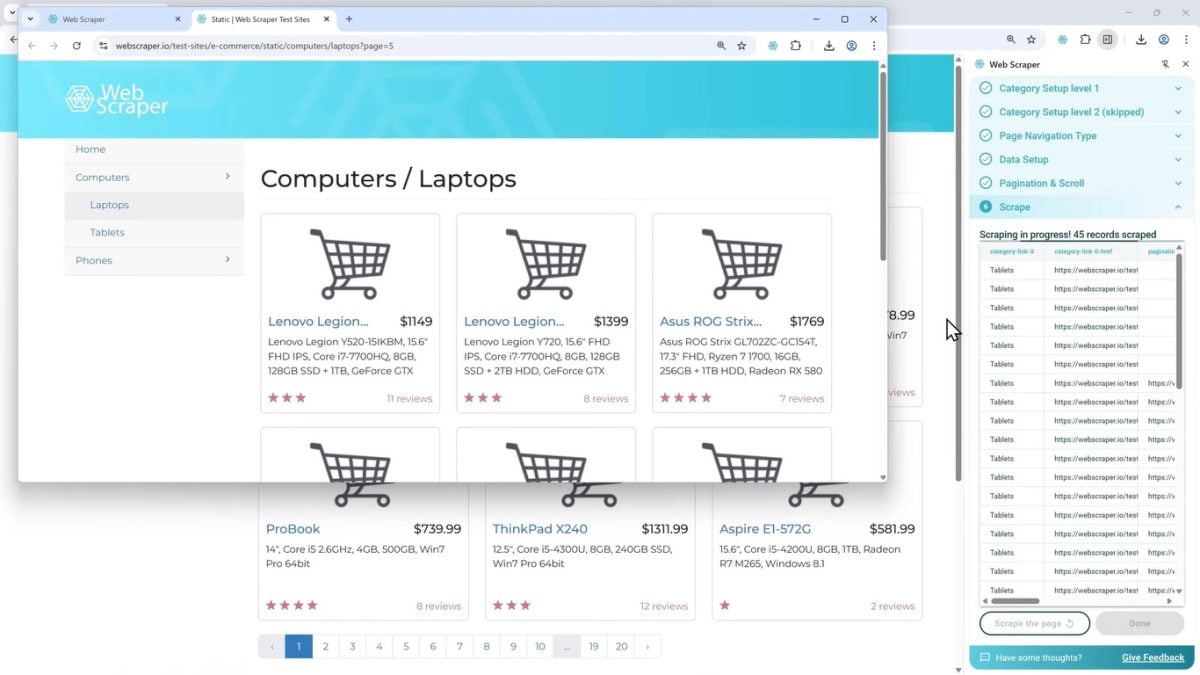
Step 6: Export the data
Once the scraping is complete, the data are stored locally in your Chrome browser. You can then export with a single click on DONE. Choose the format that works best for you: CSV, Excel (XLSX) Where JSON.

How to choose the best Chrome extension for web scraping?
The best Chrome extension for web scraping It depends on your skill level and your specific use case. Here are the criteria to check Before you get started:
- Interface: Is the extension intuitive? Can you easily select the elements you want to extract from a page?
- Features : Does she manage the page numbers ? Can you extract text, images, and links from multiple pages?
- Export formats: Check to see if you can export your data to CSV, Excel (xlsx) Where JSON. This is essential for reusing your data later.
- Business model : extension free of charge, freemium, or paid? Be aware of any limits on the number of pages you can scrape.
- Support and documentation : Good documentation and an active community help you master the tool more quickly.
Our comprehensive guide to web scraping extensions explains all of that to you in detail, including the free tools available.
What are the alternatives to web scraping with a Chrome extension?
Web scraping extensions are practical, but their capabilities remain limited : They don't allow you to scrape large volumes of data. If you need more advanced features, here are some alternatives to consider.
1. Web scraping tools
The web scraping tools are standalone software programs or applications designed for bulk data extraction. They are much more powerful than browser extensions and do not require a browser to run. These tools are often paid, but most offer freemium plans to try out the basic features for free.
If you don't know anything about programming, services like Bright Data and Octoparse let you scrape without code. We'll tell you more in our full review of Bright Data.
2. Code libraries
Do you want complete control over your data extraction projects, and are you comfortable with programming? You can create your own scraper by Python using these libraries:
- Beautiful Soup : Easily extracts data from HTML or XML pages
- Scrapy : a comprehensive framework for large-scale web scraping
- Selenium : automates the browser to interact with dynamic pages (JavaScript, forms, clicks)
You can also build your own scraper using Node.js and its libraries Puppeteer Where Cheerio. We explain everything in our article on Web Scraping with Python.
3. Cloud scraping services
Web Scraping Services cloud rely on an online infrastructure to extract data automatically of a website. Subscription-based services such as ScrapingBee Where ScraperAPI take care of everything for you: IP rotation, bypassing blockers and JavaScript rendering. It's the ideal alternative for monitor pricesanalyze product trends or collect the consumer reviews. If your targets rely heavily on JavaScript, our article on the web scraping in JavaScript explains how to take it a step further.
FAQs
Is web scraping with an extension legal?
The use of a Chrome extension for web scraping is not illegal in and of itself. It all depends on how you use it and the terms of use for the target site. The legality of web scraping is located in gray area : scrape public data is generally allowed, but always check the site's policy before you start.
Can I scrape any website?
No. Some extensions have limits on the pages with dynamic content (JavaScript). They also cannot be used to collect data from websites protected against scraping.
What is the difference between a scraper and a crawler?
- The scraper extracts data from a web page: prices, product descriptions, reviews.
- The crawler automatically crawls a website's pages to find URLs.
When used together, these two tools make an excellent team. The crawler finds the links, and then the scraper retrieves the data from the pages it finds.
Can I extract data from Google Maps with an extension?
Yes. You can use a web scraping extension to Extract data from Google Maps. All you have to do is install it in Chrome: the extension automatically collects the names, addresses, phone numbers, and reviews, which you then export to CSV Where Excel.
How do you scrape pages that require a login?
Some extensions, such as Web Scraper.io, allow you to Scrape pages behind a login page. You must first log in manually to the site for this to work. The effectiveness of this solution then depends on the protective measures implemented by the website.
How do I scrape multiple pages on the same site?
You can do this with Chrome extensions. Tools like Web Scraper.io know manage pagination automatically, using controls configured to navigate from page to page. You don't have to do a thing—the extension takes care of everything.
In short, the Chrome extensions for web scraping are really handy tools for collecting data online. You just have to choose the right extension! Which one do you plan to use for your web scraping projects? Tell us all about it in the comments!









 English