To change the language on Twitch, it depends on what you want to change:
- The interface language (for users), this can be adjusted in your account settings.
- The language of your stream (for streamers), this can be configured in Stream Manager.
We'll show you all of that below.
How to Change the Language on Twitch (Video Guide)!
We've made a video tutorial that sums it all up in under two minutes! And if you'd like, you can find the full tutorial right below.

1. For Twitch users
In most cases, Twitch is displayed in English. If you want to switch back to French or another language, here’s how to do it.
- Meeting on www.twitch.tv and log in to your account.
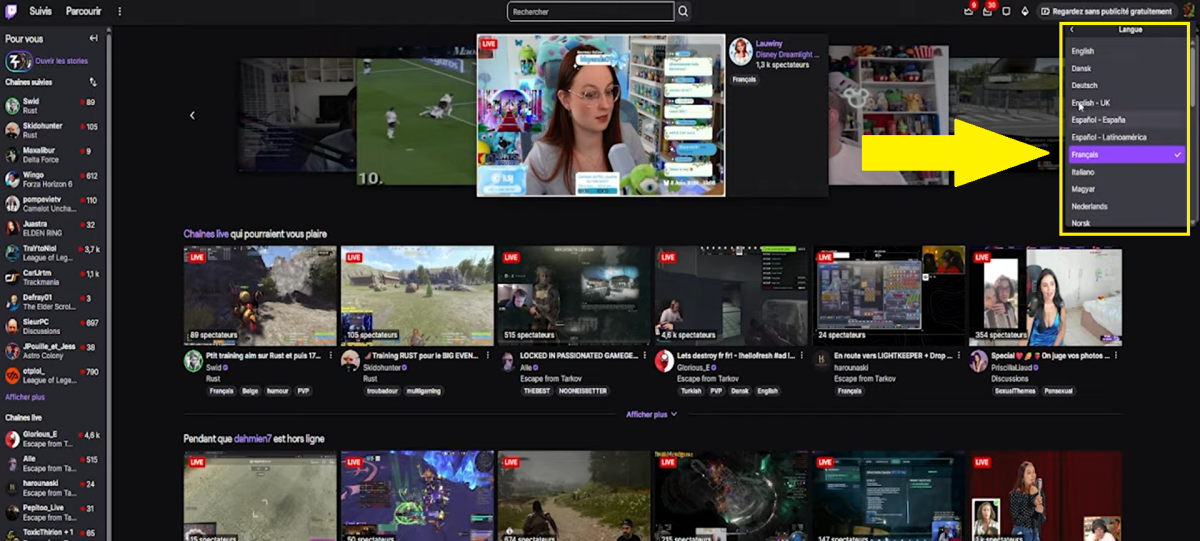
- Next, click on your avatar in the top-right corner and select “Language”.

- Then, Select a language you want.
2. For streamers
For streamers, here's how to do it.
- Visit your Stream Manager.
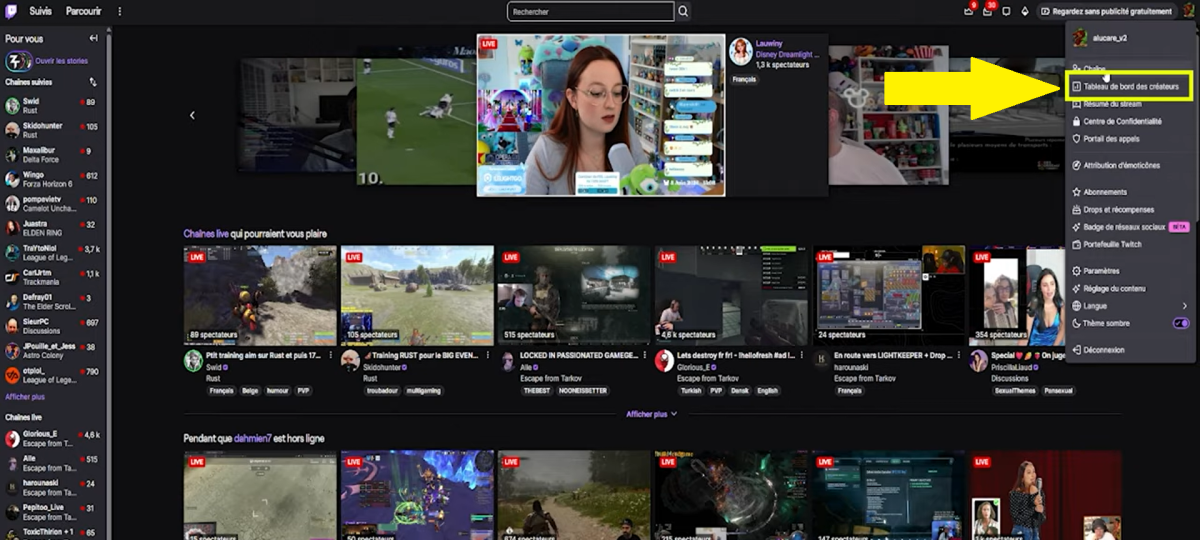
- Go to “Creator Dashboard”.
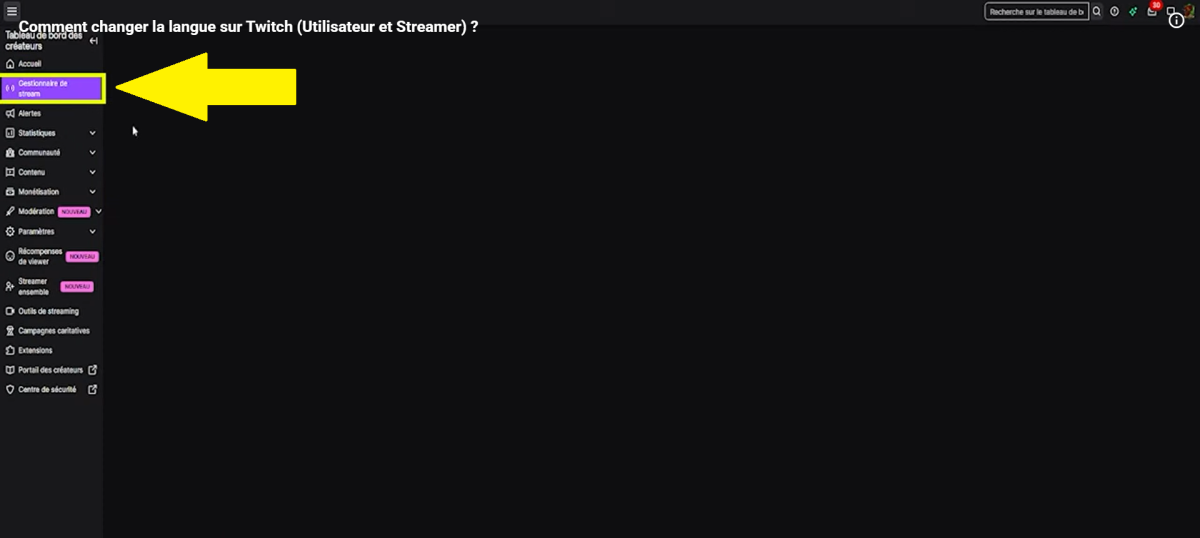
- Next, in the upper-left corner, go to “Stream Manager”.
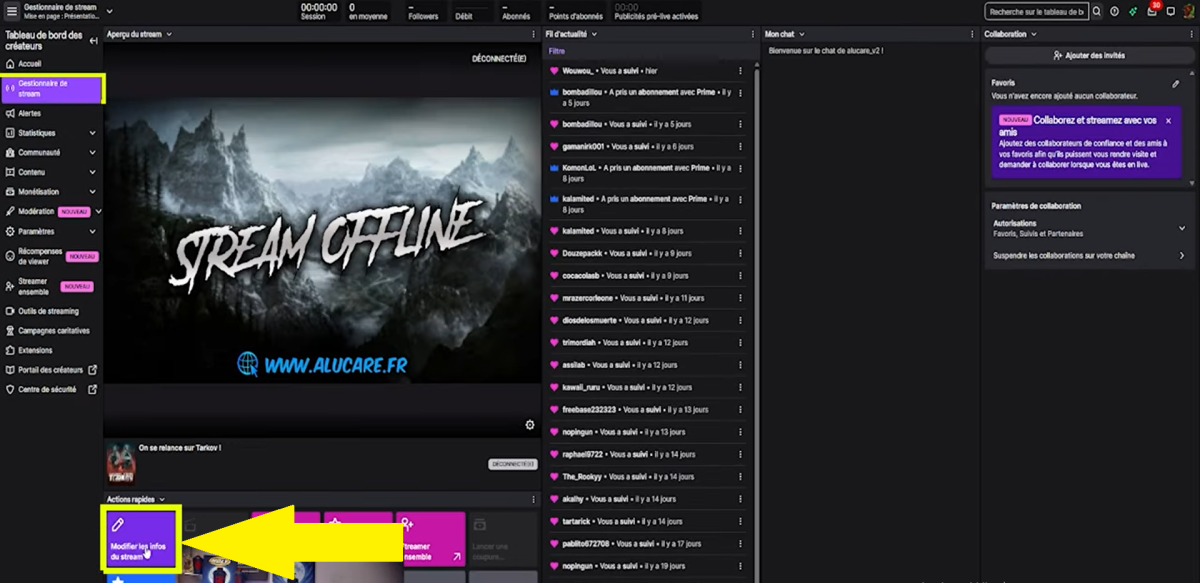
- Click on “Edit stream details”.
- Scroll down to find “Stream language”. This way, you can change the language to the one you need.

⚠️ Attention : The language you select for your stream tells the community what language you're streaming in, which affects which viewers will join you.
📌 Note : If you want to watch streams in French—not just the menus—use the “Language” filter to show only streams in French. This setting is not linked to your account settings.
FAQs
Why did Twitch switch to English on its own?
It happens sometimes after an update or if you're signing in from a new device.
Twitch is taking over the default browser language.
Does the language change apply to all my devices at the same time?
No, not immediately, and it depends on what you're changing:
- The language of your stream (for your viewers). It takes effect immediately on Twitch's servers. Your viewers will see the change everywhere (PC, mobile, TV) as soon as they refresh their app or page.
- The interface language (your Twitch menus). If you change the language of your account menus, this change is often locked to the device you’re using. Your other devices, such as your smartphone or tablet app, may take several hours to sync, or may require you to close and restart the app for the change to take effect.
I'm a streamer. I selected “French,” but my stream is still displayed in English. Why is that?
The bug is usually caused by the fact that You changed the language in one place, but not everywhere. To fix this:
- Go to your Twitch Dashboard from a web browser (avoid doing this through your streaming software).
- Edit your live stream details and check two things: make sure the stream’s language is set to “French” and that the “English” tag has been removed and replaced with “French”.
- Take a break Refresh your page (Ctrl + F5) to update your browser's display.
Does changing the interface language also change the language of my stream?
No, These are two completely separate settings.
The interface language refers to the menus you see. The stream language is what Twitch displays to viewers to help them find your content.
Is the language change permanent?
Yes, until you change it again. You can change it as many times as you like; there’s no limit.
👉 Now that your interface is set up, you can take your Twitch experience to the next level. First, check out How to get Prime Gaming (formerly Twitch Prime) for free.
And if you'd like to explore more tips for the platform, check out all our Twitch guides in the same place.
💬 If you have any questions, feel free to leave them in the comments. We’ll get back to you as soon as possible to help you out.









 English