A graphics card, commonly known as a video card, VGA card, or graphics adapter, is a graphics device. It is also a computer expansion card. Its role is to produce an image to be displayed on a computer screen. Here's how a graphics card works: it sends images stored in its memory to the screen at a specific frequency, in a format that depends on the screen and port as well as its configuration. If you are experiencing graphics performance issues or if one of your graphics cards is malfunctioning, restarting it may be a good idea. In this article, let's find out how to restart your graphics card on Windows.
This explanatory video explains in detail the steps to follow to restart your graphics card on Windows:

How to restart your graphics card on Windows?
Restarting your graphics card can be a solution if it malfunctions. To do this, here are the steps to follow:
- First, right-click on your start menu, then click on Device Manager;
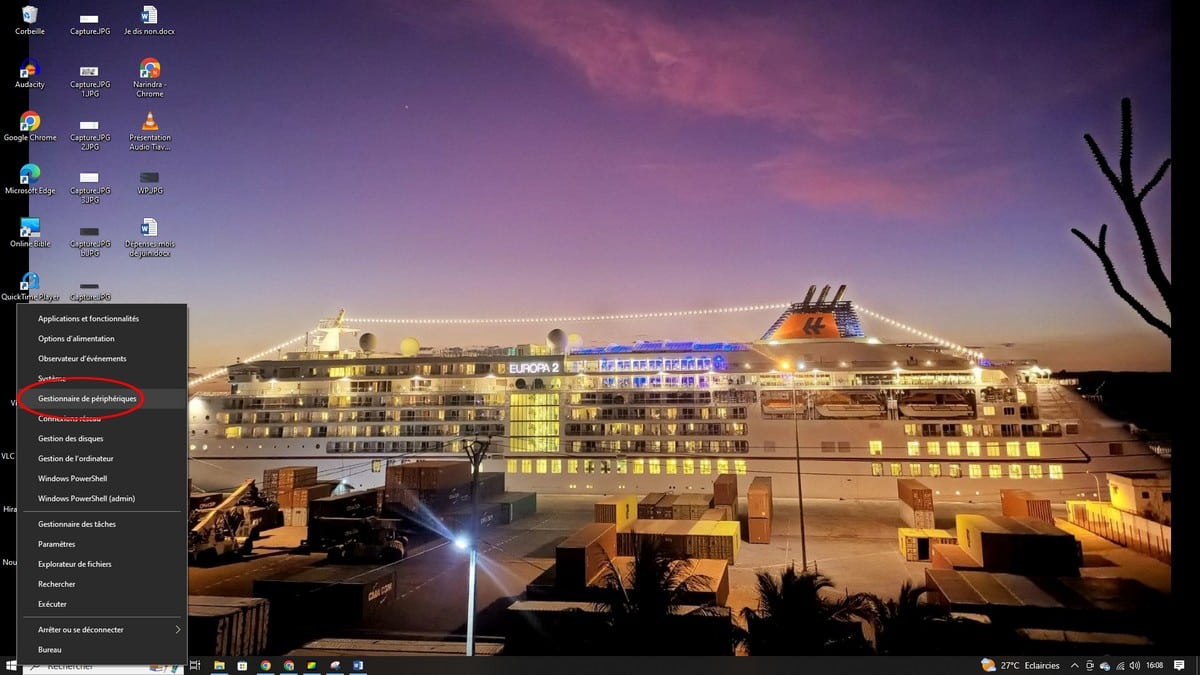
- Then you will come across a device window, choose from the list of graphics cards;
- On the graphics card of your choice, right-click and click Disable Device;
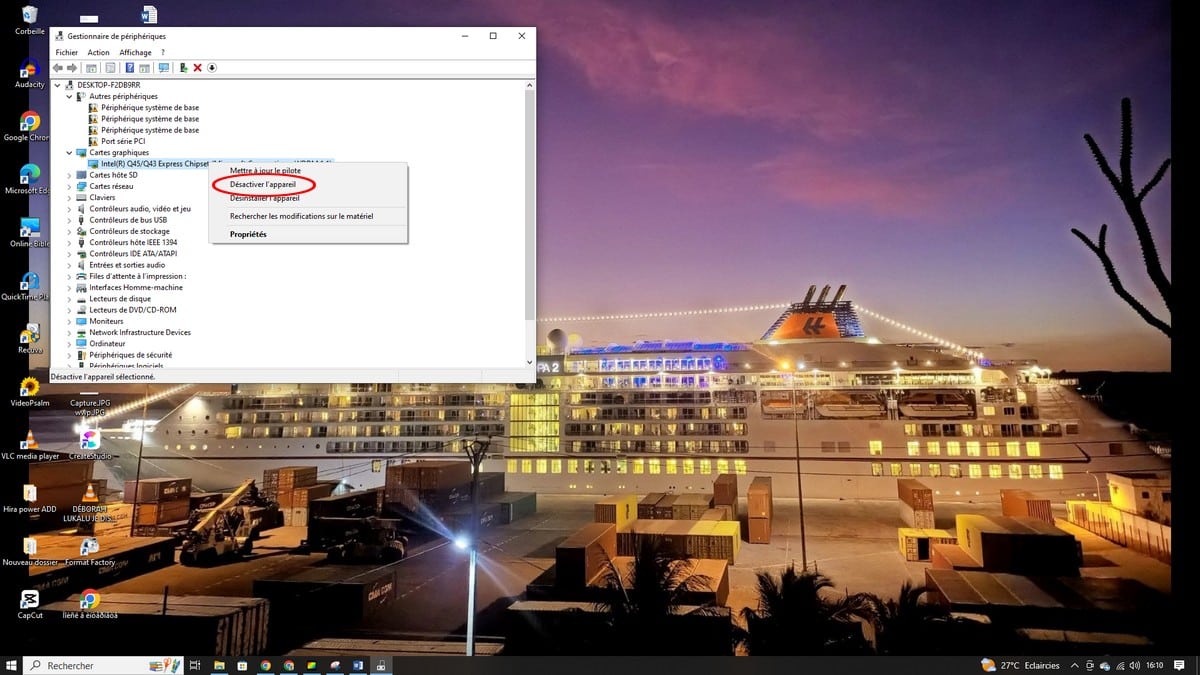
- Confirm the action by clicking Yes;
- Then, right-click again on the graphics card you just disabled and click Enable Device.
And that's all. Your graphics card is restarted. Normally it should work fine once you restart it. If the problem persists, you can always call a computer professional and leave the problem to be solved by them.









 English