To Enable Dolby Atmos on Windows 10, right-click the sound icon in the taskbar, open Spatial Sound, then select Dolby Atmos for Headphones.
Windows then redirects you to the Microsoft Store to install the app Dolby Access, free, with a trial of 14 days for the headset module.
Dolby Atmos is an advanced version of surround sound: the signals are no longer mixed onto fixed channels, but distributed throughout a 3D space before being sent to your headphones or speakers.
Available on PC since 2017, this technology offers a immersive audio experience significantly richer experience, both for video games and for home theater. It offers a a new dimension of sound compared to simple stereo sound.
How can I use Dolby Atmos with Windows 10?
Dolby Atmos is compatible only with certain speaker systems and dedicated receivers. Microsoft has therefore included the feature Dolby Atmos for Headphones in the Windows 10 Creators Update to work around this limitation.
With this software solution, you’ll enjoy a immersive spatial audio experience with just a pair of headphones, without a physical Atmos receiver. The result is very good, even if it doesn't replace a real home theater compatible.
The application Dolby Access is free to download from the Microsoft Store. This is the module Dolby Atmos for Headphones which is a paid service, with a 14-day free trial to try it out before you buy. Check out the Microsoft Store at the current price. The license you purchased is for life and usable on 10 devices.
Before you start, check these prerequisites :
- Windows 10 up to date (at least the Creators Update)
- A helmet or some Dolby Atmos-compatible speakers
- The application Dolby Access installed
Here's how to enable the Dolby Atmos On your Windows 10:
To use the free version:
- If you don't have the app yet, Windows will prompt you to download it Dolby Access since Microsoft Store. Install it, then go back to the menu.
- Click on Open
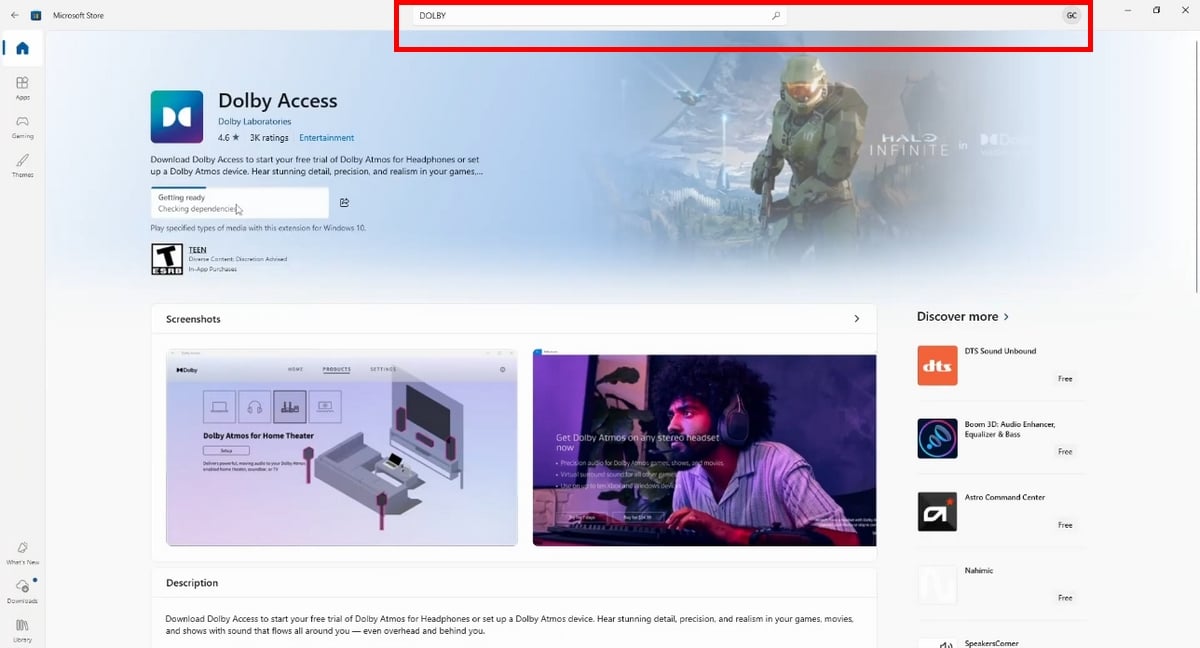
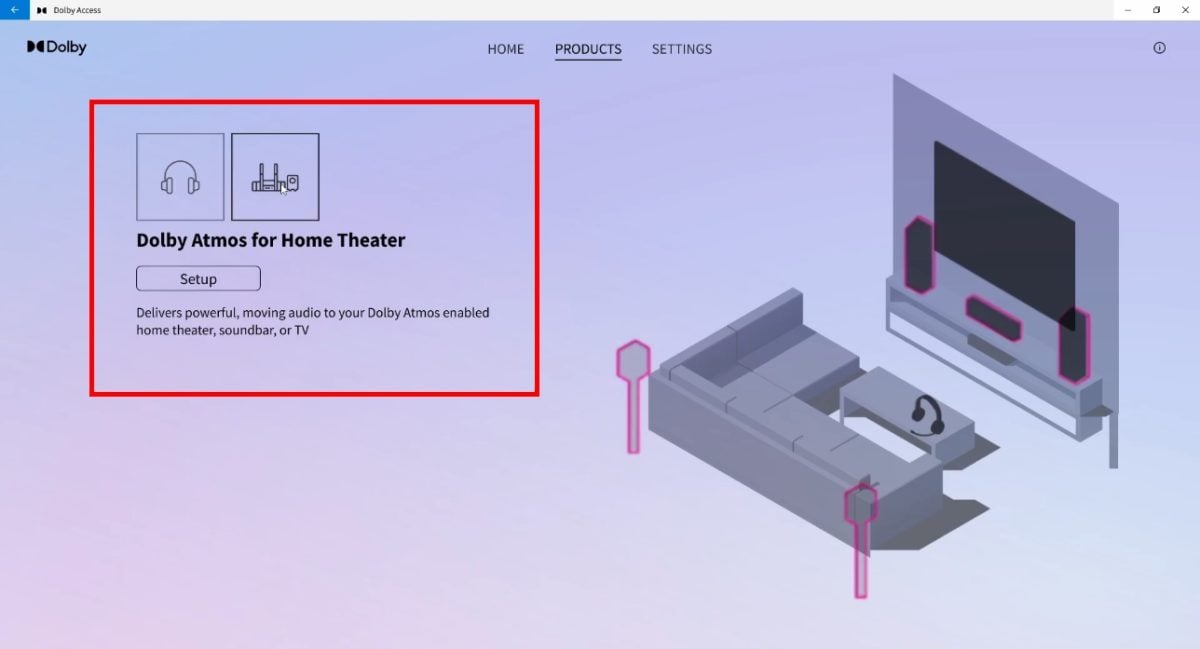
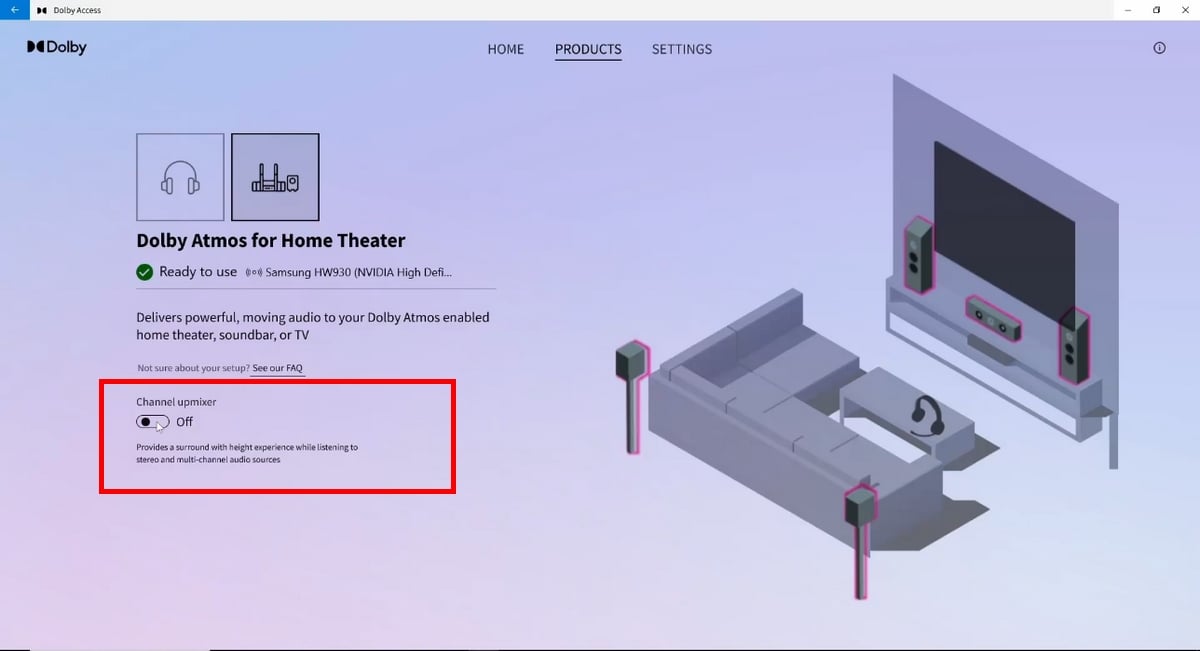
- Choose Dolby Atmos for home theater (free option) and click on Go to settings (Go to settings).
- In the Windows Sound settings, select your audio device / home theater, then open its properties.
- In the Spatial Audio section (Spatial sound), select Dolby Atmos for home theater from the drop-down menu, then click on Configure.
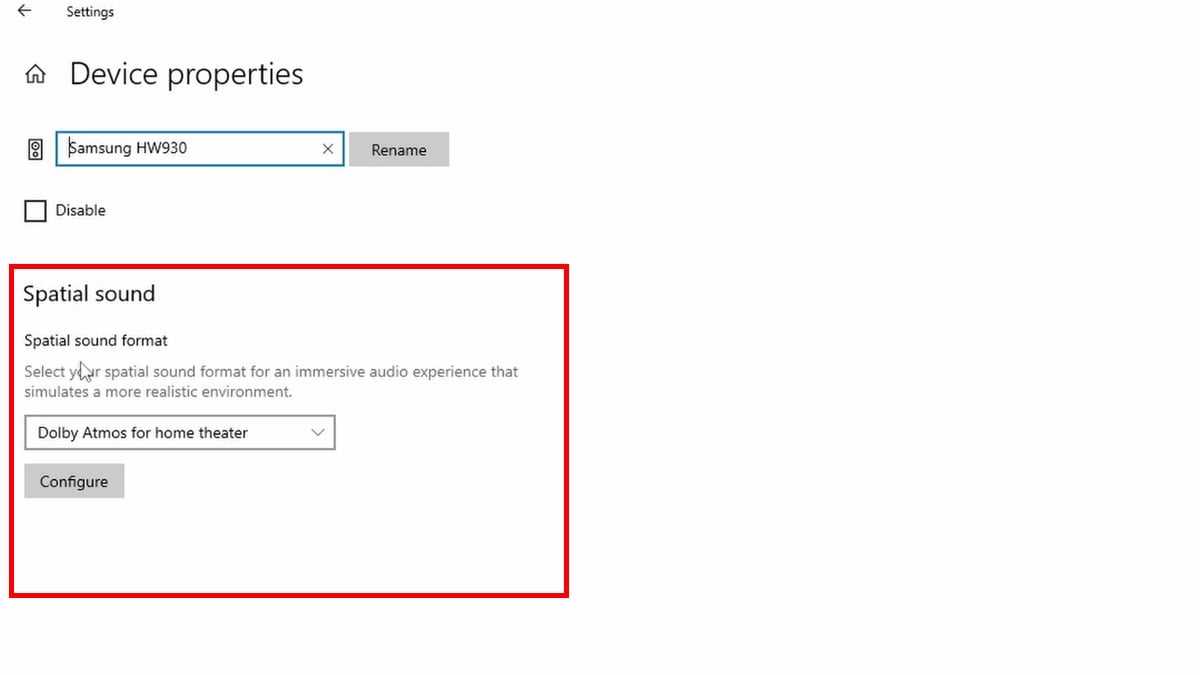
- You can enable the channel mixer option according to your preferences, if it's available.
To upgrade to the paid version:
- Make a right click on the sound icon in the taskbar.
- Open Spatial Sound, then select Dolby Atmos for Headphones.
- If you don't have the app yet, Windows will prompt you to download it Dolby Access since Microsoft Store. Install it, then go back to the menu.
- Windows 10 often asks you to restart. Once the computer has restarted, right-click the sound icon again and reselect Dolby Atmos for Headphones to finalize.
- In Dolby Access, select Try it free for 14 days or directly To buy.
During the free trial, the app offers to’enable Dolby Atmos for helmets. Click on Configure the PC settings, then select Dolby Atmos for Headphones in the section Spatial audio format. You can then customize your audio profile based on your headphones or speakers.
How do I activate Dolby Atmos on Windows 11?
The steps are similar to those for Windows 10, with a few differences in the audio settings. Here's how :
- Right-click the sound icon on the taskbar.
- Select Spatial Sound, then select Dolby Atmos (formerly Dolby Atmos for Headphones).
- Windows asks you to install the app Dolby Access since Microsoft Store : https://apps.microsoft.com/detail/9n0866fs04w8.
- Once the application is installed, Restart your PC.
- After restarting, right-click the sound icon again, then select Dolby Access Where Dolby Atmos for Headphones to open the audio settings.
You can launch the’14-day free trial by clicking on Try it for free, or proceed directly to checkout. For an option 100 % free, select Windows Sonic in the same menu Spatial Sound.
How do I get Dolby Atmos?
The starting point is the’application Dolby Access, available for free download at the Microsoft Store.
It serves as a gateway to activate and customize the’spatial audio on your device. Without it, the option Dolby Atmos for Headphones simply does not appear in the "Spatial Audio" menu.
- Download Dolby Access since Microsoft Store (download free) : https://apps.microsoft.com/detail/9n0866fs04w8.
- Open the app. You have two options: enjoy the’14-day free trial via headset, or buy directly Dolby Atmos for Headphones. Check out the Microsoft Store for the current price.
- For a home theater, access is free. Click on Configure and follow the on-screen instructions.
- Next, go to Settings > System > Sound > Output > Device properties > Spatial sound and select the option that works for you from the drop-down menu.
- Launch your platform or game, then select an appropriate audio setting via Settings > Sounds > Presets.
On which platforms can I listen to and watch Dolby Atmos content?
Once the Dolby Atmos Even if it's enabled on your PC, you still need compatible content to enjoy a immersive audio experience. Here are the main platforms that support this technology:
- Netflix : Many movies and TV shows are available in Dolby Atmos, but only through the browser Microsoft Edge or the Netflix from Microsoft Store. A compatible subscription and Dolby Atmos-compatible speakers are required.
- Amazon Prime Video : Many movies and TV shows are available there in Dolby Atmos. All you need is a subscription and a compatible device for an immersive experience.
- Tidal and Apple Music : As for music, these platforms offer tracks mixed in Dolby Atmos for a richer, more immersive listening experience.
You can also listen to music by Dolby Atmos through concerts filmed in this format and broadcast on Blu-ray. Other services and apps regularly add compatible content, including both video and audio.
Using Dolby Atmos on Windows
On a PC, Dolby Atmos works like a spatial sound simulation. The sound quality depends on two things: the compatibility of the content and the quality of your audio equipment.
In practice, few pieces of content truly take full advantage of spatial audio, but the’audio experience is much more immersive than traditional stereo sound.
Side video games, more and more titles are supporting the technology, particularly in the shooting games. Games like Call of Duty benefit greatly from this: spatial audio allows you to pinpoint the location of sounds around you with much greater precision than traditional stereo.
Be aware, however, that the results vary from game to game. In some titles, the audio clarity is exceptional. In others, the effect is disappointing—to the point where it’s sometimes better to turn the option off.
As for equipment, Dolby Atmos works just as well with a home theater than with a simple pair of stereo headphones. Only certain models reproduce all the audio details, such as the stereo headphones Xbox.
On a PC connected to Dolby Atmos-compatible speakers or a home theater system, you often need a compatible amplifier, provided by third-party manufacturers.
If you'd rather stick with a completely free option, Windows Sonic is natively integrated into Windows. It can be enabled with just a few clicks in the audio settings, without downloading anything, and offers a immersive audio experience very close to the Dolby Atmos, which is ideal for testing the soundstage before making a purchase.








 English