To Disable sticky keys on Windows, type «persistent keys» in the search bar, then click on Disable Sticky Keys. You can also go through the system settings or use the keyboard shortcut.
The persistent keys are a accessibility feature of Windows which allows you to run a keyboard shortcut by pressing one key at a time.
For example, instead of keeping Alt and Tab At the same time, first press Altthen on Tab.
This feature is useful for users who have trouble pressing multiple keys at the same time modifier keys as Maj, Ctrl Where Alt.
It becomes embarrassing If you enabled it by mistake: the modifier keys (Maj, Ctrl, Alt, Windows) remain «active» after a single press, which interferes with normal typing.
This video shows you in detail how to do it:
Explanatory video in French by Alucare, ideal complement to the page. View video (you can use YouTube's automatic translation)

How to disable Sticky Keys on Windows?
Method 1: Using the search bar (the fastest)
This is the fastest way to disable sticky keys on your computer. Here are the steps:
- Access your taskbar and search for «persistent keys» in the search bar.
- Click on Disable Sticky Keys.
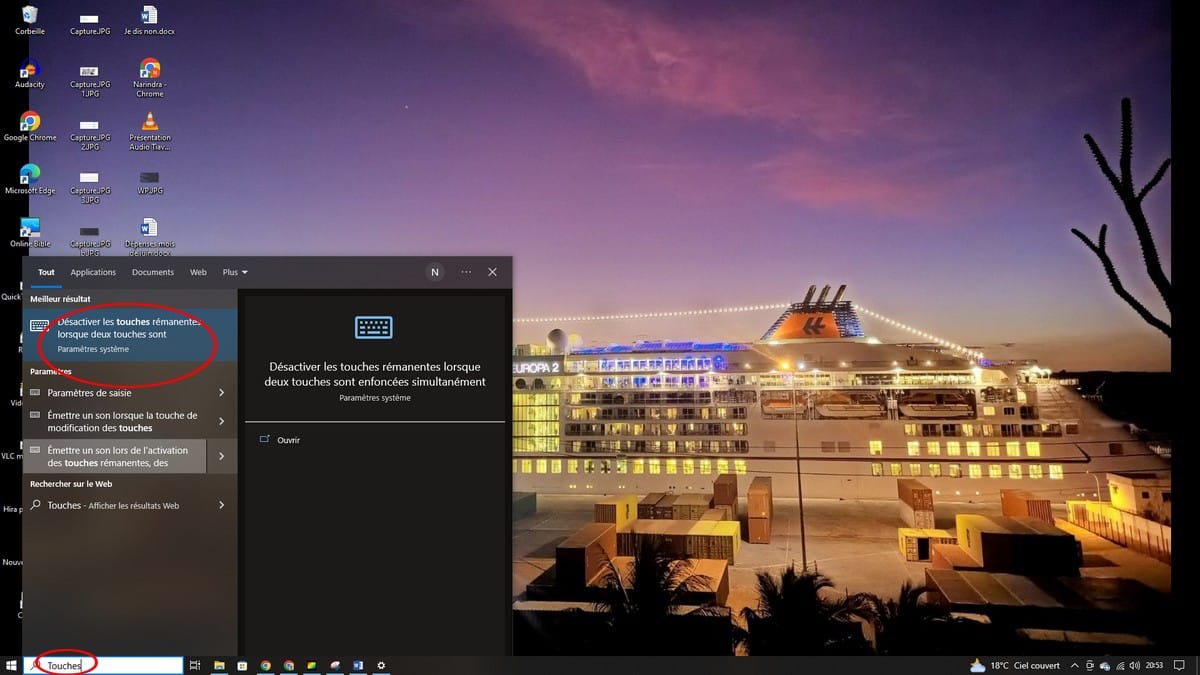
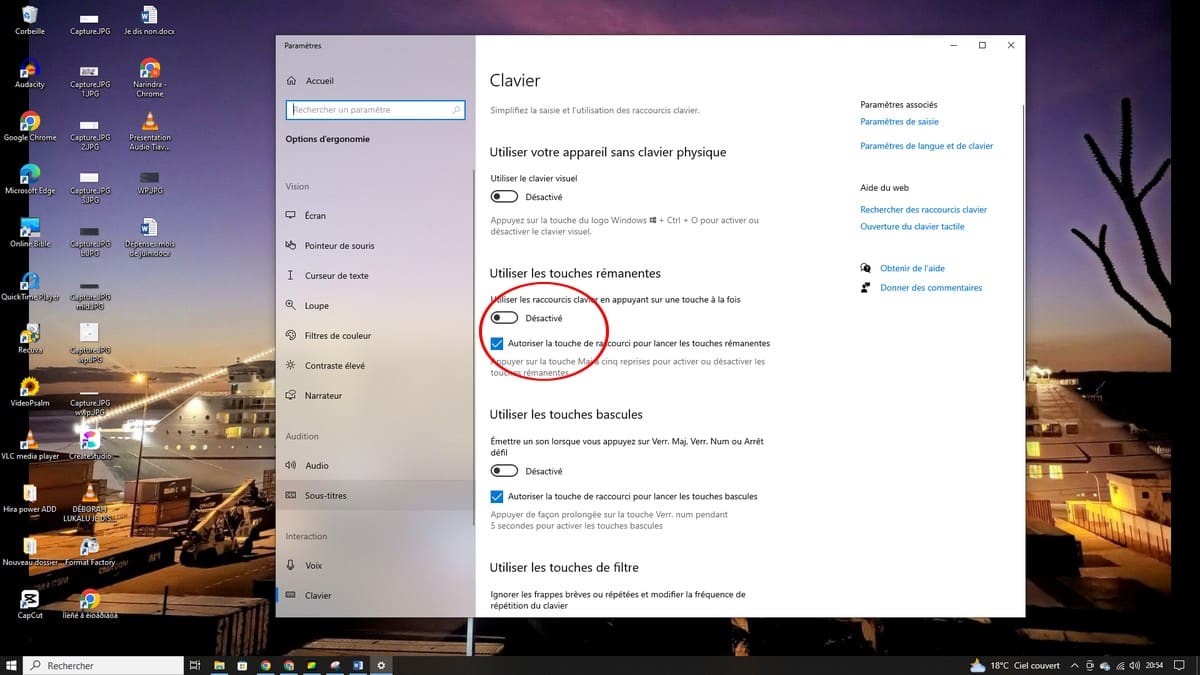
- You will be redirected to the settings window. Click the Deactivate button to confirm that the sticky keys have been disabled.
Method 2: Through Settings on Windows 10
You can go directly to the system settings to disable sticky keys, especially if you can't find the option using the search function:
- Press Windows + I to open the settings.
- Go to Ergonomic Options, then select the section Keyboard.
- Dans la section Using the sticky keys, disables the button.
You can also go through the Control Panel on your PC. Open it, Click on Ergonomic options, Then click «Make the keyboard easier to use.» There, uncheck "Enable sticky keys" to turn them off.
Method 3: Through Settings on Windows 11
On Windows 11, the path in the settings is slightly different:
- Open the settings with Windows + I.
- Click on Accessibility in the left-hand menu.
- Select the section Keyboard.
- Dans la section Persistent Keys, click the button to disable sticky keys.
Method 4: The Keyboard Shortcut
If a window accidentally prompted you to enable sticky keys, you can undo that in just a few seconds:
- If the hold keys are active, press 5 times in a row on the button Maj : They turn off immediately.
- If a window asks you to enable them, click Nope.
- This shortcut works both ways, provided it is enabled in the settings.
- Press the button 5 times Maj also lets you reactivate them: a window will appear; click on Yes.
How do I enable sticky keys in Windows?
The same methods are used to Enable sticky keys. You can press 5 times in a row on the key Maj : A window will appear asking if you want to enable this feature. You can also go to Settings:
- On Windows 10 : Settings, Accessibility, Keyboard, then enable the button in the "Use Hotkeys" section.
- On Windows 11 : Settings, Accessibility, Keyboard, then enable the button in the Sticky Keys section.
Once the sticky keys are enabled, you can enter your keyboard shortcuts one key at a time, without having to press multiple modifier keys at the same time.
Advanced Settings for Hotkeys
When you go to the section Persistent Keys In the accessibility or usability options, you'll find several advanced settings. These settings allow you to customize how the feature works:
- Beep When you press a modifier key: that beep confirms that the key is active.
- Display the status of the hold keys On the taskbar: A visual indicator appears to show which key is currently active.
- Disable Sticky Keys automatically when you press two keys at the same time: handy for quickly switching back to a standard keyboard.
- Lock the modifier keys When you press it twice: the key remains active until you press it again.
On Windows 10, these options appear below the button in Ergonomic Options, Keyboard, once the hotkeys are enabled. You can also find them via the link Configure the hotkeys in the Control Panel.
On Windows 11. Expand the "Sticky Keys" section in the Accessibility settings under "Keyboard.".
Why do the memory keys turn on by themselves?
Sticky keys are often activated by mistake when you press a key 5 times in a row on the button Maj quickly, such as in a game or when typing quickly.
Windows interprets this as a request for activation and displays a pop-up window. If you click «Yes» without paying attention, the sticky keys will be enabled.
To avoid this problem, you can disable automatic keyboard shortcut detection. In the accessibility options, uncheck the option that enables sticky keys when you press a key 5 times Maj.
Your keyboard will no longer be affected by this accidental activation on your computer or PC.
Once the Disabling the hold keys Once this is done, your keyboard will return to normal operation. You can once again use your keyboard shortcuts by pressing multiple modifier keys at the same time.
To discover other helpful tips: check out our Keyboard guide !








 FR
FR  RU
RU  EN
EN  ES
ES  IT
IT  DE
DE  ZH
ZH  PT
PT  ID
ID  JA
JA  DA
DA