The bots Discord allow users to take advantage of various types of advanced operations and help them perform certain tasks that they could not perform before.
Among the most popular are the Dyno bot.In this article, we will tell you about how to set up and use this tool.
How to install and configure Dyno bot on your Discord server?
To install and configure Dyno On your Discord server, follow these steps:
- First, go to the bot's website: https://dyno.gg/. Click on the « Add to server ".
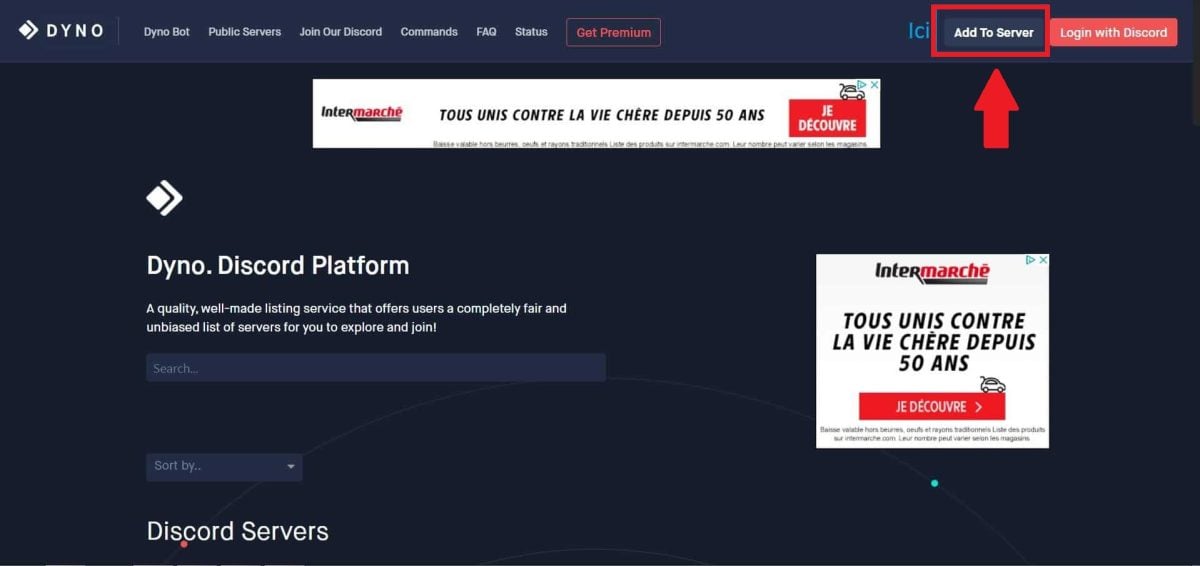
- Then select the plan that suits you. If you want to use the free plan, click the “Add to server” button next to the option. free package.

- If you are not yet logged in to your account, use your credentials to log in. You will then be redirected to the Discord application. Next, select the server on which to invite the Dyno robot. Please note that administrator permissions on the server are required to complete this step.

- Once you have selected the server, click the « Continue », then click on the « To allow ".

- Confirm the captcha and a Dyno bot configuration page will open. Complete the configuration.

- Now open the’application Discord. Access the server where you added the bot, and you will find the Dyno bot added.
How do I set up custom commands with the Dyno bot?
One of the best features of bots like Dyno is undoubtedly that its command system is completely customizable.
As a result, interacting with members of your servers becomes easier and certain tasks are quickly accomplished within your server Discord.
Here's how to configure the custom orders with the Dyno bot:
- Go to dashboard for starters.
- Dans la section «Modules»then press «Custom commands».

- Then press «Add command».

- Write it down name order as well as the description. Define what you want the command to do.
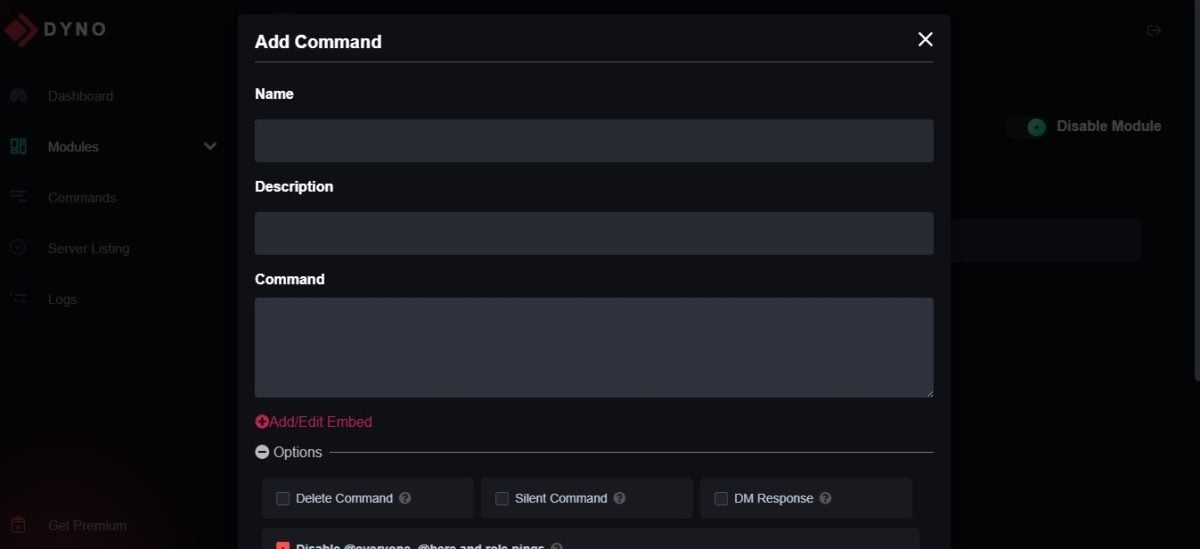
- Click on " To register » to save the order.
How do I use Dyno's music controls?
As mentioned earlier, Dyno offers many useful commands and features for users. Among the most popular with members are music commands, allowing you to play music, create playlists, and much more.
1. Play a song
To start playing music with Dyno, simply type the command « play »followed by the name of the song or YouTube link. The bot will search for the song and add it to the play queue.
Note that this command can be used as many times as you like to add more songs to your queue.
2. Queue
If you want to see the list of songs currently playing, you can use the queue control. A numbered list of all your pending songs will then be displayed.
If you want to remove a song from the queue, you can use the « delete »followed by the song number in the list.
3. Music playback controls
Dyno bot also provides commands to control music playback:
- To pause the music, press the control button. break.
- To resume playback, press the control. resume.
- To skip to the next song, press the control button. jump.
In addition, you can also adjust the music volume using the « volume »followed by the desired value.
With these music controls, you can enjoy all your favorite songs while you use Discord.
FAQs
Dyno bot: what is it?

Dyno is a moderation bot which is fully customizable on Discord. It has numerous entertainment, music, role-playing, and other commands to discover for a better experience on Discord.
Particularly suitable for those who have just configured their Discord server, the Dyno bot gives you the freedom to control your features using a dedicated web dashboard.
What are the key features of the Dyno bot?
It features numerous functions to know :
- A dashboard ergonomic and intuitive which facilitates management.
- Full moderation customizable, including timed mutes and moderation protocols.
An anti-spam detector. - Allows you to create a custom order.
- AFK status.
- Allows you to perform event reminders.
- Allows you to publish and share messages automatically.
- Allows you to automatically assign roles to members of your server. You can also customize permissions for each role and maintain control over the roles and responsibilities of each member of your server.
One of the best bots for beginners on Discord, the Dyno bot is shaping up to be the competitor of MEE6 and is used by millions of people around the world.
Keep in mind that Dyno offers much more than just music control, such as Welcome and goodbye command For example! So don't hesitate to do a little research on all the options this bot has to offer.
What are the advantages and disadvantages of the Dyno bot?
Like many bots that are popular with many users, such as the MEE6 bot or Carl Bot, the Dyno bot on Discord also has advantages and disadvantages.
| ✅ Benefits | ❌ Disadvantages |
|
|
To use other bots such as the Rythm bot, be sure to check out our article on how to use the Rythm bot on Discord !
In short, Dyno is one of the best bots to use on Discord for improve server management.
- Dyno is a customizable moderation bot for Discord, offering features such as music management, roles, and many others that you can configure via an intuitive web dashboard.
- L'Dyno Bot installation on a Discord server requires administrator rights and is done via the official website, with a step-by-step guide to configuring custom features and commands.
- Dyno offers moderation tools advanced features, music controls, event reminders, and word filters, improving management and interaction on Discord servers.
Now you know how to configure and use Dyno bot on Discord. Feel free to try out its new features to moderate and maintain security on your server.









 English