With the constant evolution of digital media, image format plays a crucial role in how we perceive videos. From the square frames of vintage televisions to the wide screens of modern smartphones, image format has evolved to adapt to changing viewing habits and technological advances. Understanding and using the right video format is essential to providing visually appealing and immersive content to your audience.
In this article, we will explore the importance of aspect ratio and provide step-by-step instructions on how to change the aspect ratio of a video using the video editor. Movavi.
The importance of video format
The aspect ratio corresponds to the proportional relationship between the width and height of a video or image that can easily change video speed on iPhone or any device. It is expressed as a ratio of two numbers, where the first number represents the width and the second number represents the height. Different aspect ratios create different visual experiences and elicit specific emotional responses from viewers. With the evolution of technology, various aspect ratios have emerged to suit specific platforms and devices.
Today, among the most popular formats are:
- 16:9 (Widescreen) : This image format is widely used on modern television screens, computer monitors, and online video platforms. For example, it is perfect for YouTube video dimensions. The 16:9 format offers a cinematic experience and is ideal for storytelling, presentations, and video content.
- 4:3 (Standard) : 4:3 image resolution was common on older televisions and has a more square frame. It is less commonly used today, but may still be relevant in certain contexts, such as presentations on older devices.
- 1:1 (square) : Popularized by social platforms such as Instagram, this square image format is ideal for social media content. It focuses the viewer's attention on the center of the frame and is often used for images and short videos.
- 9:16 (vertical or portrait) : With the rise of smartphones, vertical videos have gained popularity. The 9:16 format is perfect for capturing full-screen videos on mobile devices without having to rotate the screen.
Choosing the right image format for your video is crucial, as it influences how your content is perceived and determines how well it fits on your audience's screens.
Why it is important to use the right format
The right format for your video is important for several reasons:
Visual appeal
Content that is correctly formatted for the intended aspect ratio appears more visually appealing and professional. Incorrect aspect ratios can distort the image and compromise the overall aesthetics.
Coherence
Maintaining a consistent aspect ratio in your content helps create a uniform brand identity. This consistency reinforces recognition and trust among your audience, while also making your videos ready to be downloaded and shared on YouTube or on other social networks.
Optimal viewing experience
Videos that match the aspect ratio of the viewer's device provide a seamless and immersive viewing experience in high-definition (HD) video. This eliminates the need for viewers to adjust their settings, ensuring they remain engaged with your content.
Platform compatibility
Different platforms and devices have different aspect ratio requirements. Adhering to these specifications ensures that your content will look its best no matter where it is viewed. Whether you need to change the video format for social media, streaming, or other online channels, keeping the appropriate aspect ratio in mind is essential.
How to change video format with Movavi Video Editor: step-by-step guide
Movavi Video Editor is a widely known video editing program in the industry. It offers a comprehensive set of tools and features for creating and editing videos professionally. With its user-friendly interface and powerful capabilities, Movavi Video Editor has become a popular choice among content creators, amateur videographers, and even film professionals. Whether you want to adjust the image format, add special effects, cut sequences, or apply smooth transitions, Movavi Video Editor lets you bring your ideas to life in a creative and engaging way.
Before changing the format of a video, make sure Movavi Video Editor is installed on your computer before proceeding.
Step 1: Import your video
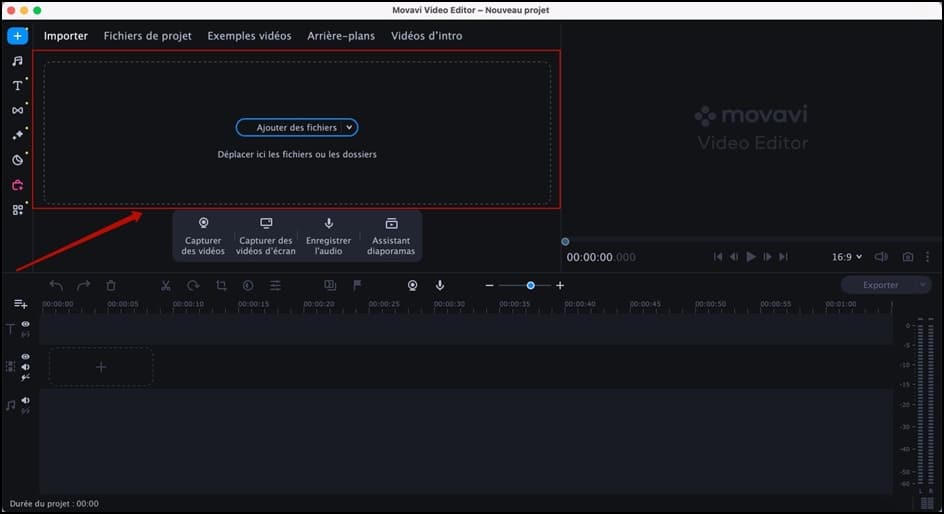
Open Movavi Video Editor and create a new project. Click the "Add Files" button and select the video you want to edit from your computer. You can also drag and drop your video directly into the section. The video will appear in the media bin.
Step 2: Add a video to the timeline
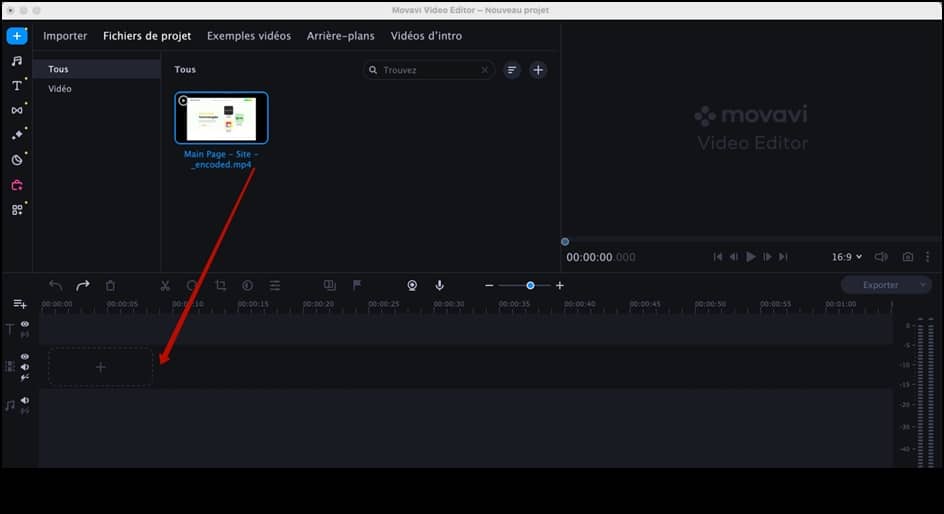
Drag and drop the imported video from the media bin to the timeline at the bottom of the screen. This is where you will adjust the image format.
Step 3: Select the desired image format
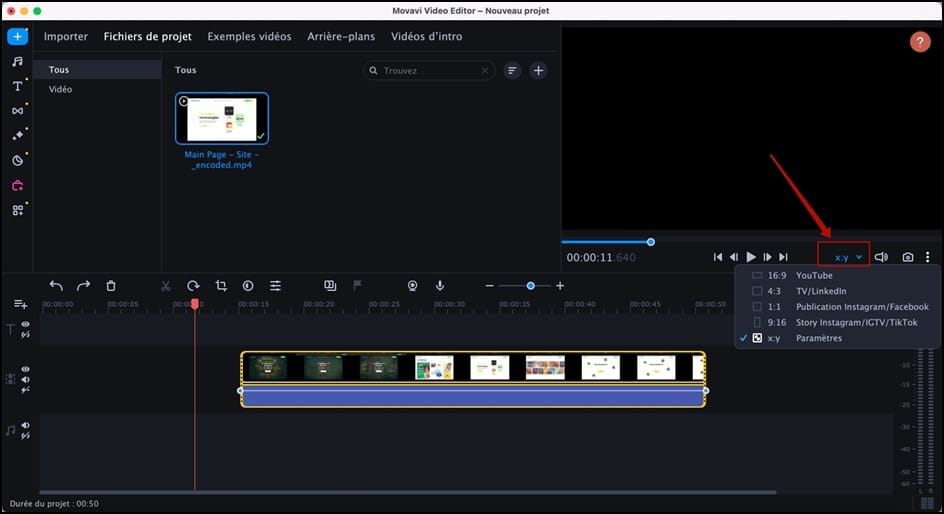
Click on the video clip in the timeline to select it. Then go to the "Settings" tab in the right-hand panel. Under the "Video" section, you will find an option to change the image format. Click on the drop-down menu and select the desired image format.
Step 4: Preview and save
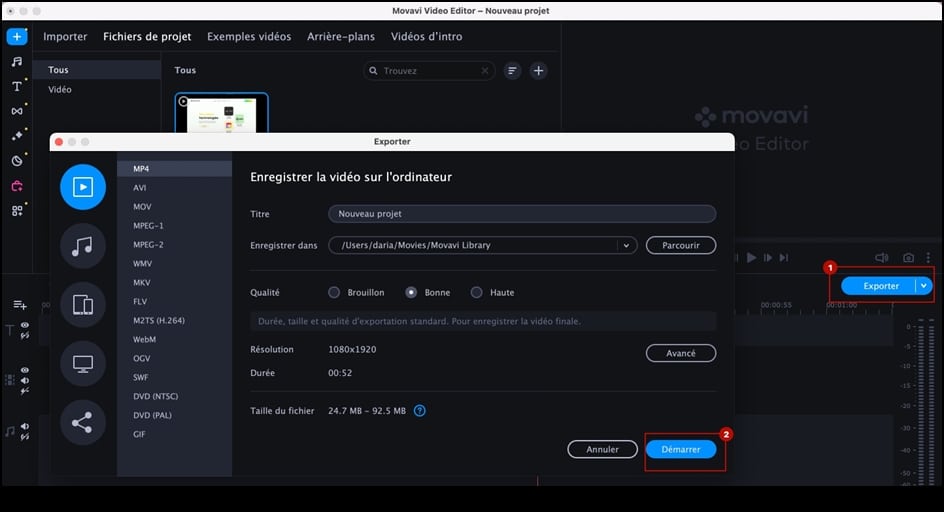
After making the necessary adjustments, play the video preview to ensure that everything looks as expected. If you are satisfied, click the "Export" button. Choose the desired quality settings and destination folder for your edited video. Then click "Start" to save the video with the new aspect ratio.
Conclusion
In the world of digital media, image format has the power to influence how your content is perceived and experienced by your audience. Choosing the right image format and formatting your videos correctly is essential for maintaining visual appeal, consistency, and an optimal viewing experience across different devices and platforms, as well as maximizing your views on social networksMovavi Video Editor simplifies the process of changing aspect ratios with its user-friendly interface and robust editing tools.
Follow the instructions in this guide and confidently change the aspect ratio of your videos.









 English
Thanks for your article 🙂