It's not complicated to make a screenshot with keyboard from a computer. Find out how to do it in this article!
Taking a screenshot with the keyboard on Windows
It is possible to make a screenshot with a PC (Windows) keyboard, using the techniques described below:
- You can press the Print screen.
- Another option is to combine : Windows + logo key Print screen.
- If your computer does not have a Print Screen key, here is the shortcut to use: Windows logo key + Shift + S.

These keys help you take a screenshot on an AZERTY keyboard. To take a screenshot on a QWERTY keyboard, use the same buttons, except that they will have other names :
| #️⃣ Key on an AZERTY keyboard | ✅ Correspondence in QWERTY |
|---|---|
| Print screen | Print Screen |
| Shift | Shift |
Discover how to change the keyboard language on a PC in our article on the subject.
Then select the to capture to obtain the screenshot. You can choose between four types of selection in the capture:
| 📌 Type of screenshot | 📋 Details |
|---|---|
| Capturing free form | This type of capture lets you draw any shape around an object. |
| Capture rectangular | This capture consists of dragging the cursor around an object to form a rectangle. |
| Capturing window | In this capture, select a windowThis is a dialog box, for example, that you want to capture. |
| The screenshot in full screen | This technique captures whole screen. |
Taking a screenshot using the keyboard on a Mac
Explanatory video in French by Alucare, ideal complement to the page. View video (you can use YouTube's automatic translation)

Unlike the technique used on PCs, the screenshot with the keyboard on Mac is different depending on the expected result. Here are three types of capture you need to know about.
Full screenshot
To perform a full screenshot with the Mac keyboard, use this combination :
- Shift + Command + 3
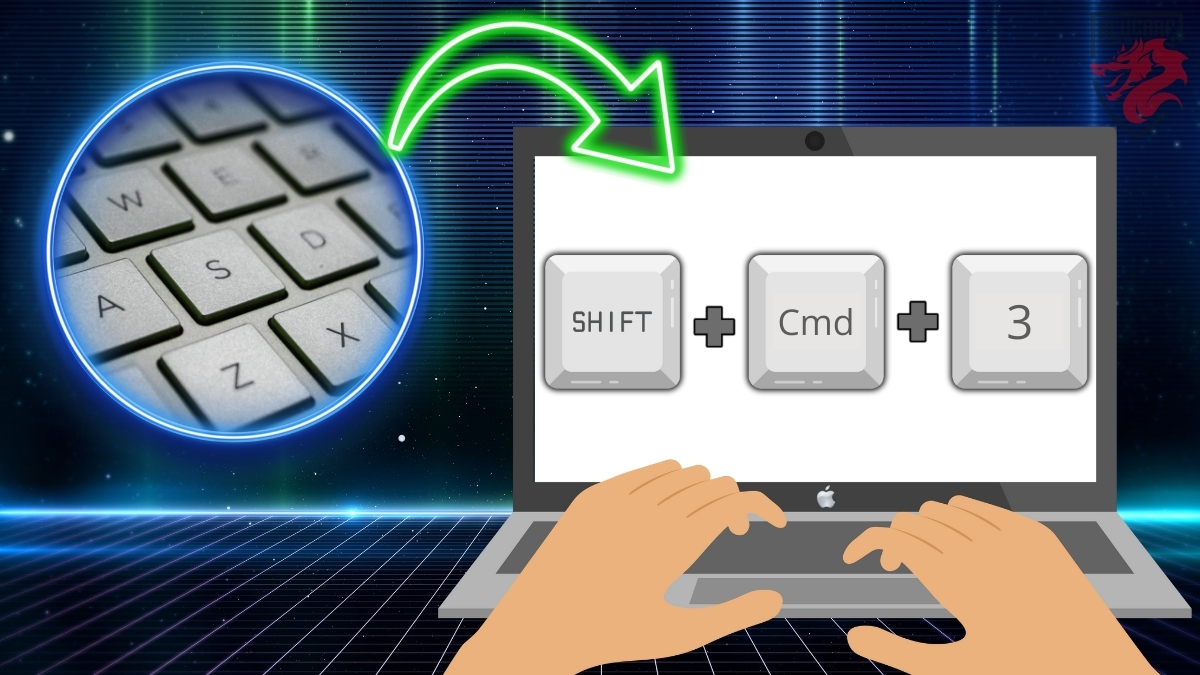
Next, simply select the area you wish to capture. You can use the thumbnail in the corner of your screen to edit the resulting capture, or wait until after the screenshot has been saved in a folder to edit it.
Capture part of your screen
For this type of screenshot with keyboard on a Mac, here's what you need to do:
- Hold down these three buttons: Shift + Command + 4.
- A cross-shaped pointer will appear on the screen. Use it to select the part to be captured.
- Release the mouse to capture the selected area.

Remarks :
- You can move the selection by holding down the space bar pressed and dragging the selected area.
- The key Escape helps you cancel the screenshot.
- The miniature can also be used to modify the screenshot.
Capturing a window or menu
Here's what you need to do to get a screenshot of a window or a menu using the keyboard on Mac:
- Hold down the following keys: Shift + Command + 4 + space bar .
- Your pointer will turn into a camera icon.
- Click on the or the menu to take the screenshot (you don't need to drag the slider here).
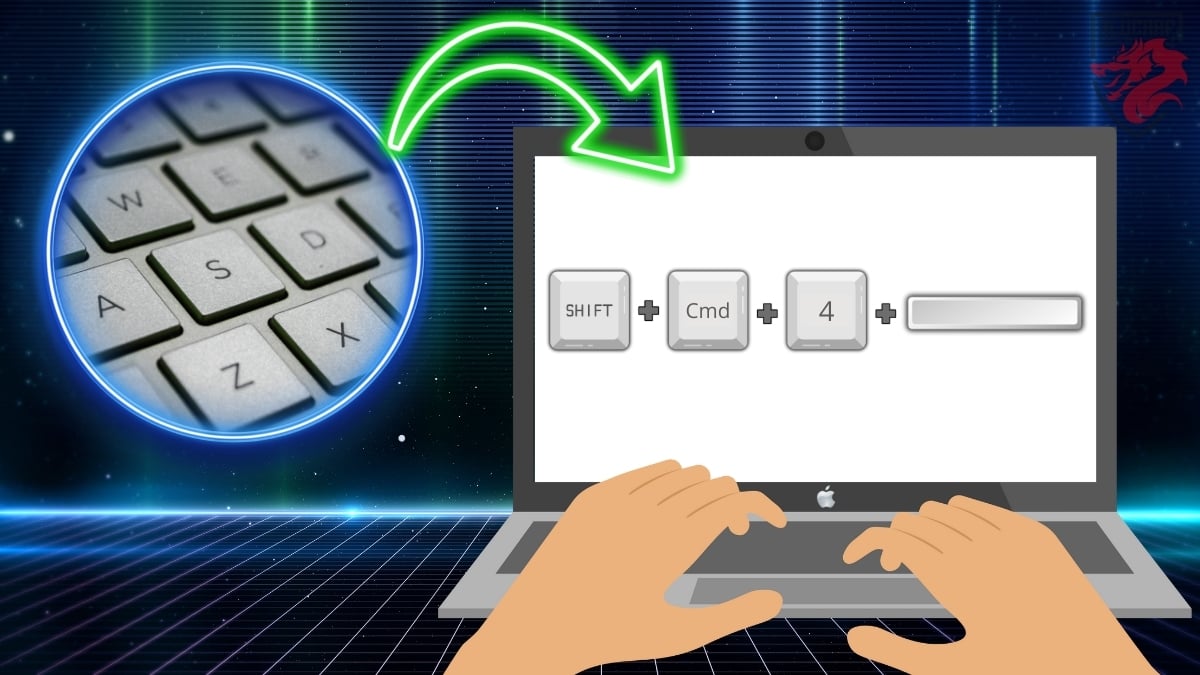
You can cancel the screenshot at any time with the escape keyOnce the capture is complete, you can also access the screenshot edits using the thumbnail.
FAQs
Why doesn't the Print screen button work?
Sometimes you need configure Print screen button before you can use it. Here is the method to apply in Windows 11 or Windows 10:
- Access to Settings from your computer.

PC settings option. Mia for Alucare.fr - Click on Accessibility Options.

Ergonomic options in the settings on a PC. ©Mia for Alucare.fr - Scroll down on the left side and you will find "Keyboard."
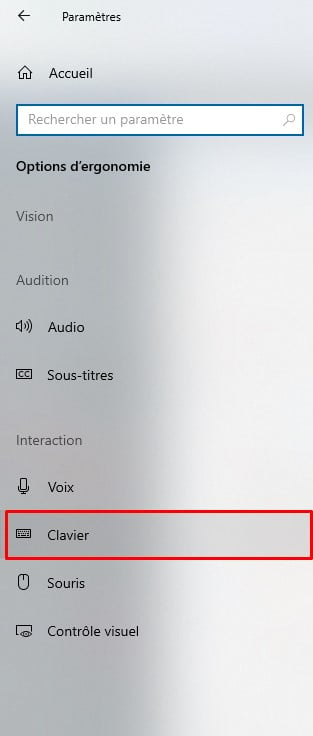
Section showing keyboard settings on a PC. Mia for Alucare.fr - See if the "Use the Print screen button to open the screenshot” is active. Activate it if it is not.
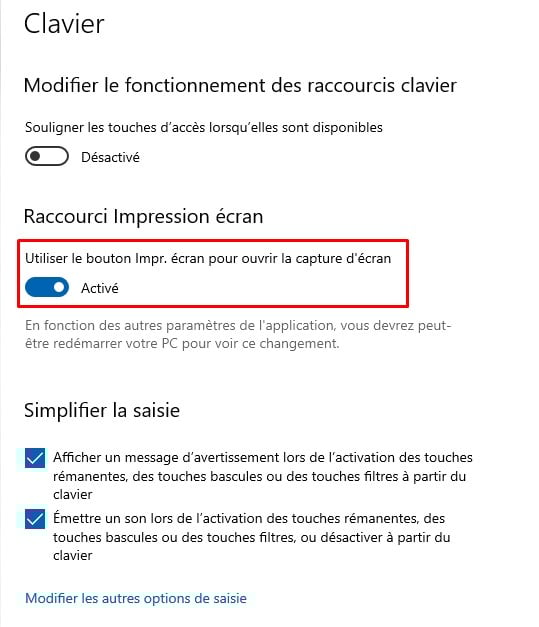
Activate the Print Screen button on PC. Mia for Alucare.fr
If the button still does not work, consider the following points:
- Check if a screen capture software or keyboard customization software is installed on your PC. This may block the functionality of the Print Screen key.
- Go to the problem-solving utility Windows keyboard to find out what's wrong.
- Clean your keyboard, as the key may be blocked by dust.
- Close applications and processes in the background.
- Start your PC correctly.
- Use the visual keyboard from Windows.
Where can I find the screenshots?
The location is different on PCs and Macs. Here's what you need to know.
On PC
In this case, you will find the screenshots by following these steps:
- Go to the Start menu, then to Settings.
Settings option on a PC. Mia for Alucare.fr - Click on Games.
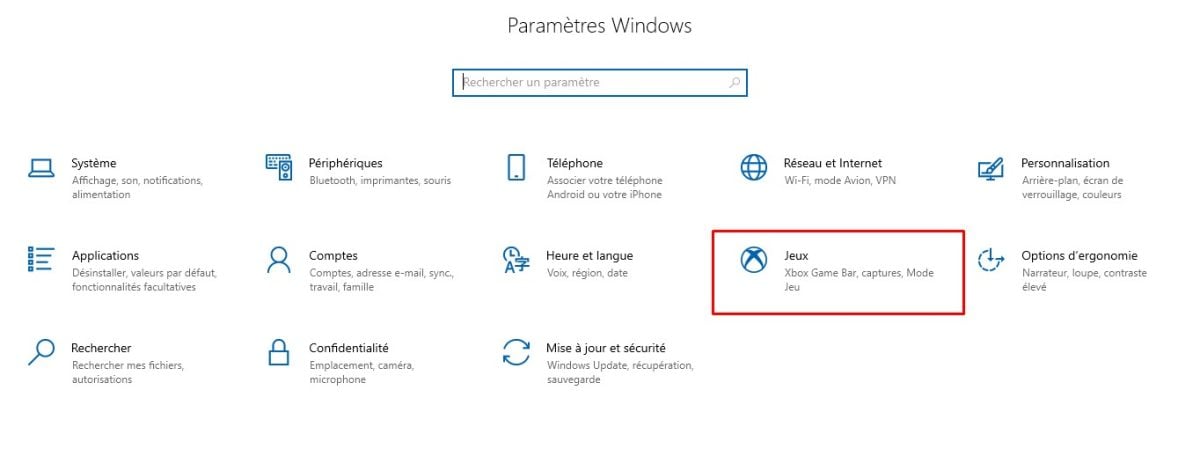
Games option in PC settings. Mia for Alucare.fr - Press on Captures.

Captures section for screenshots on PC. Mia for Alucare.fr - Under "Capture Location," choose "Open folder“.

Open folder option to view captures saved on PC. Mia for Alucare.fr - You will then have access to all the screenshot images.
On Mac
Here, captures are automatically saved on the office. To change this location, you can :
- Go to Options menu of the Screen Capture tool.

Screenshot option on Mac. ©Mia for Alucare.fr - Then change the location indicated.

Places to choose for the screenshot on Mac. Mia for Alucare.fr
You can also drag thumbnail in a folder or on a specific document.
Why take a screenshot?
The screenshot, also known as a "screenshot," is the process of obtaining an image of the content on the screen.
Using this tool involves making a certified copy of what you see on your screen to keep in your files as a souvenir or to share with others.
In a professional setting, screenshots are a way tooptimize workflowsby enabling the following.
| 😊 Benefits | 📋 Details |
|---|---|
| Facilitate collaboration |
|
| Accelerate carrying out an operation |
|
| Show a problem to find a solution quickly |
|
To discover other articles similar to this one, feel free to take a look at our page. Guides & How-To's.
It is important to note that screenshots are part of the latest generation of computer tools. They are the fastest way to convey visual information and build up archives.
Computers are used frequently in everyday life, so it is essential to know every method for taking screenshots on PCs (Windows) and Macs. What shortcuts do you often use to take screenshots? Share your answer with us in the comments below. comments !








 English