Thanks to emulators, It's now easier than ever to install Android applications on a PC. This guide will show you how to quickly install an APK file on Windows.
What is an APK file?
Explanatory video in French by Alucare, ideal complement to the page. View video (you can use YouTube's automatic translation)
To begin with, it is useful to recall what a APK file (Android Package Kit).
👉 Basically, it's the file format used by the Android operating system to distribute and install applications. You could say it's the equivalent of an .exe file on Windows, a .txt file for writing text, and so on.
An APK contains :
- ✅ application files.
- ✅ Data required for installation.
- ✅ Developer information.
- ✅ Security and access rights.
Prerequisites for installing an APK file on your PC
Before starting installation, your PC must meet a few minimum requirements:
- ✔ Using an operating system Windows 10 Where Windows 11.
- ✔ Internet connection active for downloading.
- ✔ Use a Android emulator. This software simulates an Android device on a PC.

By the way, if you also want to play your Switch games on PC, there are also Switch emulators for PC.
Step 1: Download and install an Android emulator on Windows
In this tutorial, we will use Bluestacks as an emulator. It's free, secure and compatible with most Android applications.
- Open your browser on your PC.
- Go to the official BlueStacks website.
- Click on the Download.

- Once the download is complete, click on the installer file.
- Click on Install now.
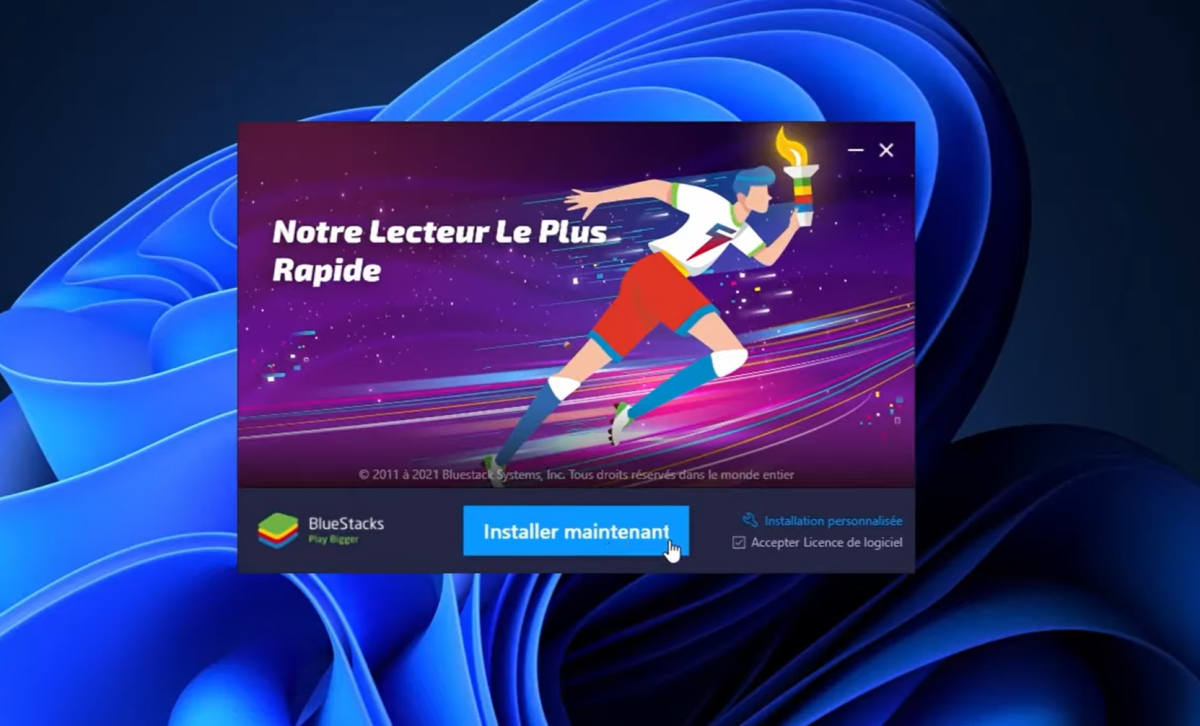
- Once installation is complete, the software opens automatically and some applications are ready to install.
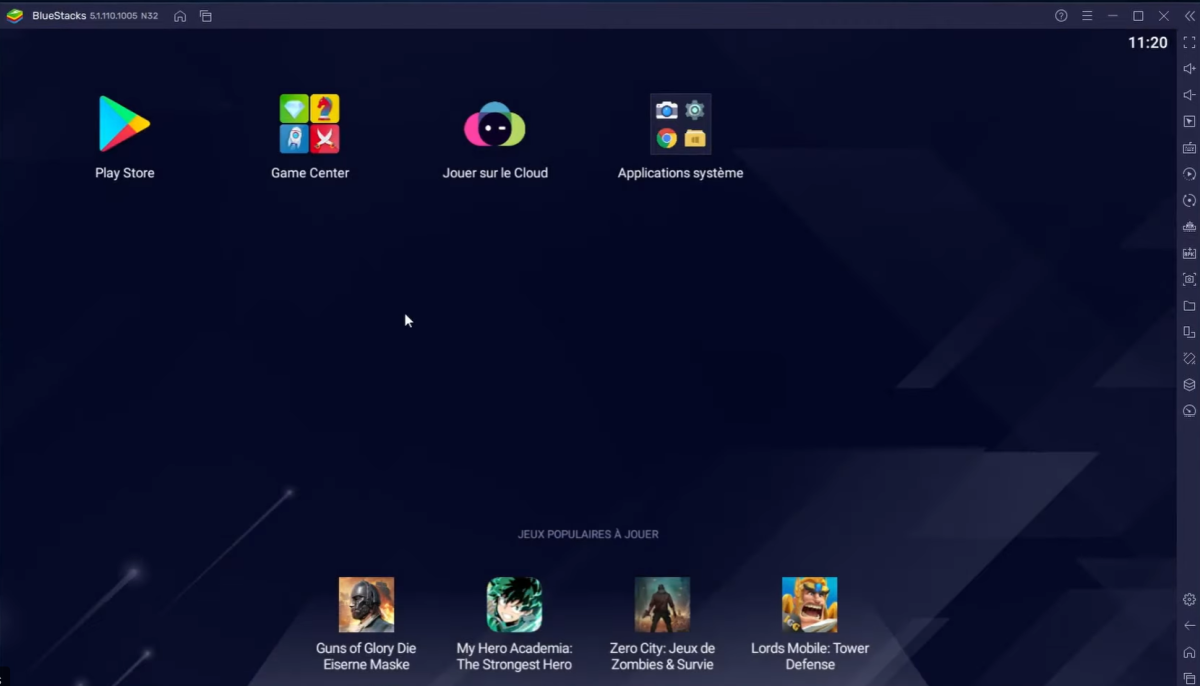
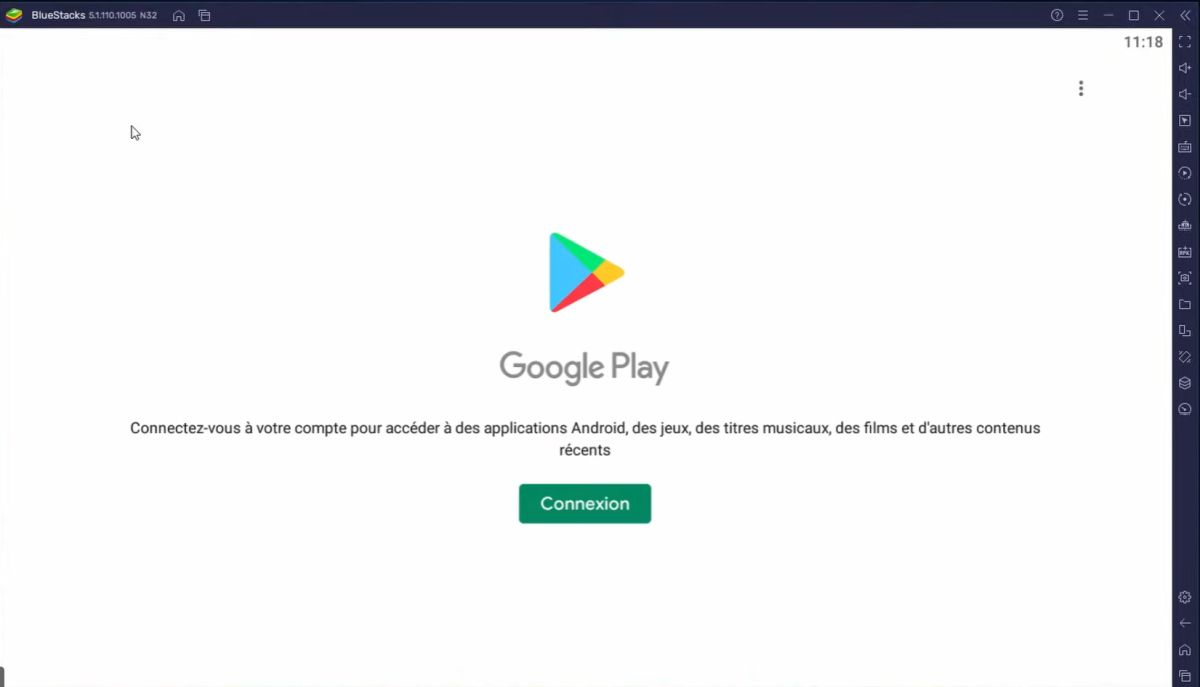
- The most important thing is to log in with a Google account to access the Google Play Store just like on a real Android device.
Step 2: Prepare your APK file for installation
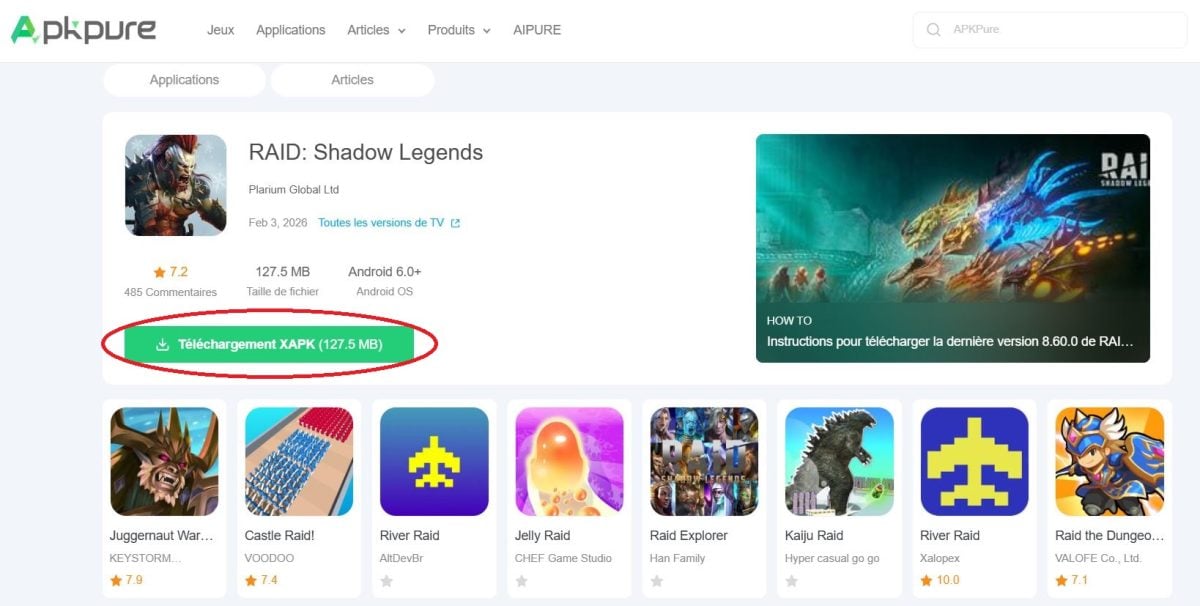
Now that the Android emulator is ready, you need to download the APK you want to install.
- Download the APK file from a reliable site.
- Avoid unknown platforms to limit the risk of malware.
- Check that the format is “.apk”.
Step 3: Install the APK file via the emulator
- The simplest method offered by BlueStacks is the “Drag & Drop”.
✔ Open BlueStacks.
✔ Locate your APK file in your Windows files.
✔ Drag the file directly into the emulator window.
✔ Installation starts automatically.
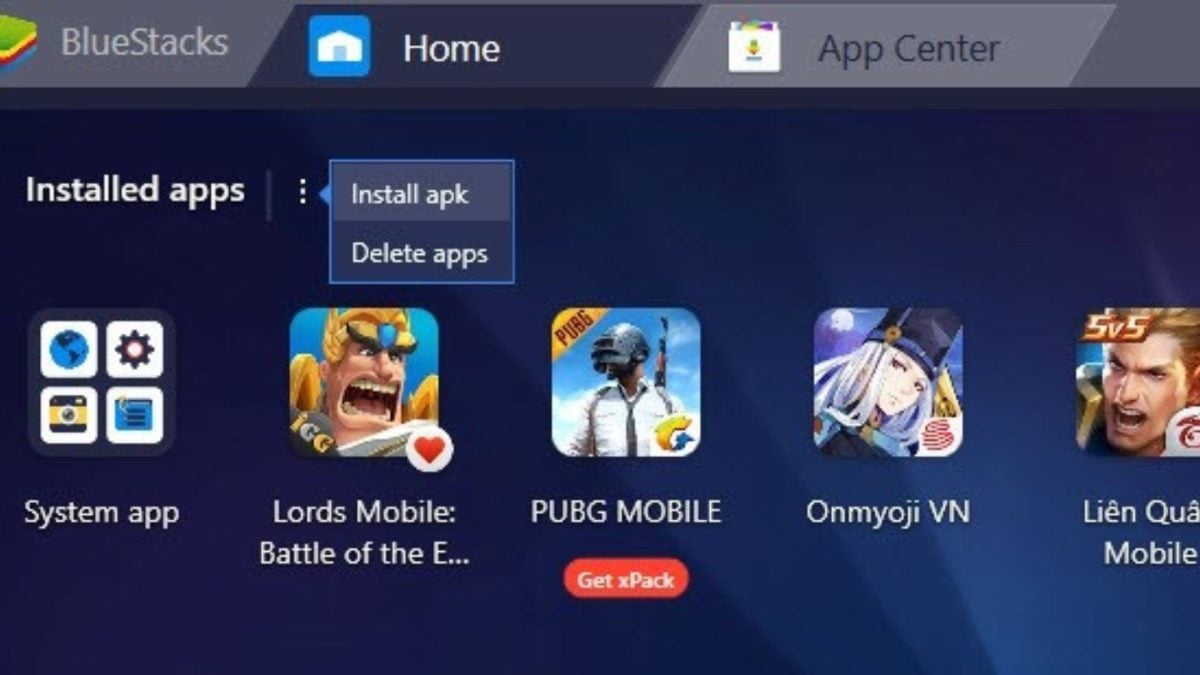
- The other way is to click on “Install APK”.
✔ To do this, use the shortcut Ctrl + Shift + B or the dedicated icon in the right-hand sidebar.
Step 4: Check and launch the APK application on your PC
Once installation is complete :
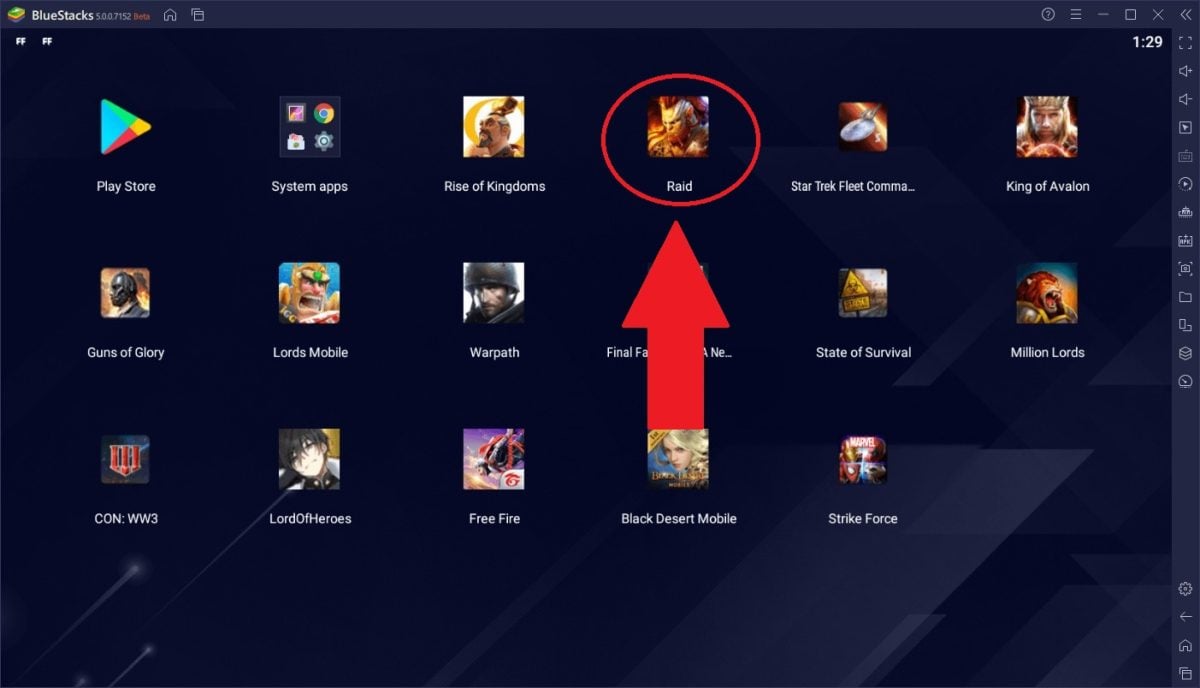
- The application icon (example) appears on the BlueStacks home screen.
- Double-click to launch the Android application.
You can now use, play or test your Android application on a PC just as you would on a phone.
What to do if the installation fails?
If installation fails, here are some possible solutions:
- 💡 Check APK file The APK file may be corrupted or incompatible with your emulator version. Please download it again from a reliable source.
- 💡 Update emulator Make sure you're using the latest version of the emulator. Sometimes, an update can solve compatibility problems.
- 💡 Try another emulator If one emulator doesn't work, you can try another to see if it solves the problem.
To conclude, install an APK file on PC is very simple with BlueStacks. In just a few steps, you can get your Android apps, enjoy your games and more without a phone.
For more tips, see our article on :
- How do I open an APK file on a PC?









 English