To uninstall Valorant, the first thing to do is to close the Riot Client from the taskbar, and then uninstall the game via Settings > Apps on Windows.
But be careful: this step alone does not remove Riot Vanguard, the anti-cheat software that installs at the same time and often prevents uninstallation.
So we need to start with it. This procedure also applies to the other games Riot Games as League of Legends.
1. Disable Riot Vanguard
Riot Vanguard is the anti-cheating system developed by Riot Games to protect Valorant.
It launches as soon as your system starts up, at the deepest level of Windows. As long as it's running in the background, it prevents many players from uninstalling the game. So you need to close it first before deleting anything.
How do I disable Riot Vanguard?
- First, close the Riot Client from the taskbar if it's open.
- Look at the taskbar, in the lower right corner (next to the clock), to locate the icon Vanguard.
- Click the small arrow to display the hidden icons if you don't see them right away.
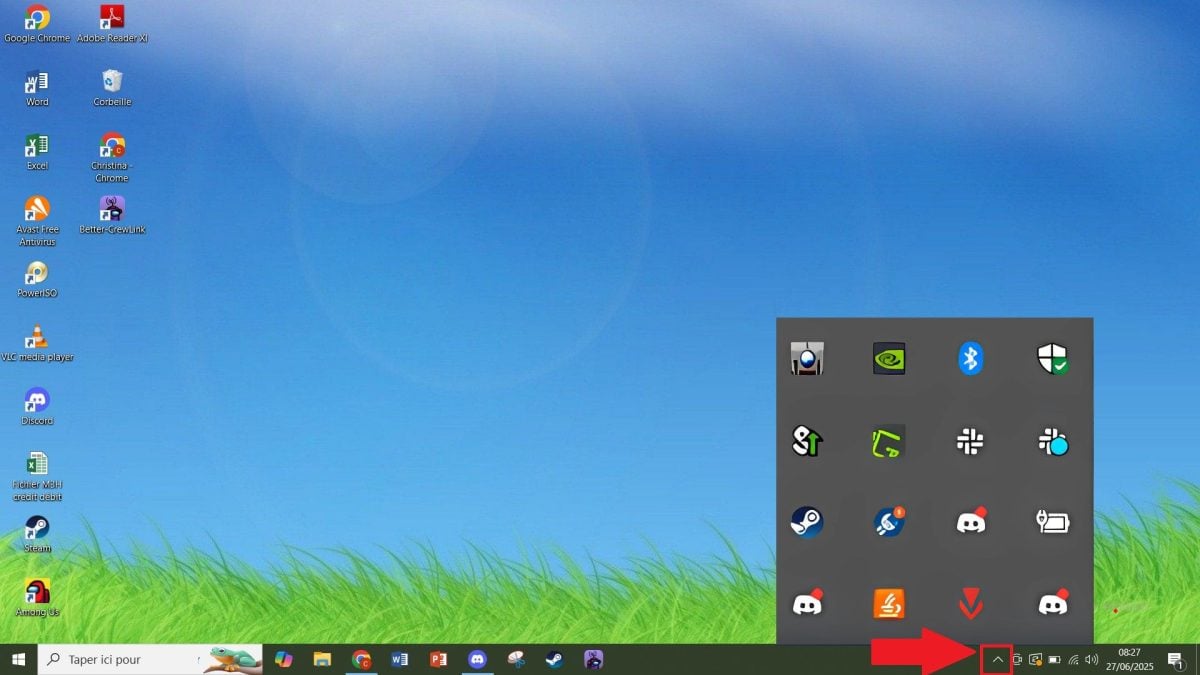
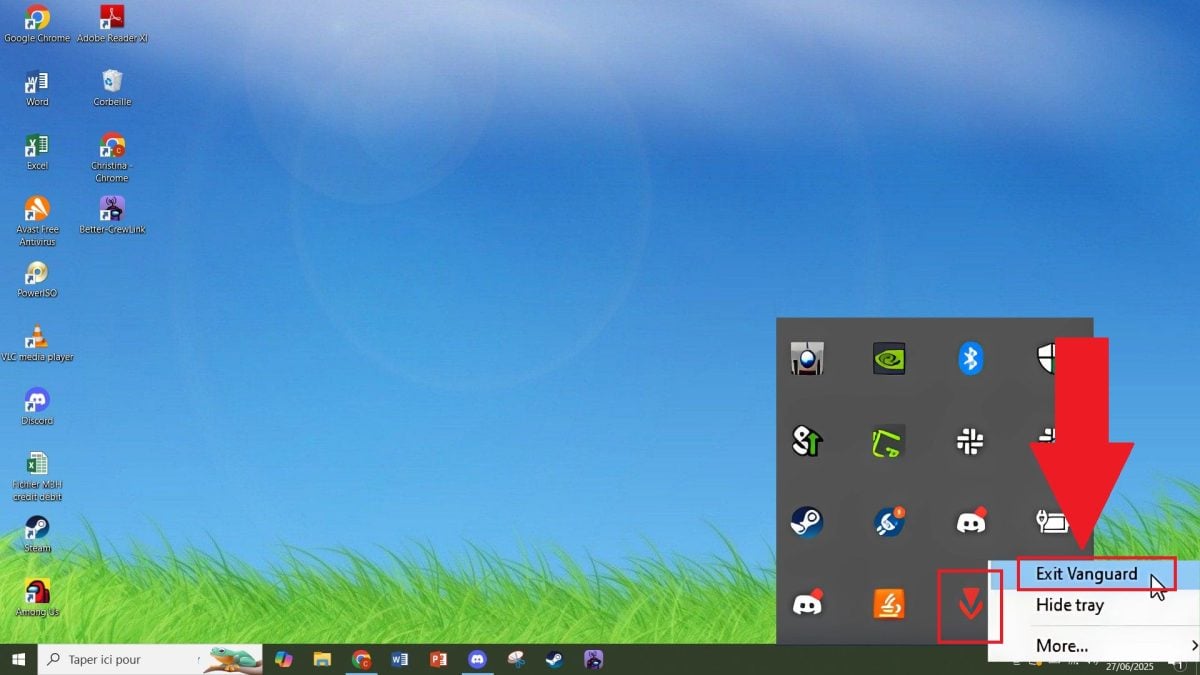
- Make a right click on the Vanguard icon (it looks like a small shield).
- From the menu, select " Exit Vanguard » or «Exit.».
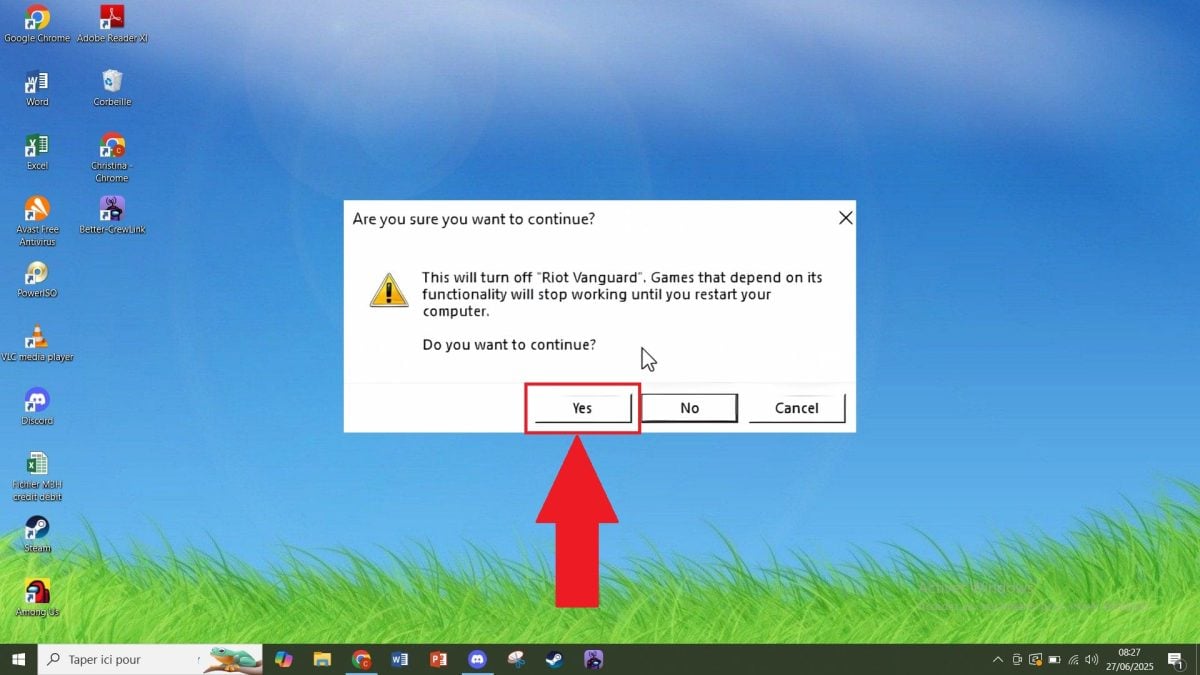
- Confirm If a window asks for your permission, click Yes.
How do I uninstall Riot Vanguard?
To leave Vanguard is sometimes enough. But for some players, you have to uninstall completely so you can delete the game later. Here's how to do it from the settings in Windows :
- Open the menu To start up.
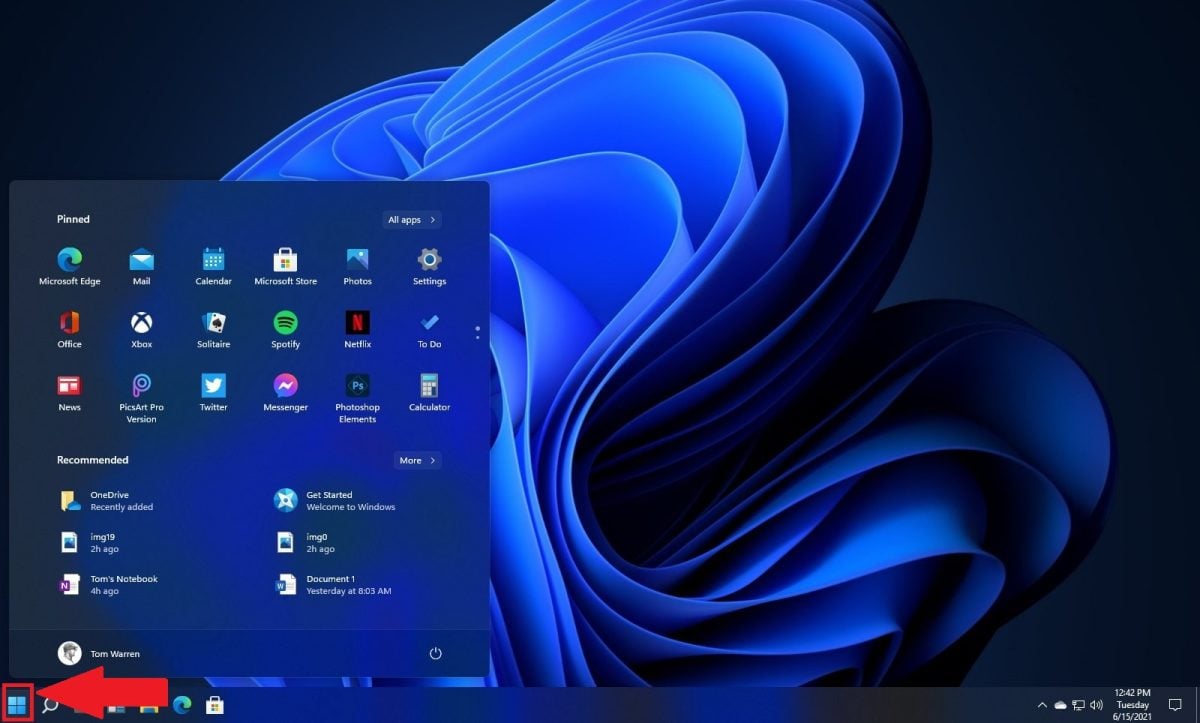
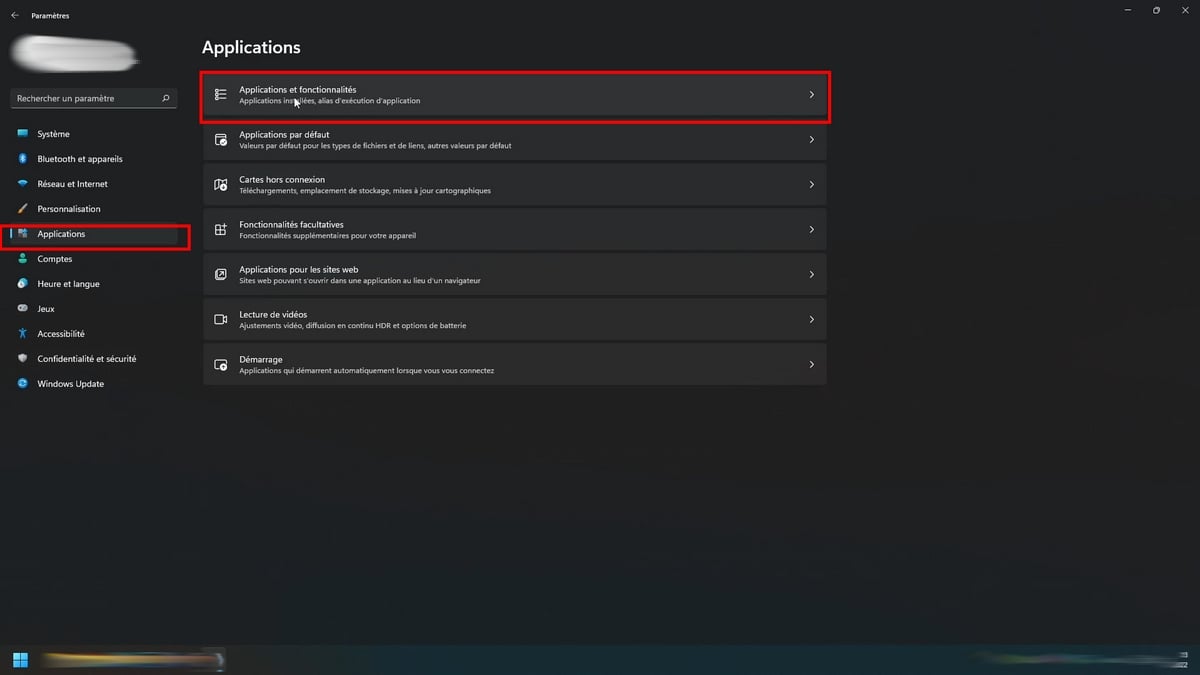
- Go to Settings, then Applications and Applications and features.
- Scroll down the list to " Riot Vanguard », or search directly for «Vanguard.».
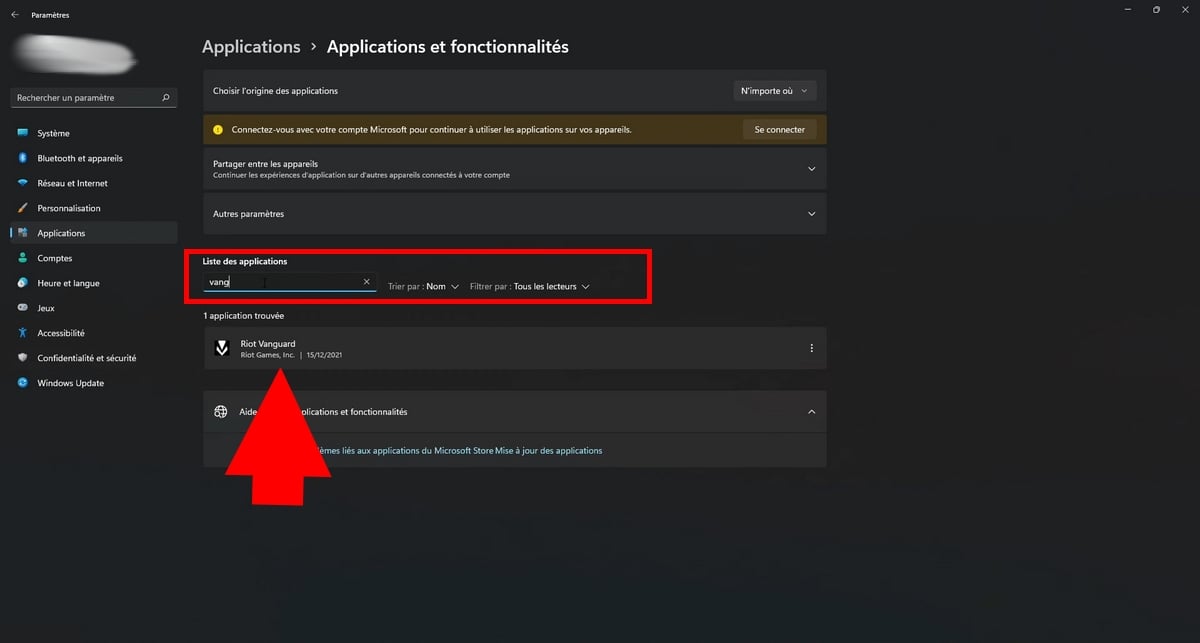
- Click on it (or on the three small points (next to it), then on Uninstall.

- Restart your computer once the uninstallation is complete.
To note : if Vanguard If it doesn't appear in the list, first check to make sure it has been disabled (as seen just before), then calls this method again.
2. How to uninstall Valorant
Once Riot Vanguard If it's disabled or uninstalled, you can proceed to delete Valorant. There are several methods: via the Control Panel (on Windows 10 and 11), via the Riot Client, or with a third-party tool to remove any leftover files and folders. Your local game data will be deleted in any case.
How do I uninstall Valorant on a PC?
On Windows 11 :
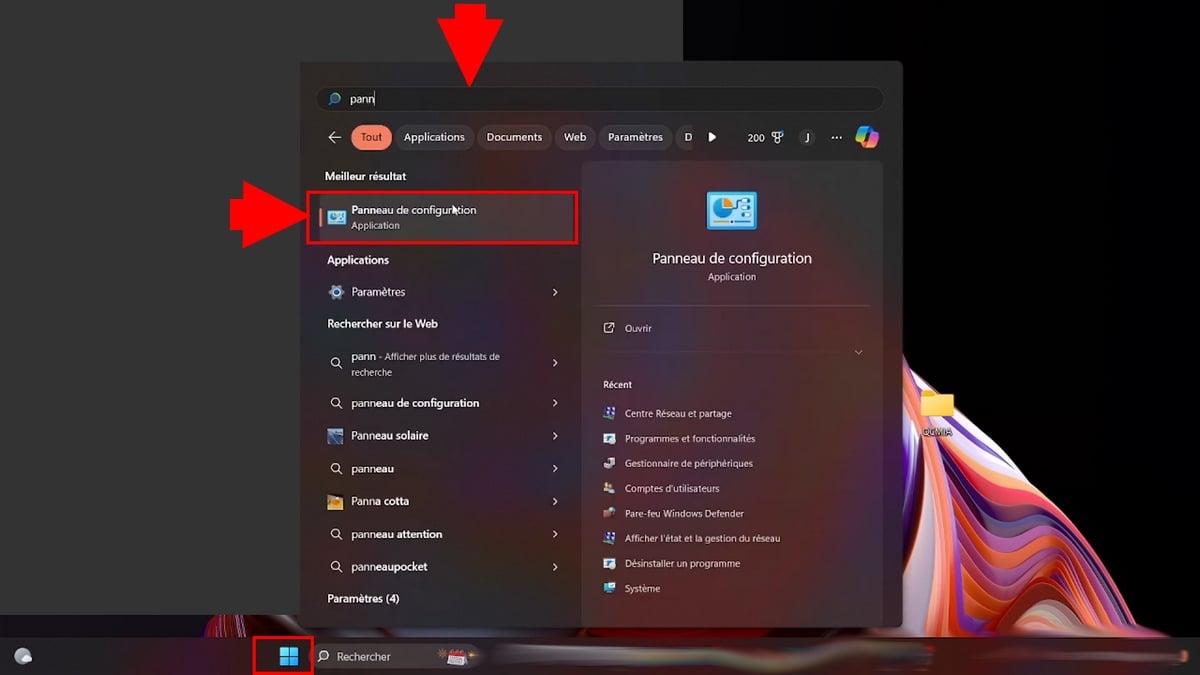
- Open the menu To start up, then type «Control Panel».
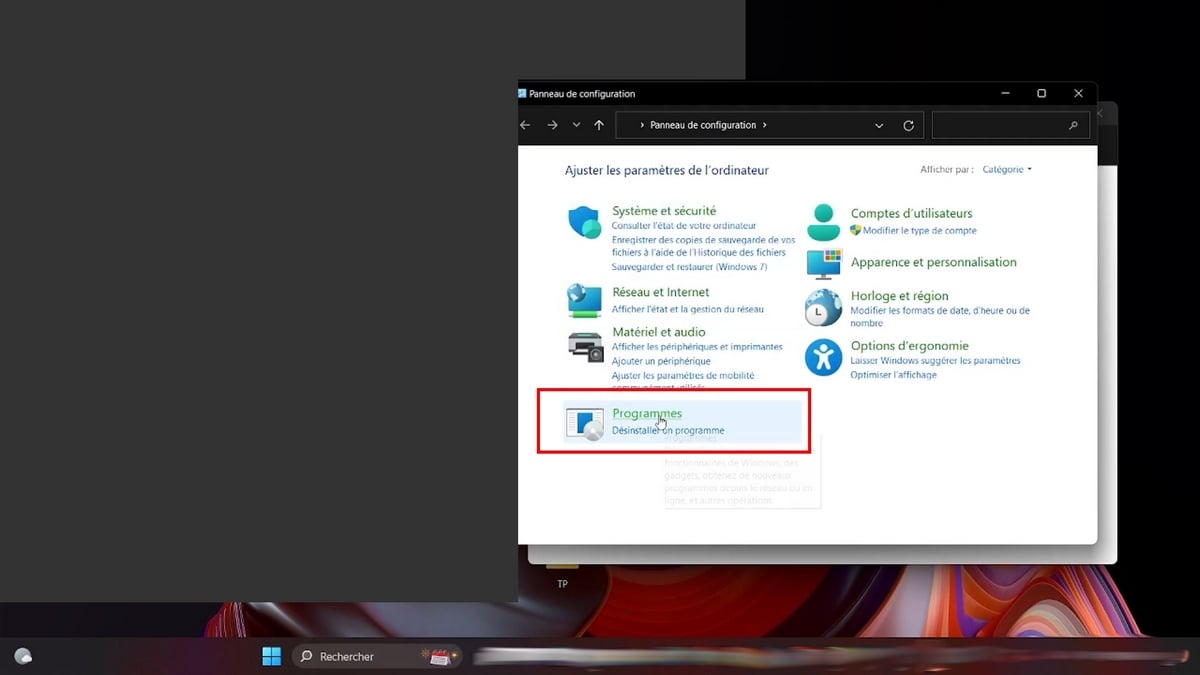
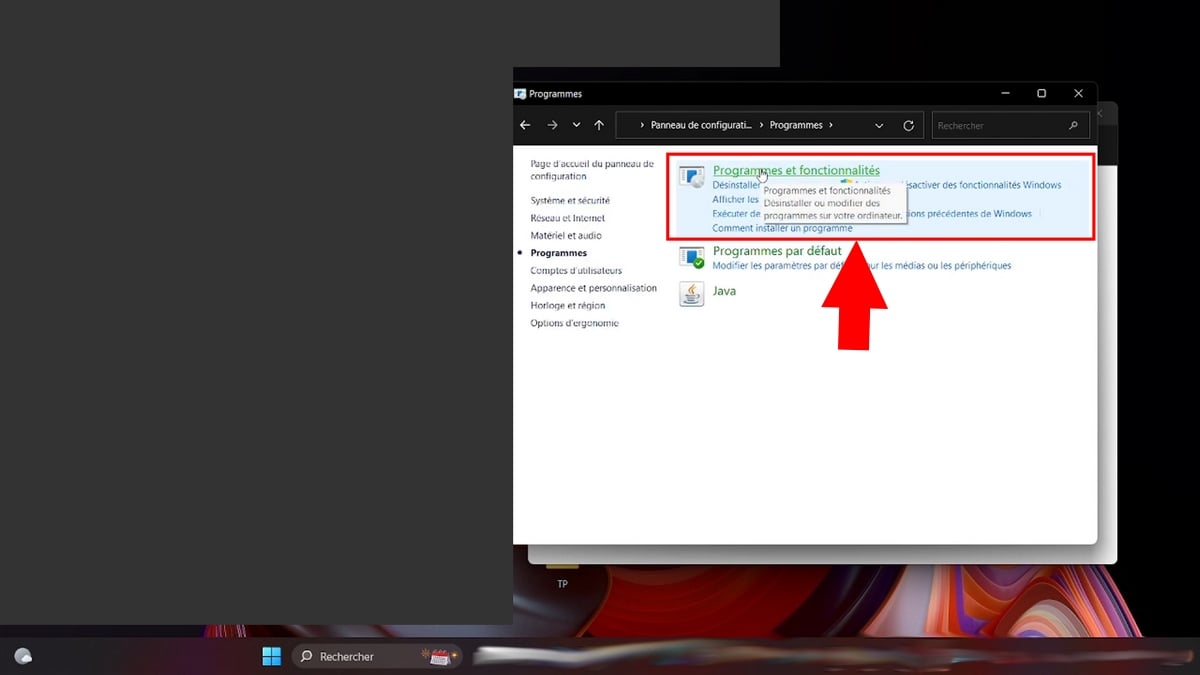
- Click on Programsthen on «Programs and Features».
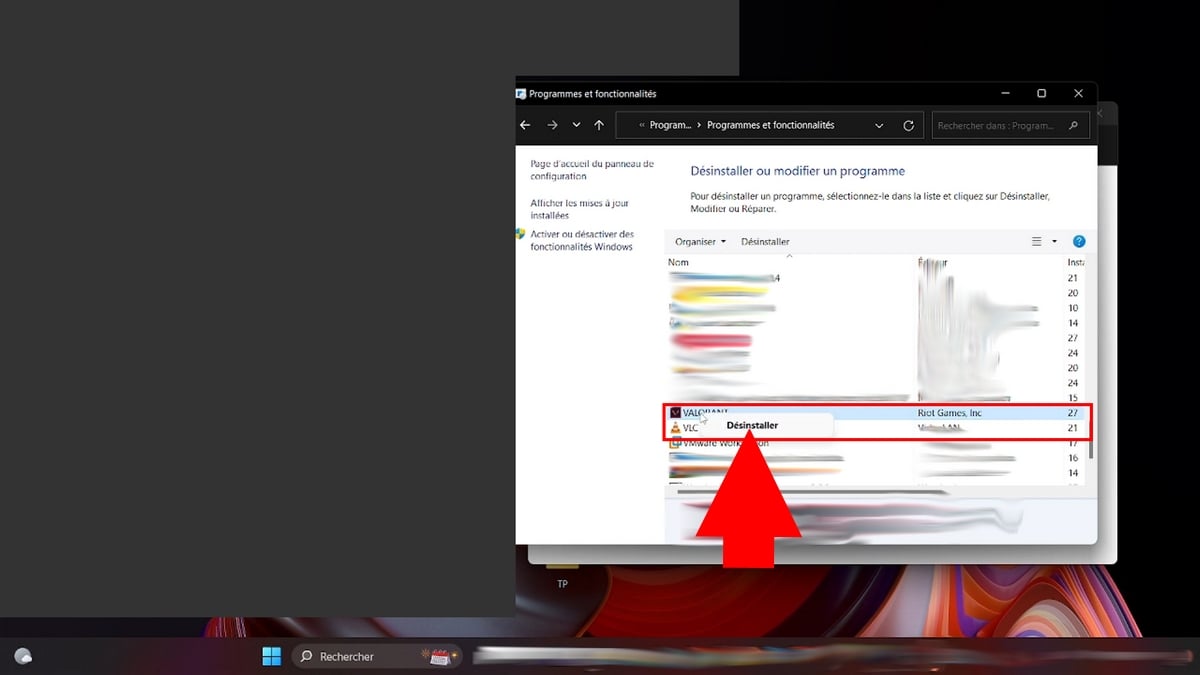
- Mark Valorant In the list, click on it, then select «Uninstall».
- Follow the on-screen instructions until the process is complete.
- Restart your computer so that the deletion is properly processed.
Whether Riot Vanguard If it still appears in the list, repeat the process for it as well. This is the only way to completely clean everything up, including the entries in register and the remaining files on the disk.
On Windows 10 :
The procedure is almost identical to that of Windows 11.
- Click on the menu To start up and type «Control Panel» in the search bar.
- Open Programs, then «Programs and Features».
- Find Valorant In the list, right-click on it and select Uninstall.
- Follow the on-screen instructions until the process is complete.
How do I uninstall Valorant using the Riot Client?
If you installed the game from the Riot Client, you can also manage the uninstallation directly from this interface. The method isn't as obvious, but it works.
- Open the Riot Client from the desktop shortcut or through the Start menu.

- Log in to your account Riot if you haven't already done so.
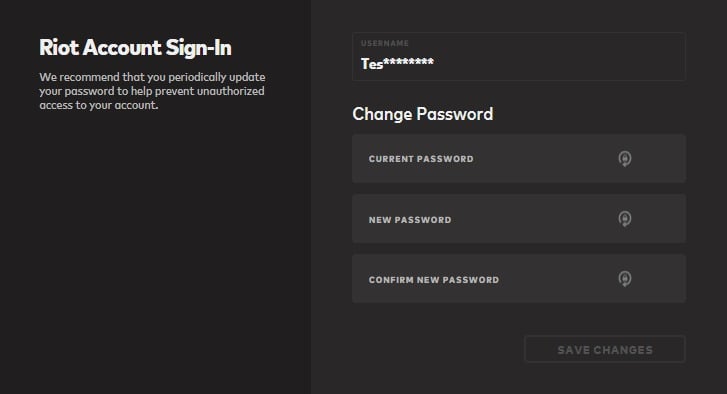
- On the main screen, open the page for Valorant, then click the icon three points (…) besides the game.

- Select «Uninstall».
- Confirm to begin the uninstallation.
- Once you're done, close the Riot Client.
Handy if you prefer to manage everything from Riot without going through the system menus. This method works the same way for League of Legends and other games Riot.
Uninstall Valorant using third-party uninstallation software
If the previous methods don't work, or if you want to make sure you don't leave any residual file, uses a third-party uninstaller. These programs remove a program and all traces it leaves behind in the register and the system folders on the disk.
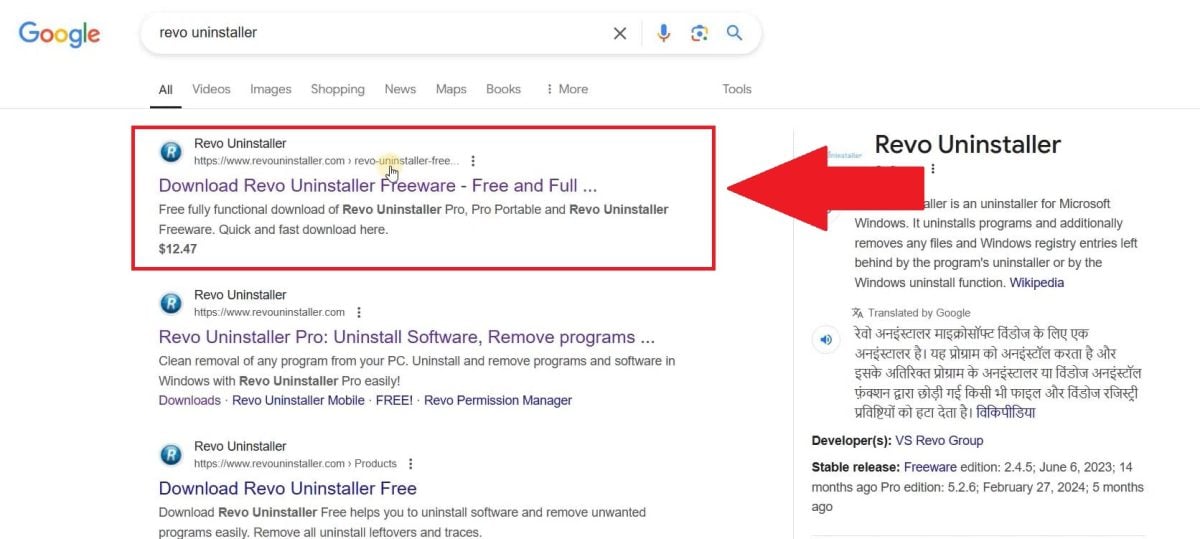
The simplest option is still Revo Uninstaller Free, a fully free Recommended by many gamers and technical support professionals.
- Download Revo Uninstaller Free from the official website.
- Install it, then launch the app.

- In the list of detected software, locate Valorant. Do the same with Riot Vanguard and the Riot Client if you want to delete everything from the disk.
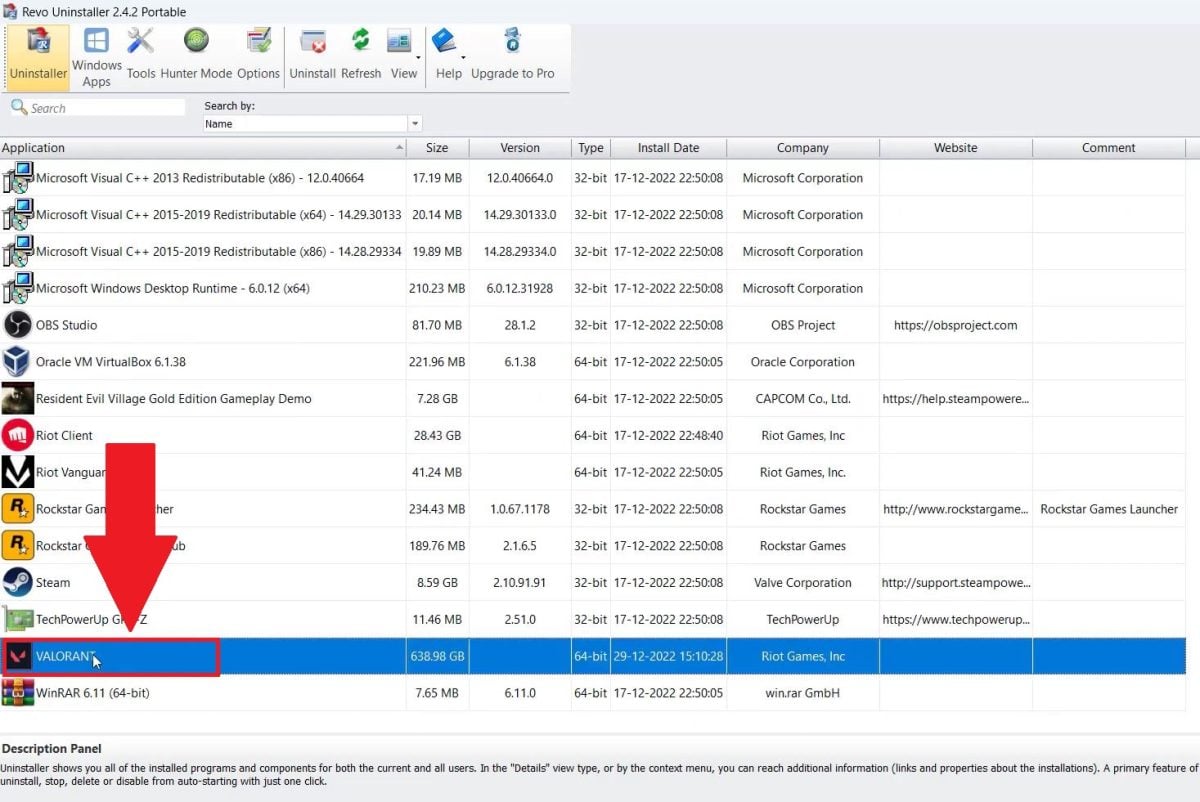
This method is also the most effective if you're planning a reinstallation characteristic of Valorant or of League of Legends : It ensures that no files or registry entries remain on your hard drive before you reinstall everything.
Whether you use Windows settings, the Riot client, or an external tool, be sure to restart your computer after uninstalling so that the changes take effect.
And for even more helpful articles on Valorant:









 English