To create a YouTube account, you just need a Google account : It's exactly the same thing.
If you already have an address Gmail, you can use your Google account to sign in to Youtube right away, without creating anything else.
Don't have one yet? Here's how to set everything up in just a few minutes, from your account to your channel.
How do I create a YouTube account?
Follow the steps below to create your Google account and access all of YouTube's features.
1. Create a Google Account
This procedure works just as well on computer only on mobile (Android, iPhone Where iPad).
- Go to the official YouTube site.
- Click on the To log in in top right on your screen.

- On the login screen, click Create an account then on Next.

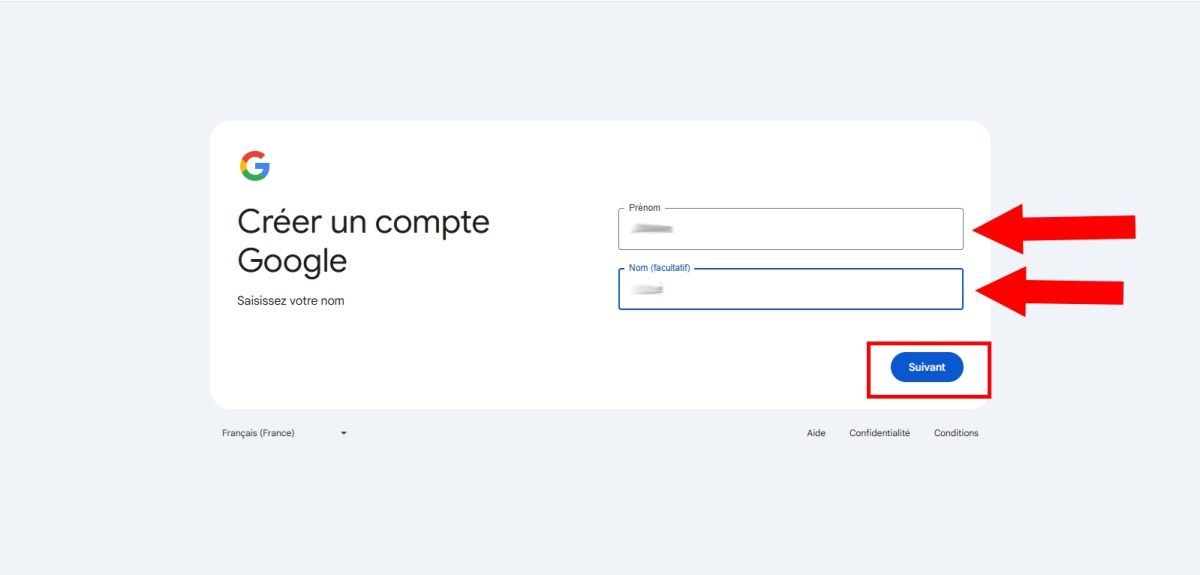
- Fill in your name and your first name, then click on Next.
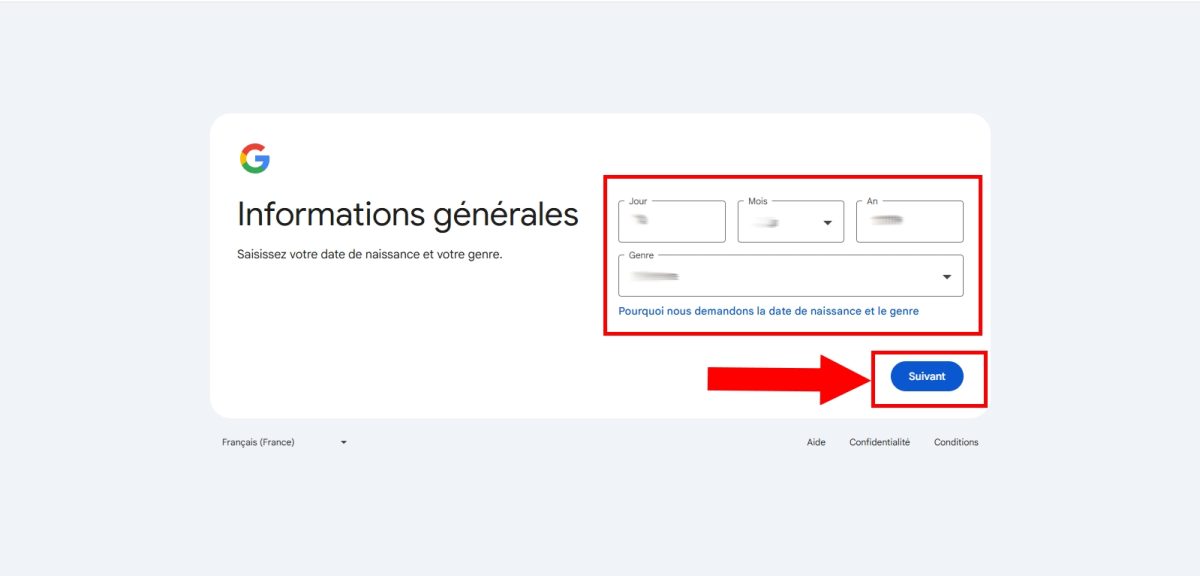
- Select your day, your month and your year of birth.
- Choose an address from the list provided, or create your own Gmail address.

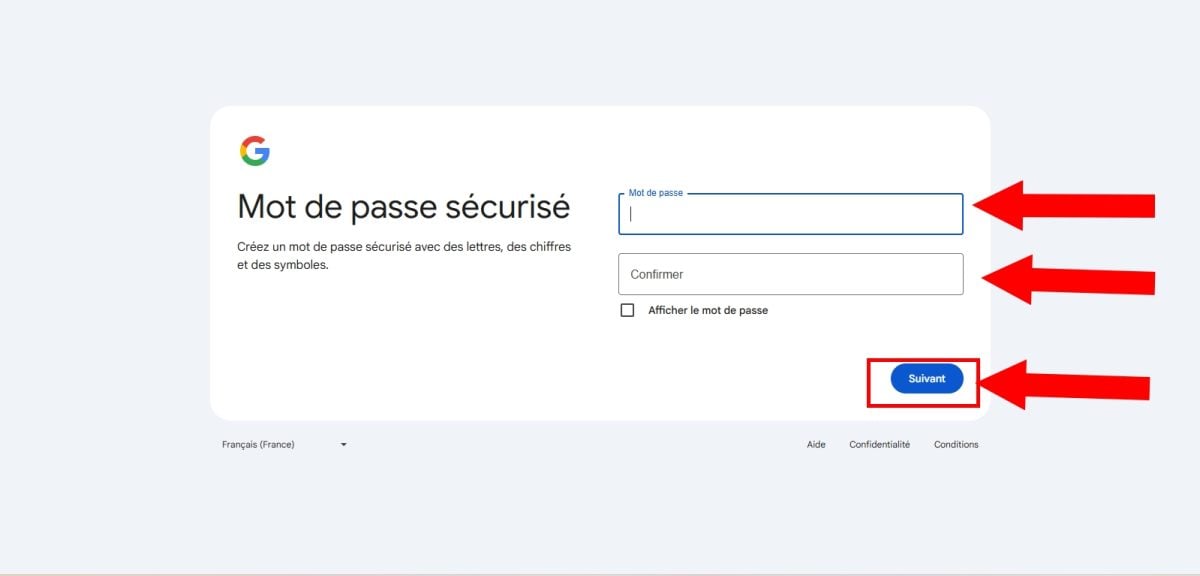
- Creates a strong password, then click on Next.
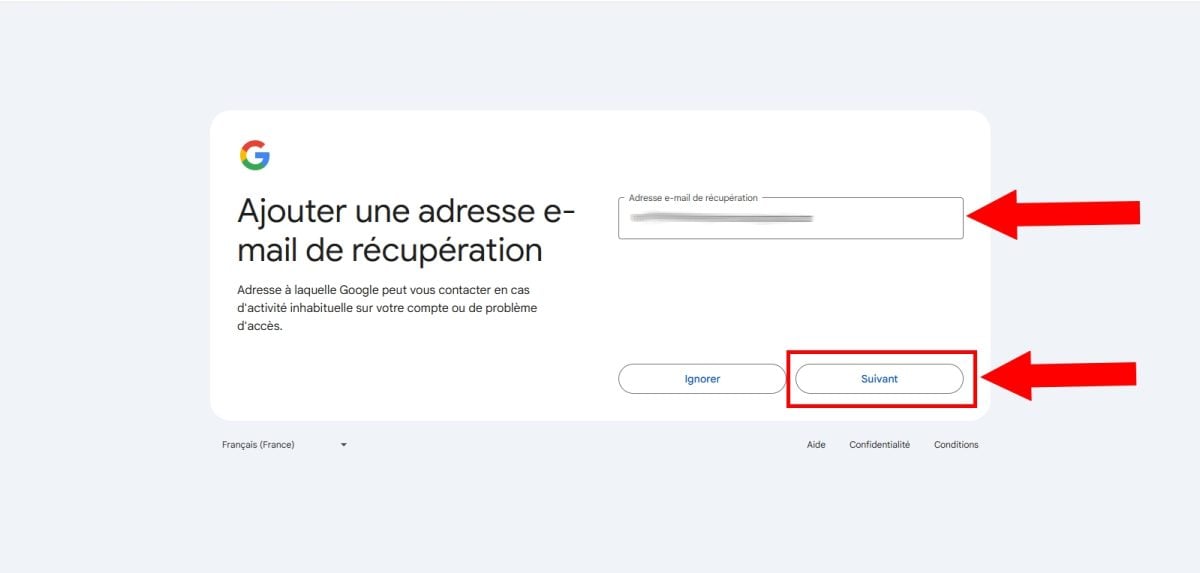
- Enter a recovery address, then click on Next. This step is optional: you can click on Ignore. Adding a phone number is also optional.
- Check the preview of your name and Gmail address, then click Next.

- Scroll down the page to read the Google Terms of Service, then click on I agree.

- Your Google account has been created. You can now log in to YouTube and access all of its features.
2. Sign in to YouTube with your Google account
Once your Google account Once created, you are automatically logged in to YouTube. Tone YouTube account is already ready to use.
You can now:
- React to videos and post comments; ;
- Check your YouTube history ;
- Subscribe to various channels; ;
- Save videos to your favorites or playlists; ;
- Download a YouTube video to watch it offline; ;
- Watching free movies on YouTube ;
- Upload your own videos from your channel.
Good to know: You can also pay less for YouTube Premium, we'll explain how in this article.
How do I create a YouTube channel?
An account lets you view, comment, post comments, and follow others. But if you want to upload videos or monetize your content, you'll also need a YouTube channel. Here's how to create it in just a few clicks.
- Log in to YouTube with your account Google, from the website or the app.
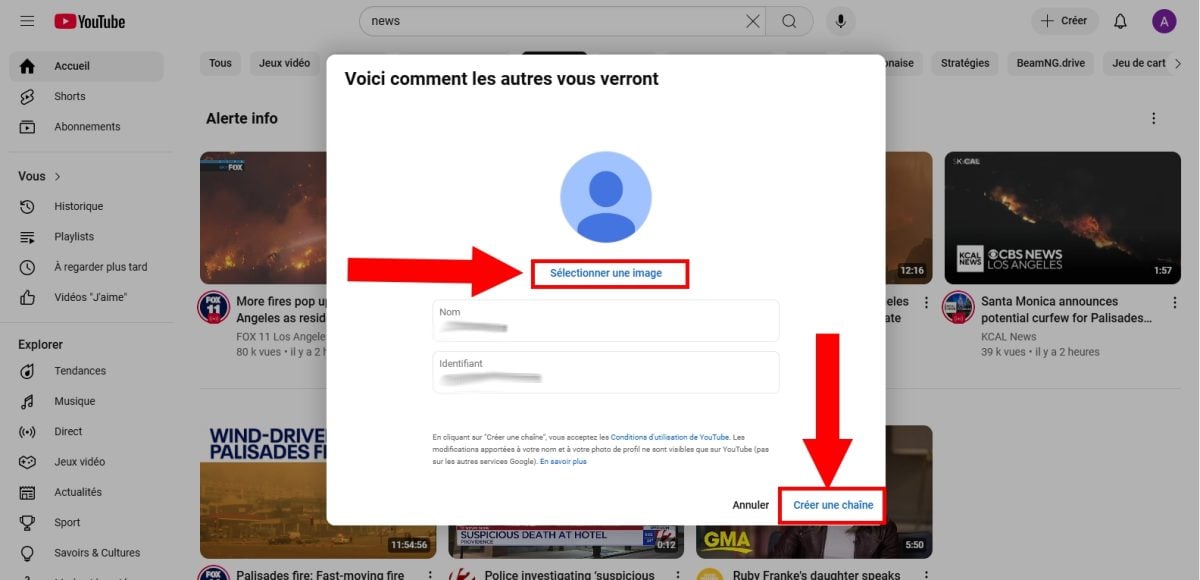
- Click on your profile photo in the upper right corner, then on Create a chain.

- Check your channel's information: name, photo, and username.
- Click on Create a chain to validate.
- Your YouTube channel is now live. You can now manage your content and join the creator community.
Personal channel or brand channel: Which one should you choose?
When you create your channel, you have two options depending on your needs.
- The Personal Channel : linked directly to your account Google. Perfect if you're posting under your own name.
- The Brand Line (or business): It has a different name than your account. Perfect for a business, a project, or a community. You can manage as a team by adding members.
How can I customize and monetize my YouTube channel?
Start by making your channel look appealing so people will want to subscribe. Add:
- A YouTube banner the right size,
- A youtube-logo as a profile picture,
- A clear description of your content,
- A contact email address.
Next, you can enable the monetization since YouTube Studio by following these steps:
- Open YouTube Studio.
- Go to the tab Revenue.
- Check to make sure your channel is eligible and that monetization is available in your region.
- Accept the Terms of Use.
- Sign in with an account AdSense to receive your payments.
It exists two levels monetization—not to be confused with.
The entrance landing gives you access to revenue from fans (Super Thanks, channel subscriptions). To access it, you need to:
- 500 subscribers,
- 3 public videos published on the Last 90 days,
- or 3,000 hours of viewing time on the Last 12 months, that is 3 million views on Shorts over the past 90 days.
The Complete Bearing Assembly unblocks ads via AdSense and all the advanced monetization features. It requires:
- 1,000 subscribers,
- Or 4,000 hours of viewing time over 12 months, or 10 million views on Shorts over 90 days.
Want to learn more? Check out how views are counted on YouTube.
Creating a YouTube account and channel takes just a few minutes. All you have to do now is upload your first video.








 English