Keypoints
Are you about to leave your computer for a few minutes and thinking of putting your screen to sleep? Keyboard shortcuts are the most practical way to do this! They'll save you time.
Shortcuts vary depending on the operating system. Discover the different shortcuts for putting your PC to sleep in this article. And also, among our articles, find out how to enlarge the taskbar on Windows 10 and 11.
How do I put my PC screen to sleep?
Standby is a function that uses only low PC power. The computer starts up quickly, and you'll soon be back on the page you were on before the sleep mode. What's more, your work won't be lost as long as your battery is charged. Windows automatically saves your work and shuts down the PC if the battery is too low.
Standby is used when you don't want to use your PC for a while. For laptops, for example, it automatically goes into standby when you close the cover. Or when you press the power button. Here's how to put your screen to sleep:
In Windows 11 :
- First, select To start up ;
- Then go to Settings then System ;
- Click on Power supply and battery
- Then select Screen and watch.
How to disable the sleep mode on your PC in Windows 11?
- When you are not using the screen, choose how long your device should wait before turning it off.
- When you are not using your computer, choose how long your device should wait before going into sleep mode.
In Windows 10 :
- First, open the power supply options ;
- Then select To start up ;
- Then go to Settings and System ;
- Click on Standby ;
- Then additional supply parameters.
When you have completed these steps, do one of the following:
- If you're using a desktop, tablet or laptop, click on Choose how to use the feed buttonsn. Select Watch and finally register final modifications ;
- If you are using a laptop only, select Select action after closing the cover. Then select Watch and Save changes.
How to disable your PC's sleep mode in Windows 10?
On most computers, you can resume your work by pressing the power button on your computer. However, this may vary from one computer to another.
You may be able to restart the computer by pressing any key on the keyboard, clicking a mouse button, or opening the cover on a laptop.
Which button puts the screen into standby mode?
Don't want to follow all these steps to put your screen to sleep?
Well, here are some of the simplest ways to help:
- Press the Windows logo key + X on your keyboard, then click the "Shut down or sign out" button and finally put it into hibernation mode.
- Choose Start, then choose Sleep > Hibernate.
How can I turn off the screen without turning off the PC?
Among the options available to you in Windows 11, there is a section called "Power recommendations" in the System > Power settings. You can choose the option "Turn off my display after 3 minutes." This is beneficial for your situation and is a very effective way to save your laptop's battery life. If you prefer to leave it on for hours, this option seems perfect!
How do I put a PC to sleep using Ctrl?
You can also use the shortcut Ctrl + Alt + Del and click "Lock" in the window that opens, or simply press the Enter key after using the shortcut Ctrl + Alt + Del.
How do I create a shortcut to put my PC screen to sleep?
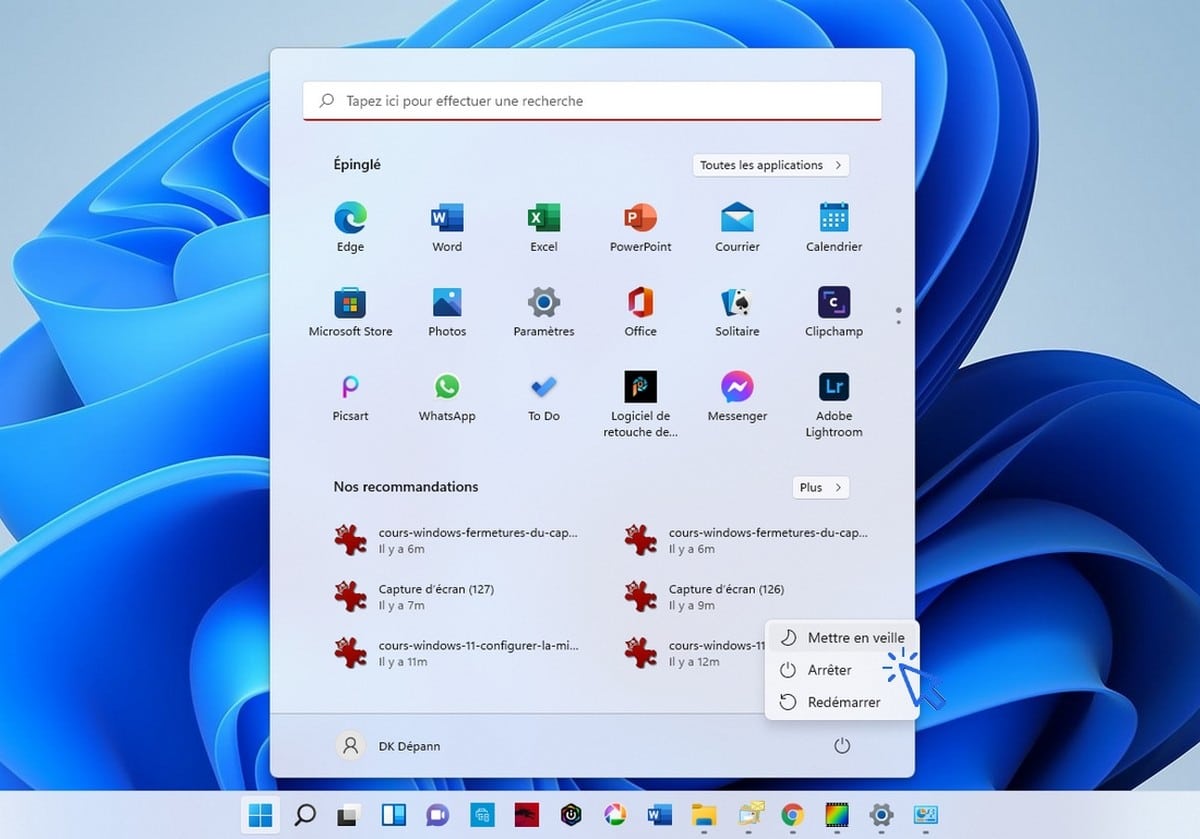
Save more time, and create a shortcut to put your computer to sleep. To create a shortcut, here are the steps to follow:
- First, start by making a right-click on the Windows desktop in an empty zone ;
- Then click on New ;
- Then, shortcut ;
- Copy and paste on the field used to enter location from the shortcut link C:\Windows\System32\rundll32.exe powrprof.dll, SetSuspendState 0,1,0 ;
- Click on Next ;
- Rename your shortcut so that you can recognize it;
- Finally, double-click on the shortcut to quickly put your PC to sleep.
How to put your Mac screen to sleep?
To put your Mac to sleep, follow these simple steps:
- Simultaneously press Ctrl+Shift+Eject.
- If you can't find the Eject key on your keyboard, you can use the shortcut Ctrl+Shift+Alim.
As a reminder, there are also functions for putting your PC into hibernation mode. The advantage of this function is that it saves files opened during hibernation. The steps for creating a shortcut are the same as above. However, you must rename the shortcut in hibernation mode.
The article on how to correct a black screen on Windows standby You may also be interested in this! See you soon for more tips!









 English
The title mentions putting the screen to sleep, but the article discusses putting the computer to sleep... Unfortunately, this is not the information I was seeking.
Hello, I work for Alucare, if you have a question don't hesitate to ask it on the Alucare discord: (link at the bottom of the site)