Your hard drive is divided into multiple scores. These are not immune to accidental deletion.
In this article, we'll explain how to recover a partition on a hard drive using two methods:
1. Recover a deleted partition using CMD
You can find a missing partition using CMD. But what exactly is it? It is important to know that the Command Prompt (CMD), orcommand promptis a feature or tool that is an integral part of the Windows operating system.
So, if you think your problem is due to the loss of the drive letter, partition name, or clean command DiskPart, You can try this method to recover data from a deleted partition in Windows.
Attention : It does not allow you to recover a partition whose space is marked as "Unallocated" (actually deleted).
And to do that, you can follow the following instructions step by step:
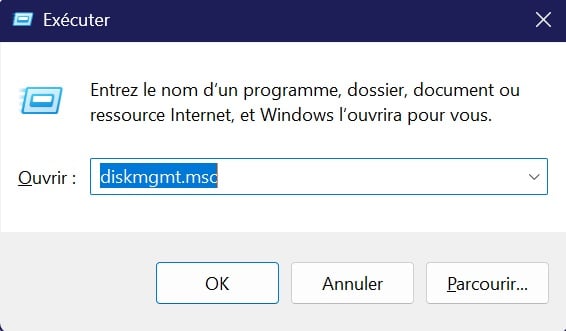
- Check the partition status: Open Disk Management by pressing Win + R then by typing diskmgmt.msc.
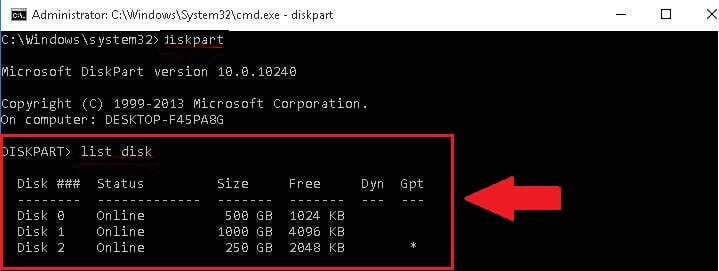
- Then launch DiskPart Press Win + R, type diskpart and press Enter.
- Type list disk and press the Enter key. After that, you will see all the disks on the computer.
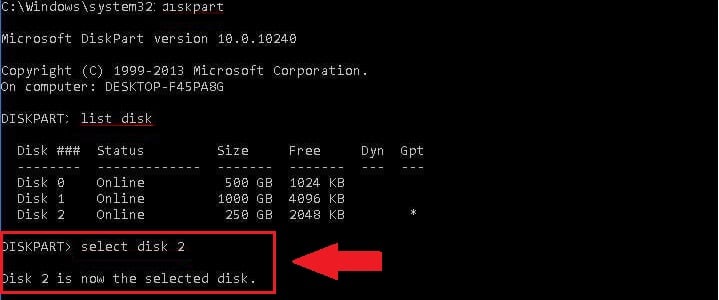
- Type select disk # and press Enter. (Replace # with the number of the hard drive containing the lost partition).
- Type volume list and press Enter.
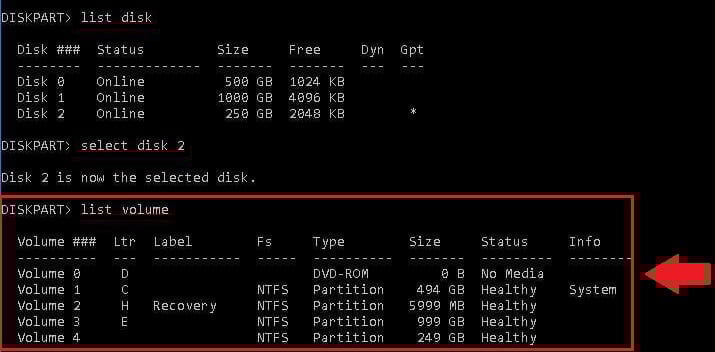
- Type select volume # and press Enter. (Replace # with the number of the lost partition). Then type assign letter=# and press Enter. (Replace # with the letter of the relevant drive).
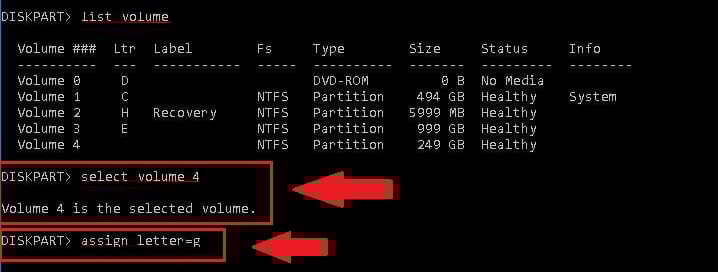
- Close this window and see if you can access this score.
Find out how to Increase your Xbox storage à travers un autre article sur notre site.
2. Use third-party software to recover the partition
Data loss can quickly become a nightmare. Fortunately, there are data recovery software effective in helping us not to get lost.
This is about AOMEI Partition Assistant Professional. And to say the least, it stands out as one of the best for data recovery. But how exactly does it work? It's very simple, just follow these steps :
- Start by downloading and installing the AOMEI Partition Assistant Professional deleted partition recovery software. When you open the software, you will see the main interface of the tool with the information about all your hard drives.

- Then click on the disk where the deleted partition and select the Recover option, then click Partition Recovery in the toolbar.
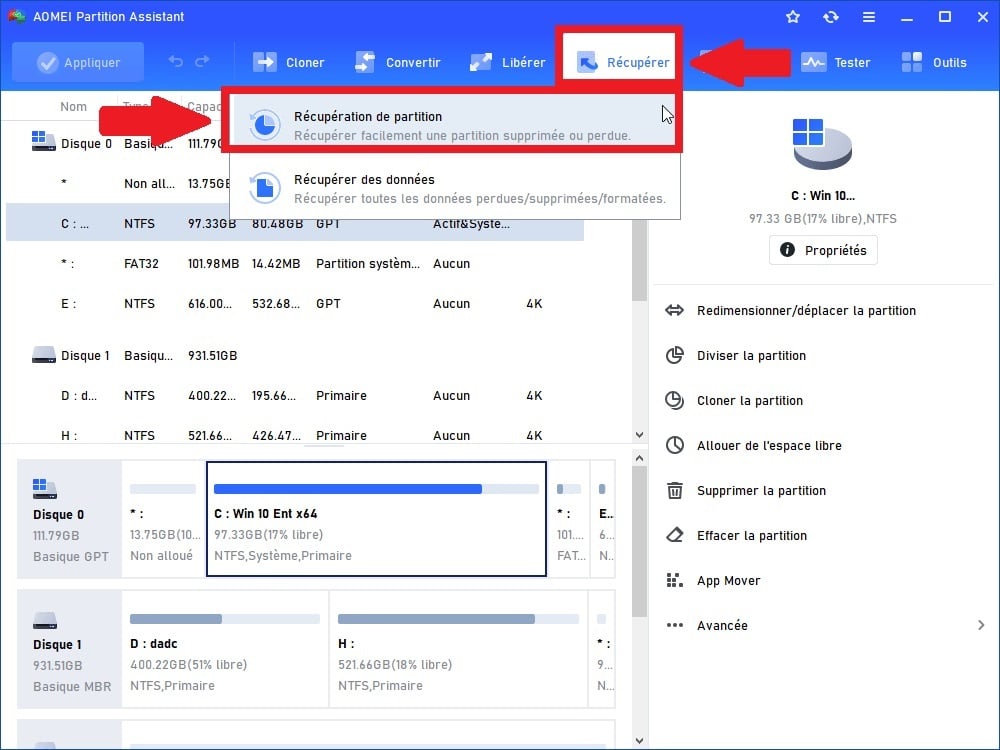
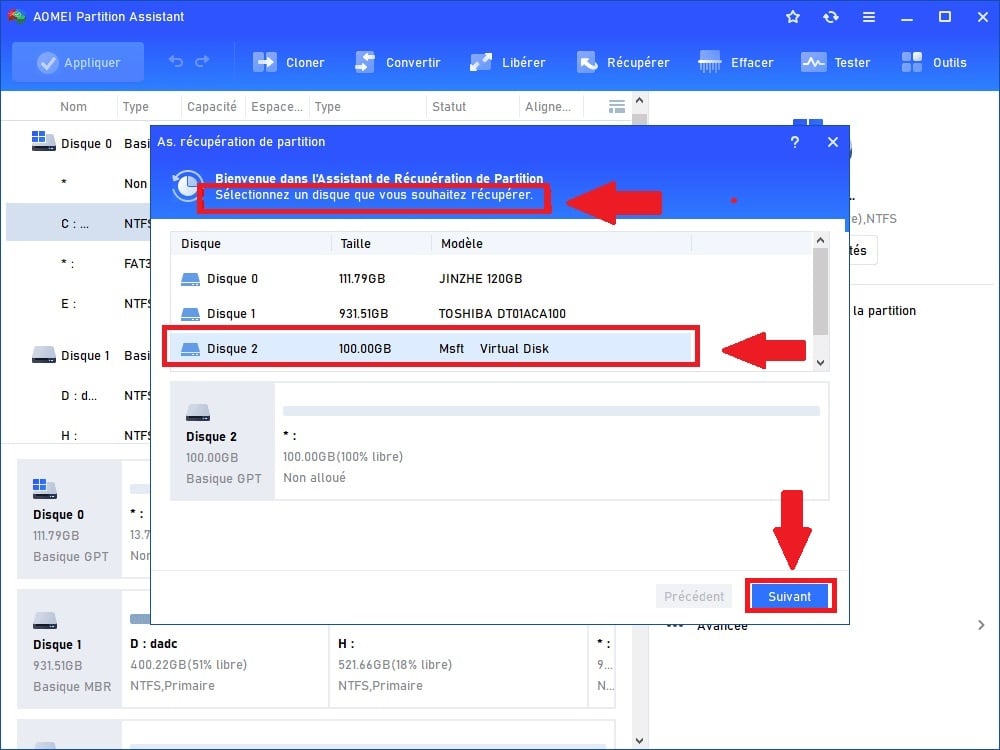
- After this step, choose the disk containing the lost partition and click Next.
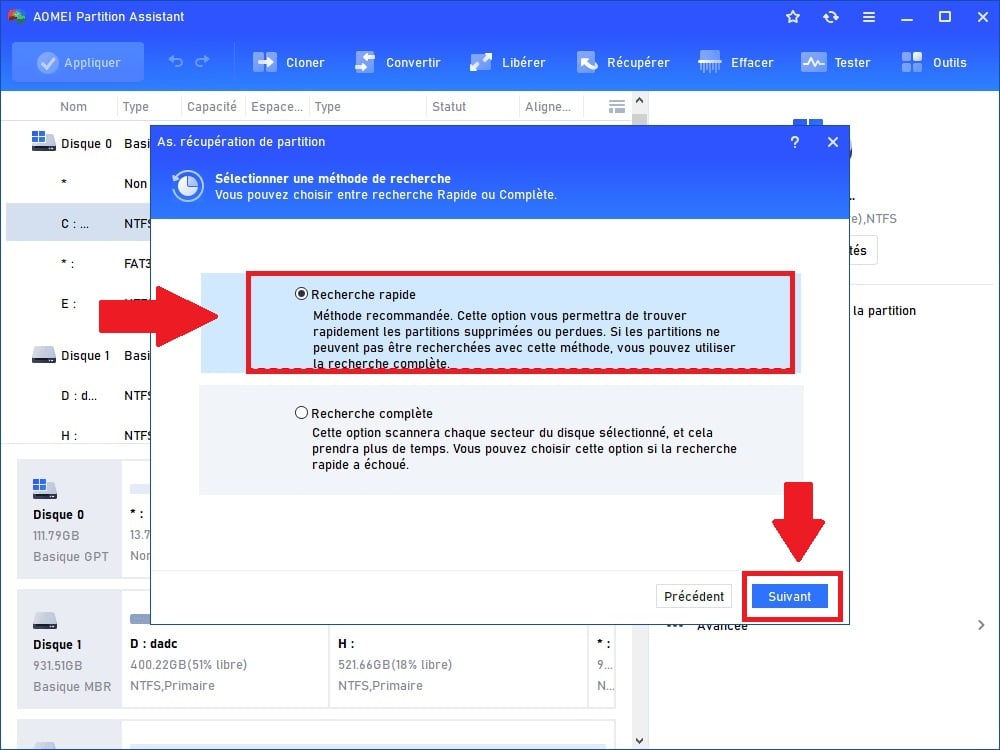
- Select Quick searchThis option is ideal because it takes less time. If it is not present in the missing partition, use Full Search.
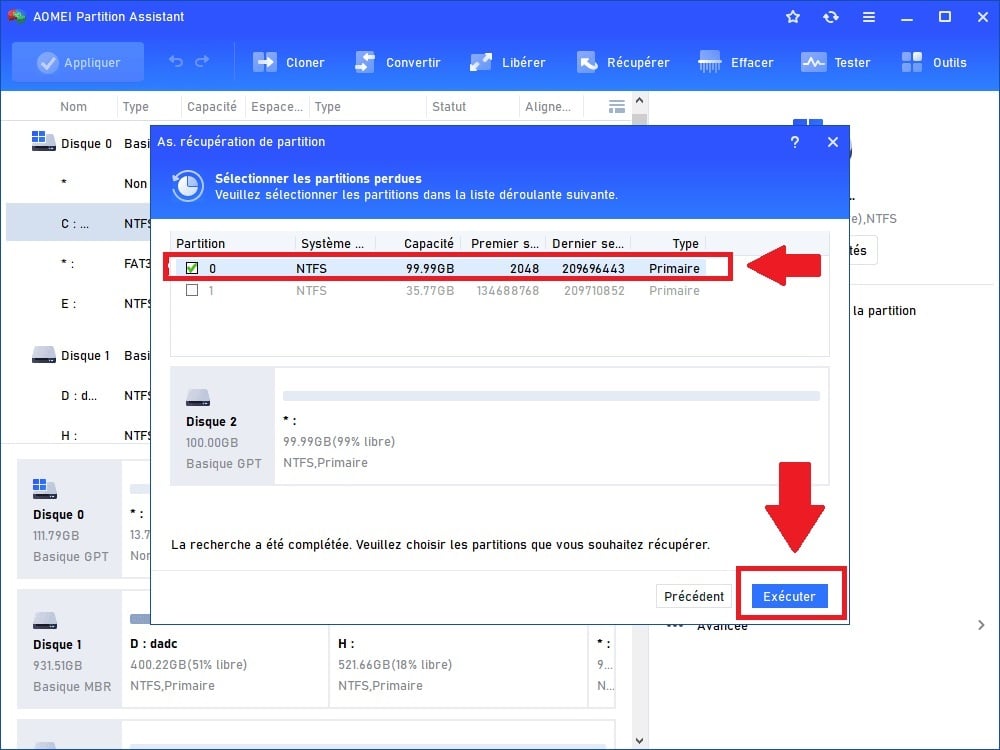
- When you see the lost partition, check it and click Run to retrieve it.
You can beforehand check the files inside of the score by double-clicking on it if you are not sure that this is the deleted partition.
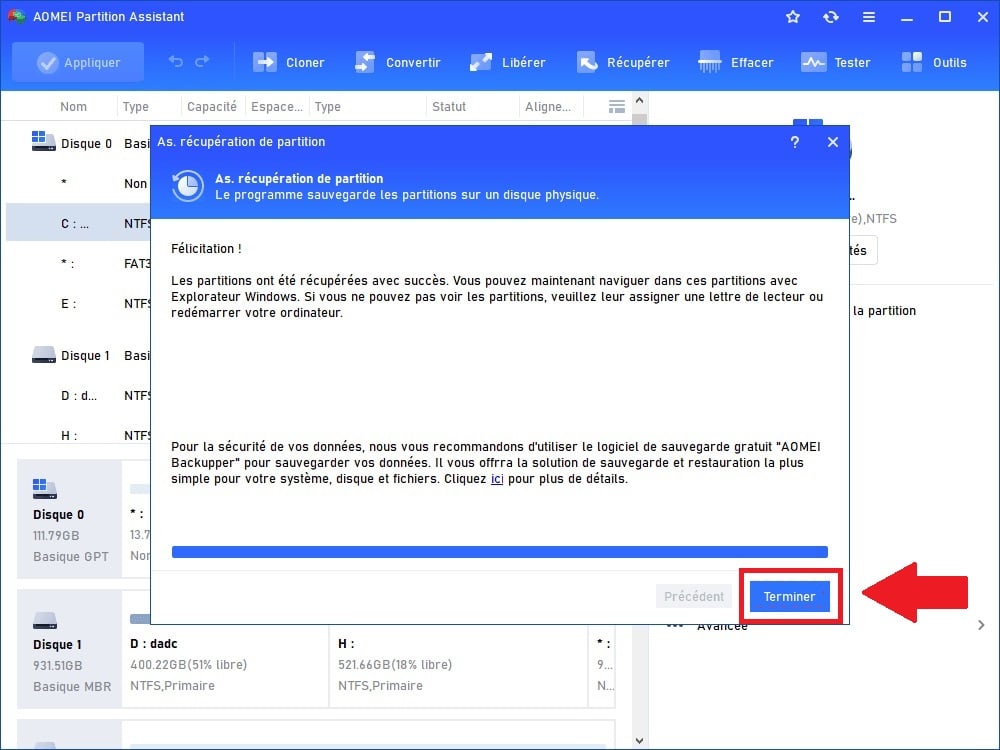
- Press on Finish and you will see your partition deleted in File Explorer.
FAQs
What is a partition on a hard drive?
So, it's very simple. A score refers to each partition of your hard drive, created to organize it into several storage spaces.
- As you can see, a hard drive can therefore be divided into several partitions, each identified by a letter.
- These storage spaces allow, for example, for two operating systems on the same hard drive.
- But that's not all. Indeed, sheet music also allows, above all, for sort data.
In Windows 10, it is also recommended to have a recovery partitionThis will allow you to keep your data, even after a reset.
What happens when a partition is deleted?
If a partition on a hard disk is deleted, the space it occupied will be freed up and become “unallocated”It is possible to use this unallocated space to create a new partition or extend an existing partition.
What could be the causes of a lost partition?
Despite the numerous precautions No matter what precautions you take, there is always a chance of losing your sheet music. Here are the most common reasons for losing sheet music:
| 🧐 Cause of a deleted partition | 📃 Explanation |
|---|---|
| Deleting the partition |
|
| Hard drive problem |
|
| Power failure |
|
| Attacks or viruses on your hard drive |
|
How can you prevent partition loss on a hard drive?
It is always better to prevent problems before they arise. Discover some tips in this table to help you avoid losing your sheet music :
| 🎯 Preventing a partition from being deleted | 📃 Details |
|---|---|
| Always back up your data |
|
| Use reliable partitioning software |
|
| Protect your computer from viruses |
|
| Implement protective measures |
|
| Regularly maintain the hard drive |
|
There you go, now you know how to recover your deleted partitionThanks to our article, you will also be able to prevent this type of problem in the future.
If you need any other similar articles, visit our page Guides & How-To'sYou can also ask your questions in the comments section.








 English