the restricted mode of Youtube filters out videos intended for mature audiences.
It's a handy way to protect a child from inappropriate content or lock down a shared computer, such as one in a library or at a university.
You can turn it on or off in just a few seconds from your profile, at computer as on mobile. If you want to know how to turn Restricted Mode off or on on your devices, the steps below will help you do it quickly.
How do I enable restricted mode on YouTube?
Enable Restricted Mode on a PC
In your computer's browser, start by logging in to your Google account. Make sure you're connected before changing the settings. Then, follow these steps:
- Go to Youtube via the official website.
- Click on your profile photo in the upper-right corner of the screen, as shown in the image below:
- Scroll down to the bottom of the menu and find the line Restricted Mode. Click here:

- Flip the switch so that the restricted mode is enabled.
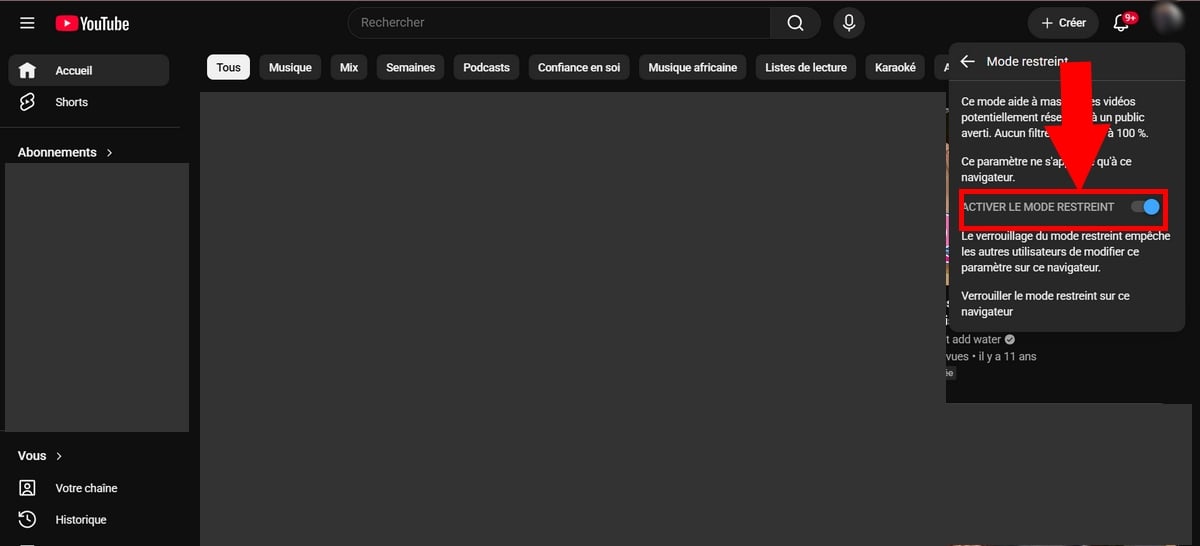
Note that this setting applies only to the browser and to the network used at the time of the change. On another device or network, you will need to repeat the process.
Enable Restricted Mode on mobile (Android and iPhone)
The process is almost identical in the app Youtube, whether you're on Android, iPhone Where iPad :
- Open the app and log in to your Google account.
- Press your profile photothen on Settings.
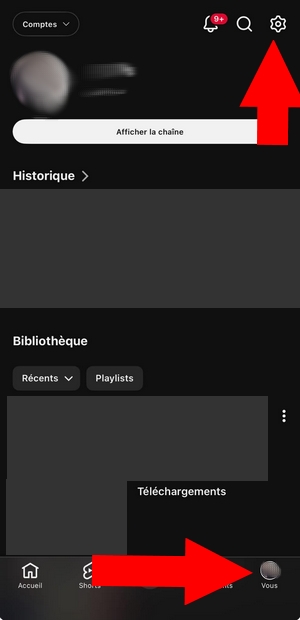
- In Settings, click General Settings
- And finally, enable the Restricted Mode.
The page will reload to apply the restrictions. From that point on, videos deemed inappropriate will be blocked on this device. If you use multiple devices, be sure to repeat this process on each one.
If the problem persists after activation, try clearing the app's cache, then log back into your account.
Turn off restricted mode
To turn off restricted mode, follow the exact same steps. Go back to your profile, open Settings, and find the line Restricted Mode. Flip the switch to disabled and you're done.
If you can't turn off restricted mode, check two things. It may have been enabled by a network administrator (school, company) or via Family Link on a child's account. In this case, you can’t change it yourself—you’ll need to go through a parent or administrator. It’s also helpful to know that this setting is tied to the browser and network: if you’re connected to a filtered network, you won’t be able to disable Restricted Mode from the settings on the user side.
If you want to learn more about the available control options, check out YouTube's official help page: https://support.google.com/youtube/answer/174084, on Restricted Mode.
The Limitations of Restricted Mode
This method is not foolproof. The filtering is based on a automated algorithmic analysis which analyzes video titles, descriptions, and tags.
Community reports and age restrictions are only a secondary measure. As a result, some content slips through the cracks.
If you want stronger protection for a child, it's best to combine restricted mode with a control parental via YouTube Kids or a supervised account. You can also enable the filter SafeSearch on Google to strengthen browser-level protection. This way, you can control which age-appropriate content your child sees, across all your devices.








 English