You have spotted a font Do you like it and want to know what it's called? It all depends on where it is.
If it appears in an image, an infographic, a poster, or a screenshot, tools such as WhatTheFont Where FontSquirrel get the job done in a matter of seconds. If it's on a website, it's best to use the’WhatFont extension Where Your browser's inspector.
We'll go into detail about all of this below.
Font identification on an image
Several online tools directly analyze the content of an image to determine the font used. Here are the two most reliable options.
Use WhatTheFont
- Visit the site WhatTheFont.
- Drag and drop your image in the designated window, or click to Download from your computer.

- Select the text you want to recognize in the image and click “Identify font”.
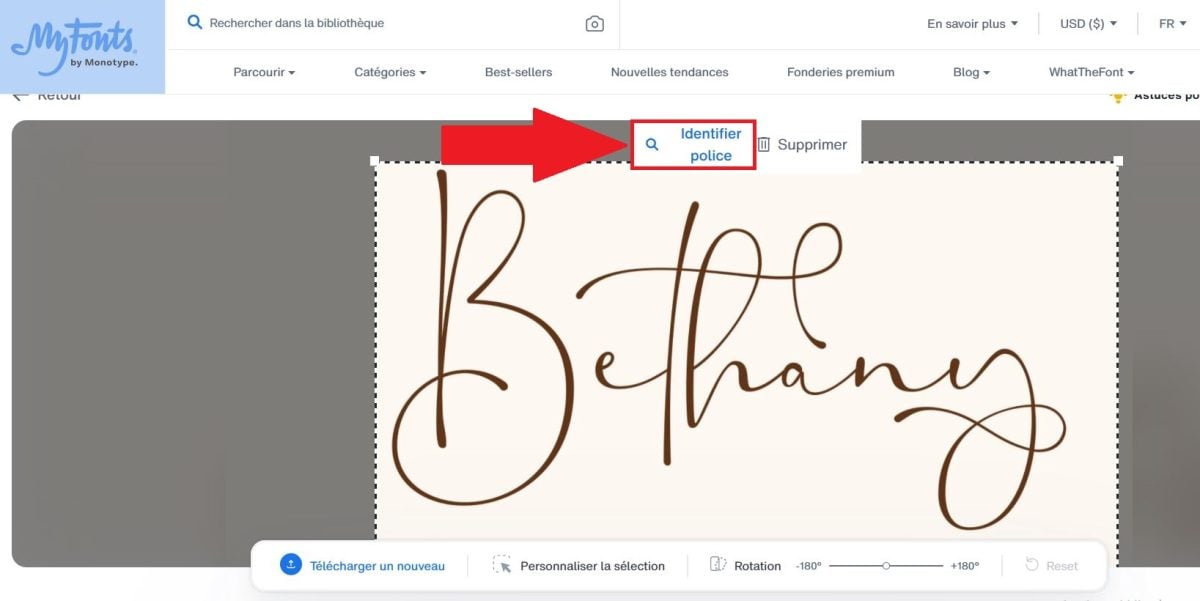
- Validate. Then, the most similar font is displayed, along with several other close matches.

To achieve good results, your image must meet three criteria:
- a good contrast, ideally, dark text on a light background,
- of the letters at least 100 pixels high,
- and characters that do not touch each other.
The file size, on the other hand, doesn't matter at all; it's All that matters is the readability of the text.
If the tool can't find an exact match, it's usually because the font isn't in its database or the image is of poor quality.
Use FontSquirrel
It is also a font identification website, offering nearly all of the most commonly used types, whether traditional or not. It’s the tool Matcherator which is available on this website to identify a font in an image. To use it, simply drag and drop the image containing the text whose font you want to identify.
- Go to FontSquirrel and click on “Font Identifier”.

- Drag Where Upload your image containing the text to be identified.
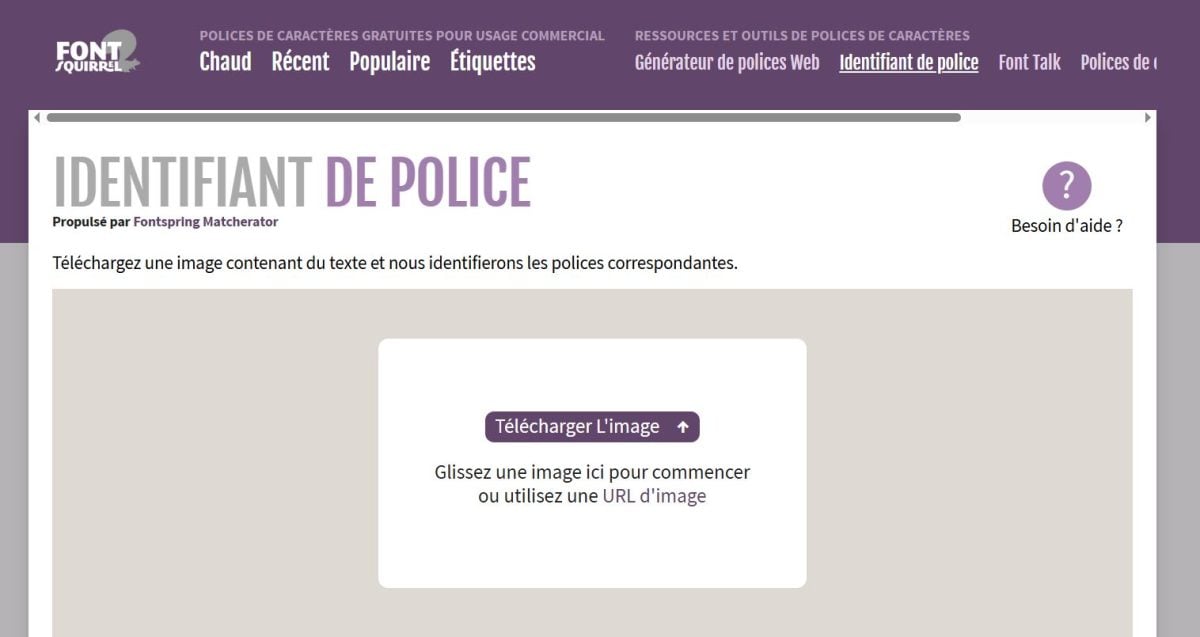
- Let the tool analyze and suggest the corresponding font.
Font recognition on the Internet
Various extensions in your browser also help identify a font found on the Internet. The most popular ones are WhatFont and FontFinder. These two extensions work in much the same way, particularly in that they automatically display the font name when the mouse hovers over some text.
In addition, there is also what is known as “element inspector” that could help you identify typos on the web.
We'll discuss each one in turn in the following paragraphs.
The WhatFont extension
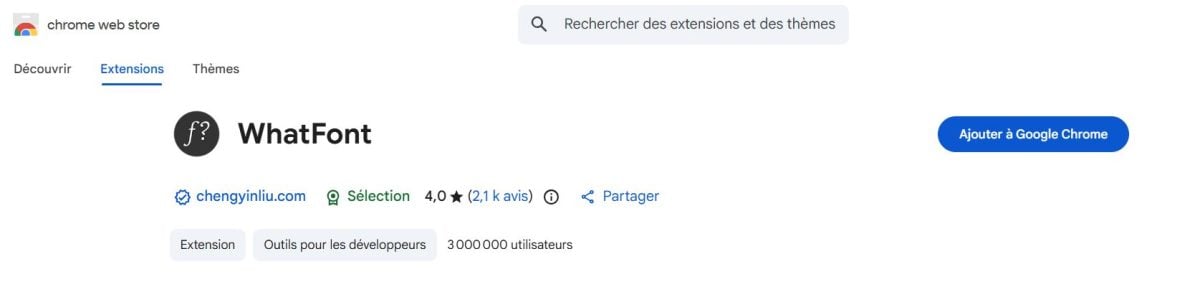
This extension is available for free on the Chrome Web Store. Here's how to identify a font using WhatFont:
- Install the extension from the Chrome Web Store.
- Click on its icon in your browser's toolbar to enable it. You'll see the message “Exit WhatFont” when it is activated.
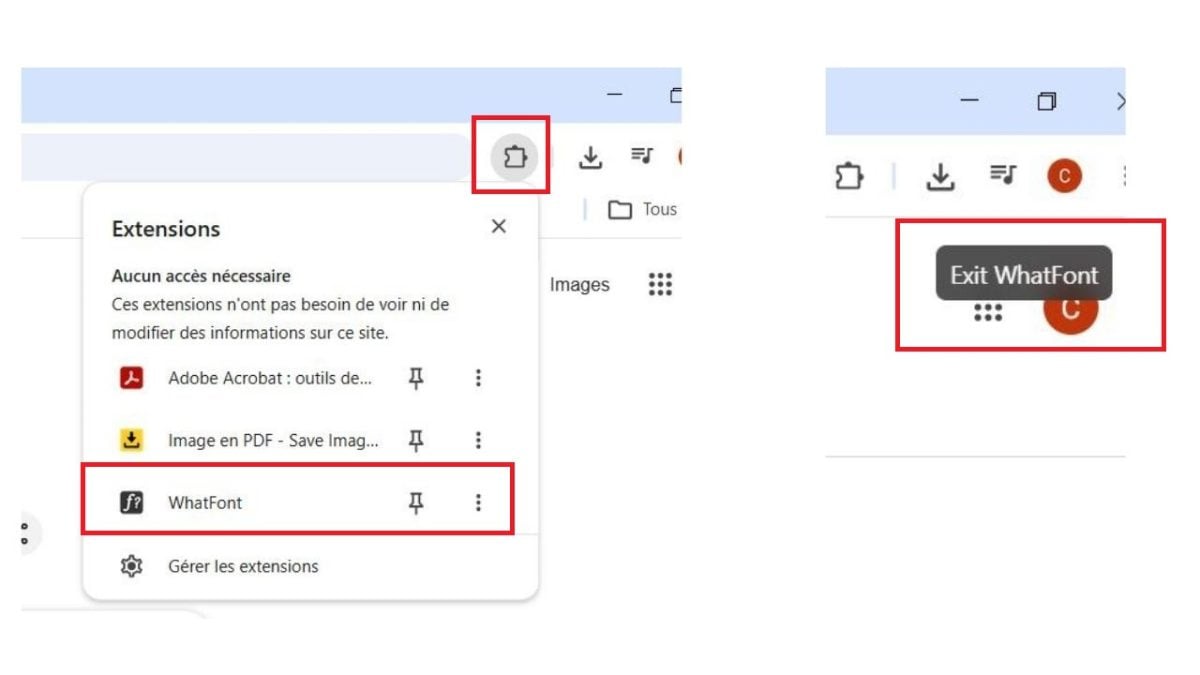
- Go to the website where you found the font, then Hover over the text you want to identify. Click here for all the details.

The name of the police force appears instantly, including its size, line spacing, and hexadecimal color code.
The FontFinder extension
It's available on both the Chrome Web Store and Firefox Add-ons. It goes a step further than WhatFont, since it lets you compare two fonts with each other, find alternatives similar to the one you've identified, and add them directly to your font library.
- Install the extension from the Chrome Web Store or from Firefox Add-ons.
- Click on it icon to turn it on.
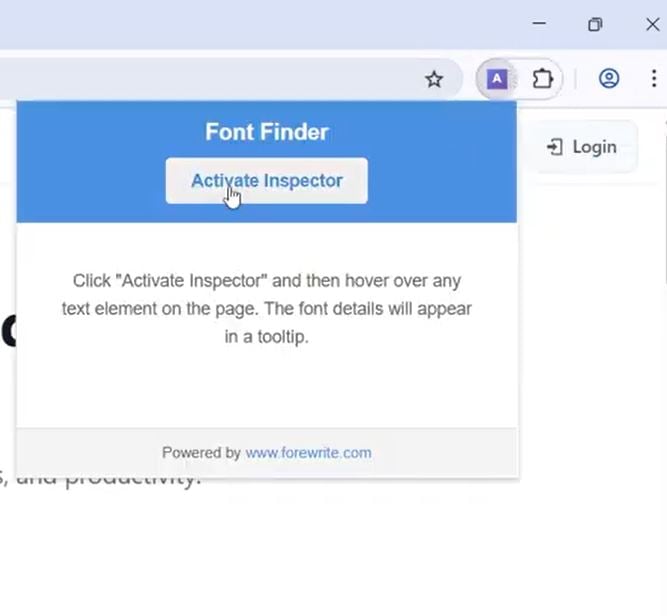
- Hover over any text on the page to see the font.

- Use the comparison tool if you want to compare two fonts.
- Add the fonts you find directly to your font library.
The browser's element inspector
Don't worry, you don't have to You don't need to know how to code to use it. Here's how:
- Press on F12 to open the development tools or click Right-click on the text > Inspect.

- Click on the cursor-shaped icon in the upper-left corner of the panel.

- Now click on the text whose font you want to identify. You'll see the font name right away in the “Font” field.

Otherwise, in the “Styles” column on the right, look for the `font-family` line: the underlined name corresponds to the font actually loaded by the browser.
What should you do if the automated tools didn't find anything?
Automated tools reach their limits when dealing with rare fonts, low-quality images, or custom typefaces. In such cases, two resources work well:
- Identifont allows you to identify a font based on a series of visual clues (letter shapes, the presence of serifs, etc.), even without an image available.
- The r/identifythisfont community on Reddit has several hundred thousand members, including professional type designers. For the most difficult cases, a response usually comes within a few hours.
Now you know how to identify any font, whether it's in an image or on a website. If you want to take it a step further, you can also learn how to remove text from an image using Photoshop.
You can also see how Take a screenshot using the keyboard.







 English